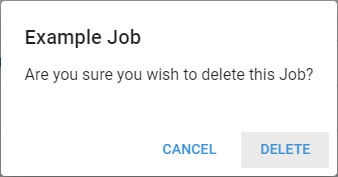
Job Actions overview
Click the ... on the left side of a row on the Job listing page to open the Actions menu, which collects the ways to modify the selected Job.
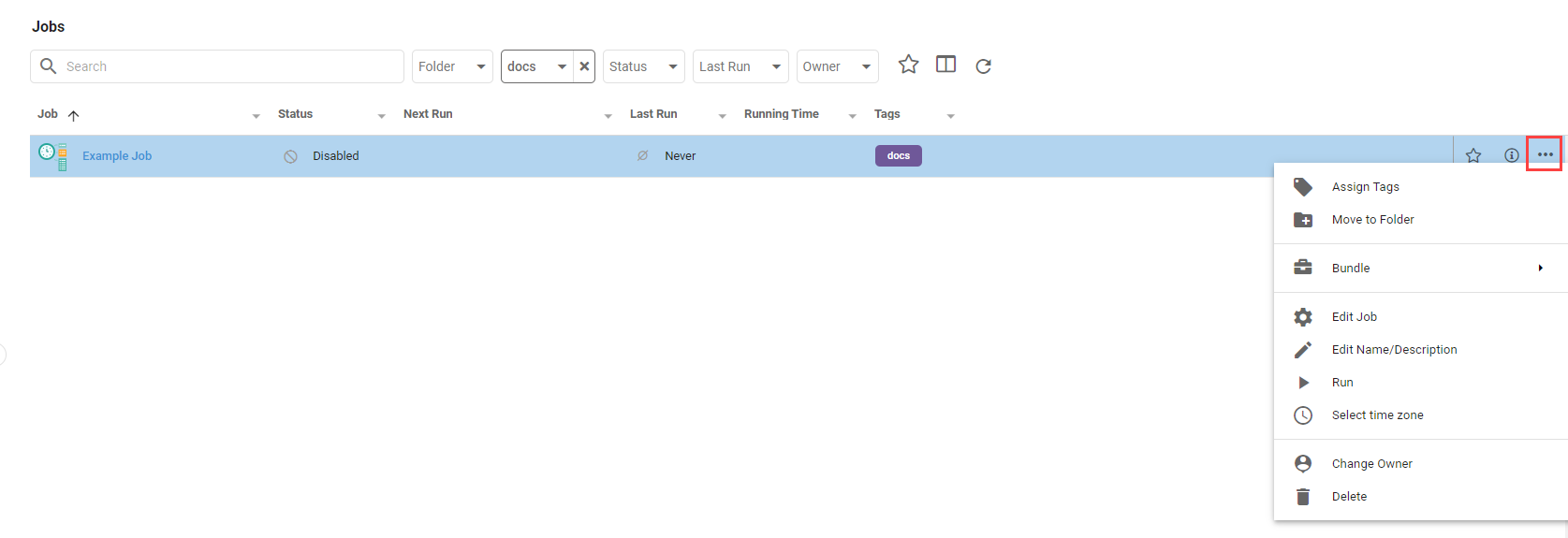
Assign Tags
Assign Tags assigns existing tags to a Job. See Organizing content for more.
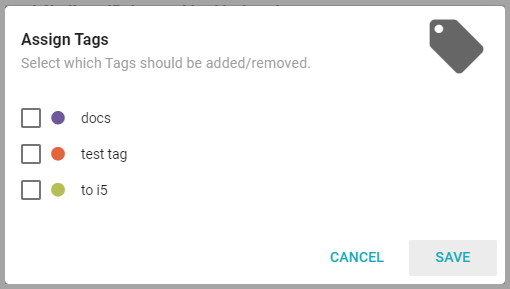
Move to Folder
Move to Folder moves the Job to a new or existing folder.
Bundle
Bundle has options to:
- Add to Bundle: add the selected Job to an existing or new Bundle.
- Bundle and Download: immediately create a Bundle with the Job and download the file.
- Bundle and Deploy to Tenant: export the Job in a Bundle and import it to one or more Tenants.
Edit Job
Edit Job opens the Job's edit page to make changes.
Edit Name/Description
Edit Name/Description changes the Job's name or description.
Run
Run runs the Job. Longer Jobs open a dialog showing that the Job is running and let you run it in the background. A green message appears in the bottom left on success, or a red message with the error on failure.
Select Time Zone
Select Time Zone opens a dialog to change the Job's time zone. This affects the formatting, filters, and aggregations of dates in the Job's output.
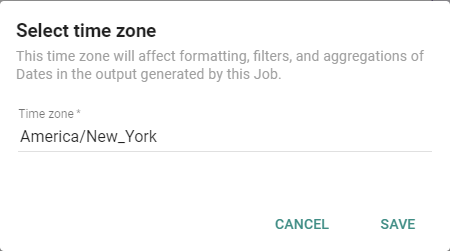
When configuring a Job's time zone, use current IANA time zone identifiers (like America/New_York or Europe/London) or UTC for the most reliable results. Avoid time zone abbreviations (EST, PST), legacy names (US/Eastern, US/Pacific), and custom or regional formats.
Change Owner
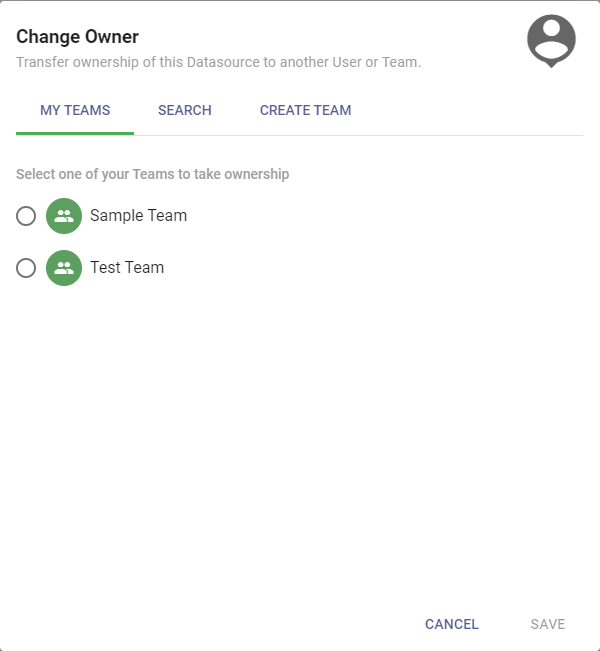
Change Owner opens a dialog to change ownership of the Job to another Team or User.
Delete
Delete opens a dialog that confirms deleting the Job.