Job details page
After you create a Job, add its data components, configure its actions, and save, the Job Details page loads. This page outlines everything the Job does and gives access to a history of each time it has run.
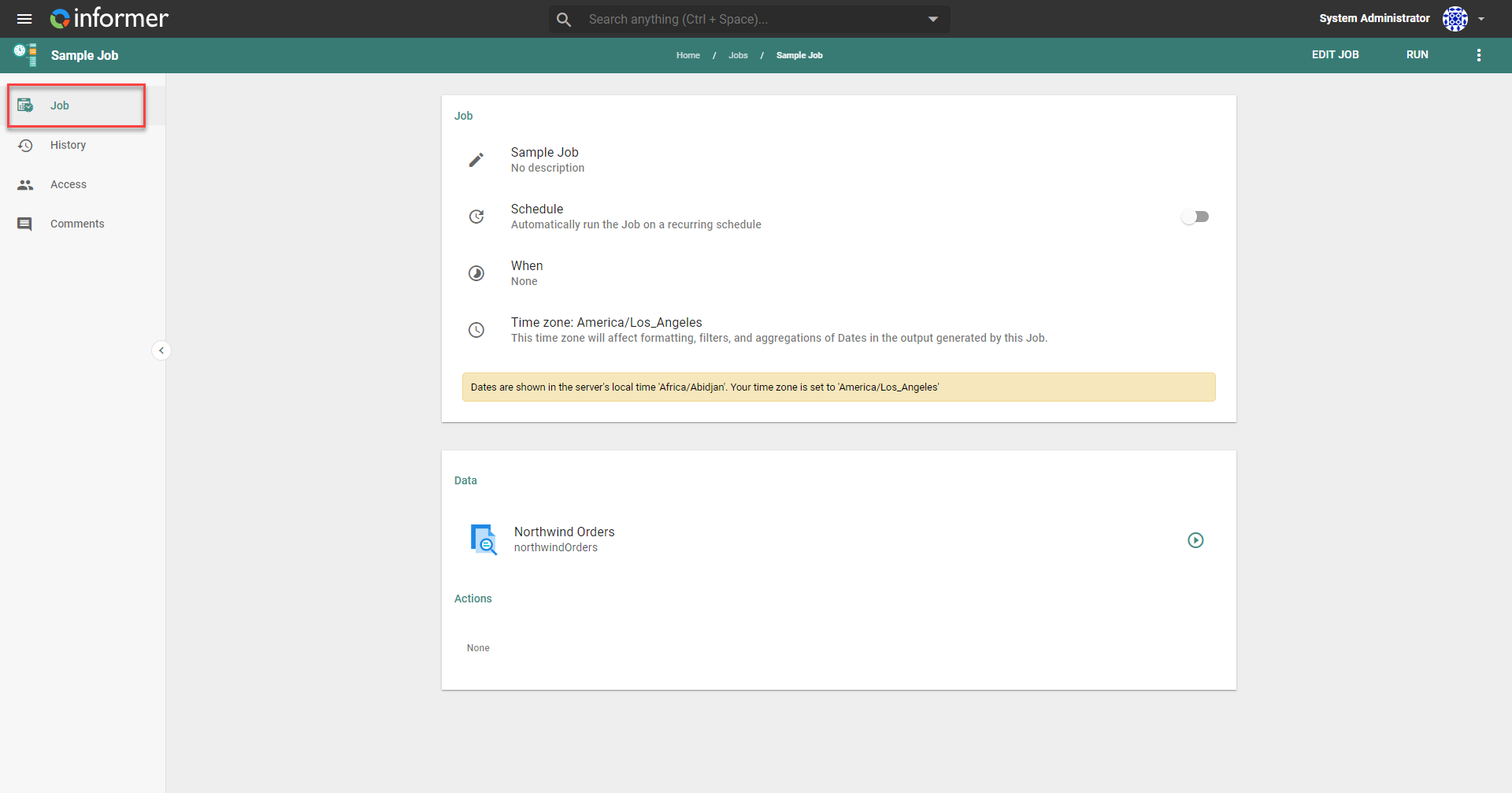
Job
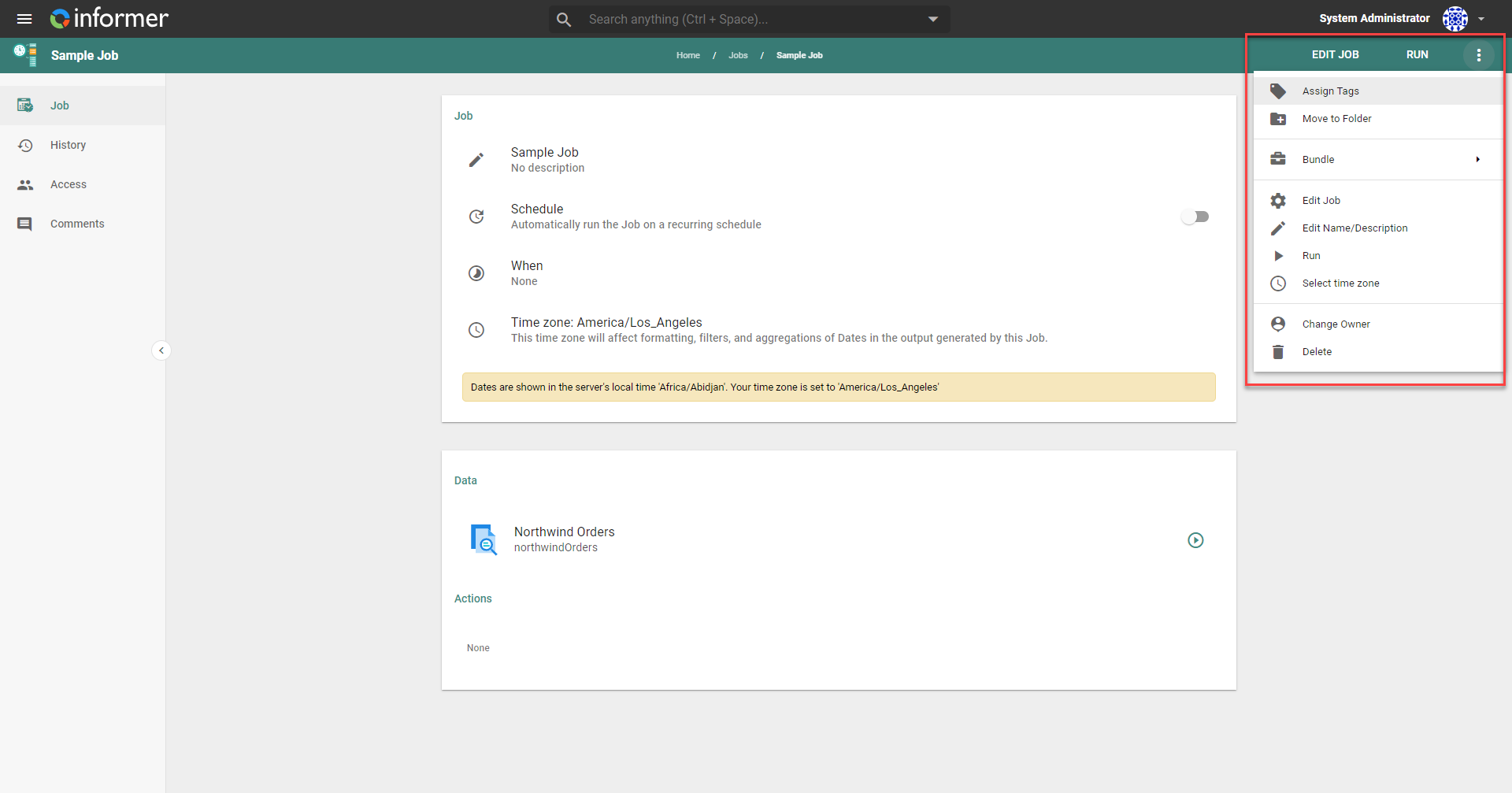
The Edit button returns to the Job's edit page to change its data components and actions. The Run button executes the Job with its current settings.
The Actions menu (the three vertical dots in the top right) provides options to select the execution time zone, edit, run, delete, rename, change the owner, and disable the Job. It also has three Bundle options: Add to Bundle, Bundle and download, and Bundle and deploy to Tenant (the last is only available to the manager Tenant in multi-tenant deployments).
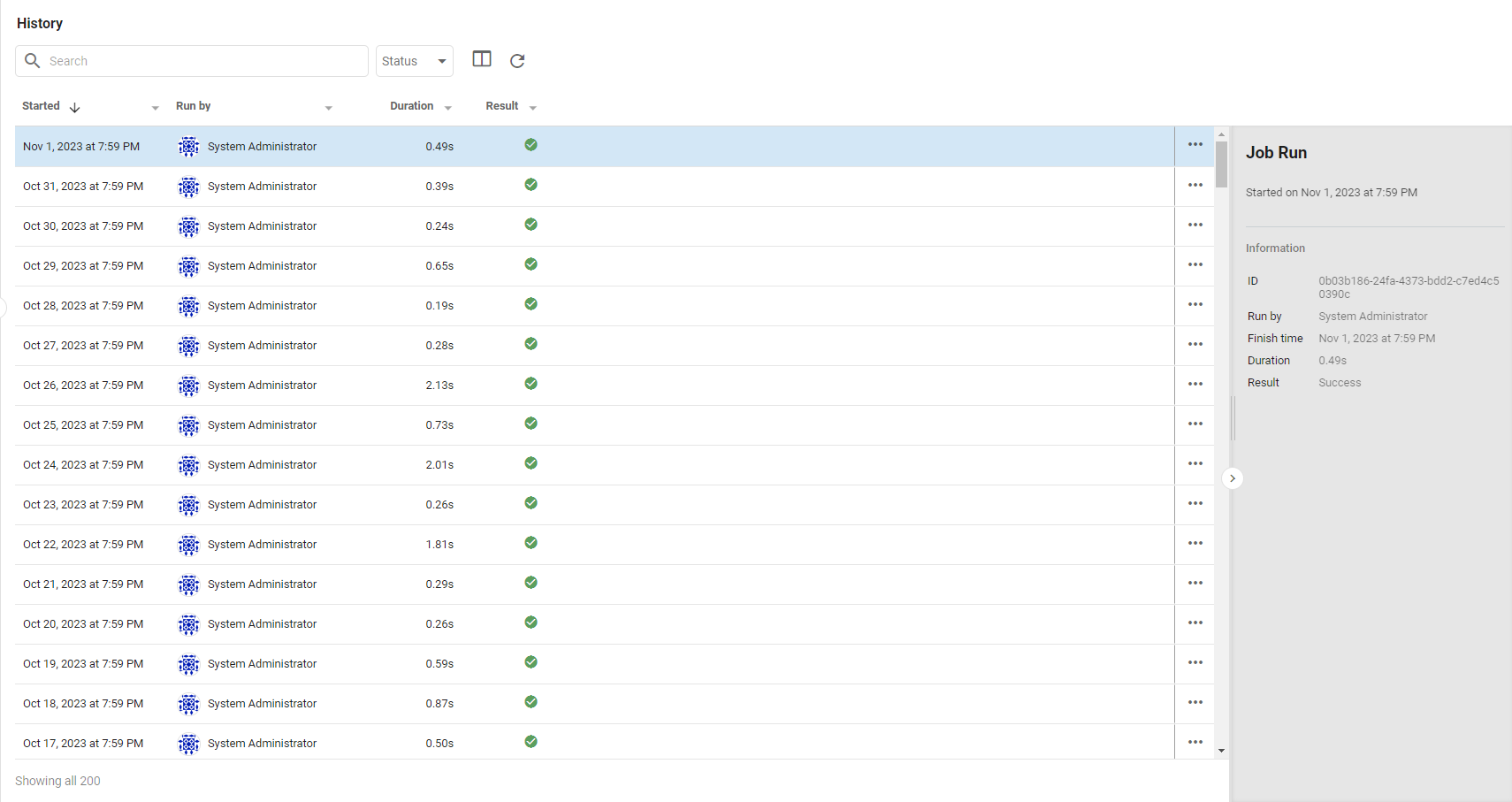
History
The History icon on the left displays historical data about the Job, such as when it has fired, how long each run took, and whether it succeeded.
Access
The Access tab shows who has access to the Job and allows a change of ownership.
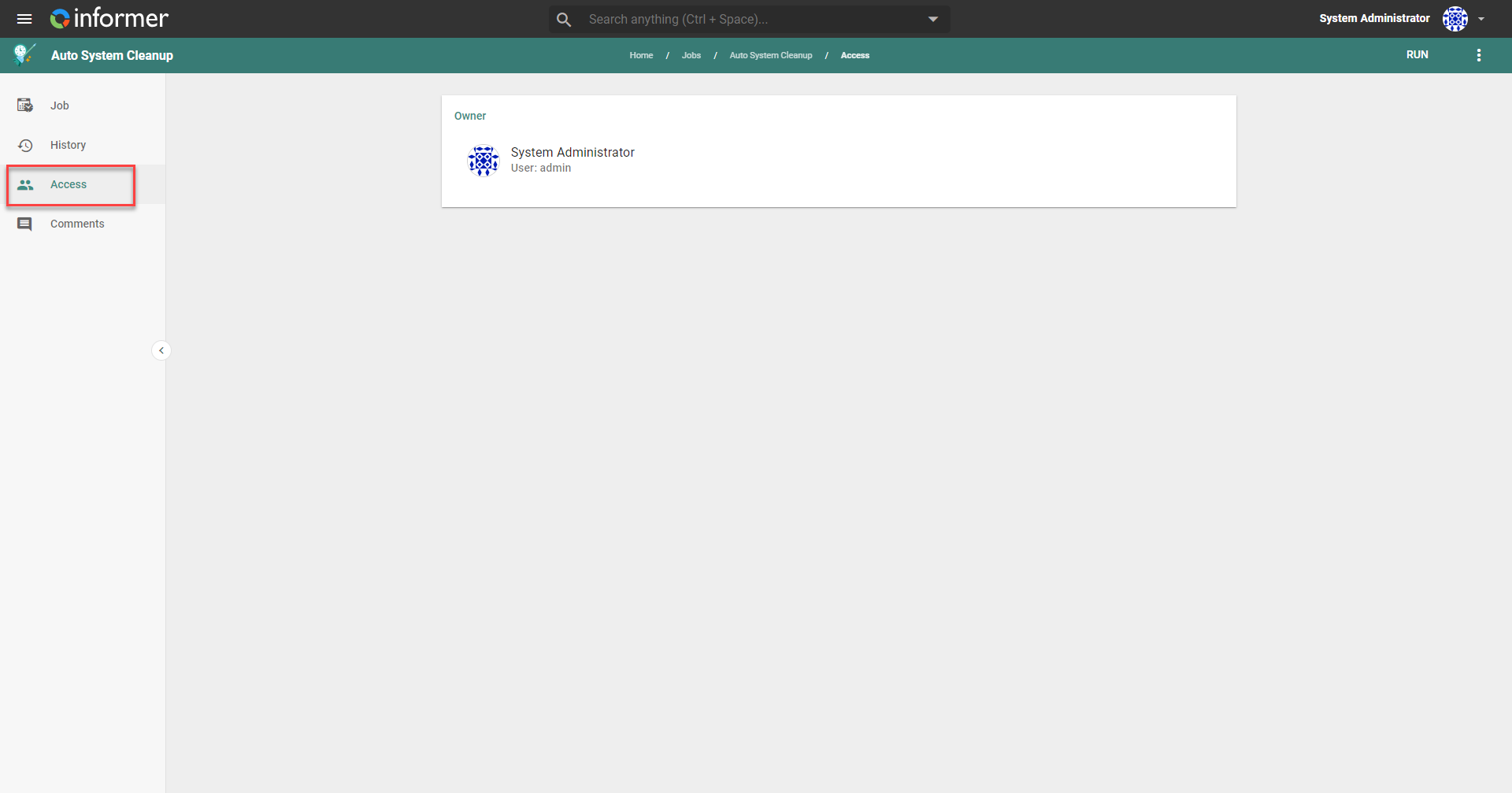
If you change the Job's owner to a different User, you lose access to it. The new owner must have permission to refresh the connected Datasets when the Job runs, or the Job fails.
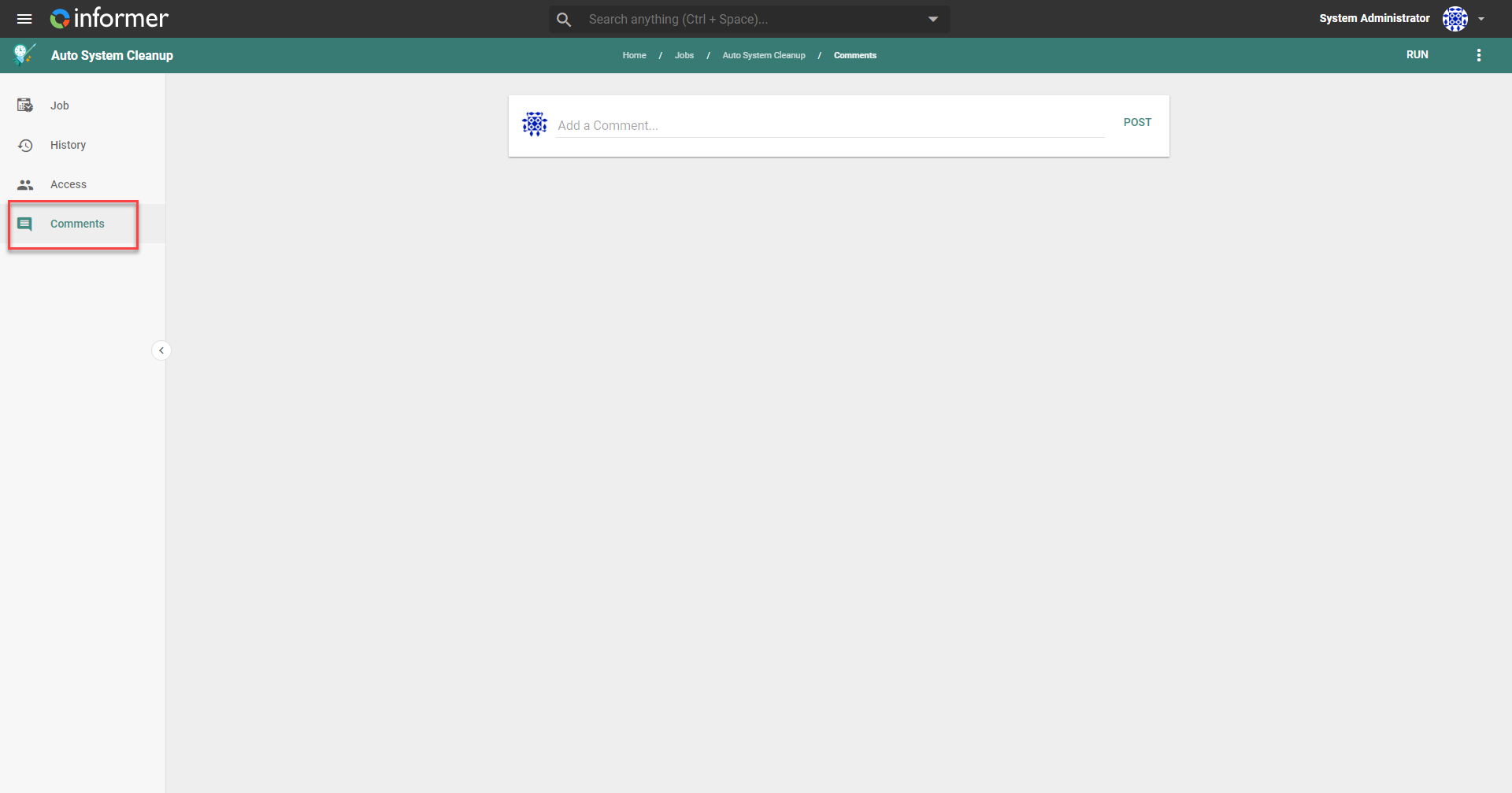
Comments
The Comments tab provides a place to document notes for the Job.