Job listing page
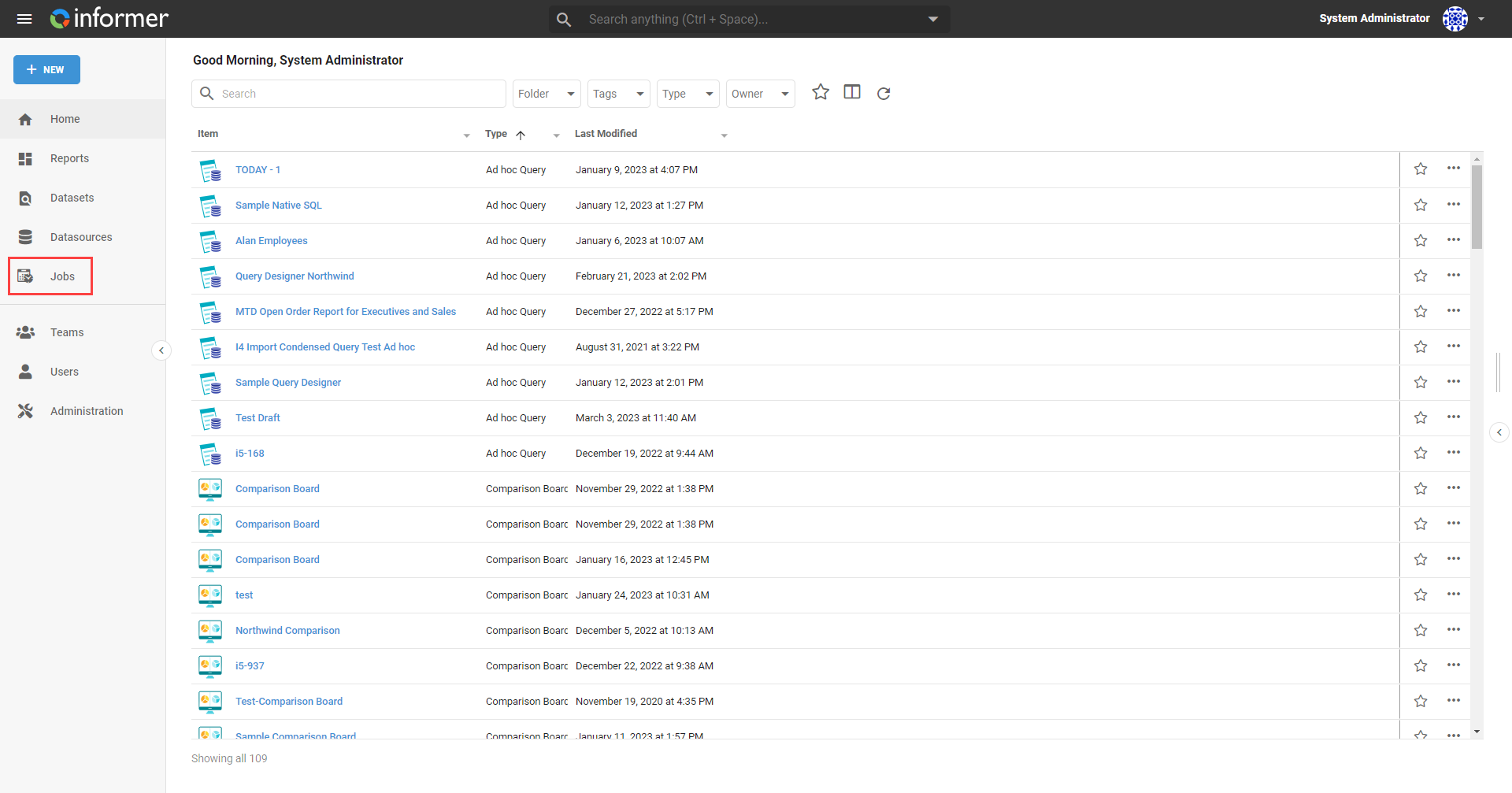
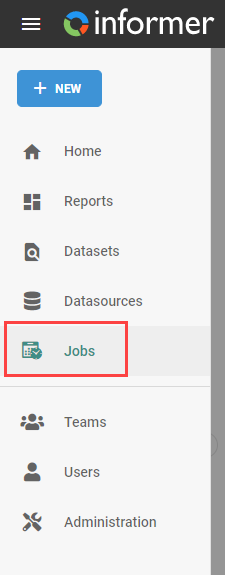
To get to the Jobs section, use the Jobs link on the Home page, or the Jobs link in the navigation bar in the top left.
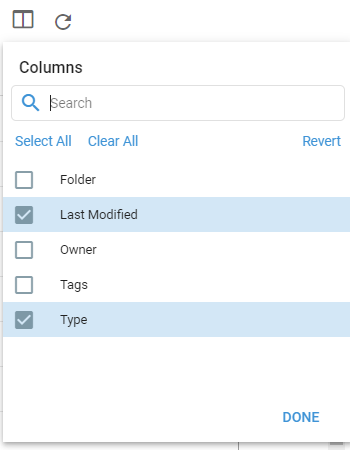
The resulting page lists all the Jobs the current User can access. Use the Choose Columns button to select which columns appear in the table.
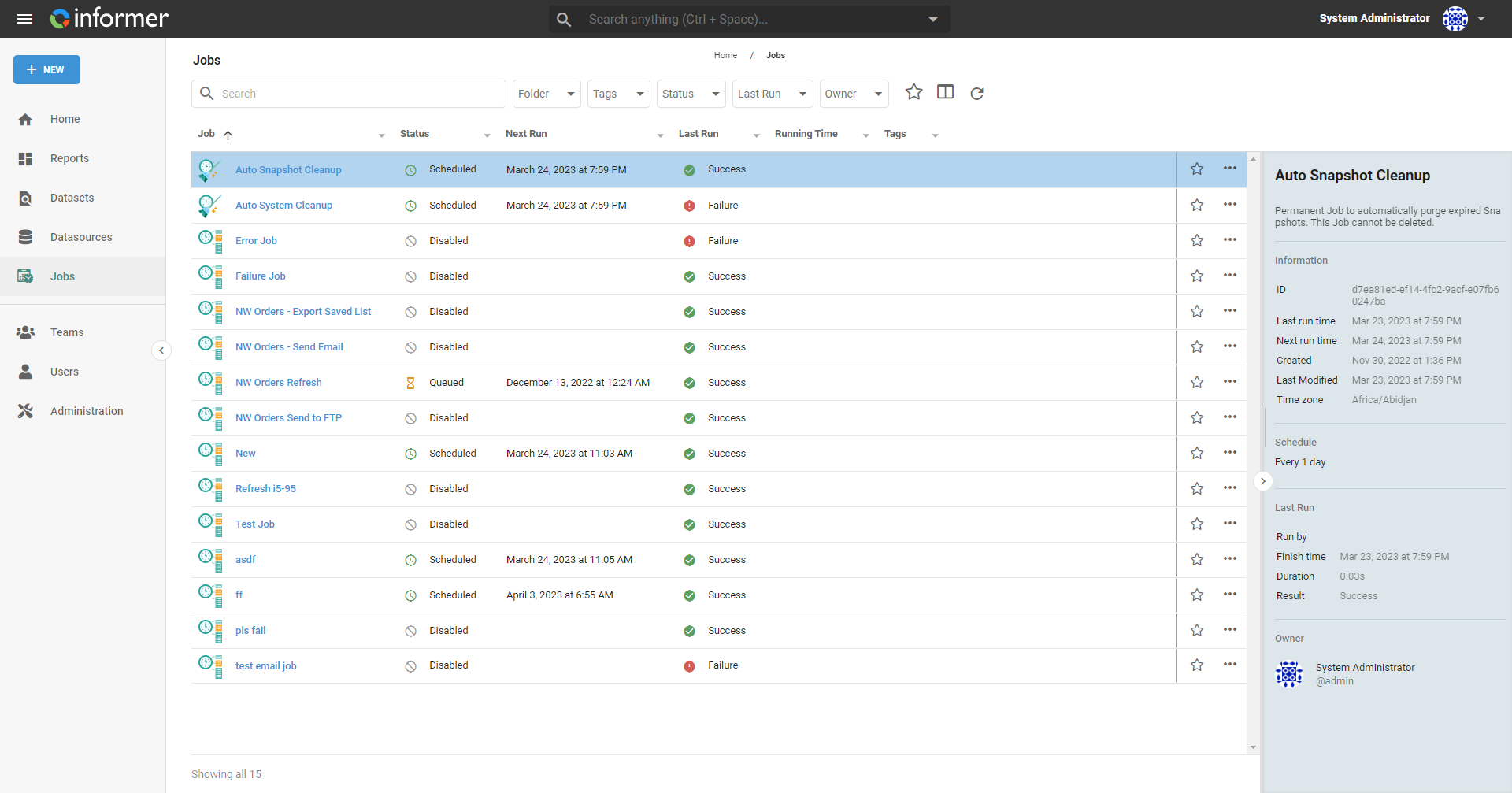
The listing page provides summary information about the Jobs, along with filtering and status options. The search bar at the top filters the list.
The left panel filters on:
- Personal: only the Jobs the current User owns.
- Tenants: filter by which Tenant the Job came from. This appears only for Super Users in multi-tenant systems.
- Successes: Jobs that ran successfully.
- Warnings: Jobs that partially failed some actions or returned warnings in the log.
- Failures: Jobs that failed all their actions, including refreshing data.
- Disabled: Jobs with no recurrence schedule.
- Queued: Jobs waiting for other Jobs to finish before starting.
- Scheduled: Jobs with a schedule that are not queued or running.
- Running: Jobs currently running.
The right panel shows when the selected Job last ran, when it runs next, when it was created and last modified, its recurrence schedule, who ran it last, who owns it, and the duration of its last run.
Also available through the REST API
Everything on this page is built on Informer's public REST API, the same one the product uses, so your scripts and integrations can do it too. Developer reference: Jobs.