Interacting with Informer Assistants
This article covers the essentials of interacting with an Assistant: starting over, enabling Debug mode, and bringing other Assistants into a conversation.
In 2026.1, chatting with an Assistant happens in the new React chat experience in Informer GO. See Chatting with Informer for the full chat surface, and Giving a chat context for bringing an Assistant into a conversation. This page describes the classic web client's Assistant chat.
Basic features
While using an Assistant, two actions are available:
- Start Over: Restarts the conversation. Click the counter-clockwise arrow next to the message bar to clear all entries and return to the Assistant's default start. There is no way to retrieve a conversation after starting over.
- Debug: Enables Debug mode to explain how the Assistant generates its conversation.

Debug
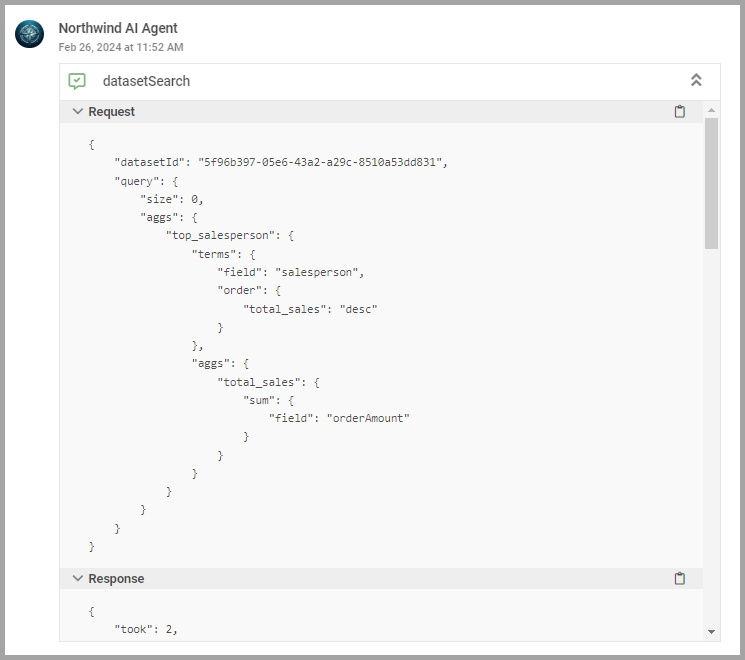
Debug mode helps troubleshoot conversations that have run into problems. Enable it with the Turn on debug option under the message bar. Once enabled, a dropdown showing the function the Assistant used is added to each response. Open the dropdown to see the detailed request and response. These low-level messages are omitted by default because they are distracting, but they are useful when diagnosing why an Assistant gave an incorrect answer or took longer than expected.
Multi-Assistant conversations
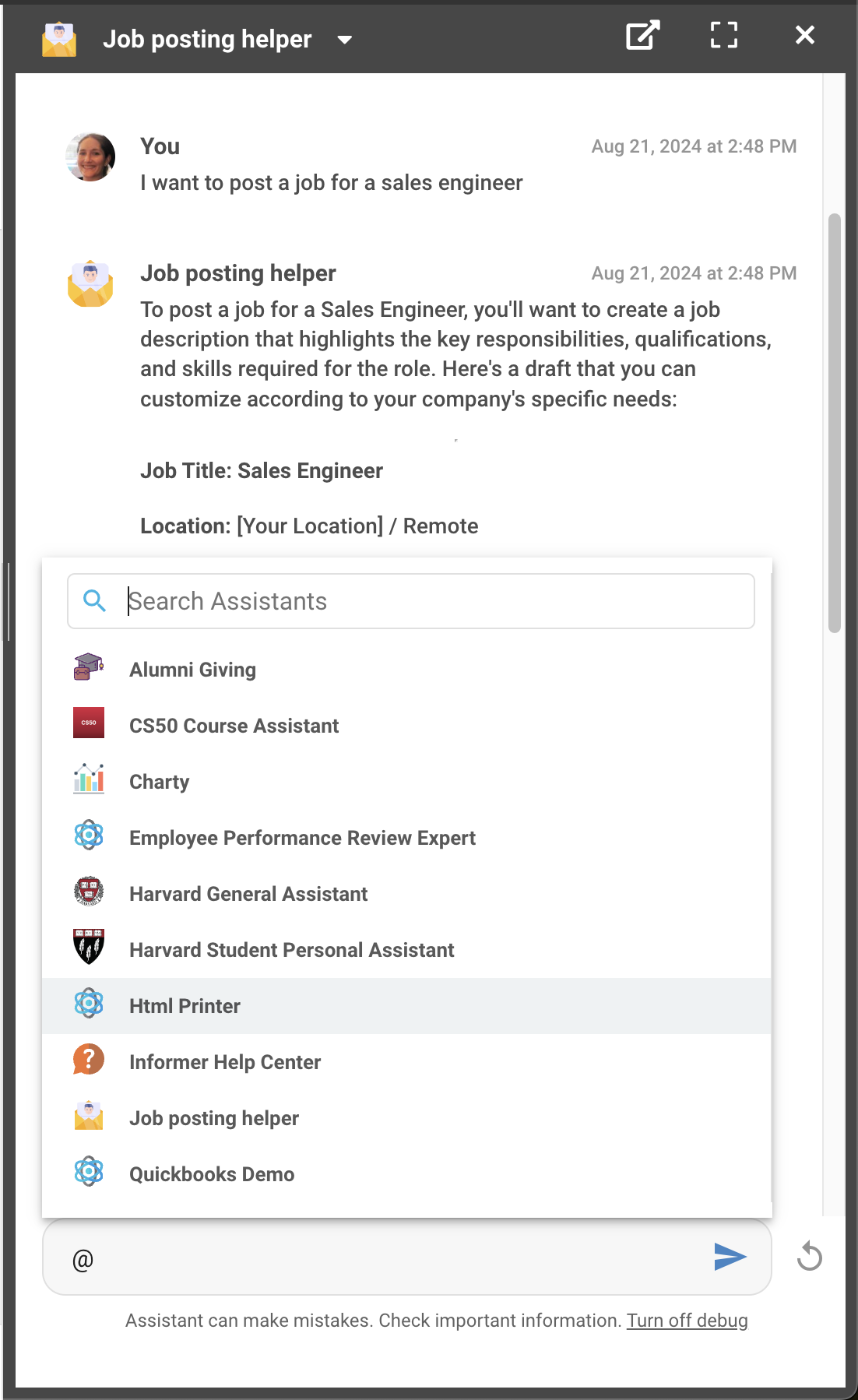
Every Assistant you have access to can be brought into a single conversation. Type the @ symbol in the text box to see a popup of available Assistants, with a search bar to quickly find one. Clicking the X in the box above the input switches the target Assistant back to the base one. To switch the base conversation to another Assistant entirely, use the dropdown in the top-left of the conversation.