Assistant Access
You can share an Assistant with other Users and Teams, or externally via a link. Click the Assistant's Actions menu, select Share, and choose how to share it.
- Add Shares to Users/Teams: Select the Teams and Users to give access to the Assistant.
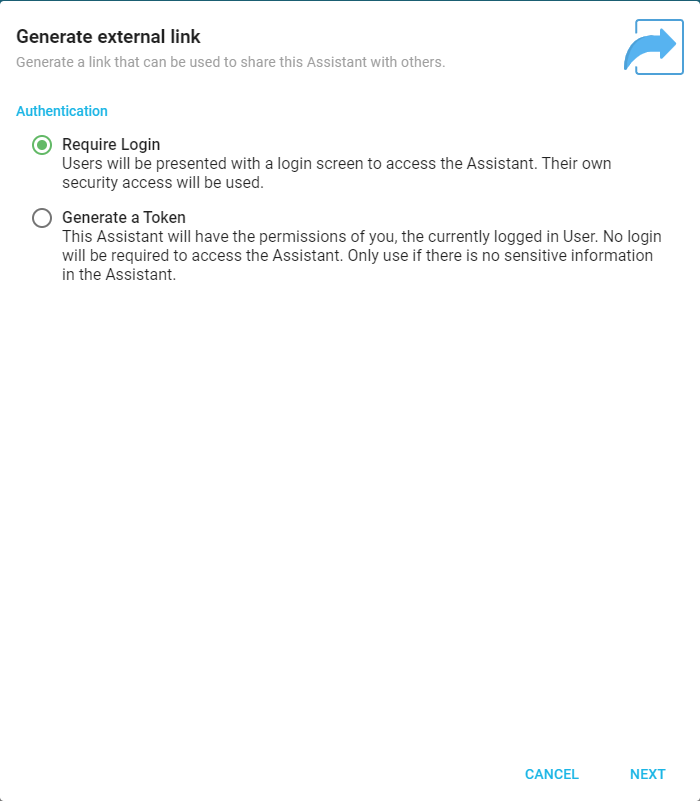
- Generate external link: Generate a link to share the Assistant with people outside Informer. Choose an authentication method:
- Require Login: The link presents a login screen, so Users access the Assistant under their own security.
- Generate a Token: The Assistant runs with the permissions of the current User, and no login is required. Use this method only if the Assistant contains no sensitive information.
If you choose Generate a Token, the next page lets you restrict the token's access and add notes. Informer then generates the link, which you can customize before saving: choose a theme (light, dark, or none), or switch between sharing a link and embedding the Assistant on a website. Informer also generates a QR code you can save and share.
After sharing, view and revoke access from the Access page. Local Access shows the Users and Teams that can access the Assistant; the External Access tab lists active links with columns for when each was last used and how many times. Use the ... action menu to revoke a link.
Note: If Assistants are disabled (see AI Features) or unlicensed, attempts to access an Assistant via a /chat link display a warning, and Users cannot chat with any Assistant.