What are Informer Assistants?
Informer Assistants are AI-powered tools that help you complete specific tasks faster and with greater precision. Each Assistant is a specialized AI, tailored to help with one thing, whether that's answering common questions, working with a Dataset, or automating a process.
What sets Informer's Assistants apart is how deeply they integrate with your organization's data. Unlike a general chatbot, an Assistant can access your Datasets (under the same security as the User), so it provides accurate, context-aware answers. With Skills, it can also run Reports, generate PDFs, and connect to external services. Each Assistant is like a subject-matter expert in your virtual toolkit: one might help with financial reporting, another with generating documents, another with alumni communications.
How to use Assistants
When interacting with an Assistant, be clear and specific about your request. State exactly what you need, and if the request involves multiple steps, break them down one at a time. Some tips:
- Be specific with requests: The more detail you provide, the better the Assistant understands your needs.
- Sequential tasks: Break complex tasks into smaller, sequential steps.
- Provide context: If a request relates to a previous interaction, providing that context helps the Assistant respond appropriately.
- Explore different tools: Assistants have various tools, such as searching Datasets, rendering UI components, and searching files. If you are unsure which to use, ask the Assistant for suggestions.
- Feedback and clarification: Ask the Assistant to clarify if a response is unclear or unsatisfactory.
The power of collaboration: Assistant switching
With Assistant Switching, Assistants work together across tasks. You no longer need to exit a session with one Assistant to engage another: bring them into the conversation. For example, while a "PDF Printer" Assistant formats a document, you might consult a "Campus Rules Expert" Assistant for specific regulations to include, switching smoothly between the two so each contributes its expertise.
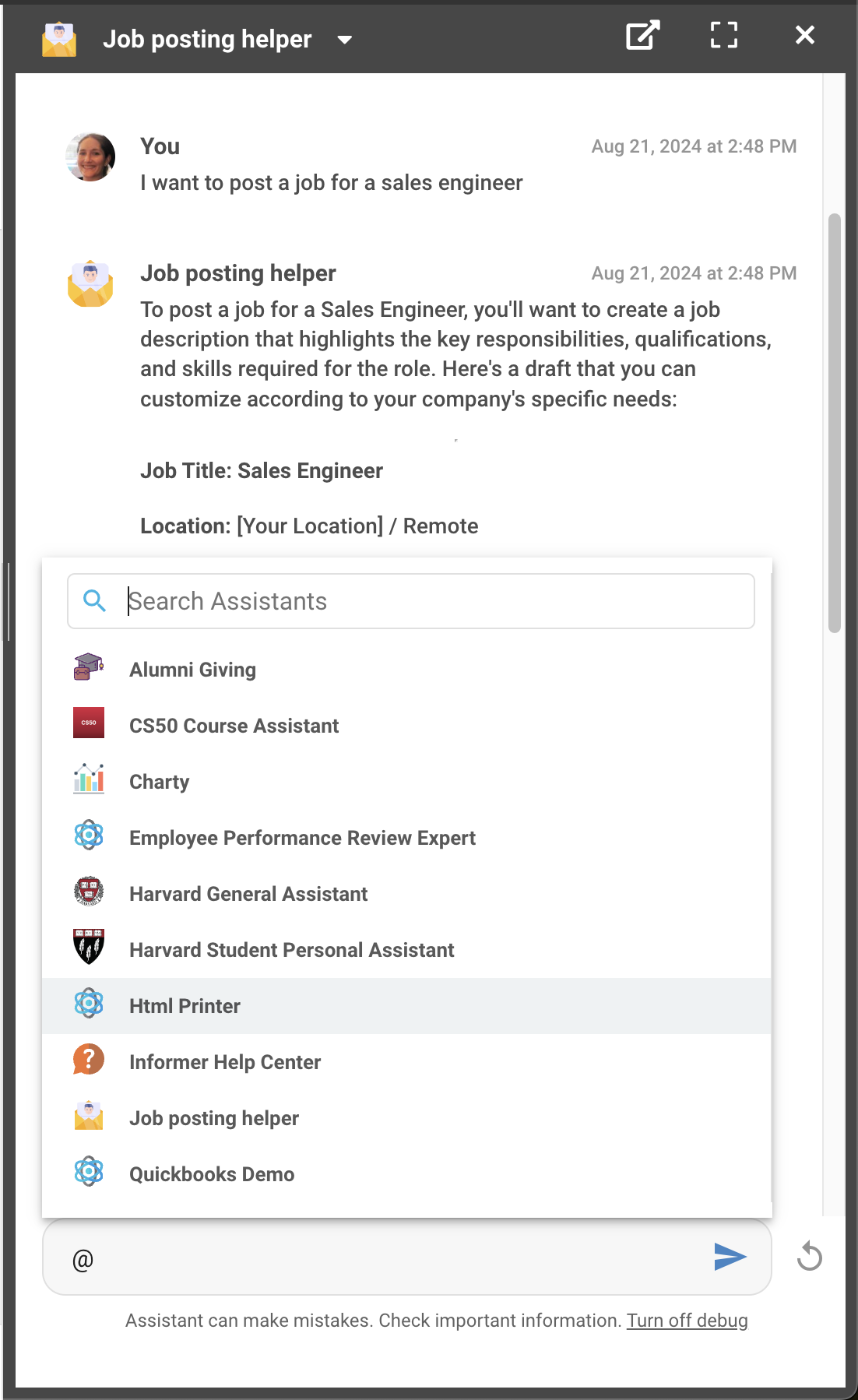
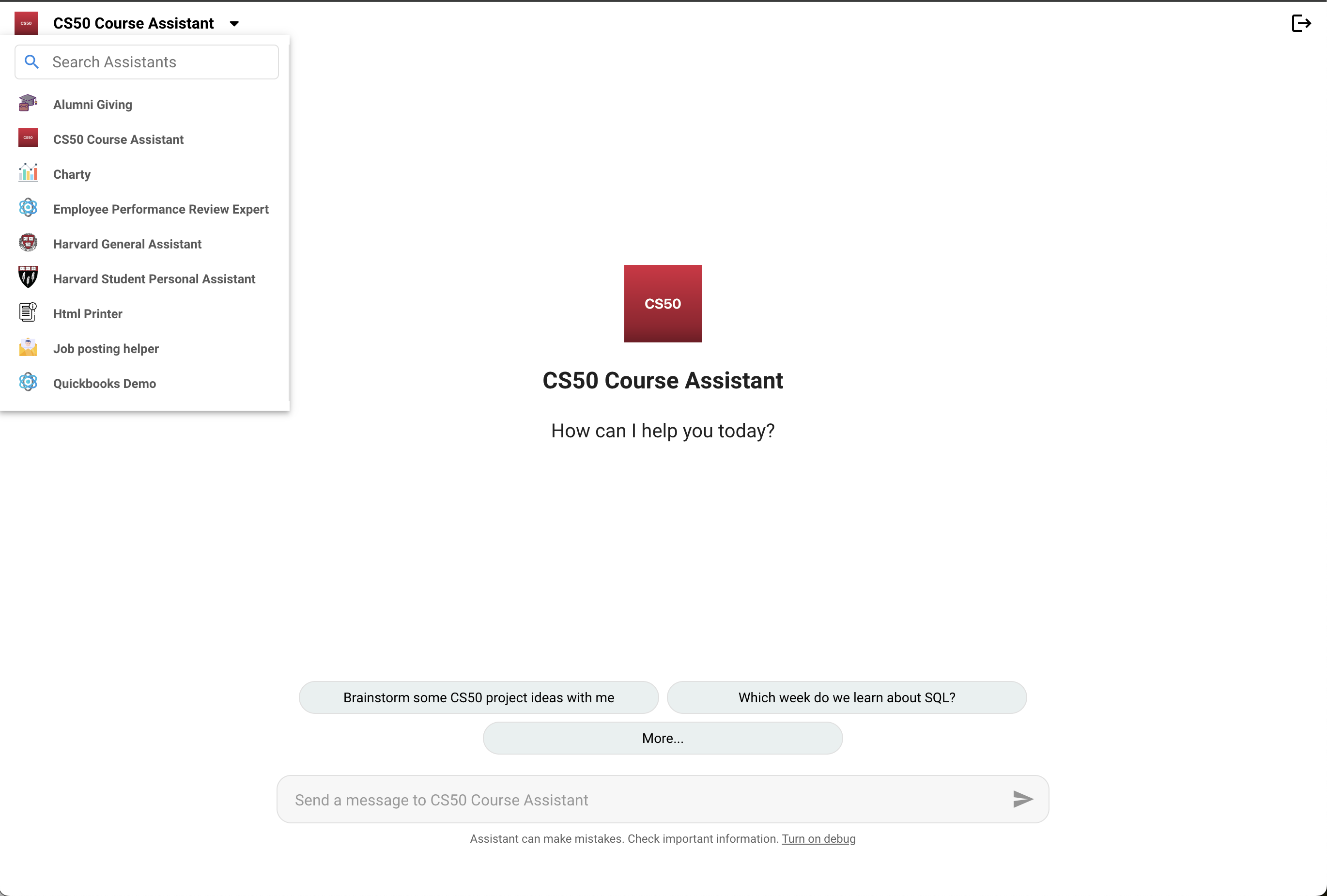
You can also switch between Assistants at the top level for multiple conversations by clicking the dropdown in the top-left of the toolbar.
Example Assistants
Below are examples of Assistants and how to customize them.
Student Assistant
A Student Assistant answers questions about school policies, schedules, and transcripts. Most important is ensuring it has access to the student's data: click the + next to the Knowledge section and select the data (grades or schedule), whether stored in Datasets or an uploaded file like a student handbook. For transcripts, click the + next to Skills, select Print Template, name the Skill, and choose a Template. Then add guidance in the Instructions to direct the Assistant to use the Template, for example: use the transcript_template when a User requests a transcript.
Tutor Assistant
A Tutor Assistant has access to assignments but is instructed not to give the answers. Click the + next to Knowledge and upload the files, then add Instructions describing how the Assistant should answer, for example: when answering questions about the homework_file, assist the User but do not give the answers; use the syllabus_file for general class and schedule questions.
Corporate Assistant
A Corporate Assistant has access to an employee handbook and answers questions about policies. Click the + next to Knowledge and upload the handbook.
Data Assistant
A Data Assistant connects to several Datasets and answers questions about the data. Click the + next to Knowledge and add the desired Datasets. Click the + next to Skills and select Highcharts to give the Assistant the ability to create Highchart Visuals on the fly, making it easier to find trends and meaning.