Touring the app
Informer GO is organized around three tabs: Home, Apps, and Chats. On desktop and in the browser they sit in the top navigation; on mobile, swipe between them.


Home
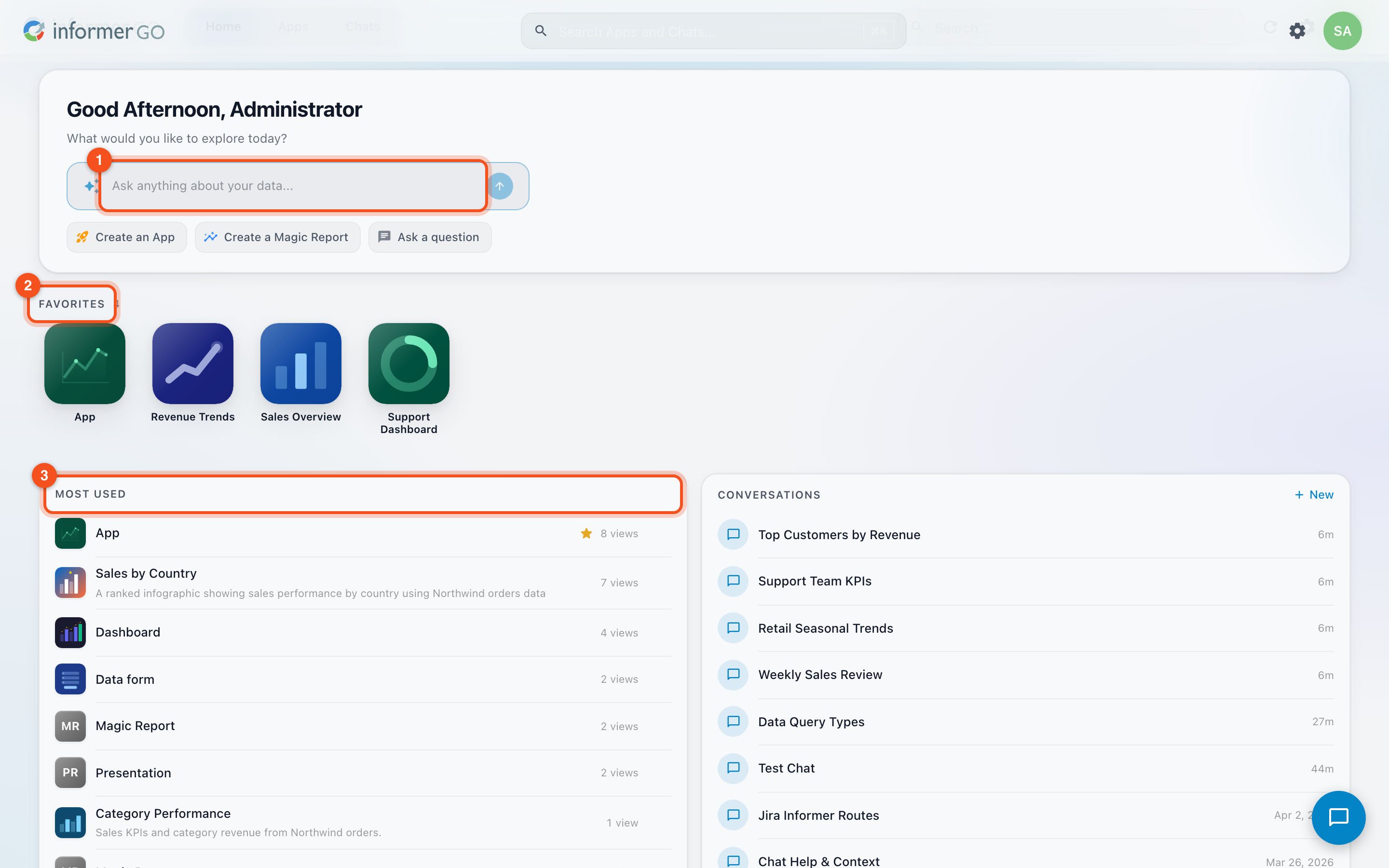
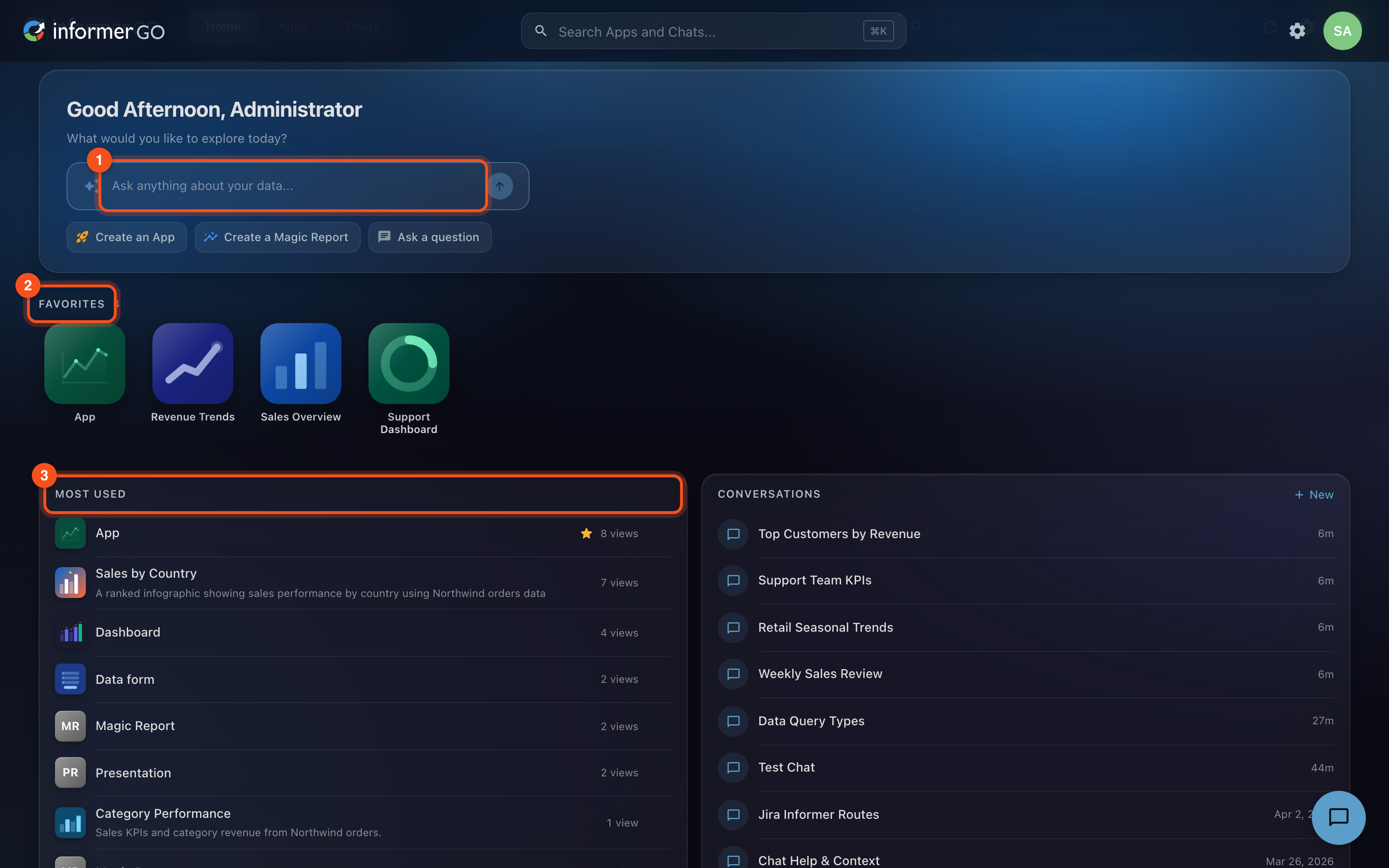
Home is your launchpad, and it knows you: it greets you by name and puts the things you use most within one click.
- A prompt box, front and center (1). Type a question to start a new ChatA conversation with Informer AI. Chats can reference Datasets and Libraries, run tools, search the web, and accept uploaded files. instantly, no need to visit the Chats tab first.
- Favorites (2). A strip of the AppsAn interactive page you open from Informer GO, such as a dashboard, a report view, or a custom-built App. Apps can be favorited, tagged, and shared. you've starred. Star an App anywhere (Home, the Apps tab) and it joins the strip.
- Most used (3). A grid of the Apps you open most. Narrow it by tag, by owner, or by type when the grid gets busy.
- Trending. Sections of Apps getting attention across your organization carry a Trending badge, a quick way to discover what colleagues find useful.
- Open windows. On desktop, an indicator shows Apps you have open in other windows; click to jump to one instead of opening a duplicate.
Apps
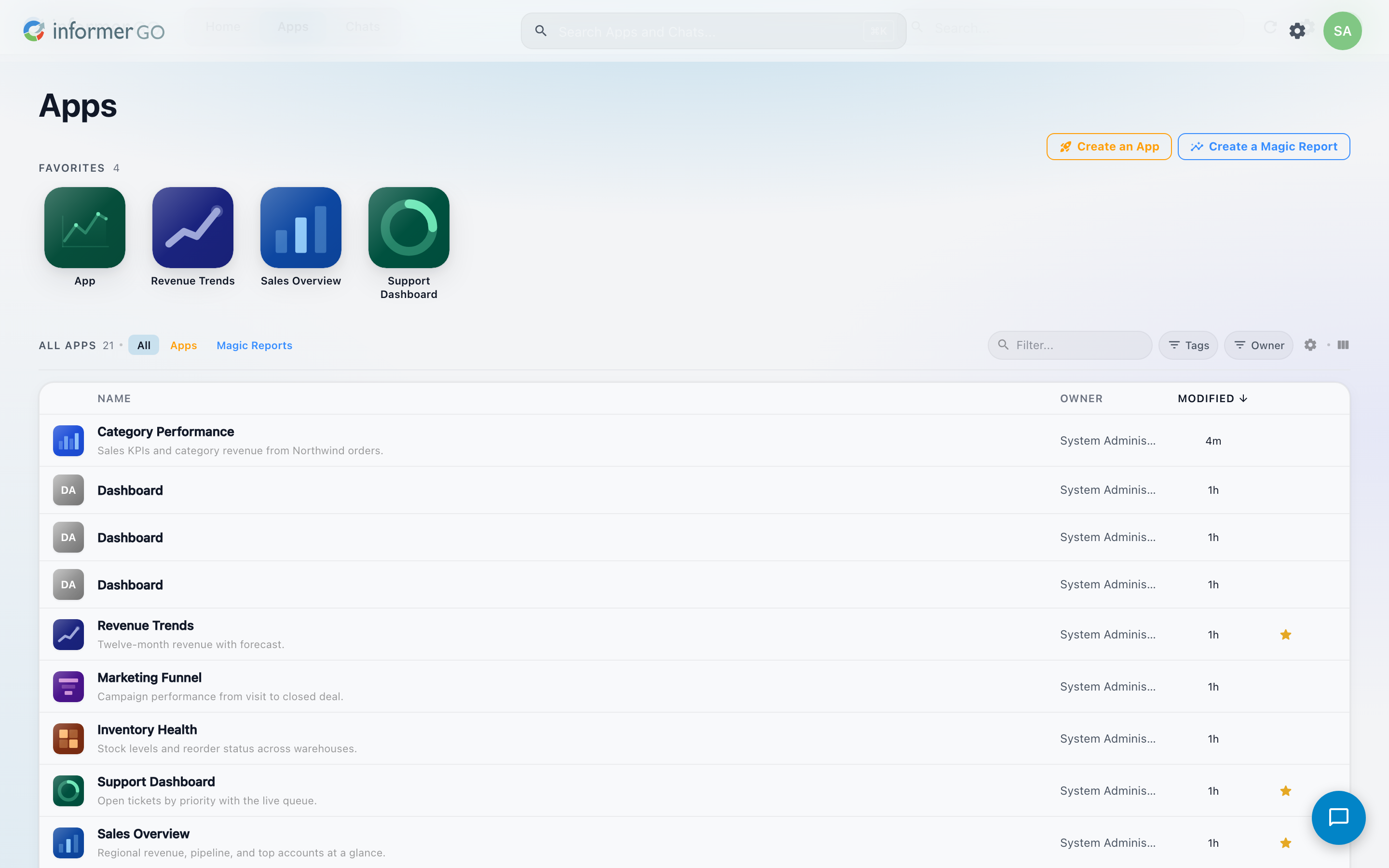
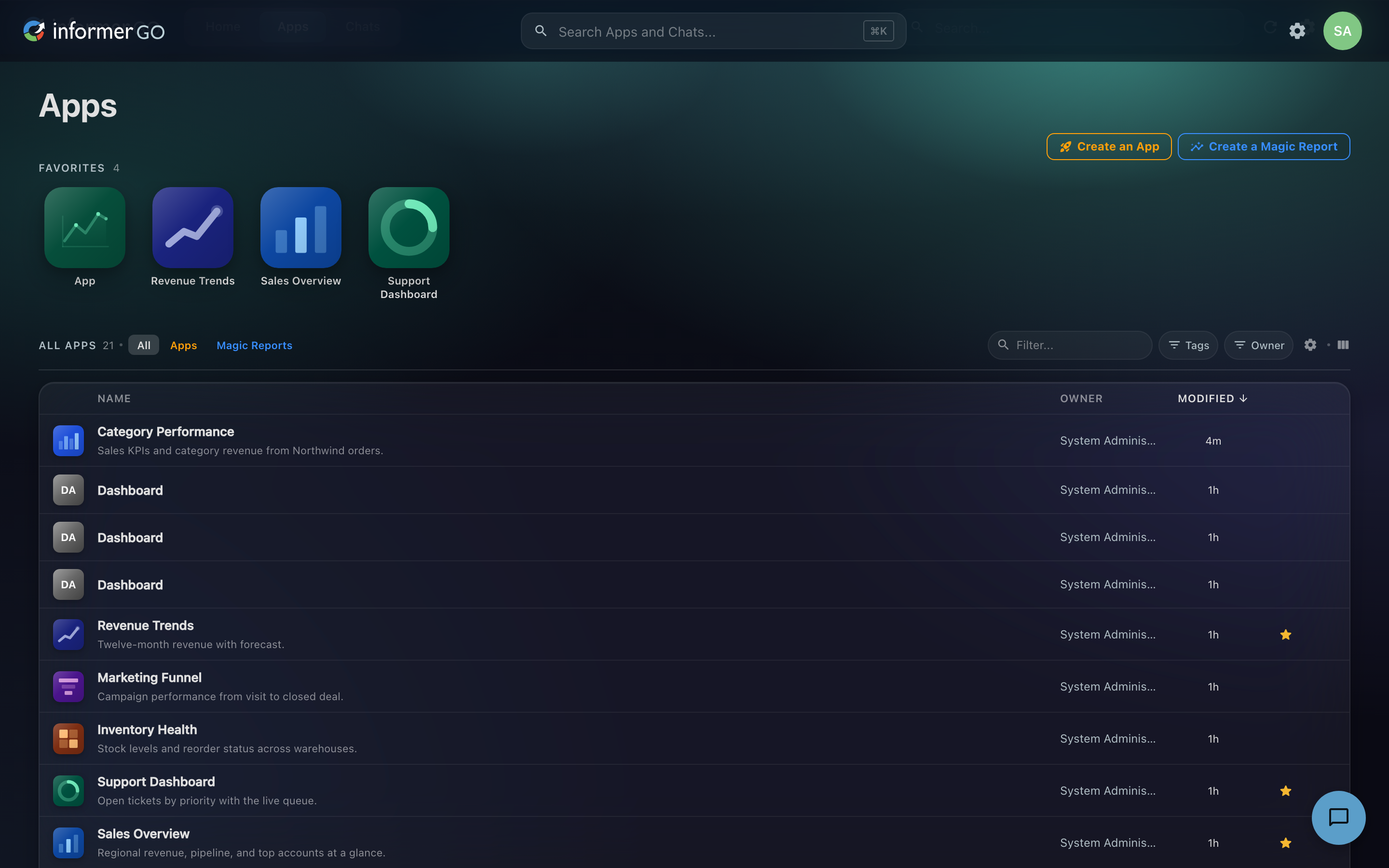
The Apps tab is the full gallery of every dashboard, report, and custom AppAn interactive page you open from Informer GO, such as a dashboard, a report view, or a custom-built App. Apps can be favorited, tagged, and shared. you can access.
- Filter by tag, by owner, or by type: All, Apps, or Magic Reports (the two kinds).
- Sort by name, author, or last modified.
- Favorite an App (the star) to pin it to your Home tab.
- Open in its own window on desktop, so a dashboard can live on your second monitor.
- Create an App starts the builder, from a blank canvas, a template, or a description of what you want.
If a combination of filters comes up empty, the gallery says so ("No apps match your filters"), clear a filter or two to widen the net.
The full story, opening, building, sharing, and printing Apps, lives in the Apps section.
Chats
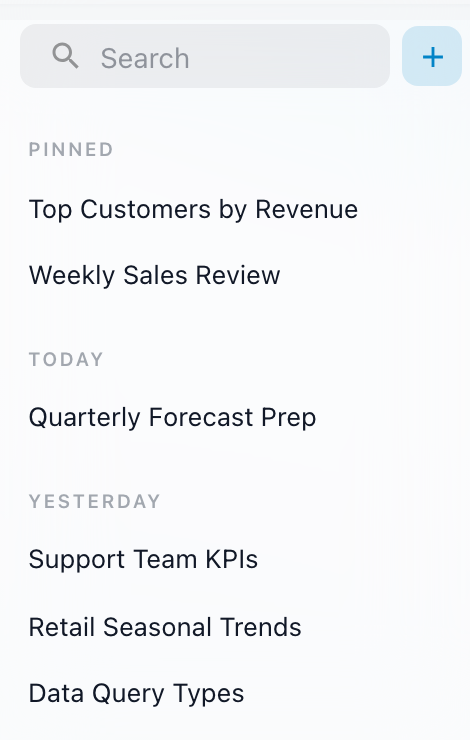
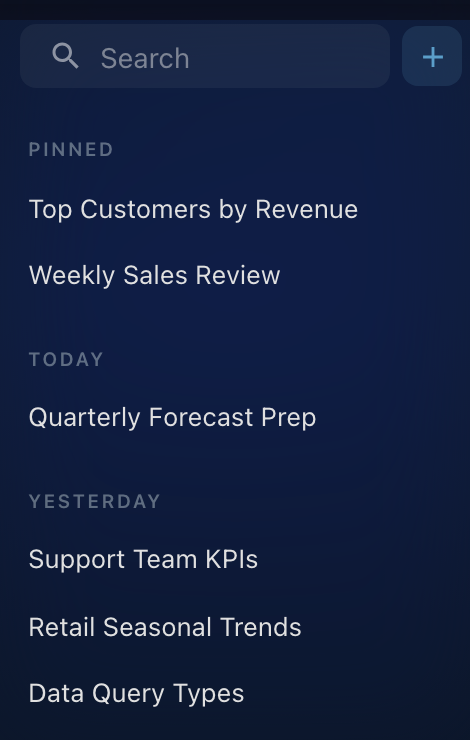
Every conversation you've had lives in the Chats tab, grouped by recency: Pinned conversations stay on top, then Today, Yesterday, Past week, Past 30 days, and month groups for anything older. Reopen any chat to continue where you left off; your history follows you across desktop, mobile, and browser. Chats you've scheduled carry a small alarm icon.
See Chatting with Informer for models, context, and scheduled prompts.
Search everywhere
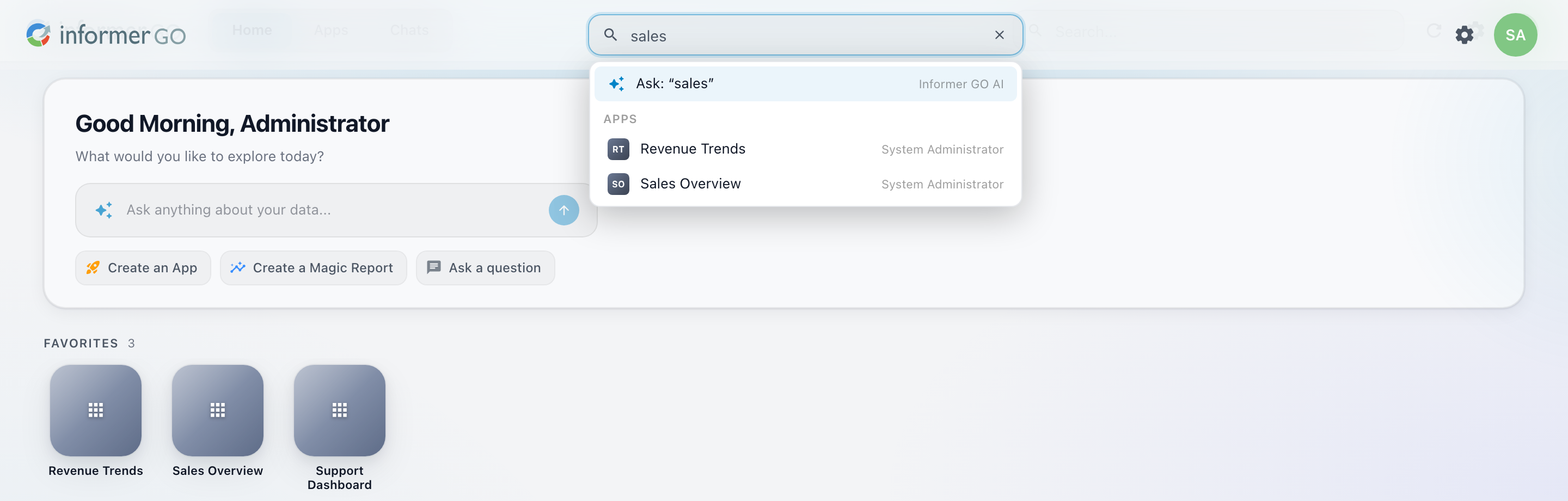
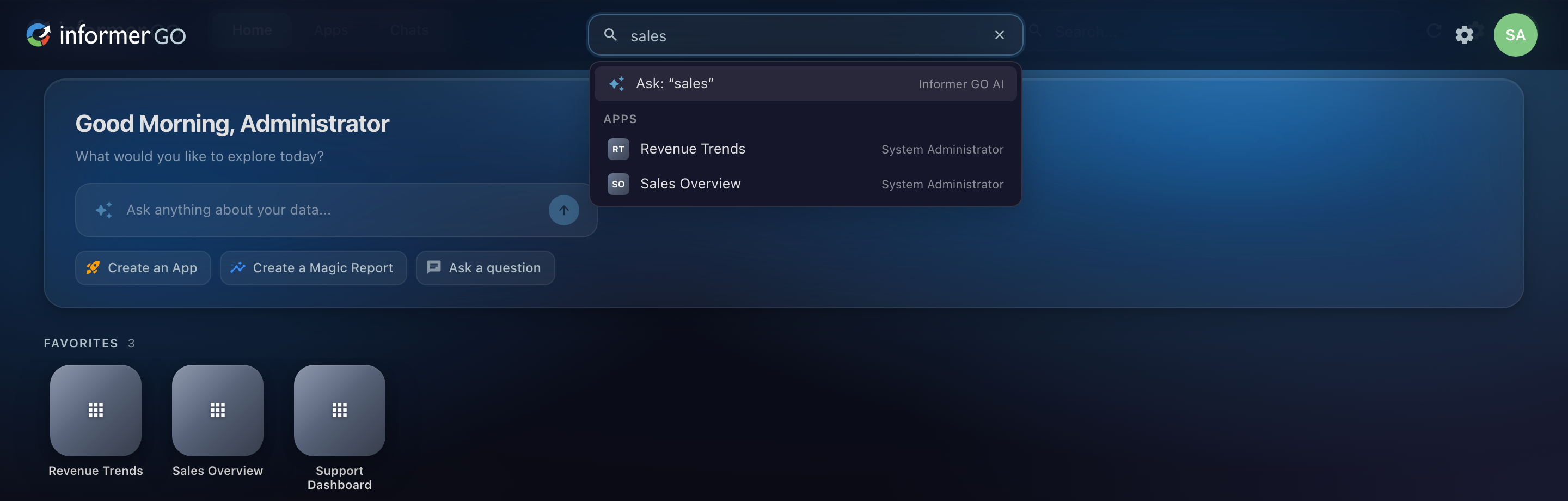
The search bar in the top navigation ("Search Apps and Chats…") looks across both your Apps and your conversations, so one search finds the dashboard and the chat where you discussed it.
Your profile menu
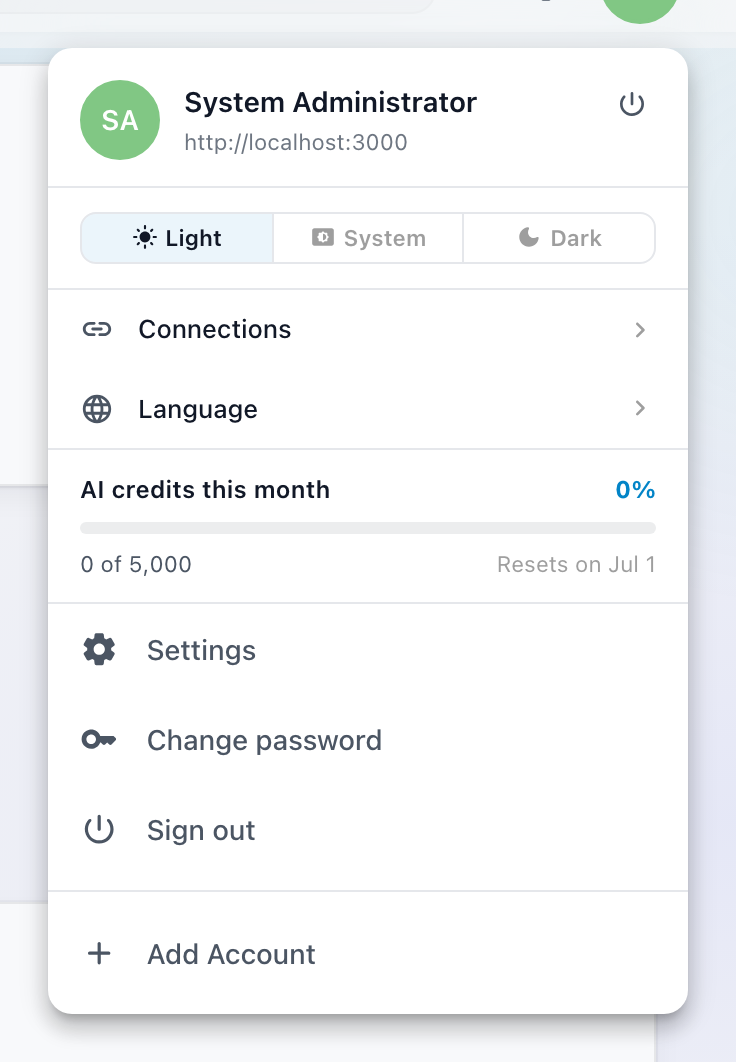
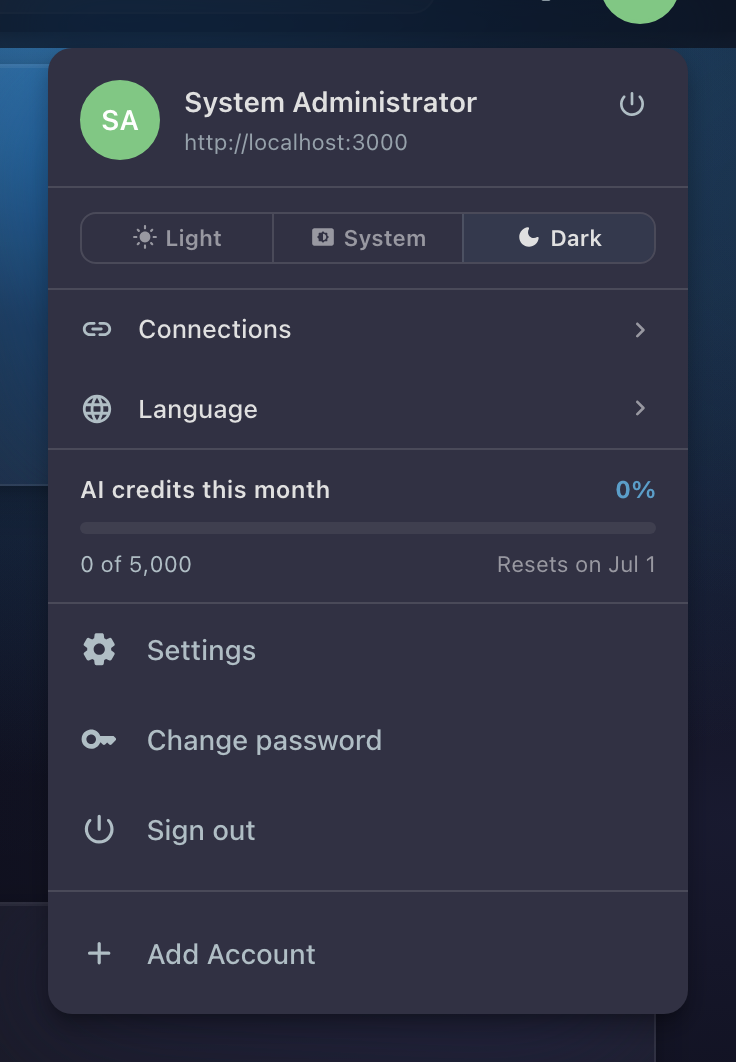
Your avatar (top right) opens the profile menu: switch the appearance (Light, System, Dark), open Connections and Language, watch your monthly AI credits, and manage your accounts. If you're connected to more than one Informer server, this is also where you switch between them, no signing out. See Settings & personalization.
On your phone
The mobile app keeps the same three tabs but reworks the feel for touch: swipe sideways to move between tabs, with smooth push-and-pop transitions and gentle haptic feedback as you navigate. Push notifications bring scheduled-prompt results and other updates to your lock screen; see Notifications on mobile.