Getting started
This guide takes you from zero to your first conversation with Informer GO: install (or skip straight to the browser), sign in, and find your way around.
You'll need: your Informer server's address (something like informer.yourcompany.com), and either your Informer username and password or your organization's single sign-on. Both come from your Informer administrator if you don't have them yet.
Choose how you'll use Informer GO
| Platform | How to get it |
|---|---|
| Browser | Nothing to install. Open https://your-informer-server/go (ask your administrator for your server's address). |
| macOS | Installer (.dmg) for both Intel and Apple Silicon Macs. The app updates itself automatically. |
| Windows | Standard installer (.exe). The app updates itself automatically. |
| Linux | .deb package for x64 and ARM systems. |
| iOS / Android | Informer GO mobile app. |
Your Informer administrator provides the download for desktop installers. The browser version is always available at your server's /go address.
Sign in
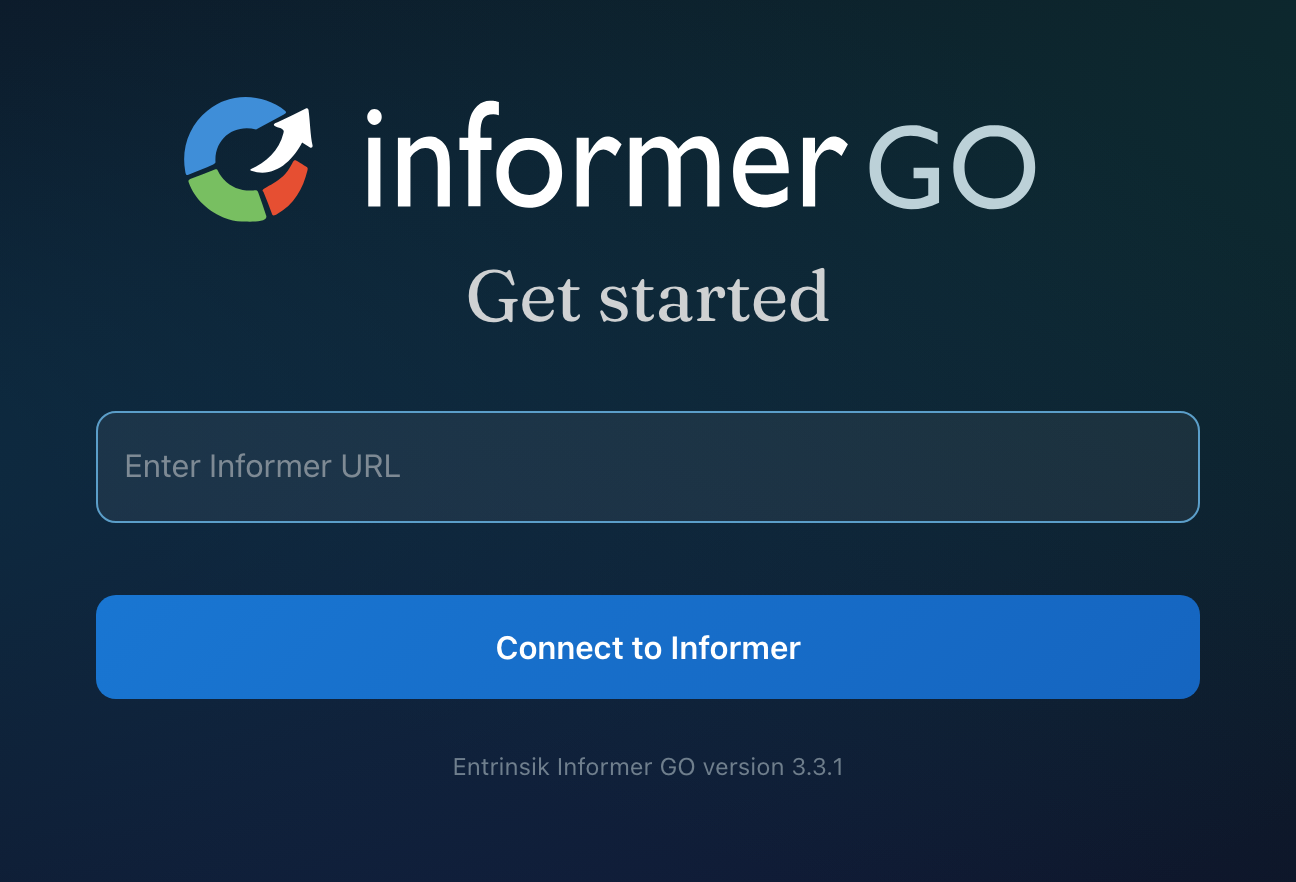
- Connect to your server
On the desktop and mobile apps, the first screen asks for your Informer server address (for example,
informer.yourcompany.com). Enter it and continue.In the browser, you're already on your server, so this step is skipped.
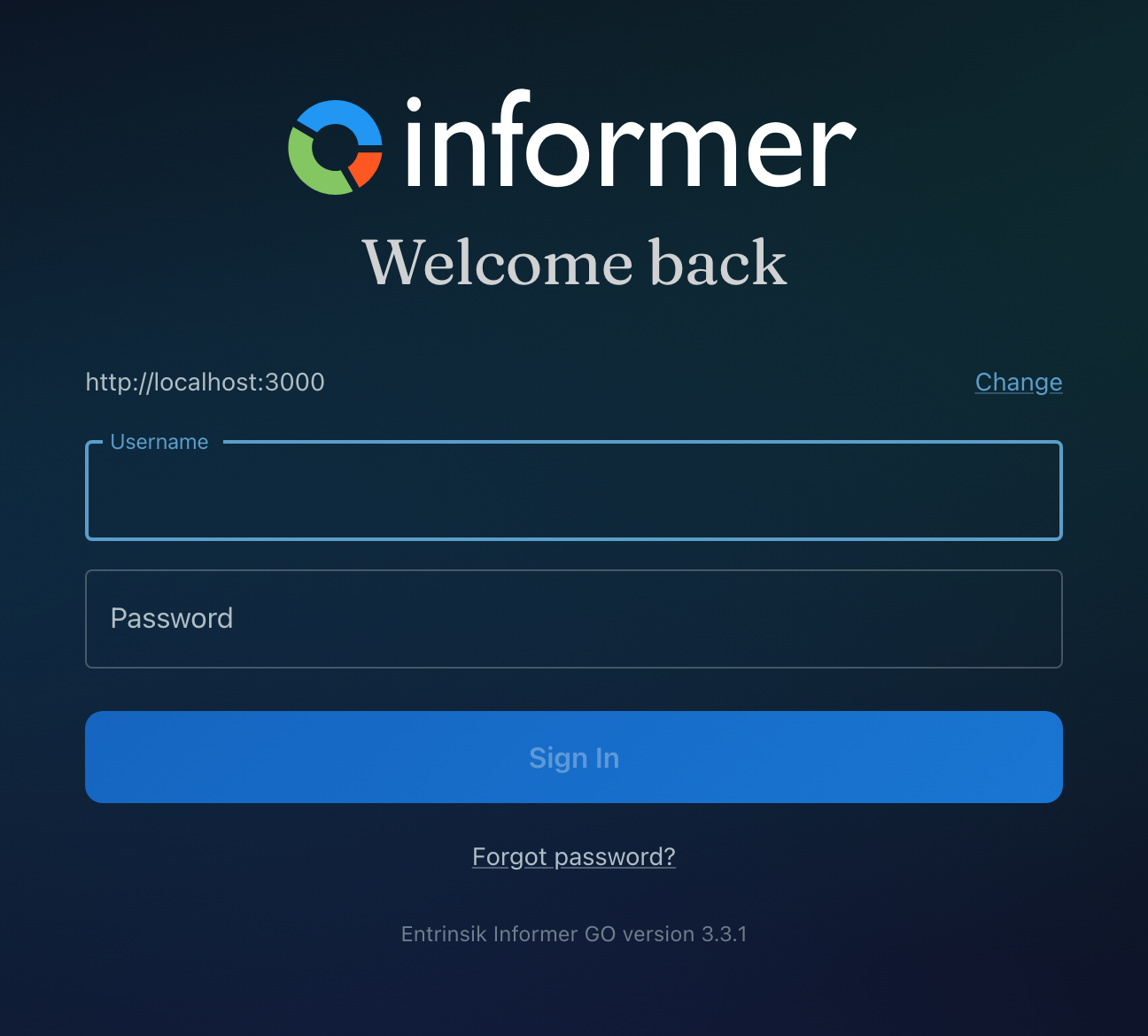
- Enter your credentials
Sign in with your Informer username and password.
Using single sign-onSigning in through your organization’s identity provider instead of an Informer password. In Informer GO, SSO is available in the desktop and mobile apps.? Choose your organization's sign-on option instead, and the desktop or mobile app hands off to your identity provider. SSO is available in the desktop and mobile apps; in the browser, use your Informer username and password.
- Verify with MFA (if enabled)
If your organization requires multi-factor authenticationA second verification step at sign-in, using a code from an authenticator app, in addition to your password., you'll be asked for a verification code. The first time, GO walks you through setup: scan the QR code with an authenticator app, then enter the code it generates.
Use Forgot password on the sign-in screen. You'll get a verification email with a link to set a new one. And if your organization expires passwords, GO walks you through choosing a new one right at sign-in, no separate trip to a settings page.
Once you're in, GO remembers the connection: next launch goes straight to your workspace. Each server you sign in to becomes a saved SessionA signed-in connection to one Informer server. Informer GO can hold several sessions at once and switch between servers without signing out., and you can hold several at once.
Start your first chat
- Say hello from Home
The Home tab greets you with a prompt box front and center. Type a question, like "What can you help me with?", and press Enter. That's it: you're in a ChatA conversation with Informer AI. Chats can reference Datasets and Libraries, run tools, search the web, and accept uploaded files..


- Give it something real to do
Ask about your data. If your team has set up DatasetsA saved, queryable collection of data pulled from one or more Datasources. Datasets are the foundation for reports, dashboards, and AI data analysis. or AssistantsA configured AI persona with its own instructions, knowledge, and tools. Chats can be powered by an Assistant tailored to a specific job, like answering HR questions or analyzing sales data., try something like "Show me this month's sales by region". You can also attach a file to the conversation and ask questions about it.
- Find it again later
Every conversation is saved in the Chats tab, so you can pick up where you left off on any device.
Next steps
- Take a tour of the app: Home, Apps, Chats, and search.
- Make it yours: theme, language, and multiple servers.
- Stuck? Check the FAQ.