Settings & personalization
Make Informer GO feel like yours: appearance, language, your AI usage at a glance, and how you connect. Nearly everything on this page lives in one place, the profile menu.
The profile menu
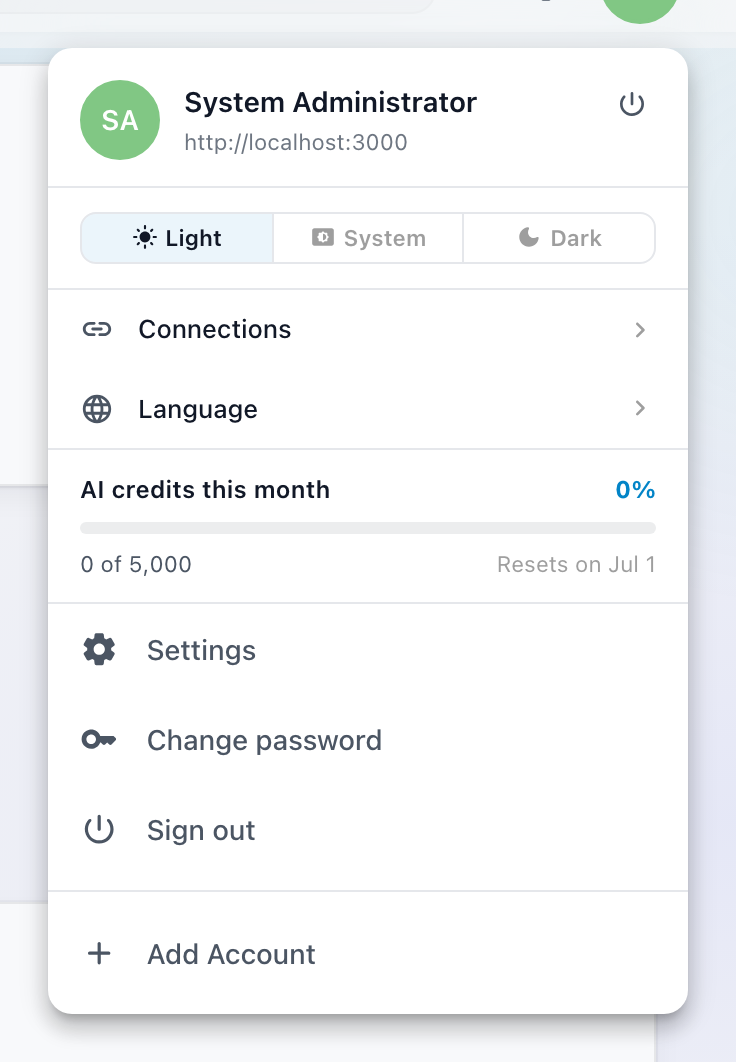
Your avatar (top right) opens the menu that runs your account. From top to bottom:
- Your identity: who you're signed in as and which server you're on, with a quick sign-out button beside it.
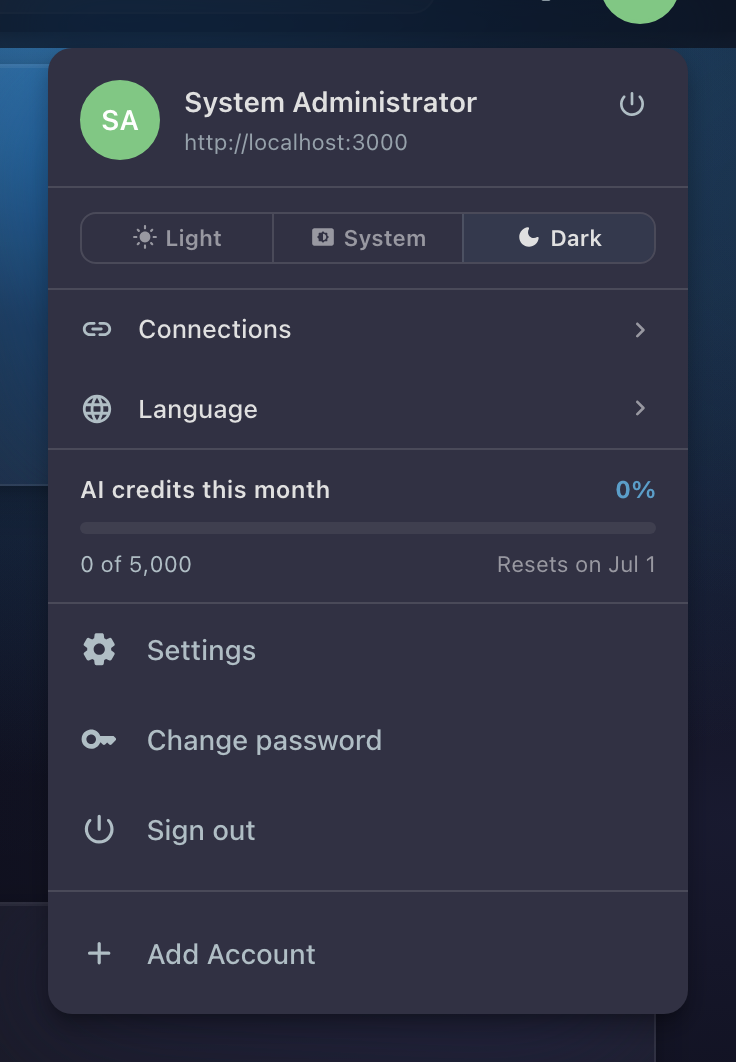
- The Light / System / Dark appearance switch.
- Connections: the external accounts (Google Drive, Gmail, and more) you've linked; a badge counts how many are connected.
- Language.
- AI credits this month: your usage bar, when your organization meters AI.
- Settings, Change password, and Sign out.
- Any other servers you're signed in to, and Add Account to add one.
Light, dark, or follow your system
Informer GO has full light and dark themes. Pick Light, System, or Dark on the appearance switch: System follows your operating system and changes when it does, live. Organizations with custom branding see their own colors and logo in both modes; the branding defines each mode separately, so dark mode isn't just inverted light mode.
Prefer the keyboard? Alt+T (Option+T on Mac) flips between light and dark from anywhere in the app.
Language
Choose Language to open Choose a language. The first option, Your Browser, follows whatever your browser or device is set to; the rest of the list comes from your Informer server, so it reflects the languages your organization actually has. The choice is remembered on each device, which means your phone can speak one language and your desktop another.
Watching your AI credits
If your organization meters AI usage, AI credits this month shows where you stand: a progress bar, the exact count ("1,250 of 5,000"), and the day the meter resets ("Resets on Jul 1"). The bar changes color as you approach the limit, so a glance tells you whether that big analysis can wait for next month. Organizations with unlimited or enterprise AI plans see a different display, or none at all; if there's no credits section in your menu, credits aren't something you need to think about.
Working with multiple servers
Each server you sign in to becomes a saved SessionA signed-in connection to one Informer server. Informer GO can hold several sessions at once and switch between servers without signing out.:
- Add another server
Open your profile menu and choose Add Account. Sign in to the new server just like the first time.
- Switch any time
Your other sessions appear at the bottom of the same menu; pick one to jump to that server. You stay signed in to the others.
- Sign out of just one
Each saved session has its own sign-out button, and the confirmation names exactly what you're leaving: "You'll be signed out of your name on that server." Your other sessions stay signed in.
Connected services
Connections manages the external accounts (Google Drive, Gmail, and more) you've linked for Apps and chats to use, split into Connected and Available. Disconnecting a service revokes its access tokens; you'd sign in again to use it later. See Connected services.
Changing your password
Change password lives in the profile menu, no trip to a separate site. If you don't see it, your organization manages passwords through single sign-on, and your identity provider is the place to change them.
Notifications on mobile
The iOS and Android apps support push notifications, so scheduled prompts and important updates reach you even when the app is closed. The app asks for permission the first time; after that, manage them in your device's notification settings.
Administrator settings
If you're an Informer administrator, the Settings entry also includes organization-wide controls such as AI features, model access, and usage and billing. These are covered in the admin documentation rather than this user guide.