Adding Fields
Fields are number, text, and date values that make up the data displayed in a Query. They generally come from a Datasource populated with metadata from a database.
Query customization options
Go to the Dataset listing page or the Reports listing, open the Query, and click Edit in the top-right corner to see the options for customizing a Query.
Using the Query Designer displays a panel on the left with options for Mappings, Fields, Criteria, Order by, Row Limit, Distinct Values, Inputs, and Flow Steps. SQL Datasources have extra options for Aggregate Fields and Aggregate Criteria. Inputs and Flow Steps are the only options available if the Query is a Native SQL Query or a Dataset created from a CSV file.
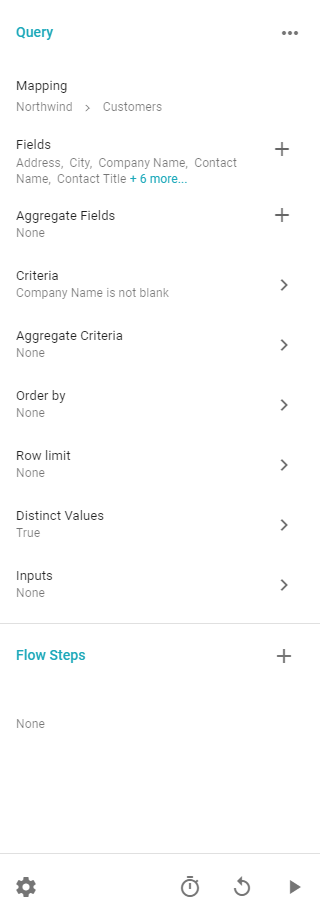
Adding Fields
Add Fields to a Query to display certain fields in the results, or edit the original Native SQL statement to add Fields to a Native SQL Query. Fields in CSV-generated Datasets come from the file, so there is no option to add extra Fields.
Add Fields by clicking the + icon next to Fields. A panel shows a list of Fields in the Mapping the Query is using. Along the left side is a list of other Mappings that link to the starting Mapping. The list provides the Field's data type, name, and database name. Click the magnifying glass icon under the Sample column for a sample of the data.
Click Add to the right of a Field to add a single Field, or Add All at the top to add every Field. Click the X to the right of a Field's row to remove it.
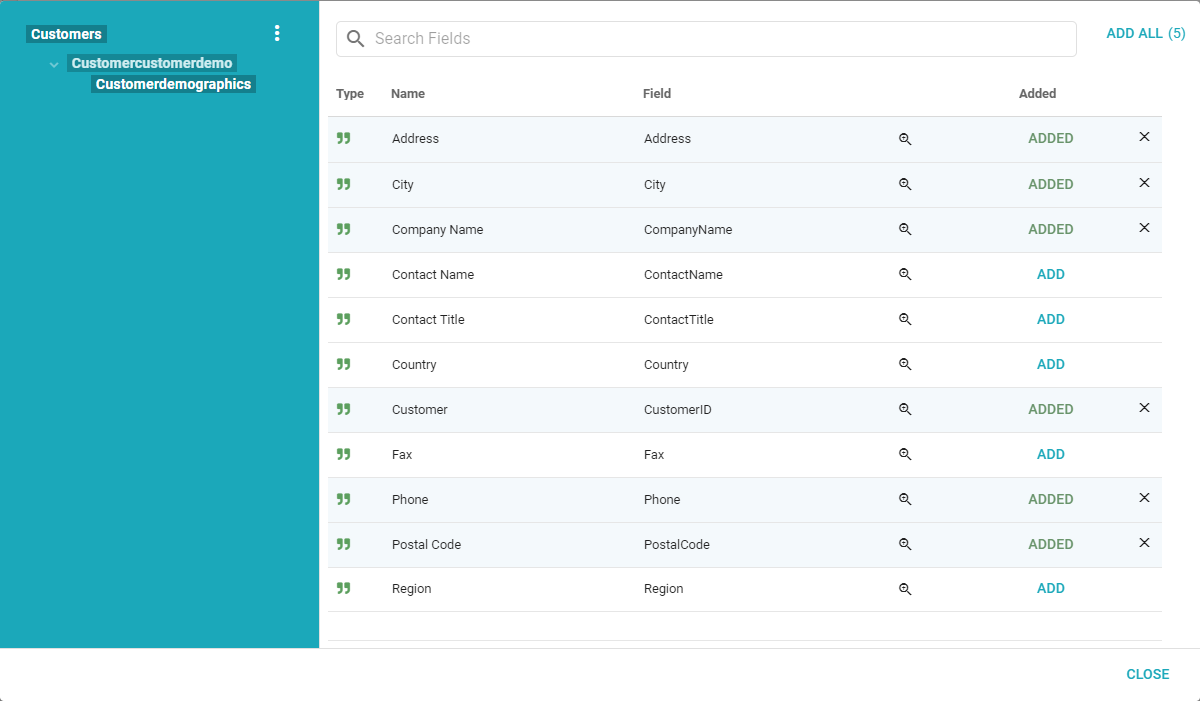
Adding Fields from a linked Mapping
Add a Field from a linked Mapping by clicking the links on the left side of the panel. Some Mappings have an arrow next to them, signifying that extra links exist. Click the arrow to expand a list of linked Mappings, and the Fields on the right change to reflect the new Mapping.
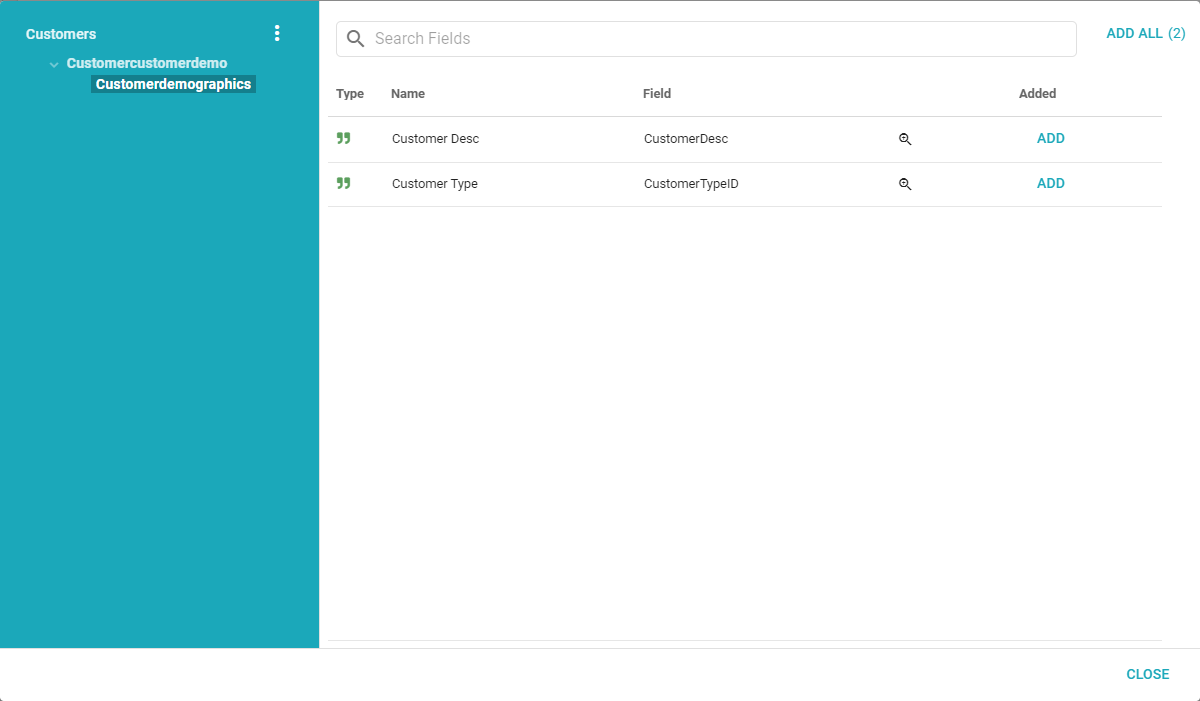
After adding Fields, click Close to display a sample of the Query with the selected Fields. Click Save in the top-right corner to save the changes.