Query Actions
Queries built with the Query Designer have top-level actions that let you modify or view the Query's elements in bulk.
Options menu
Click the ... button in the top-left corner of a Query's Edit screen to open a menu with several Query actions.
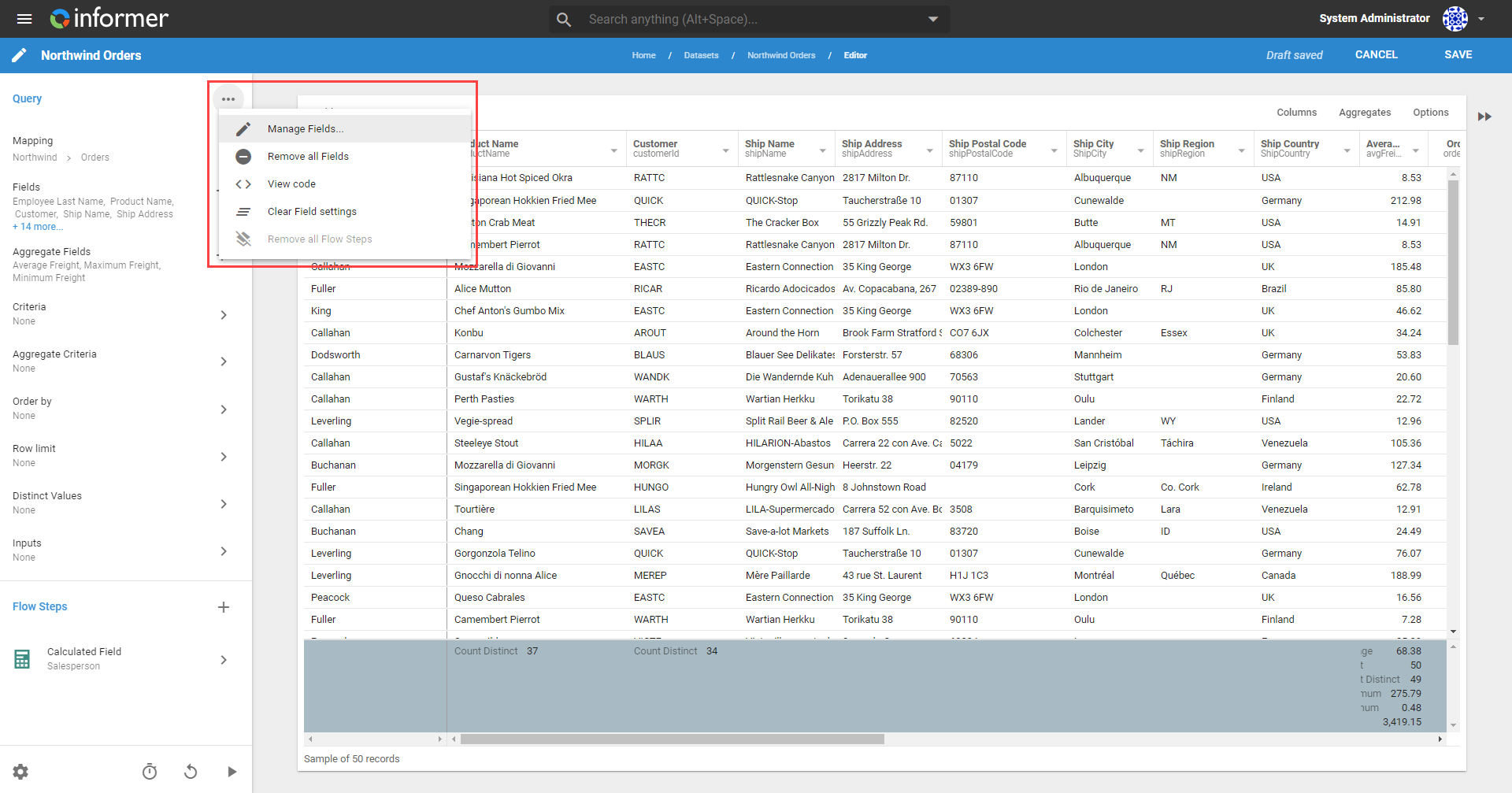
Manage Fields
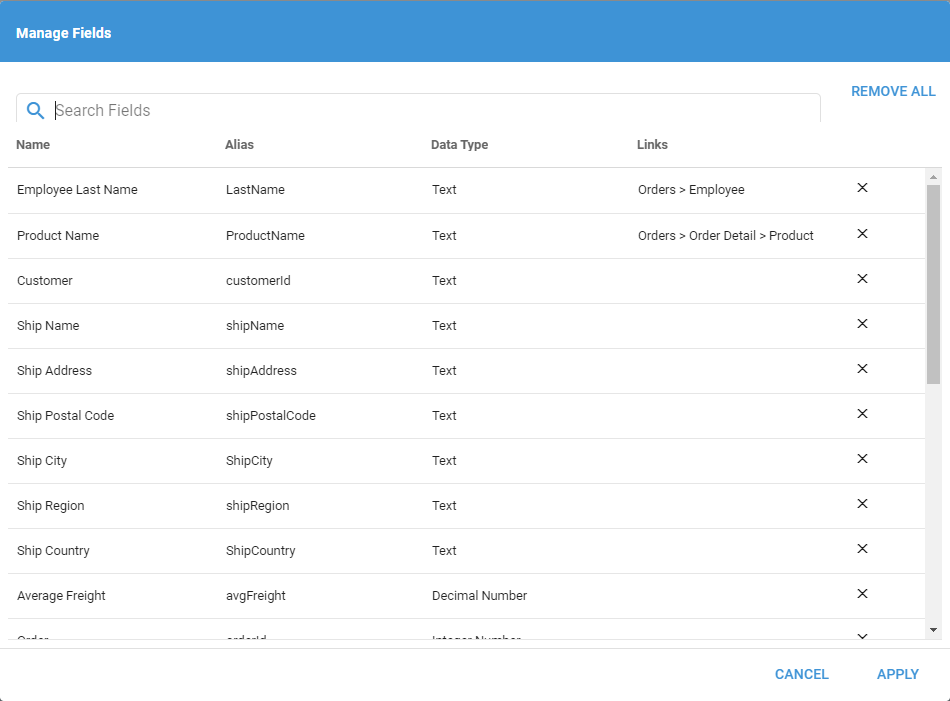
This action opens a window for changing the names, aliases, or data types of Fields. You can edit multiple Fields at once, which saves time compared to changing them one at a time. Click a Field's name, alias, or data type to change it. Click the X to the right of a Field's row to remove it, or Remove All to remove every Field.
Remove All Fields
This action prompts for confirmation, then removes all data Fields in the Query. This is helpful when you need to start over.

View Code
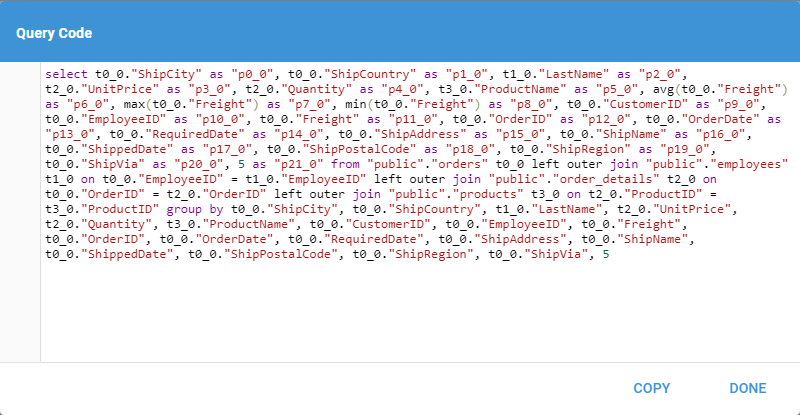
This action shows the native query statement created by the Query Designer, which is helpful when debugging why a complex Query is not working. Use the Copy button to copy the code for use elsewhere.
Clear Field Settings
This action resets all Field settings to their default configurations.
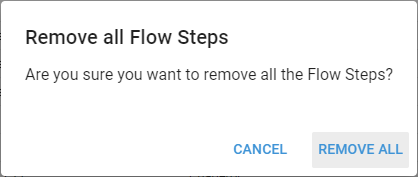
Remove All Flow Steps
This action prompts for confirmation, then removes all of the Flow Steps from the Query. This is helpful when debugging and building out Flow Steps.