Creating and Connecting to Libraries
The Libraries feature lets you manage and extract insights from large collections of files. By connecting to a Microsoft OneDrive, Box, Google Drive, or GitHub Library, you integrate those files into Informer, where an Assistant can analyze them and answer questions.
Creating a Library
To create a Library, click New, choose Library, and pick whether to connect to OneDrive, GitHub, Google Drive, or Box. AI must be enabled for your organization (see AI Features).
Enter a name and an optional description. For how to obtain the Client ID and Client Secret, see:
- Client ID and Client Secret for Google Drive Libraries
- Client ID and Client Secret for Box Libraries
- Client ID and Client Secret for GitHub Libraries
As of 2025.2.0, OneDrive Libraries do not require you to enter a Client ID and Client Secret. On earlier versions, see Client ID and Client Secret for Microsoft OneDrive Libraries.
For OneDrive and Google Drive, you can also allow write access, which is needed if a Job uses an Upload to Drive action (see Jobs actions). After providing the information, click Save.
Connecting to Libraries
After saving, you are prompted to connect.
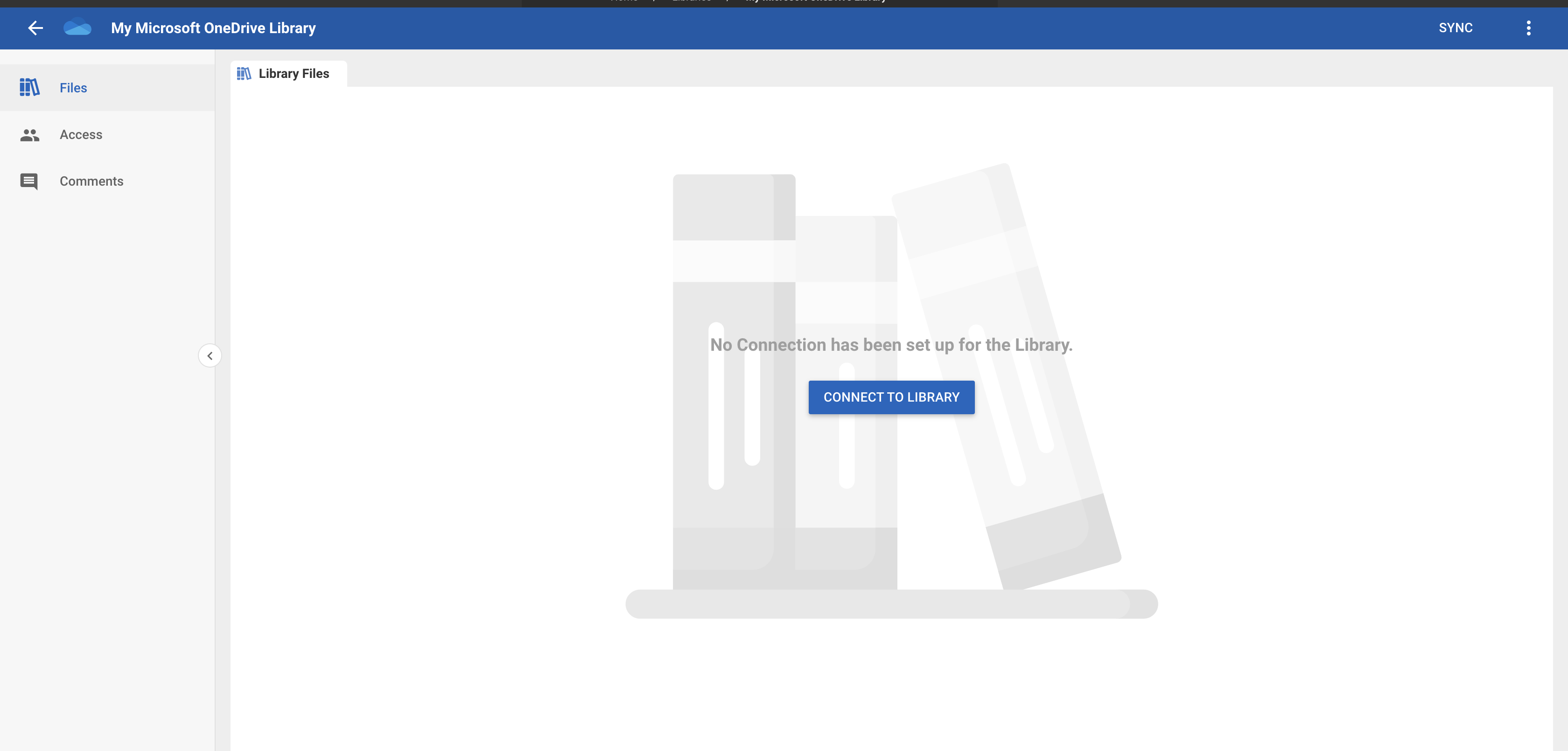
Click Connect to Library to open a new browser tab and verify your credentials. After verifying, you return to Informer and see a file tree that mirrors your remote source. Expand and collapse the tree to browse the files.
Syncing files
New files added to your remote source are not reflected automatically. Click the Sync button to bring them in. To sync on a schedule, use the Change Sync Interval action (see Libraries Actions Overview).
Library settings
The Library Settings page shows the connection details:
- Connection owner: the person who authenticated and connected to the Library.
- Configuration: the location or folder in the remote source to connect to.
- Indexed file: a Library file that has AI enabled.
Only the connection owner can view non-indexed files and choose to index them. Super Users and Library admins see only the indexed files, though they can disconnect and reconnect as the connection owner to access non-indexed files. Users the Library is shared with see only indexed files.