Passwords and multi-factor authentication
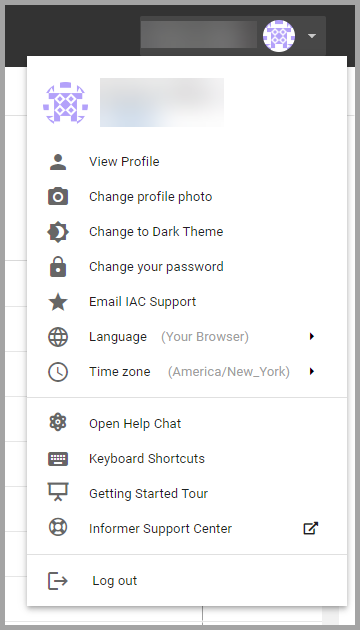
Users can change their password and multi-factor authentication settings from the User Profile menu. Click your profile picture in the top right to open it.
Changing a password
- Click Change your Password.
- Enter your current password in the Old password field.
- Enter the new password and confirm it.
- Click Save. A message in the bottom left confirms the change.
Depending on the administrators' settings, passwords expire after a chosen number of days, and Users must reset them once they expire.
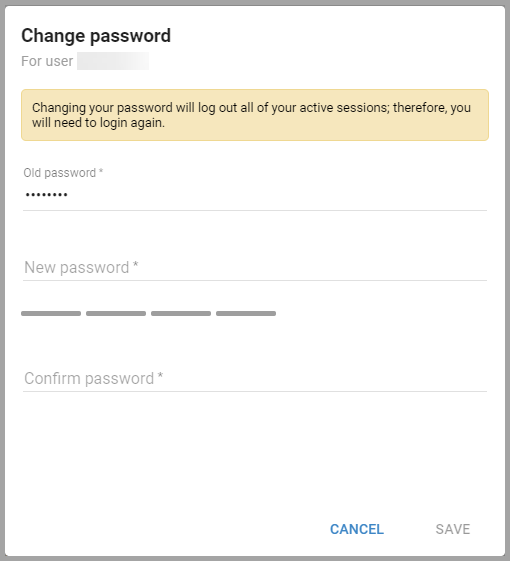
When a User changes their password, Informer automatically signs them out of all active sessions, including the current one. They must log back in with the new password.
Enabling multi-factor authentication
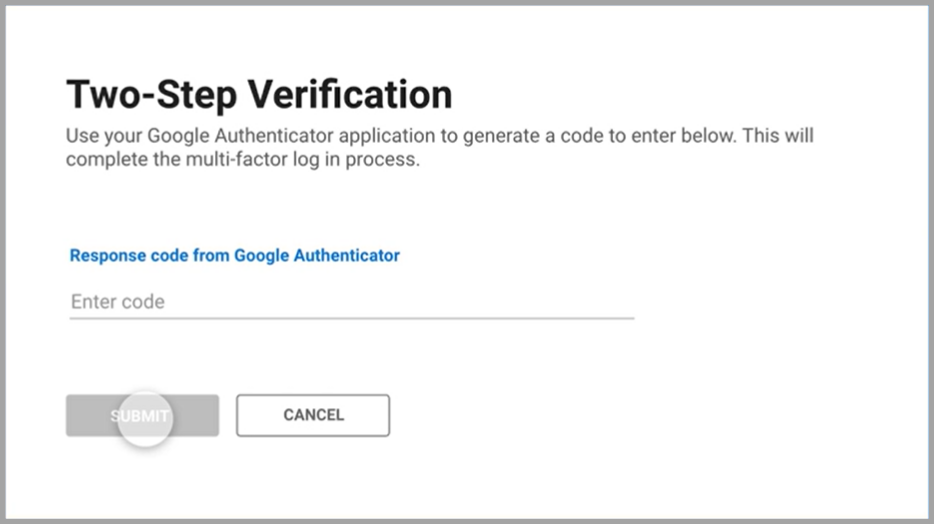
If multi-factor authentication (MFA) is enabled for Users by administrators, a User can enable it for their account from the User Profile menu. Click Set up two-step verification to open the Two-Step Verification window, scan the QR code with an authenticator app (such as Google Authenticator), enter the code the app generates in the Response Code field, and click Save. Once enabled, the User is prompted for a response code from the authenticator on the next login.
Changing passwords as a Super User
Super Users can change other Users' passwords. Go to the Users listing page by clicking Users on the home page, select a User, click the ... on the right, and select Change Password. Follow the steps in Changing a password above.
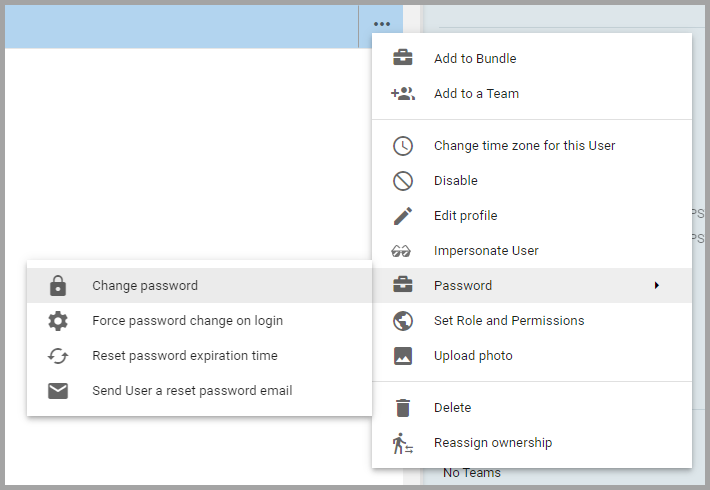
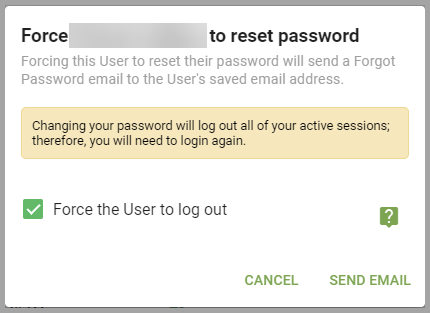
Super Users can also force the User to change their password on next login, reset the User's password expiration, or send a password-reset email. If no mail server is configured, Super Users can still send password-reset emails from a different email client.
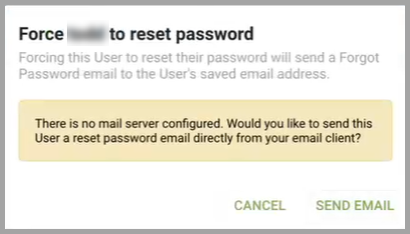
Clicking Send Email opens the User's email client with a message and link prompting the User to reset their password. Check Force the User to log out to log the User out of their active sessions so they must reset their password immediately.