Impersonate
It is sometimes useful to impersonate another User for administrative purposes. Switching between an Administrator or Super User and a Normal User helps troubleshoot issues Users encounter, without occupying the User's machine, by simulating the User's experience from your own device. Impersonate is available to all Administrators and Super Users.
Impersonate is available to Informer Administrators or Super Users, usually one person or a small group who control the instance. Team Administrators do not have automatic access; a Team Administrator must also be a Super User to use it. Informer 5 experiences minor performance degradation when impersonating Users with significant security measures.
To use Impersonate:
- Go to the Users page by clicking Users on the home page, or by opening the menu in the upper right and selecting Users.
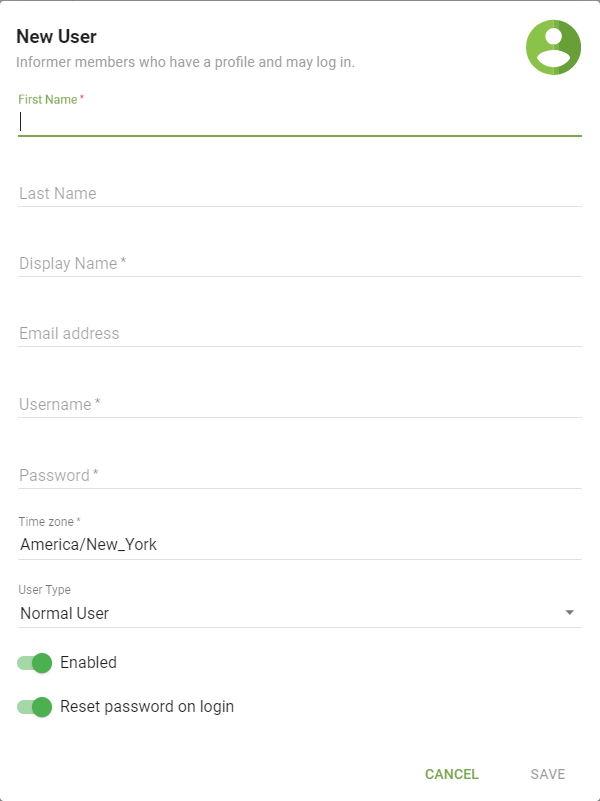
- Impersonate a User in one of two ways:
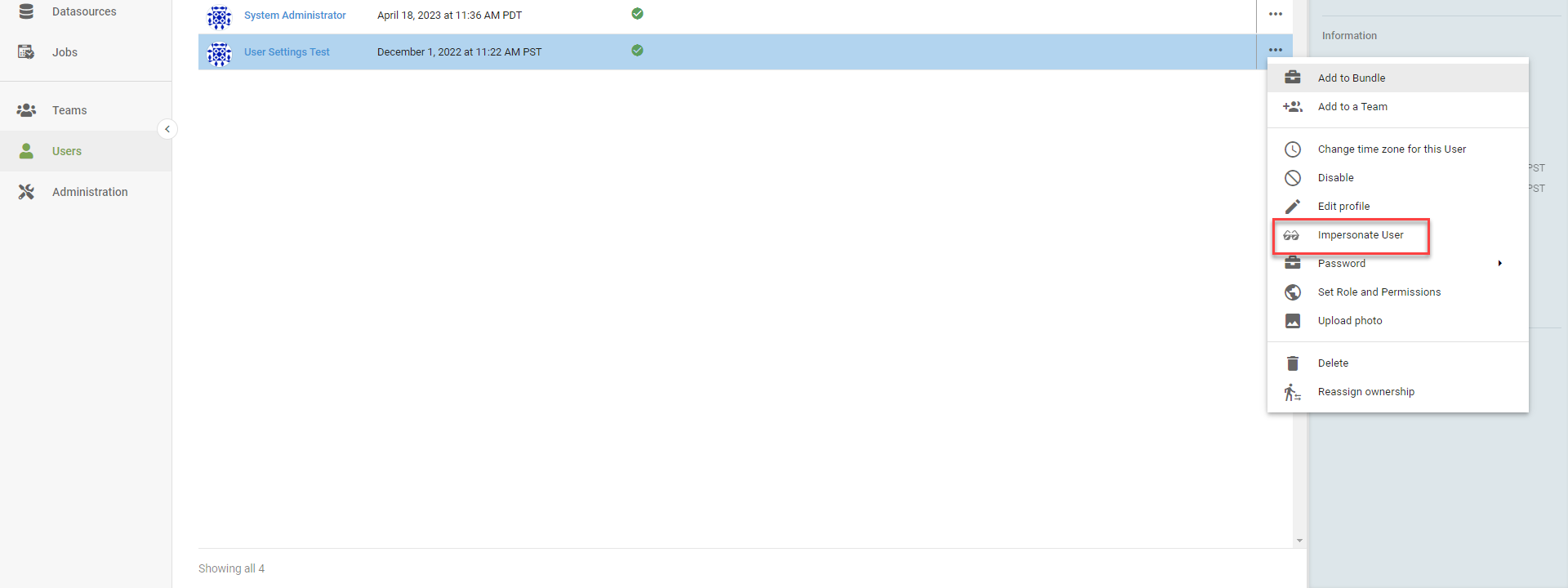
- Click the User and select Impersonate from the Actions pop-up on the right.
- Double-click the User, click the ellipsis in the upper right, and select Impersonate.
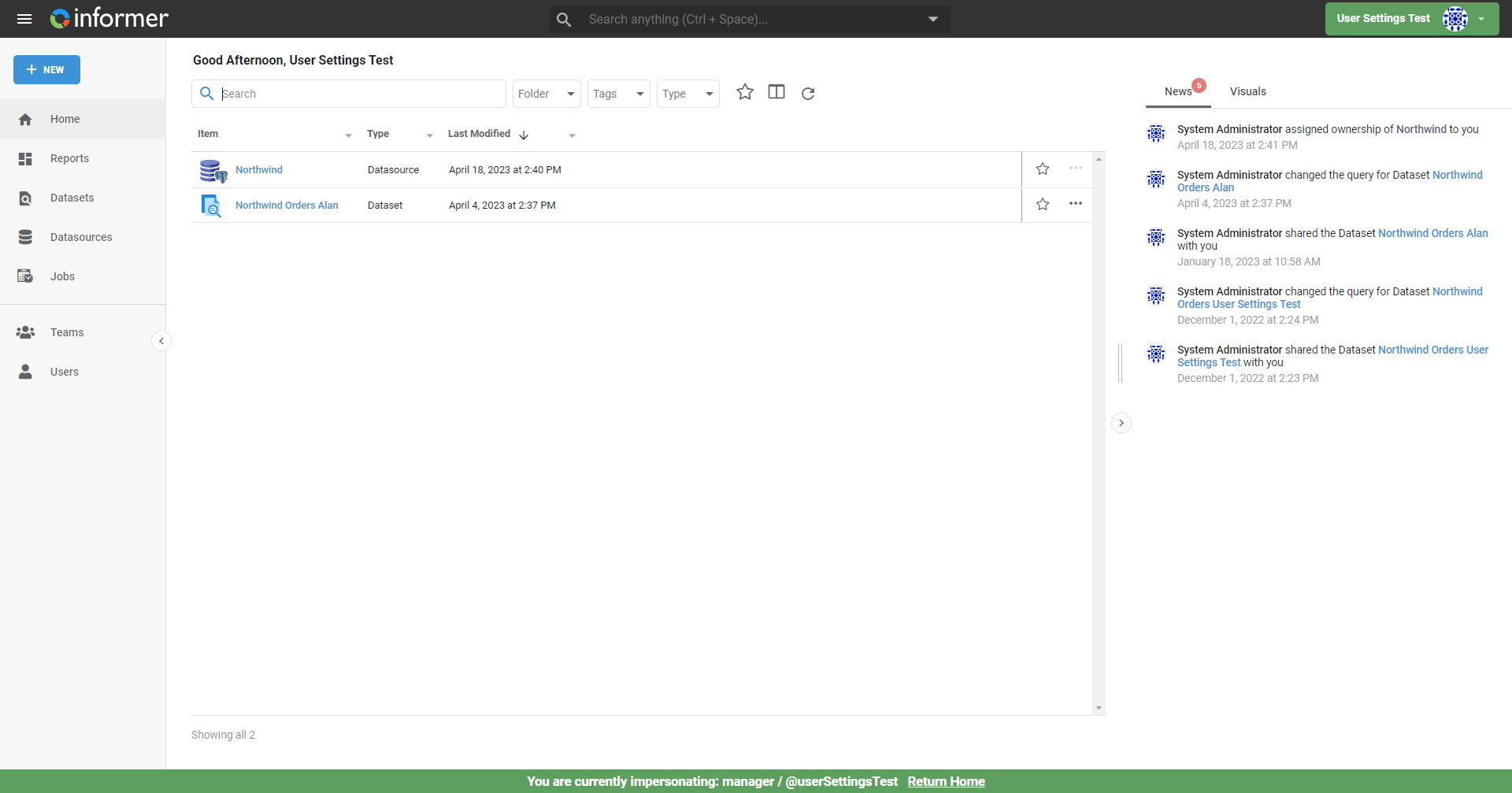
A green background appears behind the User name in the upper right to confirm Impersonate is active.
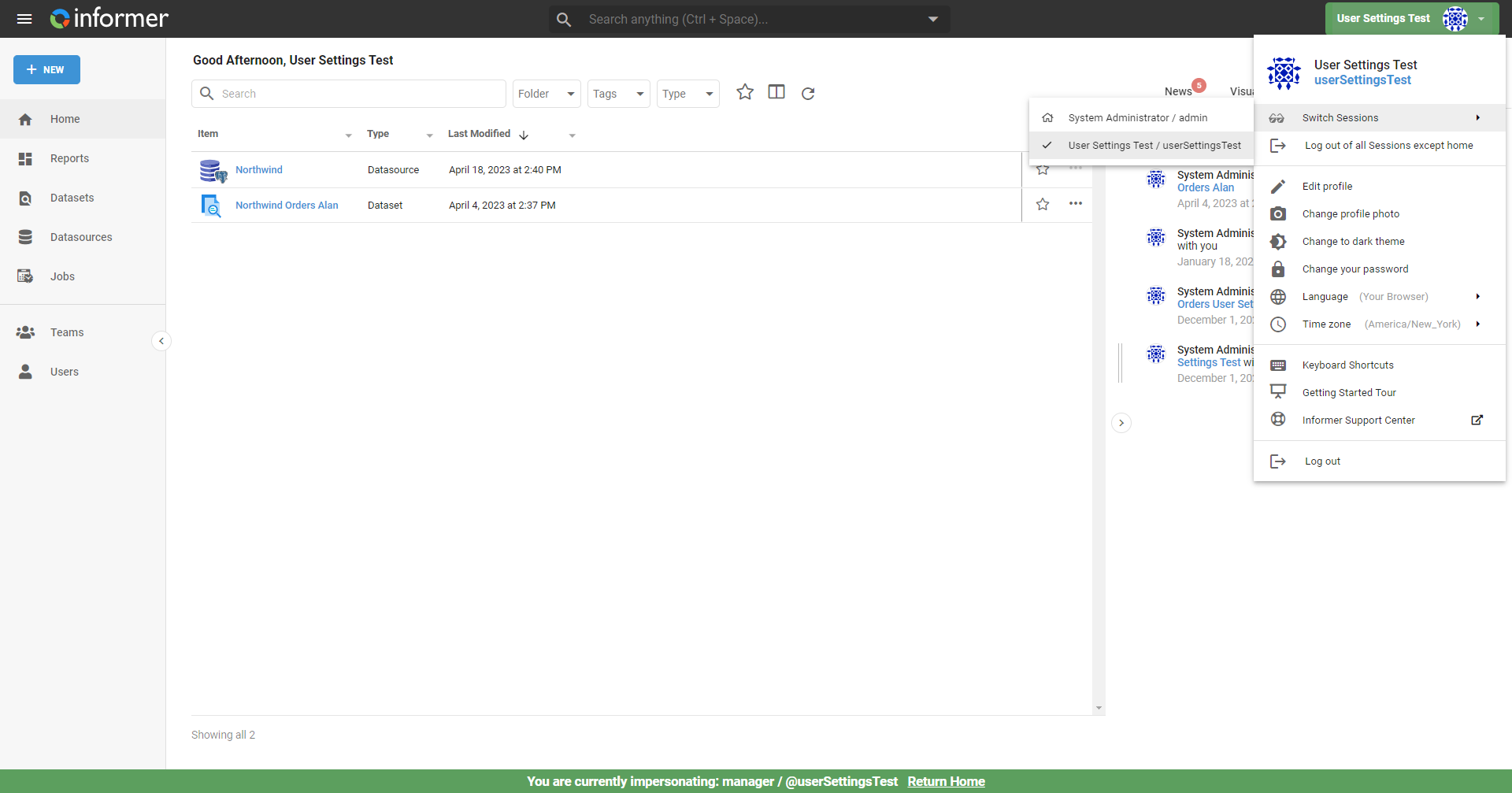
Toggle back by clicking the User and selecting how to switch, or click Return Home at the bottom of the page.