Editing a User
Super Users and Administrators can change other Users' profiles, including adding or removing them from a Team, changing their passwords, and adjusting their permissions.
User editing options
Edit a User from the Users list page using the Actions menu.
- Go to the Users list page by clicking Users on the left, or the menu in the upper left.
- Select the User to update.
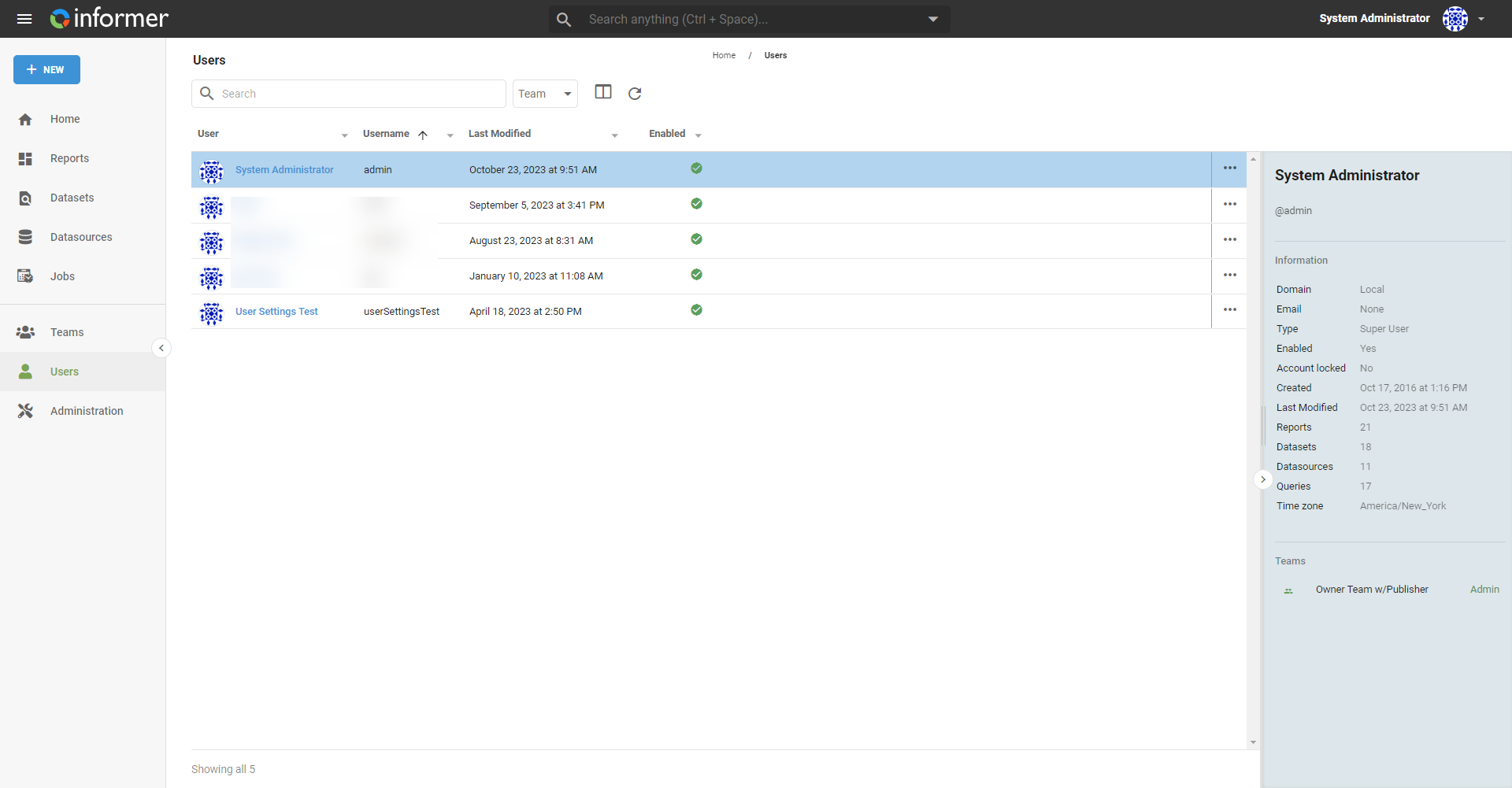
- Click the ... at the end of the User's row to open the Actions menu.
The actions:
- Add to Bundle: add the User to an existing or new Bundle.
- Change Time Zone for this User: change the User's time zone.
- Disable: prevent the User from logging in.
- Edit Profile: update the User's profile information.
- Impersonate User: see content as the selected User (Administrators and Super Users only). See Impersonate.
- Password: the User's password settings (local Users only). See Passwords and multi-factor authentication. Options include Change Password, Force Password Change on Login, Reset Password Expiration Time, and Send User a reset password email.
- Set Role and Permissions: change the User's type (Super User or Normal User) and permissions. See below.
- Upload photo: upload a profile photo for the User.
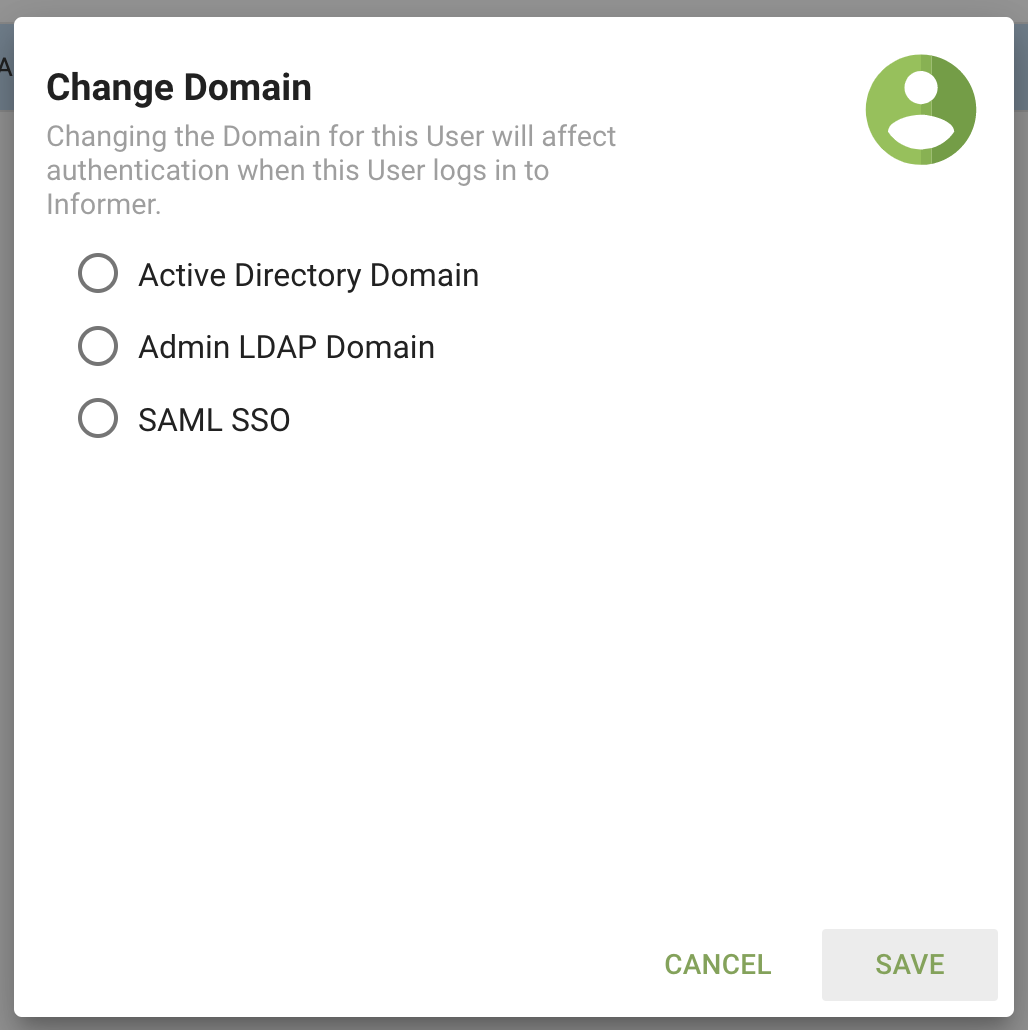
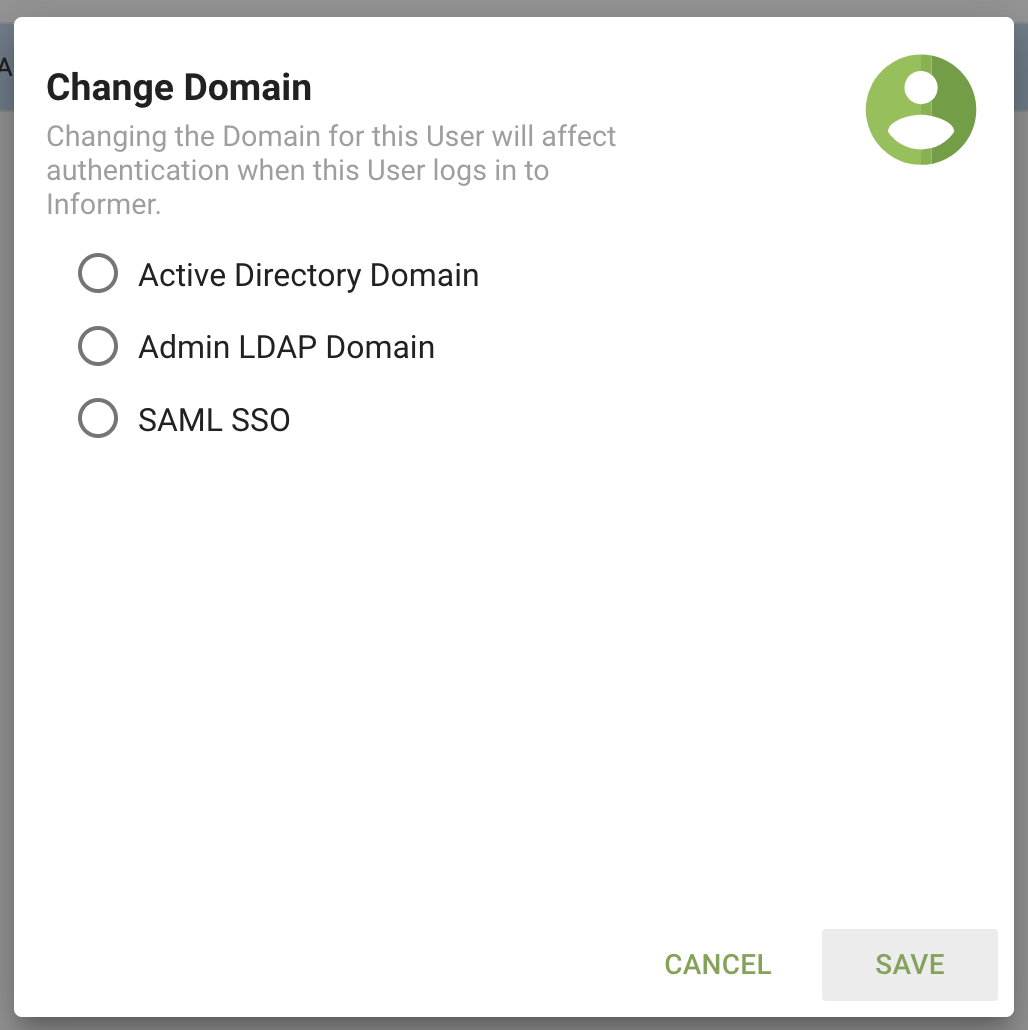
- Change Domain: change the User's authentication domain (Administrators or Super Users only). This appears only if a domain is configured.
- Delete: delete the User.
- Reassign ownership: change ownership of all the User's Reports, Datasets, Datasources, and Jobs to a new User. This is useful when removing a User.
User roles and permissions
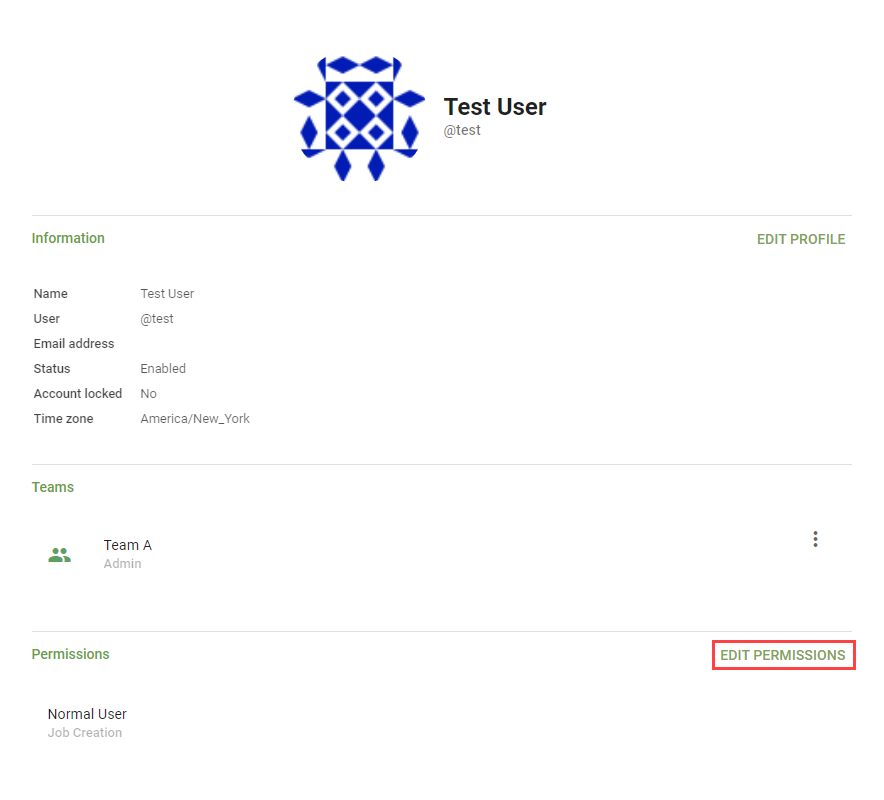
Users need permission to do things in Informer. To set or change a User's role or permissions, open the Update User System and Role Permissions window by selecting Set Role and Permissions from the Actions menu, or Edit Permissions from the User's profile page.
There are two types of User: Normal Users and Super Users. Super Users have administrator access to all parts of the system regardless of Team-based security. Normal Users have no special privileges outside Team-based roles and security, but a Normal User's specific permissions can be set individually:
- Job Creation: lets the User create and schedule Jobs.
- Painless Script Creation: lets the User create new Dataset Fields using Painless scripting. See Dataset and Script Fields.
- Publish to Cloud: must first be enabled in Settings. Lets the User upload a Dashboard, Comparison Board, or Data View to the cloud without generating a link from a private Informer instance. Only available to Users with the Publisher role or higher.
- View All Teams: lets the User see all the Teams in the system.
- View All Users: lets the User see all the Users in the system.