Creating a simple Filter
To quickly view and filter data without re-running a Query, use a post-query Filter. To access them, open the Query and find the Filter Bar with the + icon in the top-left corner.

Adding a Filter
A Query can have two main types of Filter: general Filters and field-specific Filters. Creating a Filter produces a green capsule called a Filter Chip in the Filter Bar.
General Filters
To create a general Filter, place the cursor in the new Filter field next to the + icon and begin typing. When the search term is complete, press Enter. The entire string becomes a Filter Chip, and the Query displays only rows that contain the search term.
- Entering
123displays only rows that contain the characters123somewhere, separated by a space or punctuation. An address of "123 Main Street" meets the criteria, while "Salem, NC 27123" does not, because the123is part of27123. Filtering byCastromatches "Av. Inês de Castro, 414". Filtering by634does not match "05634-030". - Informer ignores duplicate spaces in
123 Main Streetand treats and displays it as "123 Main Street" after you press Enter.
Field-specific Filters
To restrict criteria values to a specific Field, click the + at the far left of the Filter Bar to display a dropdown of the Fields available for filtering, or type a known Field name into the Filter Bar.

To begin filtering, select the Field to filter by, select Include or Exclude, then choose a type of filter in the submenu.
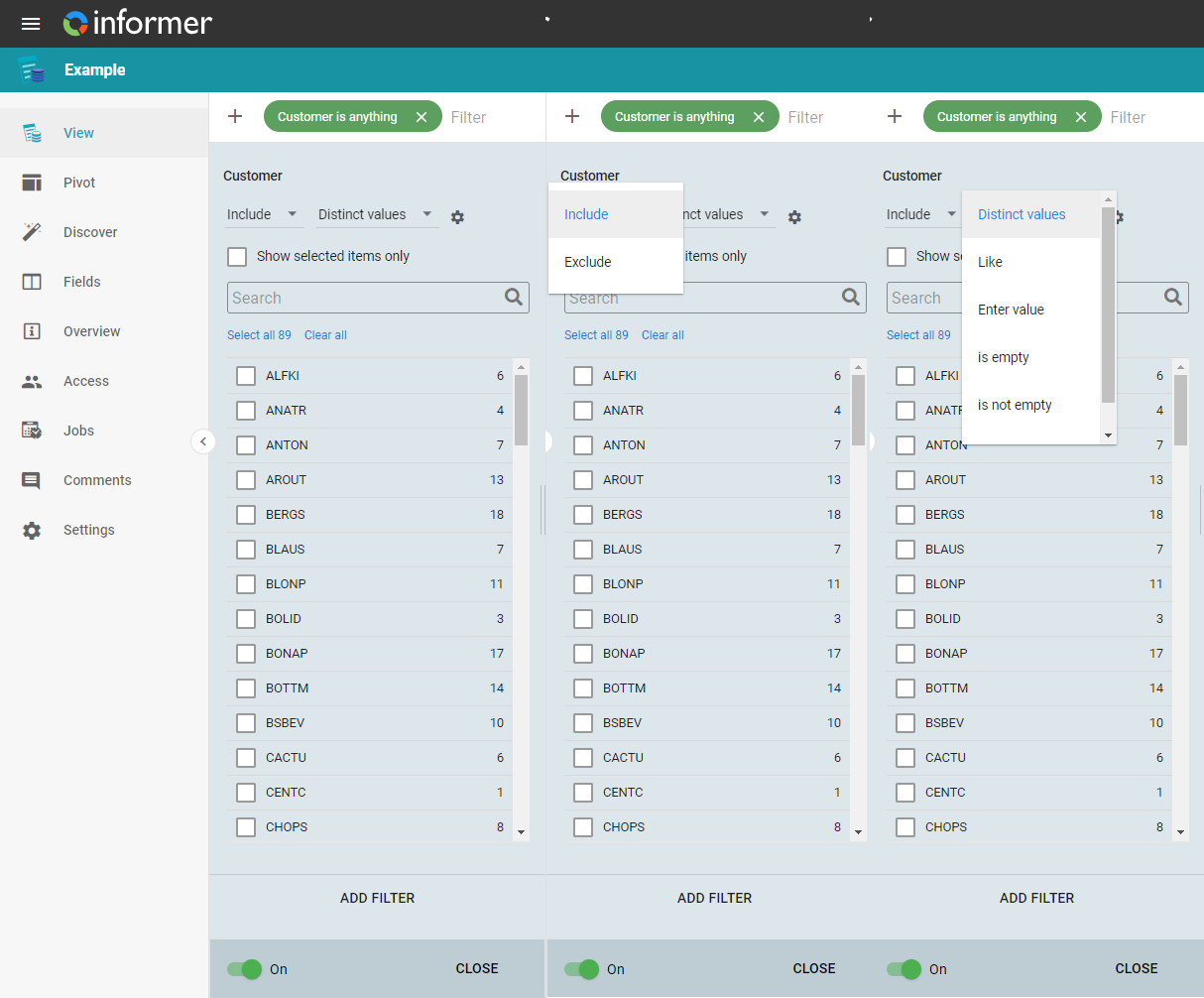
Continue adding Filter Chips with either method. After each Filter, the Query narrows to information that matches all of the values. Selecting OR or NOT changes the behavior, described below.
Filtering using AND, OR, and NOT
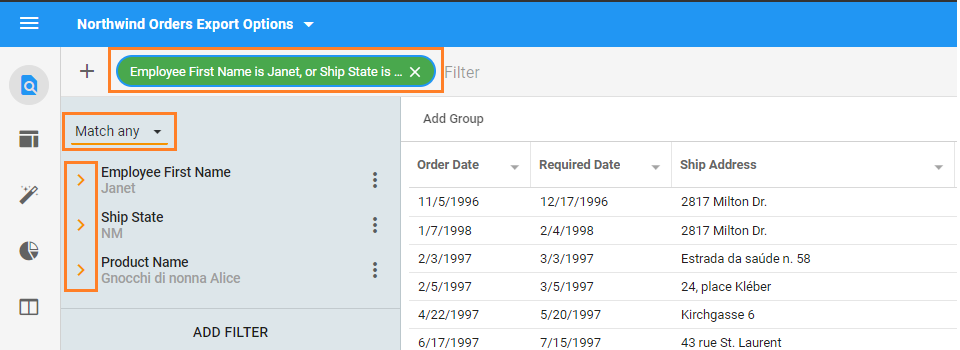
The option to switch between All (logical AND), Any (logical OR), and None (logical NOT) is available when there are at least two Filters within the same Filter Chip.
- Match all: rows must satisfy all of the Filter Chip's criteria. The configuration screen shows the options in green. For example, rows must contain Employee First Name "Janet," Ship State "NM," and Product Name "Gnocchi."
- Match any: rows satisfy any of the criteria. The configuration screen shows the options in orange. For example, rows must contain Employee First Name "Janet," Ship State "NM," or Product Name "Gnocchi."
- Match none: results contain no row satisfied by the Filter Chips. The configuration screen shows the options in dark orange. For example, rows cannot contain Employee First Name "Janet," Ship State "NM," or Product Name "Gnocchi."
Removing a Filter
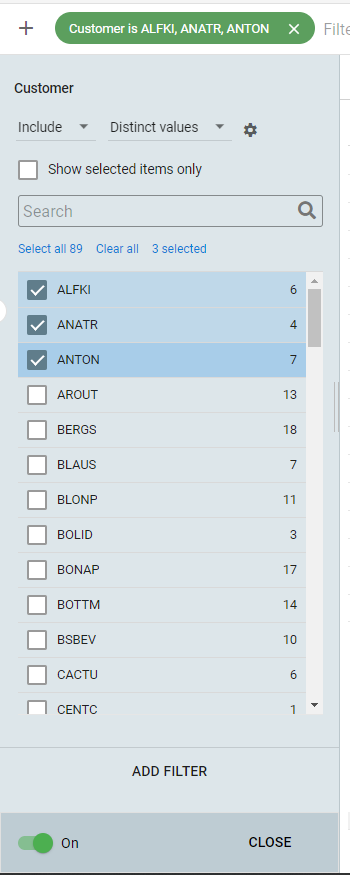
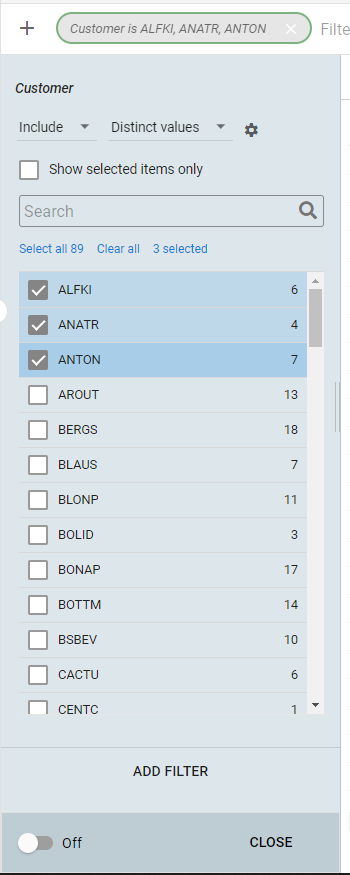
To remove a Filter, click the X on the right side of its Filter Chip. To disable a Filter without removing it, select the Chip and click the switch in the bottom-left corner of the Filter panel. A disabled Chip turns gray.