Advanced Filters
Once a Query has multiple Filters configured, you can combine individual Filters or disable them.
Combining Filters
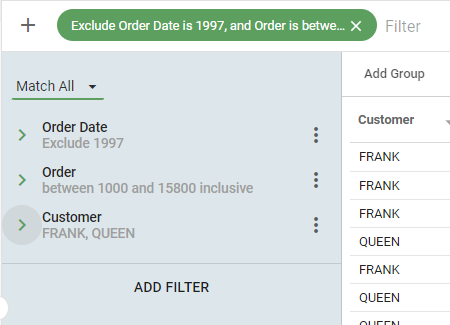
To create complex Filters that mix ALL, ANY, and NONE logic, create individual Filter Chips or saved Filters with the desired logic. For example, a Filter that includes all orders except those from 1997, with the customer FRANK or QUEEN, and a mid-range order size.

After creating the Filters, you can change Match all on the right side of the Filter Bar to Match any or Match none.
Creating compound data-based Filters
To filter by multiple Fields within the same Filter Chip, create compound Filters. Create the first Filter, click Add Filter in the current Filter panel, then select the next Filter to add.
Alternatively, create a separate Filter Chip for each Field, then merge the Chips using the merge option to the right of the Filter Bar.
A set of independently created Filter Chips and a single compound Filter Chip can return the same rows; the compound form keeps the criteria together in one Chip.
Disabling Filters
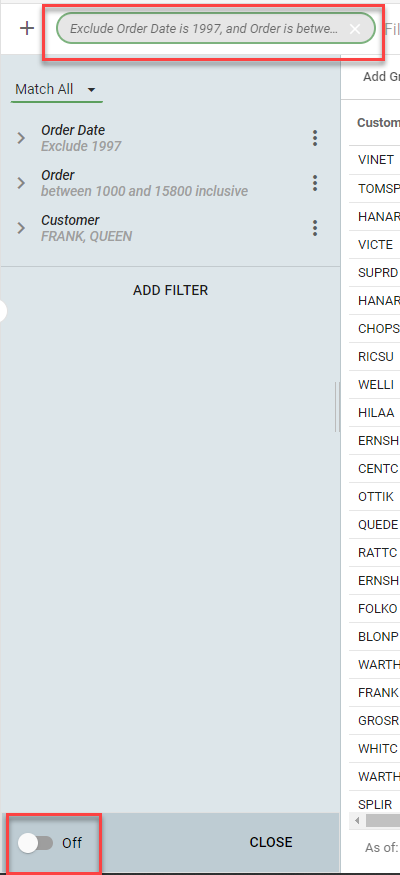
To stop the Query from being filtered dynamically, turn off Filter Chips until you are ready by sliding the On switch to the left, found at the bottom left of the Filter panel. While off, the Filter Chip appears gray and the Query is unfiltered.