Configuring a Filter
To change how a Filter displays in the Filter panel, select the Filter from the Filter Bar and click the gear icon for Filter options. Some Filter types are not configurable.
All Filters have an Include or Exclude option for the selected or entered values. The default is Include. To switch, click Include in the dropdown at the top left of the Filter panel and choose Exclude.
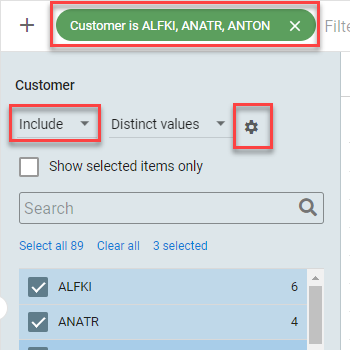
Distinct Values
Filter options:
- How many values should be shown? changes the number of values shown in the Filter panel. If it is less than the number of distinct values, click Show more to include all.
Sort values:
- By count: sorts greatest to least by distinct count.
- By distinct value: sorts alphabetically A to Z.
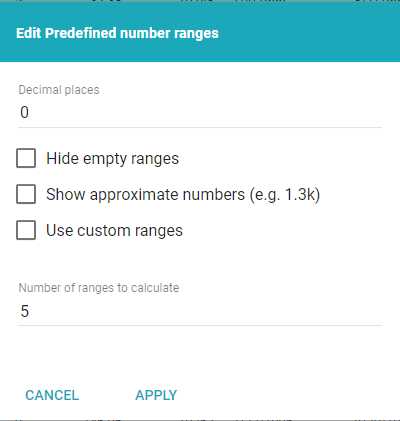
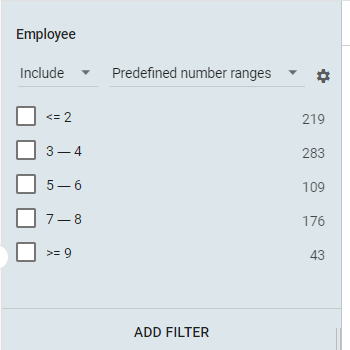
Predefined number ranges
- Decimal places: changes the number of decimal places shown in each range.
- Hide empty ranges: hides ranges with no records.
- Show approximate numbers: approximates large numbers to take up less space.
- Use custom ranges: alters the default ranges when data is not uniform. Some data clusters in narrow ranges containing a large portion of the records; editing custom ranges splits a single range into several smaller ones.
- How many values should be shown? changes the number of ranges shown.
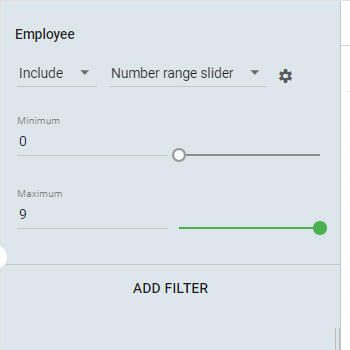
Number Range Slider and Number Value Slider
- Use custom min and max: set custom minimum and maximum values with the number sliders. If unchecked, the Filter uses the minimum and maximum of the entire set.
- Custom min: set the minimum value of the slider.
- Custom max: set the maximum value of the slider.
Boolean
- Label for either true or false: the label for the Either option.
- Label for true: the label for the True option.
- Label for false: the label for the False option.
See Boolean Filter options for an example.
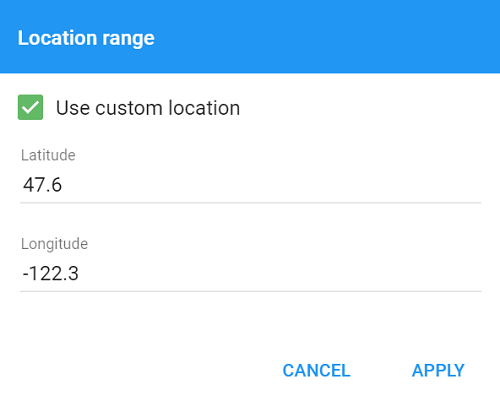
Location Range
- Use custom location: set a location to measure from.
- Latitude: the latitude of the custom coordinate.
- Longitude: the longitude of the custom coordinate.
Also available through the REST API
Everything on this page is built on Informer's public REST API, the same one the product uses, so your scripts and integrations can do it too. Developer reference: Queries.