Using Saved List functionality for a SQL Server database
Informer 5 can create a Saved List of values for a SQL Server database and use an existing Saved List in criteria. To use this functionality, Informer also needs a Datasource connection to a UniData database. If you already have a U2 database connected, you can use it as the repository for the Saved List. Otherwise, follow the steps below.
Go to the Mappings tab and add a Multi-value (U2) Datasource. This is an empty Datasource pointing to the UniData instance on your Colleague application server; you do not need to map any files or fields.
Creating a Saved List
You can create a Saved List by exporting to one from the Actions menu on a Dataset or Ad hoc Query, or by setting it up as an action in a Job.
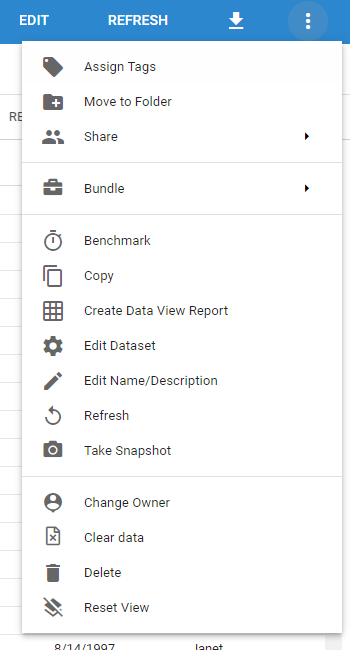
To export from the Actions menu, choose Export, then Saved List.
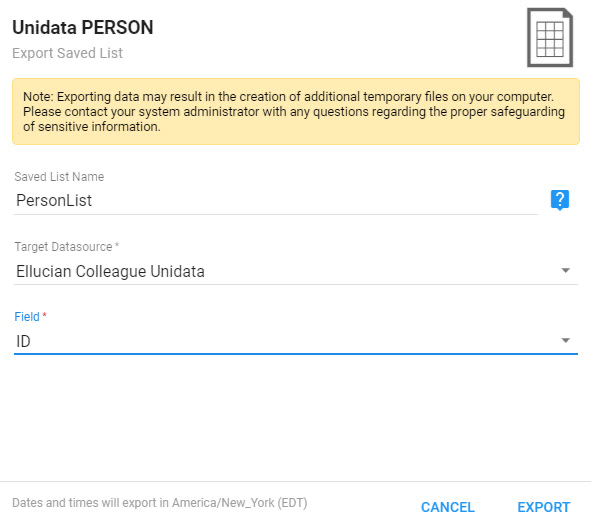
Choose the name of your Saved List, the Datasource where it will be saved (which must be a U2 Datasource), and the Field used to create the list. Click Export. See Exporting for more.
The other way is to set it up in a Job. Add a Job from the Dataset or Ad hoc Query, or create one from the Jobs menu. In the Job's edit screen, after you have access to a Dataset or Ad hoc Query, add the Export Saved List action.
Using a Saved List in criteria
To use a Saved List in a Dataset or Ad hoc Query, add criteria to call it on the Query's Edit screen. Add a criterion and choose Saved List in the dropdown where it says Value.
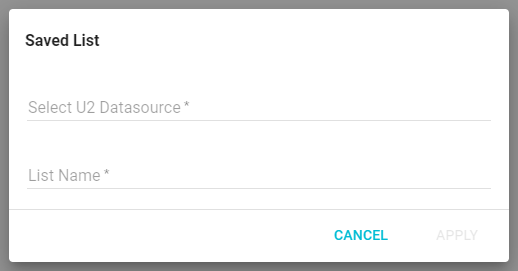
Then click Choose Saved List, choose the Datasource, and enter the name of the Saved List. When you refresh the Query, it runs based on the Saved List's values.