Datasets in a Job
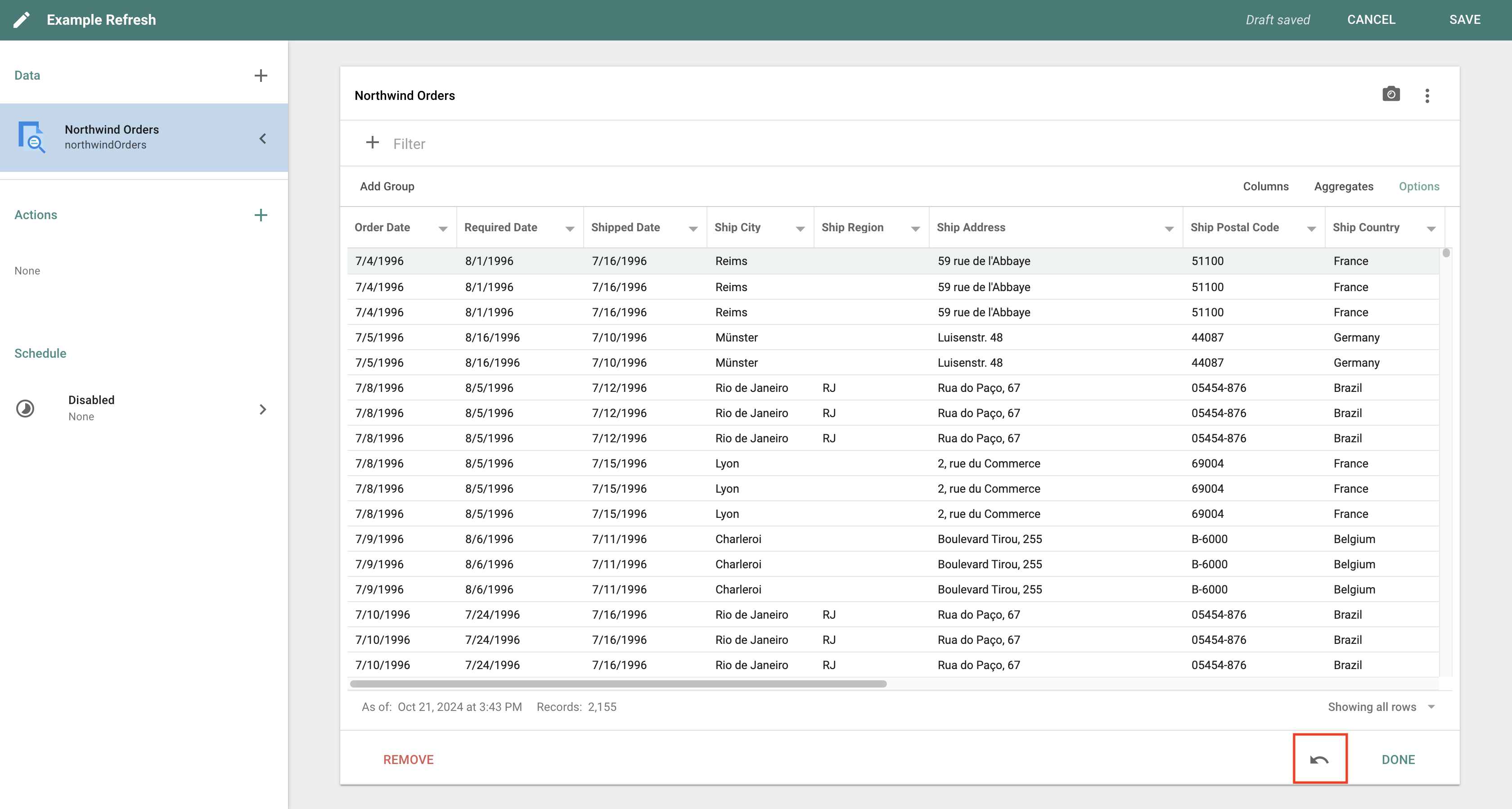
View the data contained in a Dataset after adding it to a Job by clicking on its name in the top-left panel. Other options appear at the top right of the screen to help you interact with the Dataset. Just like when viewing a result set directly on the Dataset itself, the column ordering and Field settings are available for manipulation and customization within the Job (see Field options while viewing). Any changes only affect the Dataset's format inside this Job. One use case for this is sending an email within a Job whose attachment needs a different column ordering than the original Dataset.
Filters
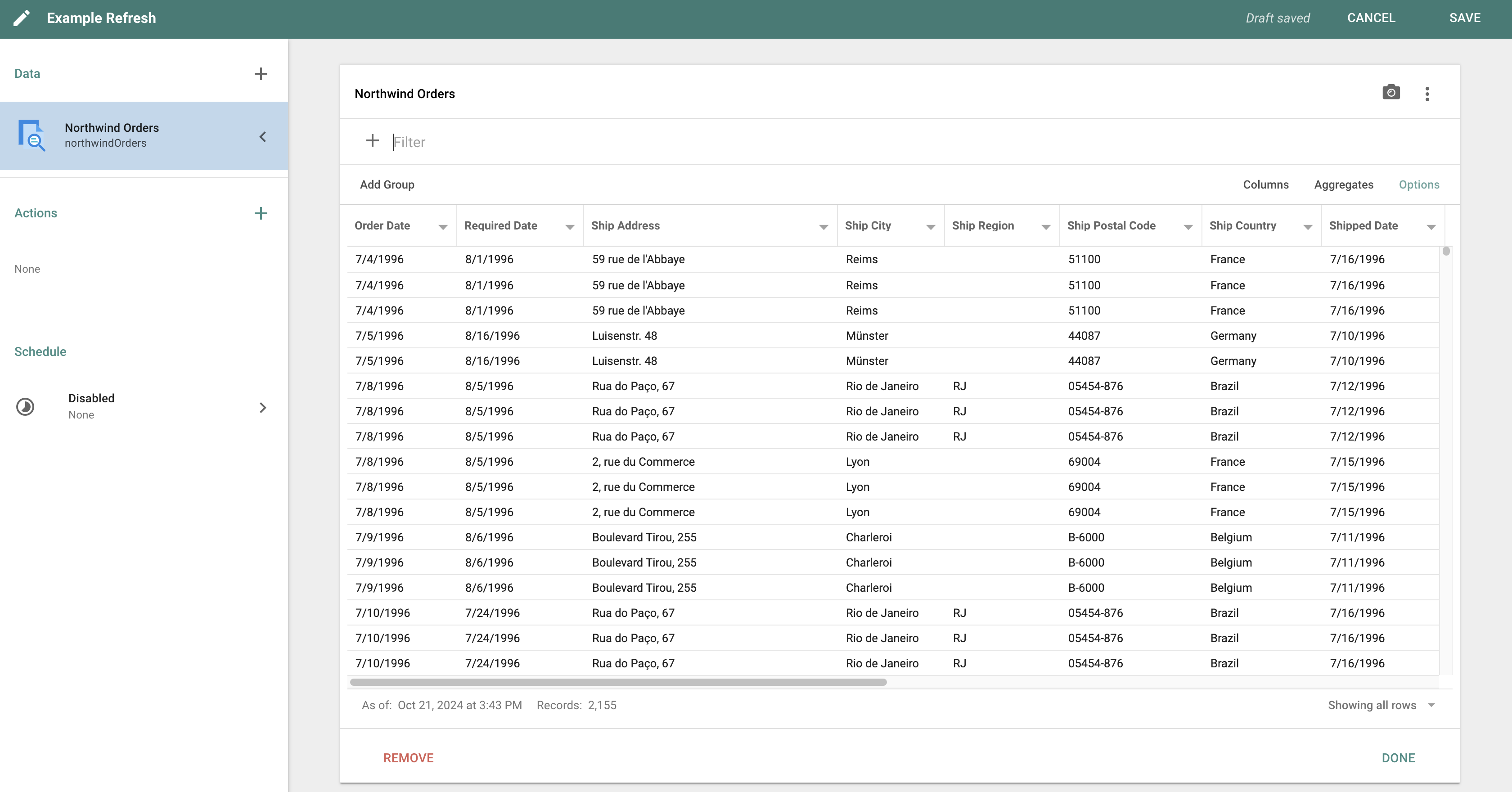
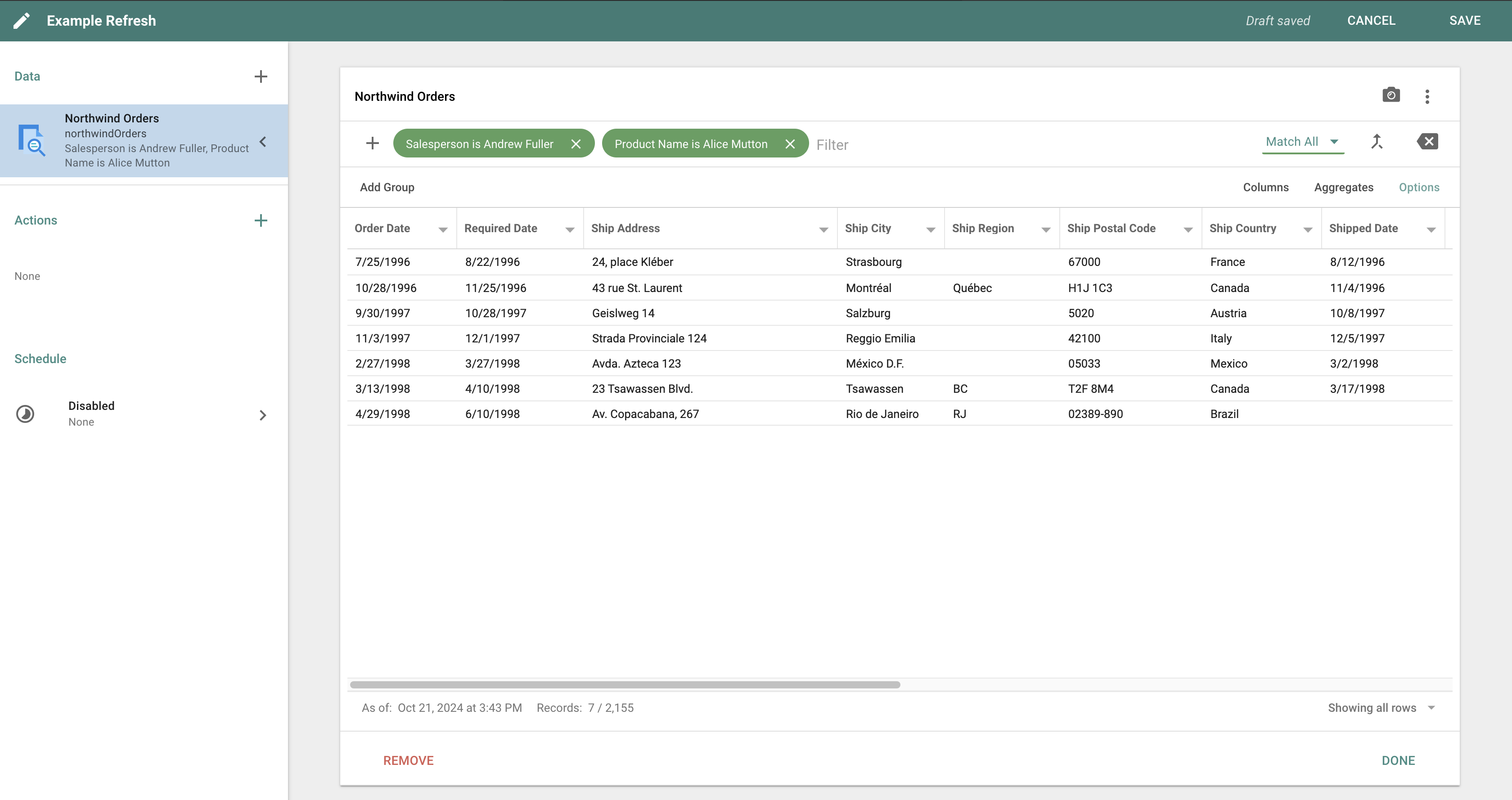
Add post-query filters to a result set in a Job by clicking the + button at the top of the grid. This is helpful when a single Dataset contains multiple groups of information but only a subset is desired. Add a Filter to a Dataset's Job to ensure that any emails sent out meet your use case.
Refresh
Manually refresh or change inputs in the Job by clicking the 3-dot icon in the top right and then Refresh. If there is an Input configured on the Dataset, changing the Input here in the Job also changes the Input for the entire Dataset. This may affect Reports tied to this Dataset. Use an Ad hoc Query to freely change the Inputs on data in a Job.
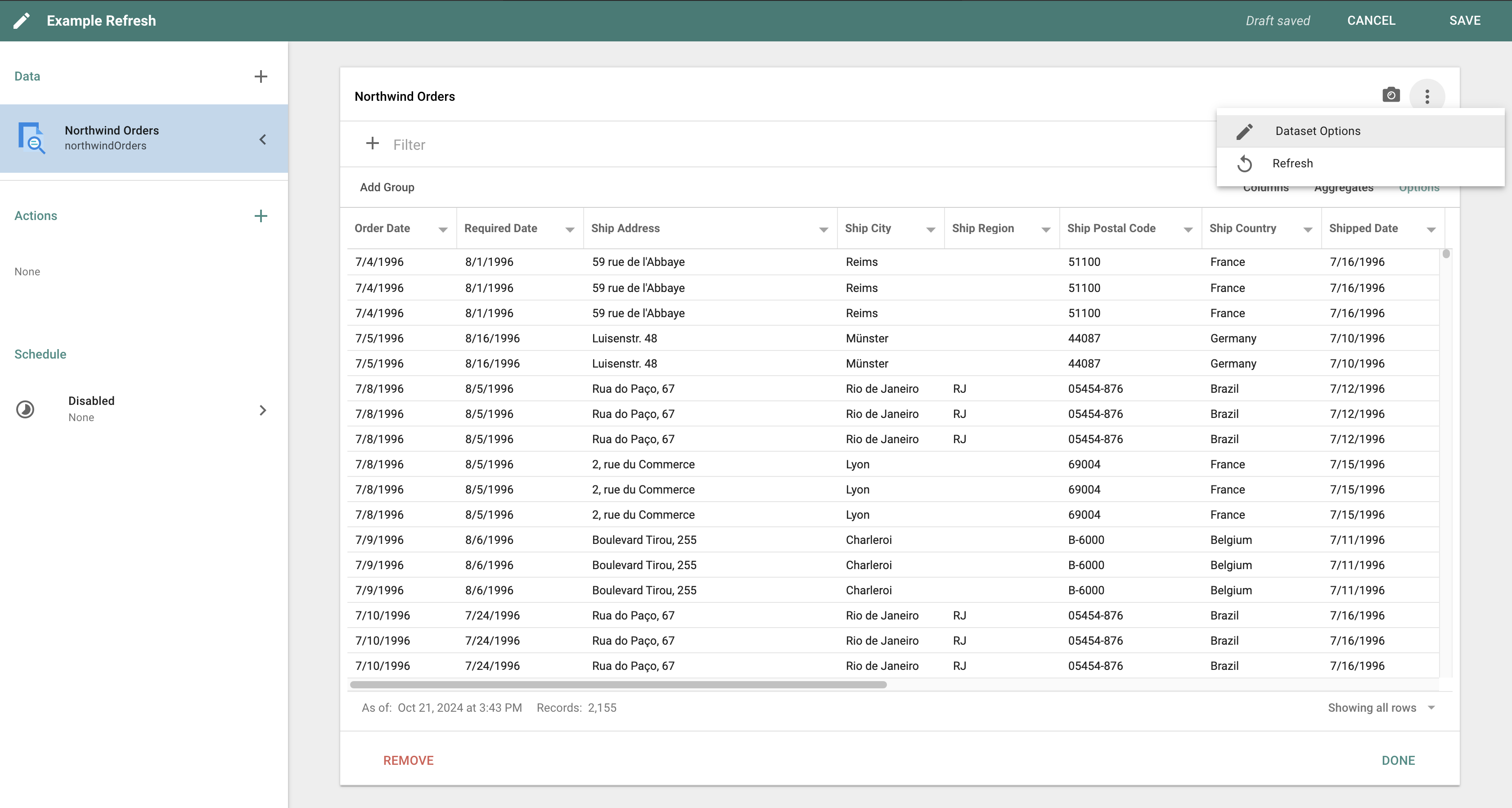
Refresh the Dataset when the Job executes by clicking Dataset Options in the action menu, and then choosing Refresh on Job run. In some cases it is not necessary to refresh the Dataset in a Job. For example, if the Job triggers an action to send an email or write a file to a remote location and the data is already in the Dataset.
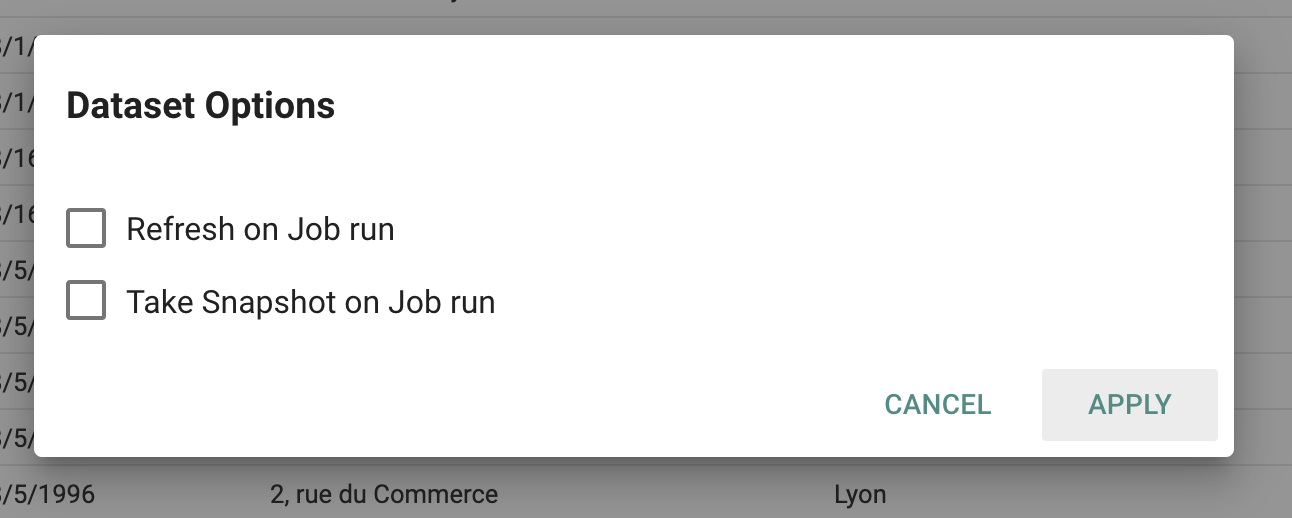
There is also the option to take a Snapshot of the Dataset when a Job executes. This is useful to capture the specific version of the data that is part of the Job so it can be referenced at a later point.
Reset Grid
When creating Jobs, you may reorganize the data held in the underlying Dataset. There are instances where you will need to reset the Dataset to its original state. To do so, use the Reset grid settings to those of the underlying Dataset button found on the data editor window.