Ad hoc Queries in a Job
Adding an Ad hoc Query to a Job is similar to adding a Dataset, with one exception: an Ad hoc Query saves its results for only 60 minutes by default. The Query inside a Job therefore needs refreshing every time the Job executes, otherwise the Query stays empty and returns no data.
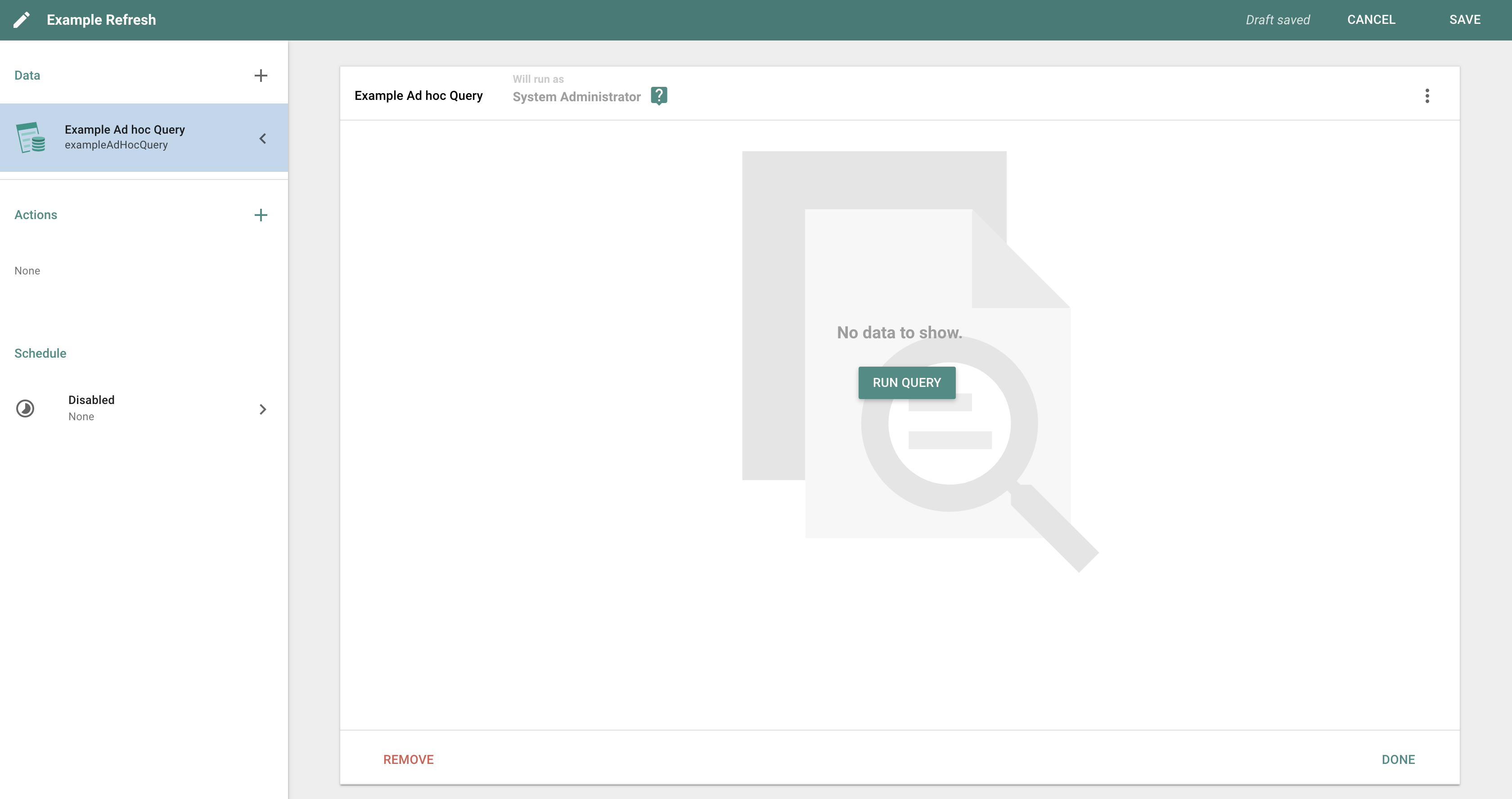
After adding an Ad hoc Query to a Job and clicking on it in the top-left, the display panel shows the words Run Query. Because an Ad hoc Query does not stay populated with data, the Query needs to run first inside a Job to preview the data before the Job runs.
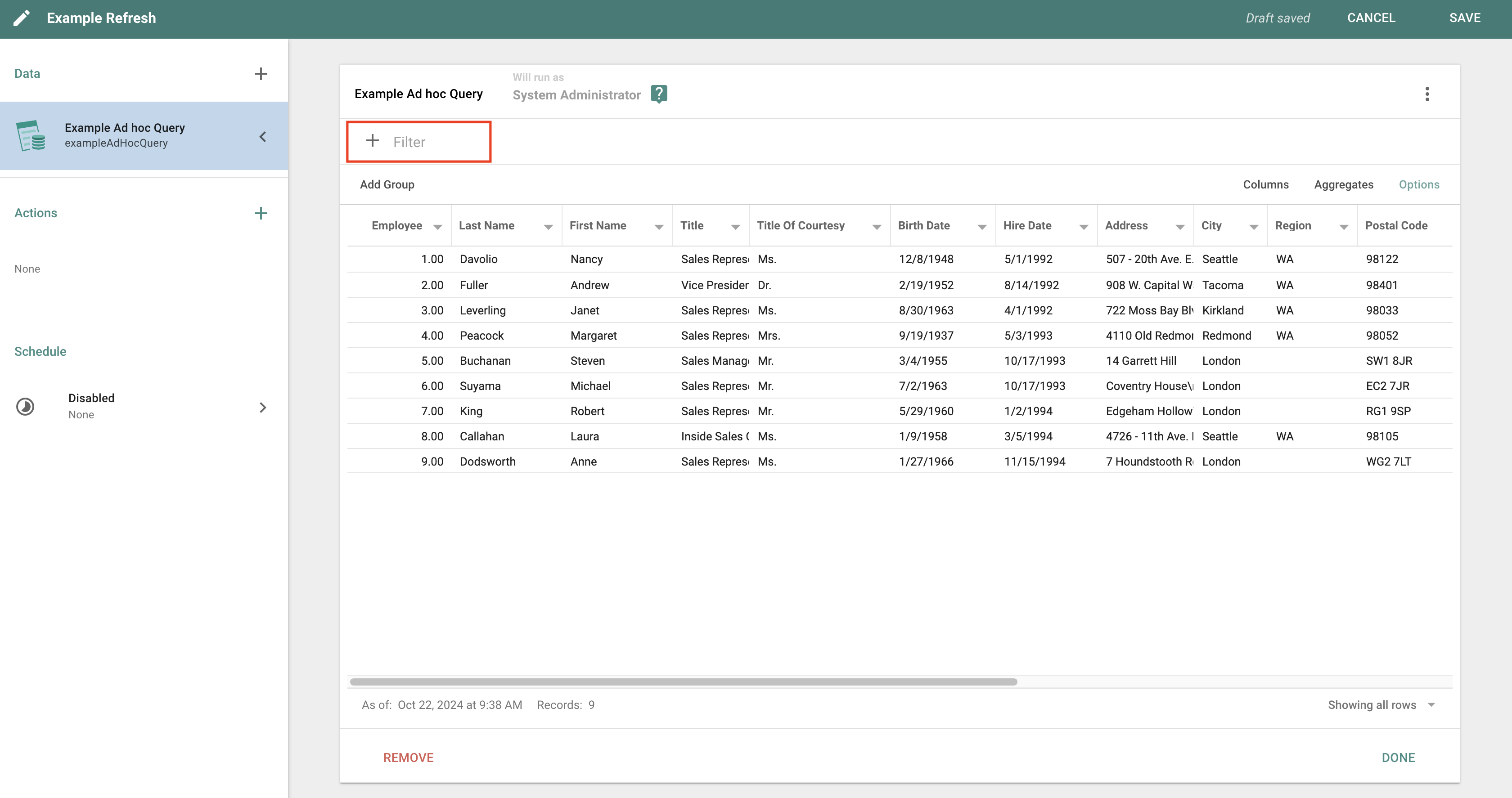
After clicking Run Query, the Ad hoc Query executes and the display panel on the right populates with data. Column order and Field settings are now available for customization (see Field options while viewing), and changes made here only affect the Ad hoc Query inside this Job.
Filters
To add post-query filters to a result set in a Job, click the + Filter option at the top. This is helpful when the returned result needs filtering before it goes out in an email or is written to a file.
Reset Grid
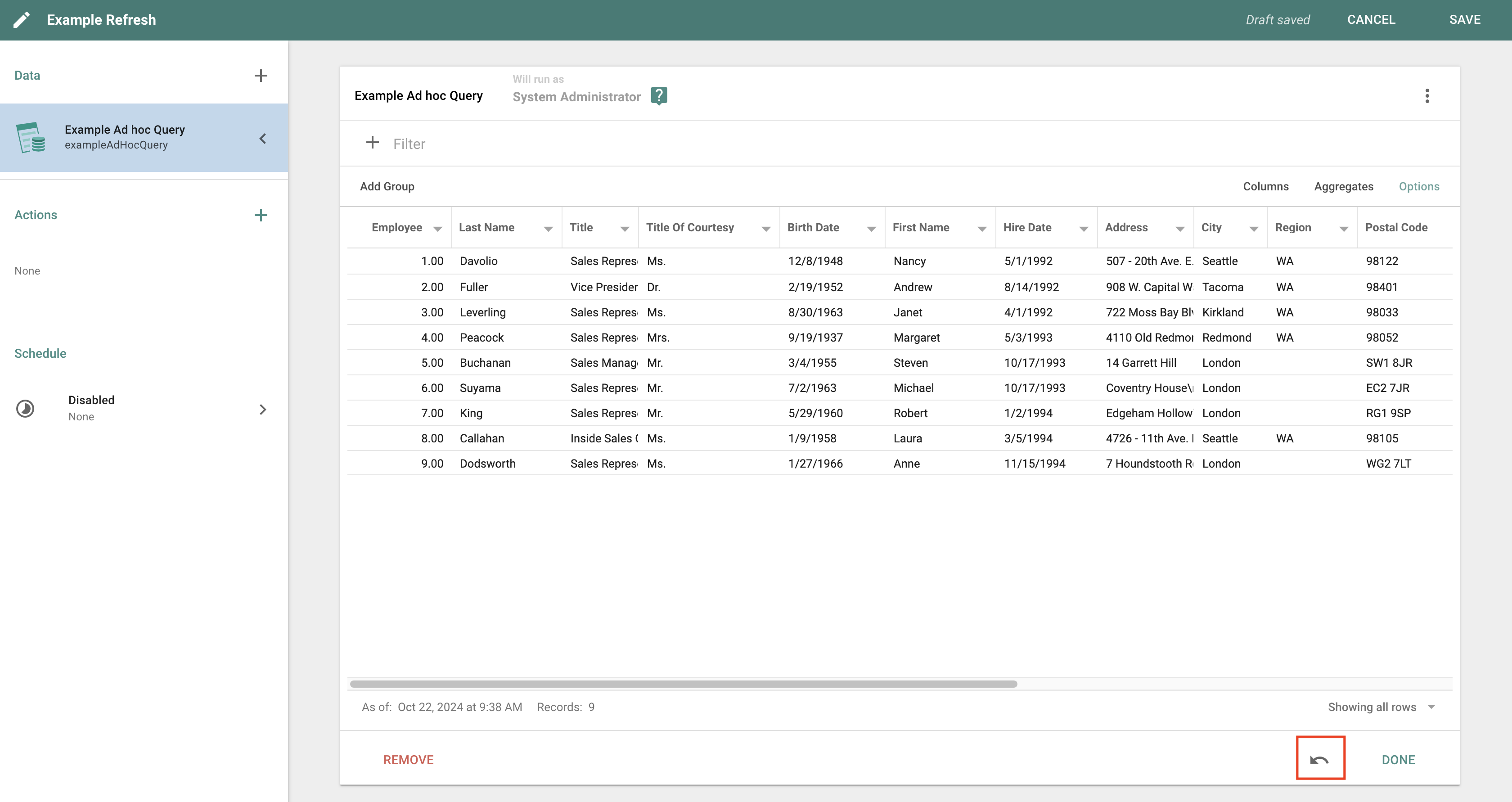
When creating Jobs, you may reorganize the data held in the underlying Query. There are instances where you will need to reset the Query to its original state. To do so, use the Reset grid settings to those of the underlying Query button found on the data editor window.
Refresh
Manually refresh the Query by clicking the 3-dot action menu in the top right corner, then selecting Run. Notice the text displaying which User the Query will impersonate when running the Job. In the example below, that is the System Administrator User.
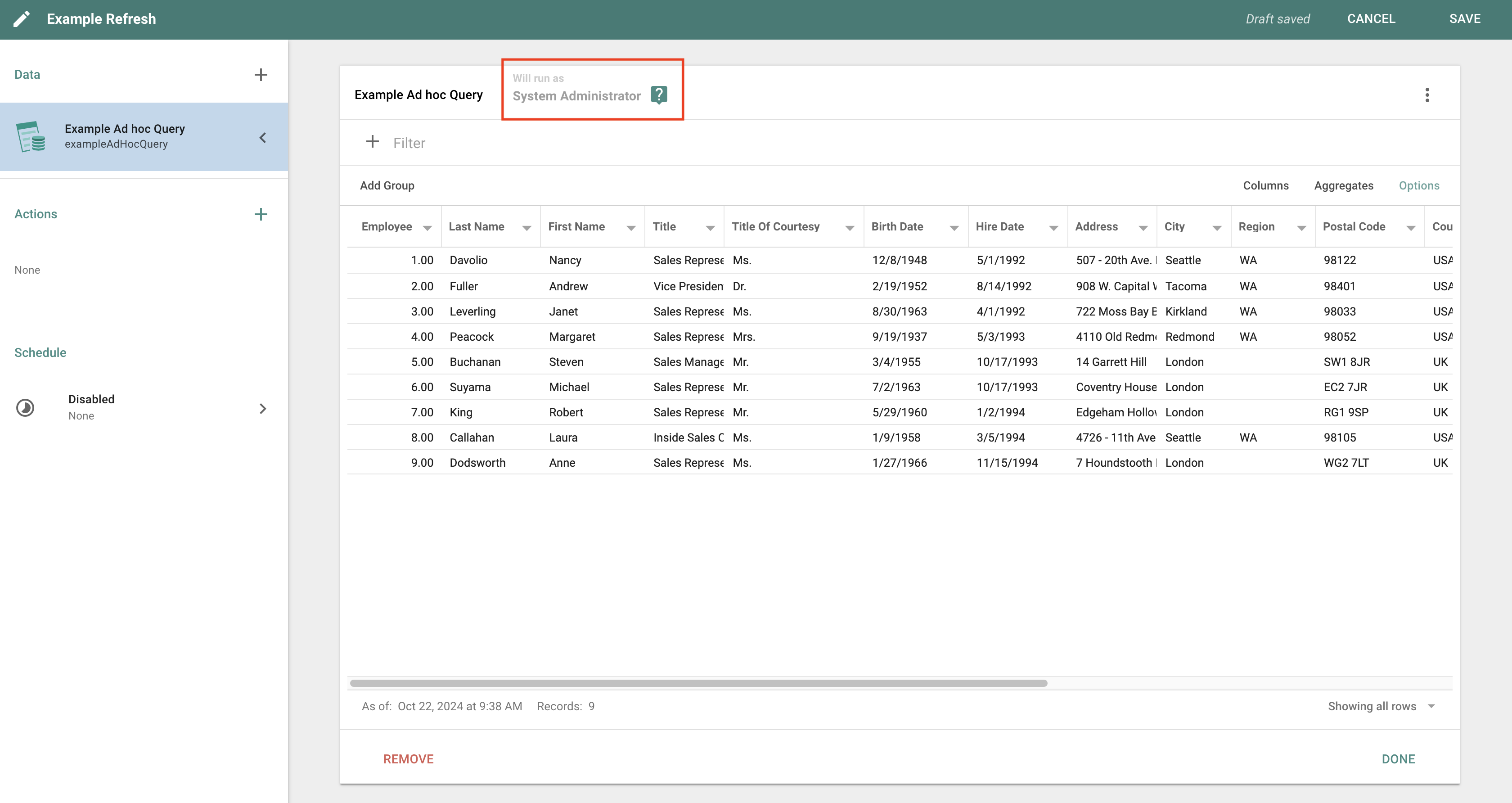
Because the System Administrator is also currently the owner of this Job, refreshing the underlying Query works as expected.
If you change the owner of this Job and then view this page again, an information banner appears across the top of the Query editor.
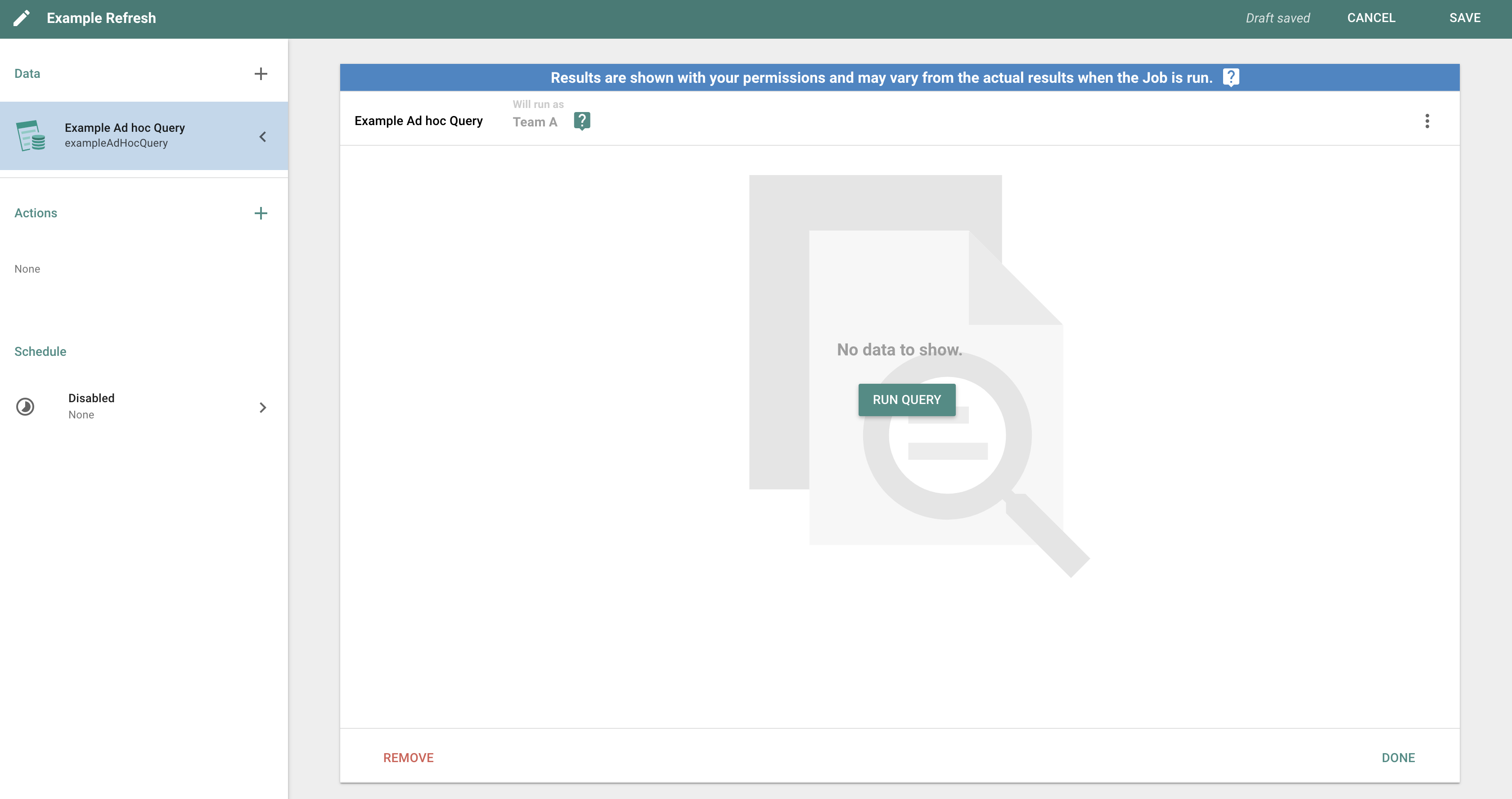
This banner lets you know that the results you see when running the Query here may differ from the results seen when the Job is run. This is because the owner of the Query is not the owner of the Job. Running the Query via the Run Query button refreshes the data with your permissions, which could differ from the permissions used when the Job is run.
When the owner of the Job does not have access to run the underlying Query at all, an orange banner appears across the top of the Query editor stating that the owner does not have adequate permissions to run it.
This can happen when a System Administrator creates an Ad hoc Query and adds it to a Job, then changes the owner of the Job to a normal User. Because the normal User does not have access to run that Ad hoc Query, the refresh fails when the Job is run.
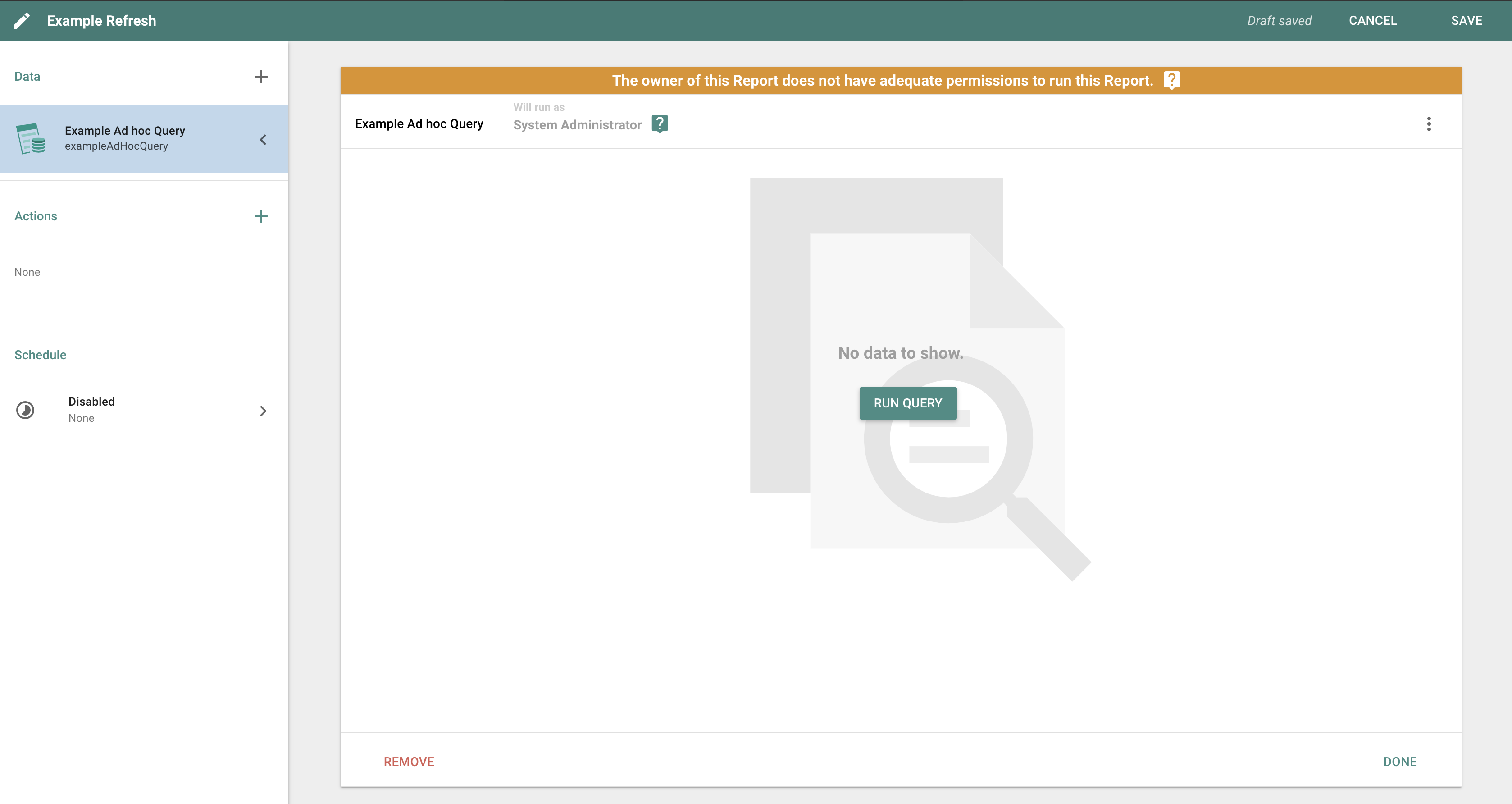
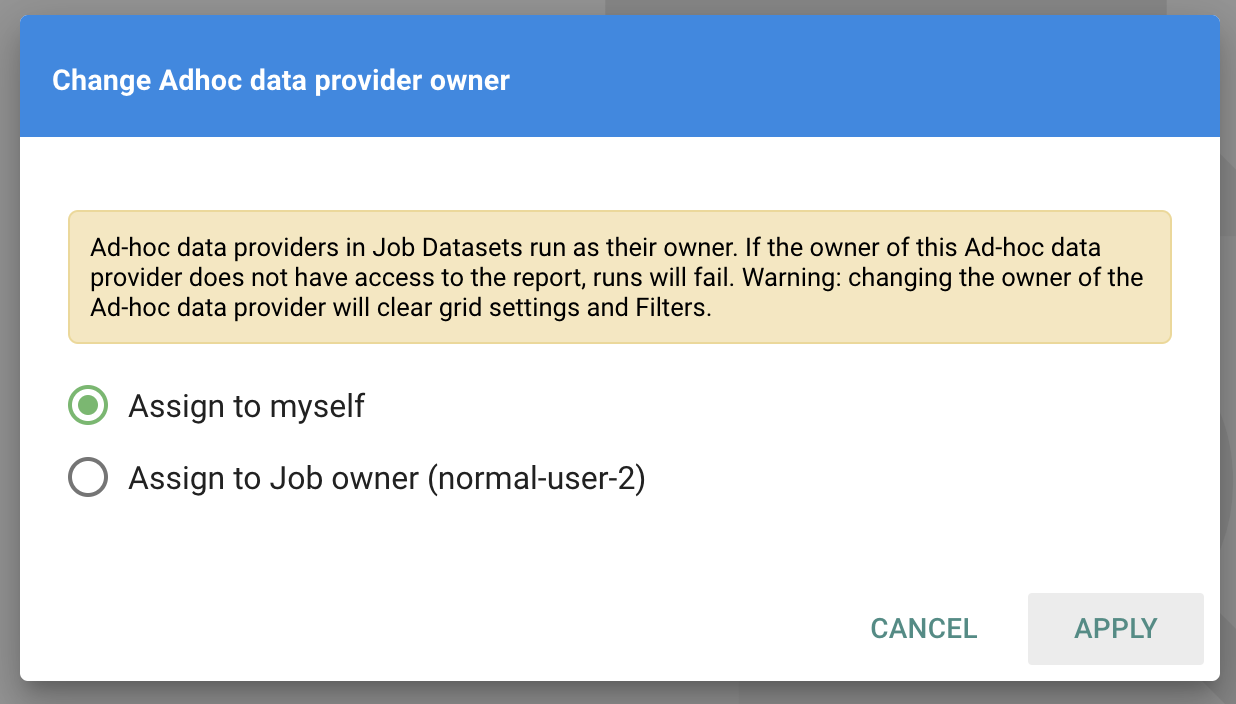
While editing the Job, if you want to change the owner of the Query, click the Will run as option. This opens a dialog that lets you change the owner of the Ad hoc Query to either yourself or the owner of the Job.