Configuring an MSSQL Datasource to use Windows Authentication
This article applies to Microsoft SQL connections that require domain authentication to the Datasource. The default run environment for Informer 5 and the embedded MSSQL JDBC driver only supports local MSSQL security out of the box. This supplemental article covers only the domain authentication requirements and configuration. See Creating a SQL Datasource for the rest of the connection setup.
Configuring domain authentication
Informer 5 must be running on a Windows Server within the same domain as the source of authentication. This authentication method does not apply to Cloud-hosted Informers, where the web server does not reside within the same domain as the AD server.
The Informer 5 Windows Service needs to run as the desired domain account. From the Services panel, right-click the Informer 5 service, click Properties, click into the Log On tab, and change the Log on as account from the Local System account to the domain account authenticating to the target Datasource.
This domain account needs administrator permissions on the Informer server, along with explicit rights granted to Log on as a service (either by a Local Security Policy or a domain-controlled GPO). The authenticating account also needs read access to the MSSQL Datasource to run queries.
The server hosting Informer 5 needs a Microsoft-provided DLL file in order to connect to the database as the desired Microsoft domain user. Download the appropriate DLL for your Informer version and place it in C:\Windows\System32. Contact Entrinsik Support if you need a copy.
| Informer version | DLL file |
|---|---|
| 2025.1.x or earlier | sqljdbc_auth.dll |
| 2025.2.x or later | mssql-jdbc_auth-12.6.4.x64.dll |
After configuring the Windows service to run as the desired domain account and placing the required DLL, stop and start the Informer 5 service to apply the changes. Once Informer is online, log in and go to the target Datasource's connection settings.
Click Add Property, enter the key integratedSecurity, and set the value to true.
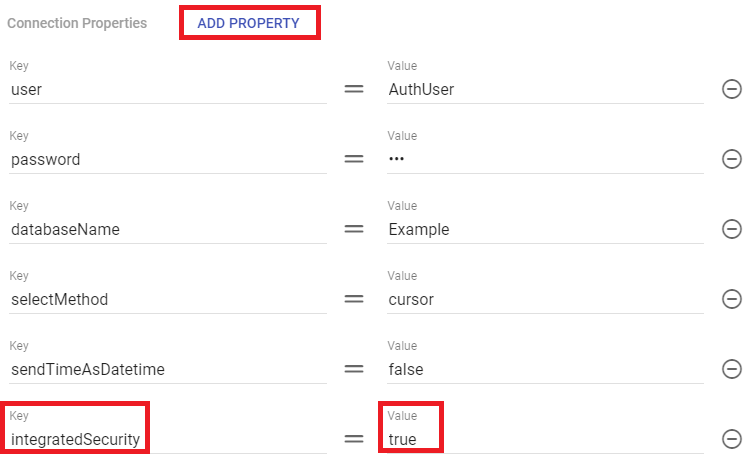
Fill out the rest of the settings per Creating a SQL Datasource. Test the connection to make sure everything is working, then Save.
FAQ
If your Informer was upgraded from a version below 2025.2.0 and now encounters the error below on an MS SQL Datasource using Windows domain authentication, it is due to a driver change shipped with 2025.2.0 and later. The MS SQL JDBC driver change requires a version-controlled mssql-jdbc_auth DLL. Replace the old sqljdbc_auth.dll with the new versioned file in C:\Windows\System32.
Unable to load authentication DLL mssql-jdbc_auth-12.6.4.x64