Connecting to and updating from a CSV file in a fixed location
PostgreSQL, the database that stores Informer's metadata, can point to a CSV file and treat it like a SQL table. This allows Informer to report off the CSV file as though it were any other SQL table. Use this if the CSV file regularly gets updated; otherwise use Workspaces instead.
Back up PostgreSQL before continuing (Backups and Restores (Windows) or Backups and Restores (Linux with Docker)). Accessing PostgreSQL directly provides opportunities to make mistakes that can cause data loss.
Creating the foreign table
First, connect to Informer's PostgreSQL from a command line. Create or connect to a database that is not Informer's database. This database should be backed up, just like Informer's database.
CREATE DATABASE somedatabase;
\c somedatabase
Follow the commands below to configure the File Foreign Data Wrapper extension (official documentation).
CREATE EXTENSION file_fdw;
CREATE SERVER someserver FOREIGN DATA WRAPPER file_fdw;
Replace someserver with a name that represents the group of CSV files that will be added. This might be a folder name, an actual server name, or anything else. Use all lowercase letters with no spaces.
Next, create the foreign data table that will represent the CSV file. This part is repeated for each CSV file, with a unique name for each table. This command is an implementation of PostgreSQL's COPY command (official documentation).
CREATE FOREIGN TABLE tablename(
  some_column text,
  some_other_column integer,
  yet_another_column timestamp with time zone,
  large_number_column bigint
) SERVER someserver
OPTIONS ( filename '\\somefileshare\somefolder\somefile.csv', format 'csv', header 'false' );
- Replace
tablenamewith the unique name for the table, and each variation ofsome_columnwith a column name to use in the table. - Each column name is followed by a data type. The available data types are listed here.
- Replace
someserverwith the server name that was created in the first step. - The options needed are
filename(a UNC path to the CSV file),format(csv), andheader(trueorfalse, depending on whether the CSV file's first row is column headers).
The foreign data table can be tested with a basic select statement. The following should return the number of rows in the CSV file:
SELECT COUNT(*) FROM tablename;
Reporting on the data in Informer
To report on this data in Informer, add a new PostgreSQL Datasource and enter the connection information for Postgres. This information can be found in the config.json on the Informer server.
| Setting | Value |
|---|---|
| Name | Whatever makes sense |
| Server | localhost on Windows, or postgres on Linux with Docker |
| Port | 5432, or the port in config.json under the db block |
| User | postgres |
| Password | the password in config.json under the db block |
| Database | somedatabase |
The connection string's Server value is different from the someserver value specified when creating the foreign data wrapper. The Server value should be the server name hosting your PostgreSQL service, often localhost on Windows deployments or postgres on Linux deployments using Docker.
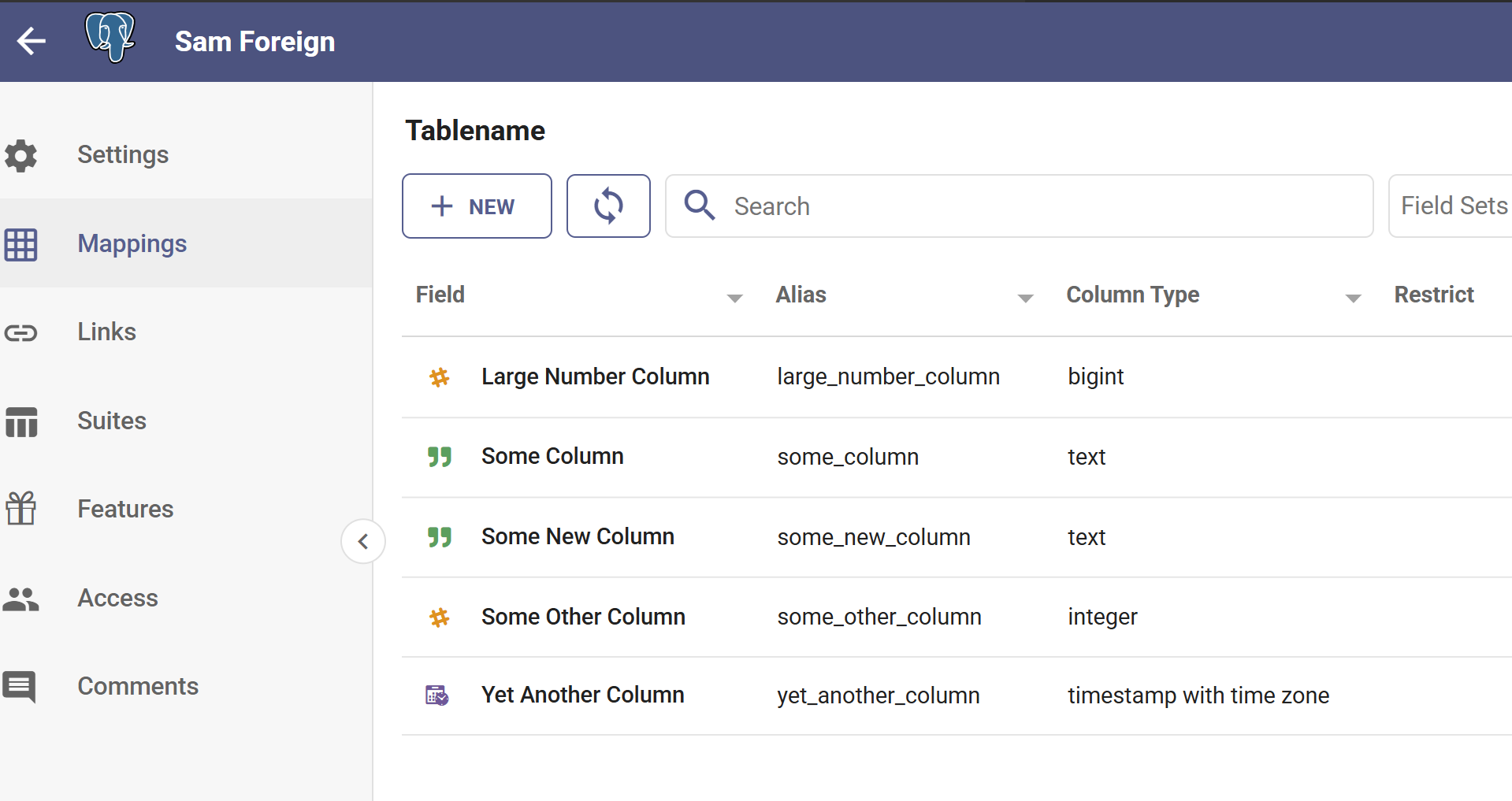
After adding the Datasource and scanning it, this can be treated like any other Datasource with tables. When a query is run, Postgres loads in the latest information from the CSV file.
Updating the CSV fixed location
If the location for the CSV file changes, connect to somedatabase and run the following ALTER statement to update the file location, replacing tablename with the Workspace Mapping name.
ALTER FOREIGN TABLE tablename OPTIONS (SET filename '\\someotherfileshare\somefolder\somefile.csv');
Adding a Field or column to an existing foreign-table Mapping
To add another column to the foreign-table Mapping, connect to somedatabase in psql and alter the table with the following statement.
ALTER FOREIGN TABLE tablename ADD COLUMN some_new_column text;
Change these values based on your situation:
tablename: the table name created above.some_new_column: the desired column name.text: the desired data type.
After altering the table, return to Informer and run a scan of the Mappings to reveal the newly added column.