Adjusting time zones for criteria and results
By default, when dates in your database do not include time zone information, Informer assigns a time zone based on the system time where the data is being processed. This can cause date values to be misaligned when your system time zone differs from your Users' time zone.
The problem and the solution
The problem: mismatched time zones
Most databases support date fields with and without time zones. For date fields without time zone information, a value like 2024-01-15 14:30:00 contains no indication of what time zone it is in. When Informer reads that value, it has to assume a time zone, and the assumption it makes is based on the system time of the server processing the data:
- On-premises: if your system time is Eastern, dates are treated as Eastern time.
- Cloud: the system time is UTC, so those same dates are treated as UTC.
- Result: the same database value displays differently depending on where it is processed.
Example: imagine you migrated from an on-premises system with Eastern system time to Cloud (UTC system time). A record with the value 2024-01-15 14:30:00 would previously display as 2:30 PM Eastern. After migration, Informer now interprets it as 2:30 PM UTC, which is 9:30 AM Eastern. Your date-based data suddenly appears 5 hours off because the system is now interpreting it as UTC instead of Eastern.
This mismatch also affects date-based criteria. A User specifying "all records on January 15th" expects that to mean January 15th in their time zone. Without adjustment, the criteria is applied against the raw database value using the system time zone, potentially returning records from the wrong day from the User's point of view.
The solution: Datasource-level time zone adjustment
The Informer Criteria Adjust plugin lets you set a time zone adjustment at the Datasource level. This tells Informer that the dates in this Datasource were created when the system was in one time zone but the system is now in another, so it adjusts all queries and results by the time difference between the two so everything aligns correctly.
Configuration
This feature is provided by the "Informer Criteria Adjust" plugin and must be enabled before you can configure it.
Step 1: enable the feature
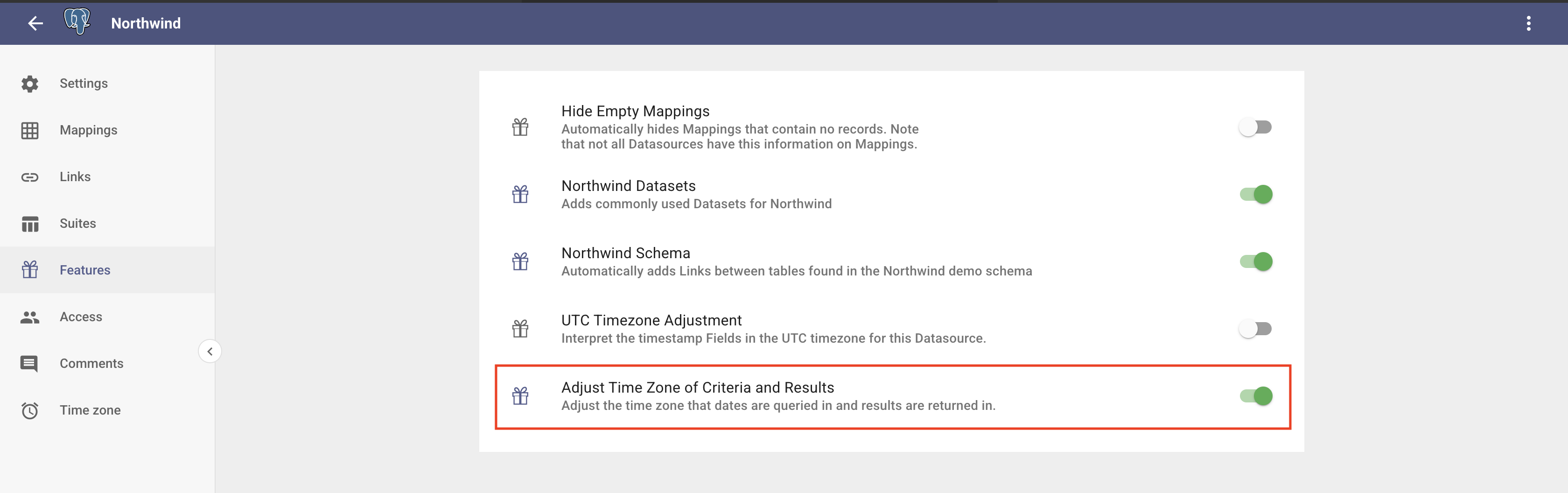
Open your Datasource and go to the Features section. Find Adjust Time Zone of Criteria and Results and toggle it on.
Step 2: configure time zones and options
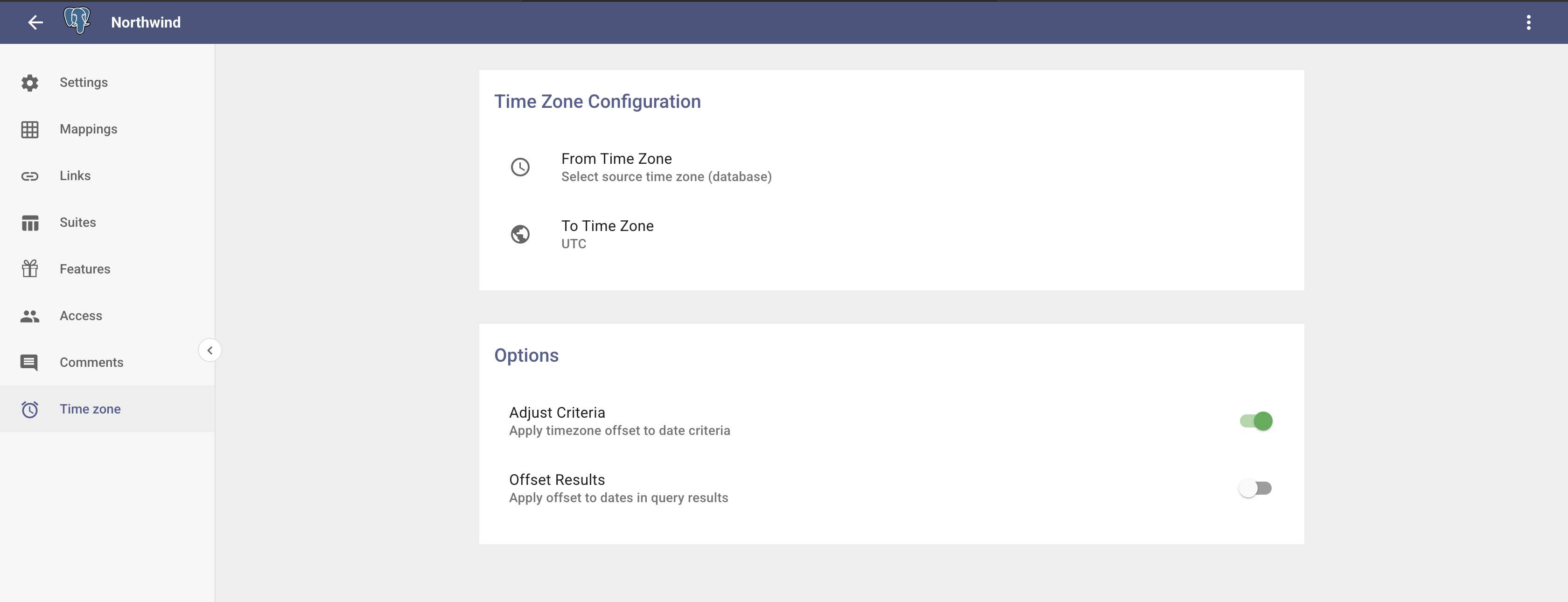
Once the feature is enabled, the Time zone option appears in the navigation menu on the left. Click it to open the configuration panel, which contains the following settings:
- From Time Zone: the time zone Informer's system is currently running on. For Cloud deployments this is UTC. For on-premises deployments this is your server's system time zone.
- To Time Zone: the target time zone you want to convert dates to. This is typically your Users' time zone, or the time zone the dates were originally created in.
- Adjust Criteria: when enabled, the plugin automatically offsets all date-based criteria before the query is sent to the database. This ensures that when a User specifies "January 15th" in their query criteria, Informer queries for the correct range rather than applying the criteria in the wrong time zone. For example, with From Time Zone set to UTC and To Time Zone set to America/New_York, a criteria of February 1st is shifted by -5 hours so the query targets the correct Eastern-day boundary in UTC terms.
- Offset Results: when enabled, the plugin converts date values in query results back from the From Time Zone to the To Time Zone, so dates displayed to Users reflect the expected time zone rather than the raw stored values. For example, a record stored as
2024-02-01 18:00(UTC) displays as2024-02-01 13:00when converting from UTC to Eastern time.