Teams Actions overview
Click the ... on the left side of a row on the Teams listing page to open the Actions menu, which collects the ways to modify the selected Team.
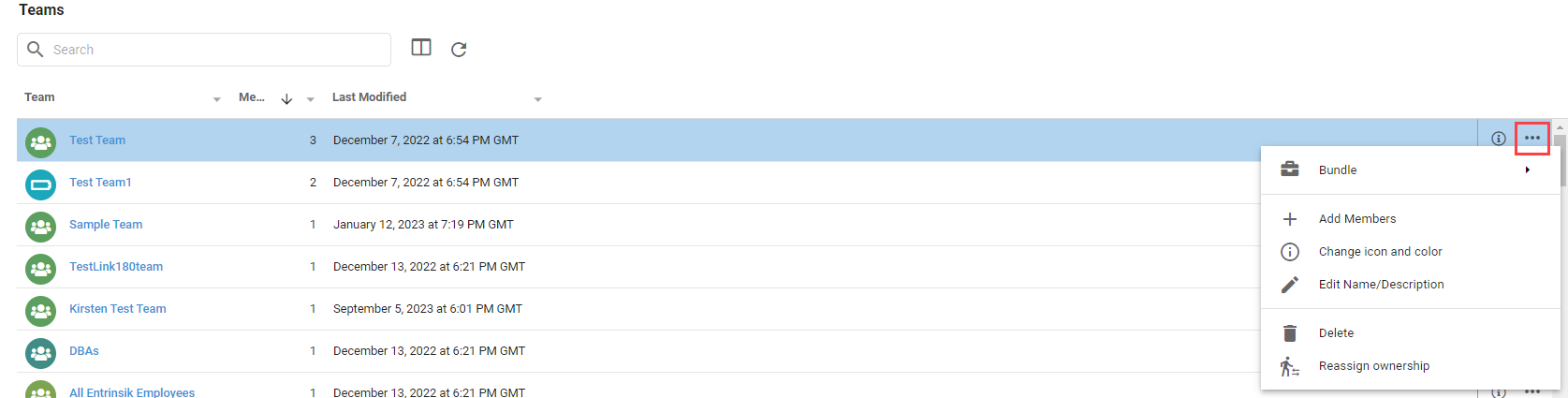
Bundle
Bundle has options to:
- Add to Bundle: add the selected Team to an existing or new Bundle.
- Bundle and Download: immediately create a Bundle with the Team and download the file.
- Bundle and Deploy to Tenant: export the Team in a Bundle and import it to one or more Tenants.
Add Members
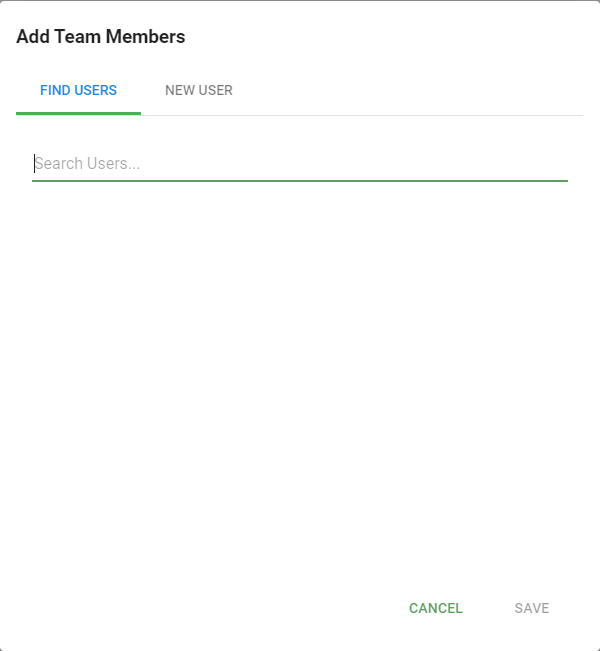
Add Members opens a dialog to add new or existing Users to the Team. Use the search box on the Find Users tab to search for existing Users, or the New User tab to create and enable a new User and add it. Click Save after selecting or creating Users.
Change Icon and Color
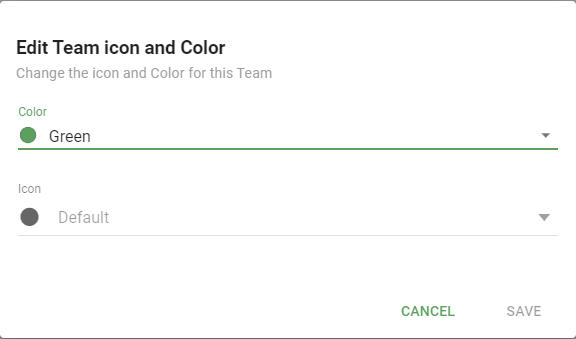
Change Icon and Color opens a dialog to set or change the Team's icon or color. Select a color or icon from the dropdowns and click Save.
Edit Name/Description
Edit Name/Description changes the Team's name or description.
Delete
Delete opens a dialog that confirms deleting the Team and asks what to do with the content the Team owns.
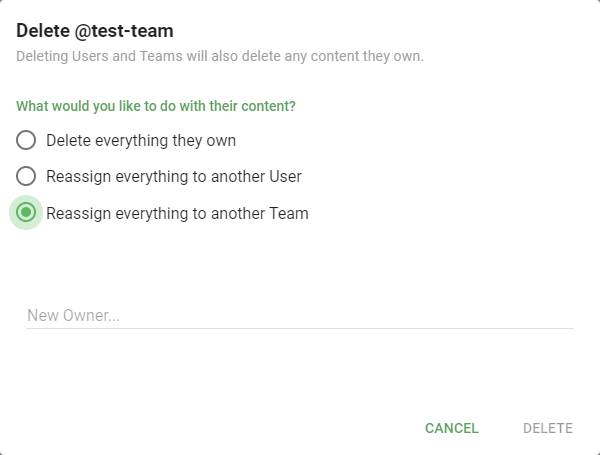
There are three options for the Team's content:
- Delete everything it owns.
- Reassign everything to another User.
- Reassign everything to another Team.
Select a new owner from the dropdowns to reassign the content, then click Delete.
Reassign Ownership
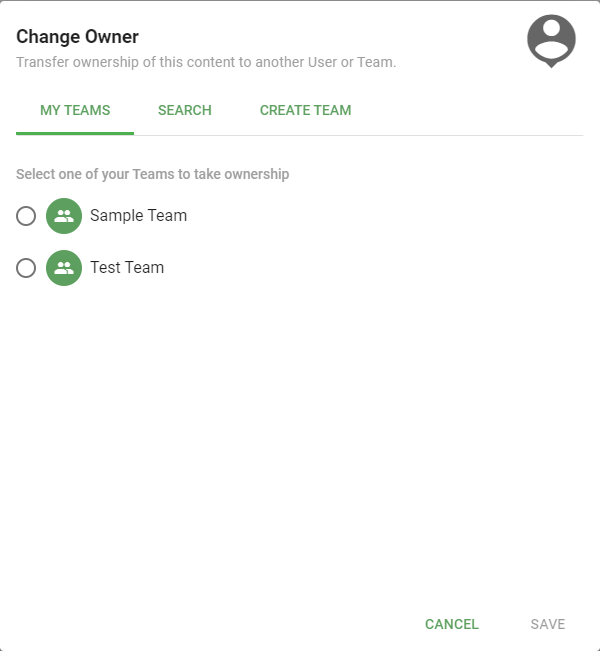
Reassign Ownership opens a dialog to change the Team's ownership to another User or Team. Changing a Team's owner also changes the ownership of all the content the Team owns. Use the tabs at the top to find a new owner.