Reports Actions overview
The Actions menu contains options for viewing, modifying, and distributing the data within a Report. Access this menu from the Report listing page: select the desired Report, then click the three vertical dots (the Actions button) in the top-right corner.
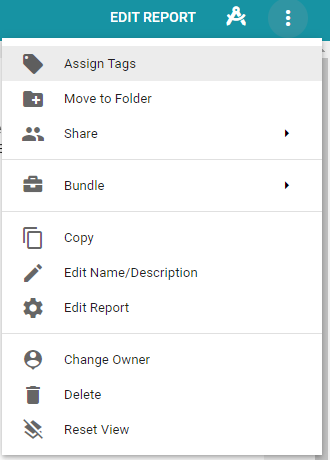
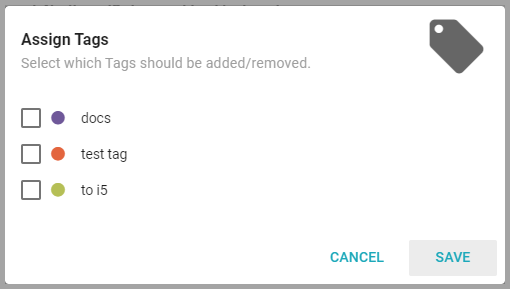
Assign Tags
Assign Tags attaches existing Tags to a Report. For more, or to learn how to make new Tags, see Organizing Content.
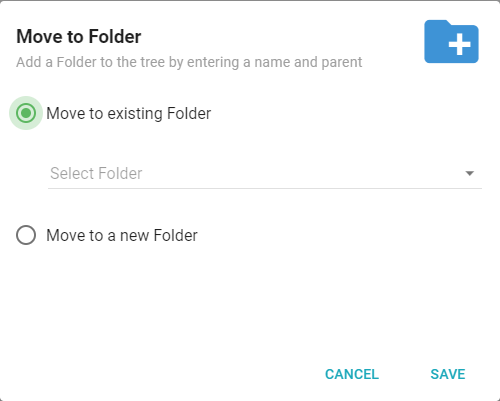
Move to Folder
Move to Folder moves the Report to a new or existing Folder. For more, see Organizing Content.
Share
Add shares to Users and Teams
Allows the owner of the Report to share it with other Users or Teams within Informer. Any existing sharing for the specified Users and Teams is overwritten by the settings selected. Use this option to set Row Level Security for the shared Report as well: the shared data appears to contain only the records that remain after the Filter is applied.
Generate External Link
Generates a link that can be sent to colleagues outside of Informer, allowing them to view Informer content without logging in. The dialog offers a light or dark theme and a choice of a direct link or an embed snippet. Revoke an external link from the Report's Access page.
Publish to Cloud
Publish to Cloud deploys a Report to a Cloud Informer and generates a public link to share. It is a way to share a Dashboard, Comparison Board, or Data View publicly without generating a link from a private Informer instance.
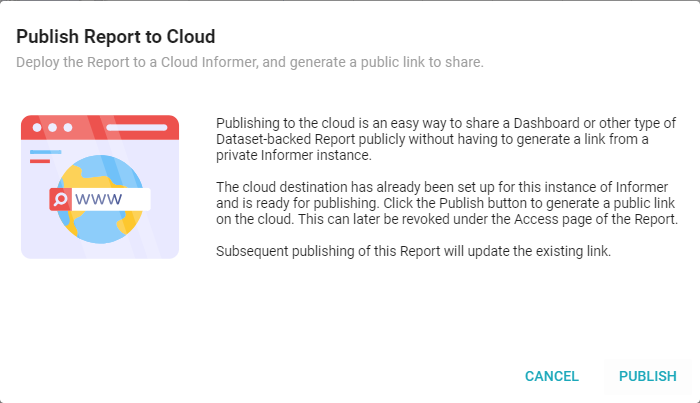
The cloud destination is set up for Informer in the Settings, ready for publishing. Click Publish to generate a public link on the cloud. Revoke the link from the Access page of the Report. The link updates each time the Report is published.
Bundle
- Add to Bundle exports the selected Report to an existing or new Bundle.
- Bundle and Download immediately creates a Bundle of the Report and downloads the file.
- Bundle and Deploy to Tenant exports the selected Report and imports it to one or more Tenants.
For more, see the Bundles documentation.
Copy
Copy creates a copy of the current Report.
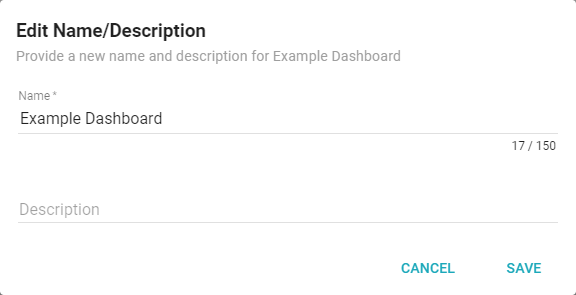
Edit Name/Description
Edit Name/Description updates the Report's name and description.
Edit
Edit opens the Report's edit page. Edit is also available in the top-right corner via the Edit button.
Change Owner
Change Owner gives ownership of the Report to another Team or User. For more on giving ownership, see the Report ownership and access documentation.
Delete
Delete permanently removes a Report from the system. This action cannot be undone.
Reset View
After you make changes to the Report, Reset View resets the view of the data to its original state.