Report listing page
To access the Reports section of Informer, click the Reports link from the Home page or from the Action menu elsewhere in Informer.
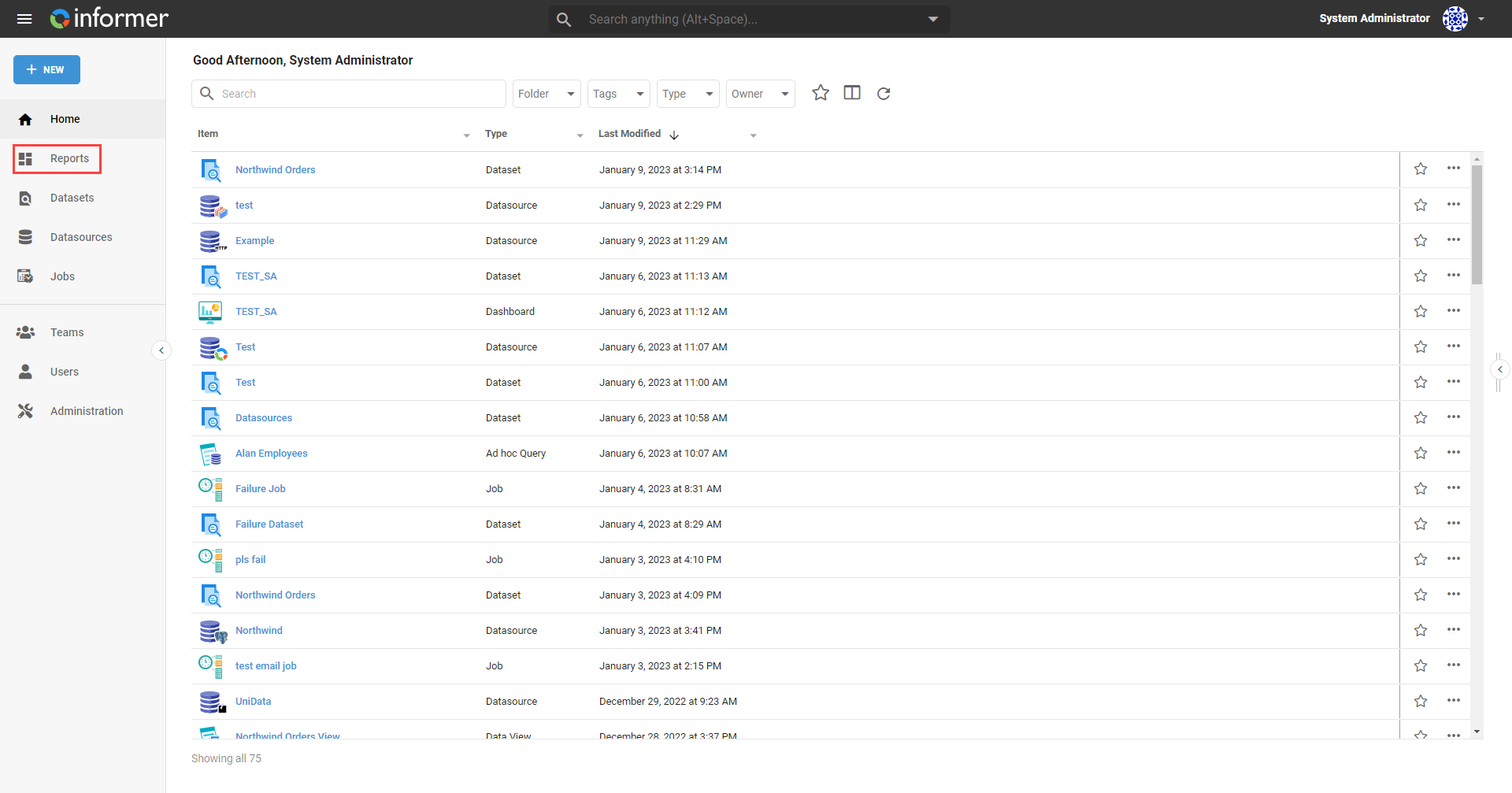
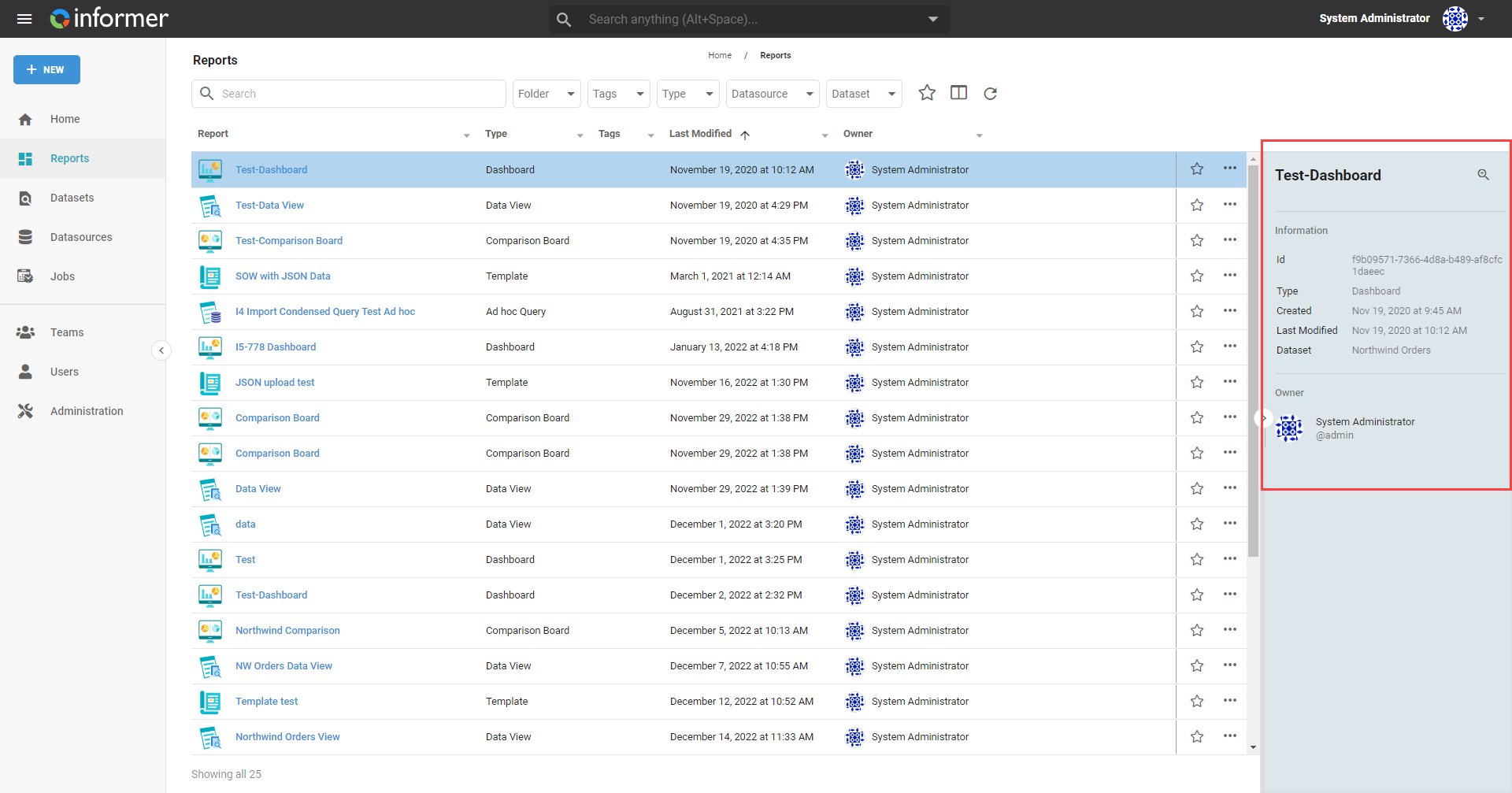
The Report listing page lists all the Reports available to the current User.
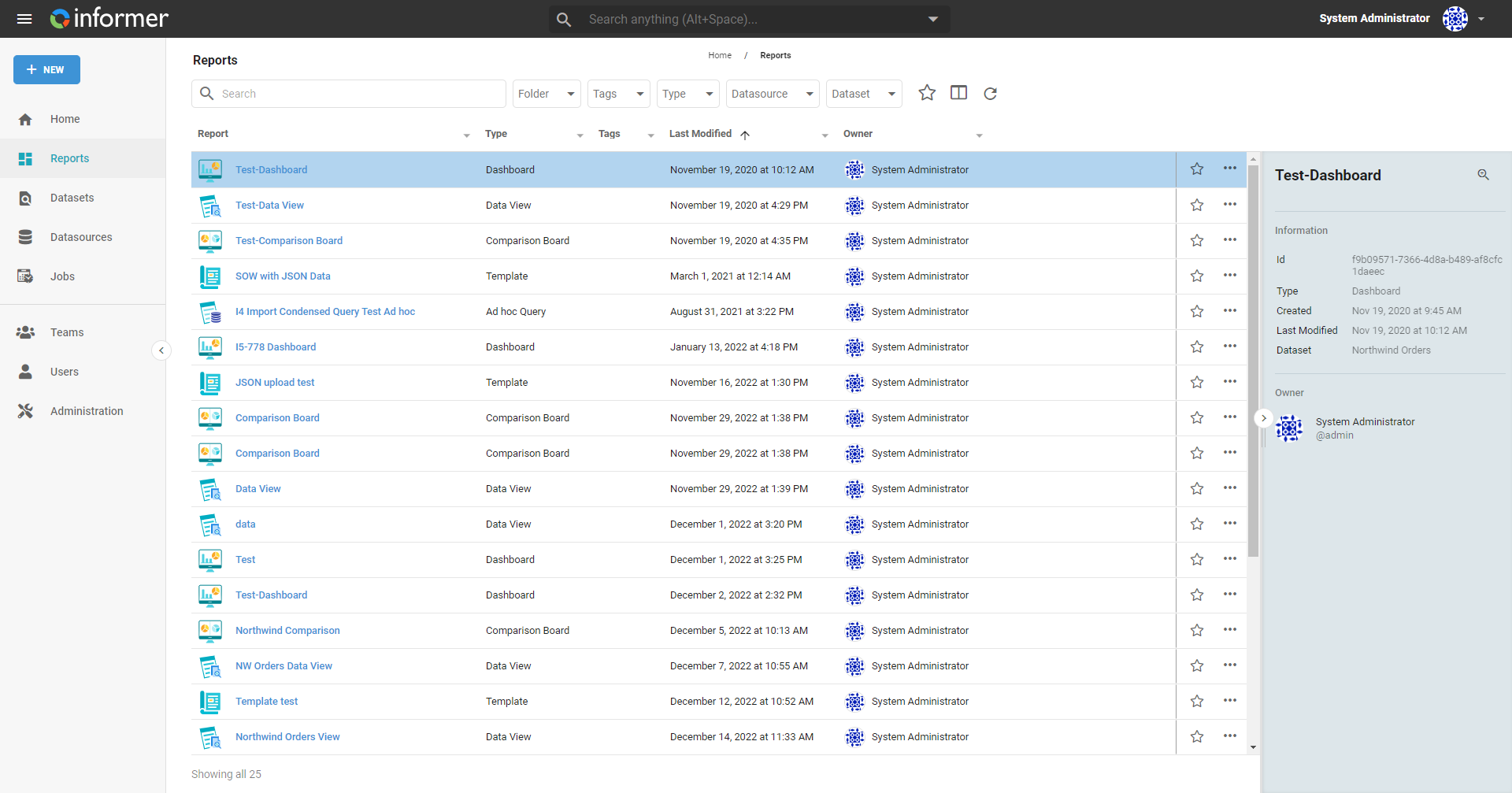
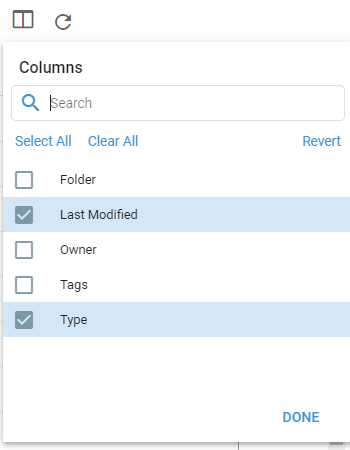
This page provides basic summary information about the Reports in the system, along with filtering options to find Reports. Use the search bar at the top to filter the list by typing any part of a Report's name, or use the dropdowns to filter by Folder, Tag, Type, Datasource, or Dataset. Use the Choose Columns button to select which columns appear in the table by checking or unchecking them.
Informer also organizes Reports using Folders and Tags.
Folders
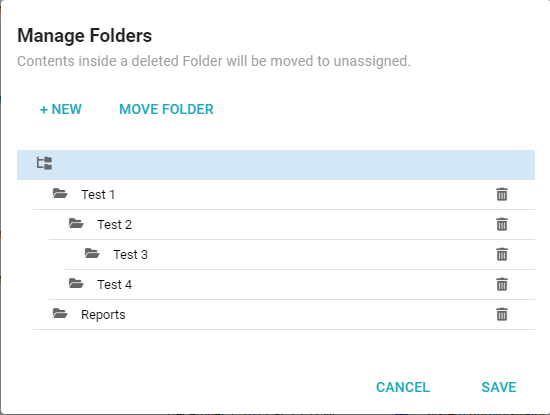
Custom Folders divide and store content. To create a new Folder, click the Folder dropdown and select Manage Folders.
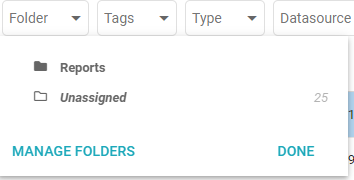
Click + New. Informer creates a new Folder in the tree below, which you can rename by double-clicking next to the folder icon. To delete a Folder, click the trash can icon at the end of its row. To create a sub-folder under an existing Folder, click the existing Folder to highlight it and click + New. Sub-folders behave the same as top-level folders for deleting and renaming. Click the Move Folder button and select the Folder under which to move the selected folder.
Tags
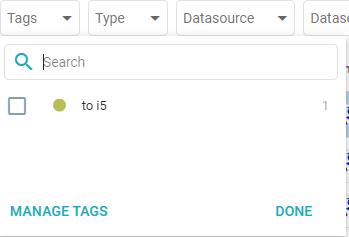
Informer also allows sorting by Tags. Tags can contain phrases or keywords that help find content quicker. Click the Tags dropdown to see existing Tags in use, and click Manage Tags to create or edit Tags.
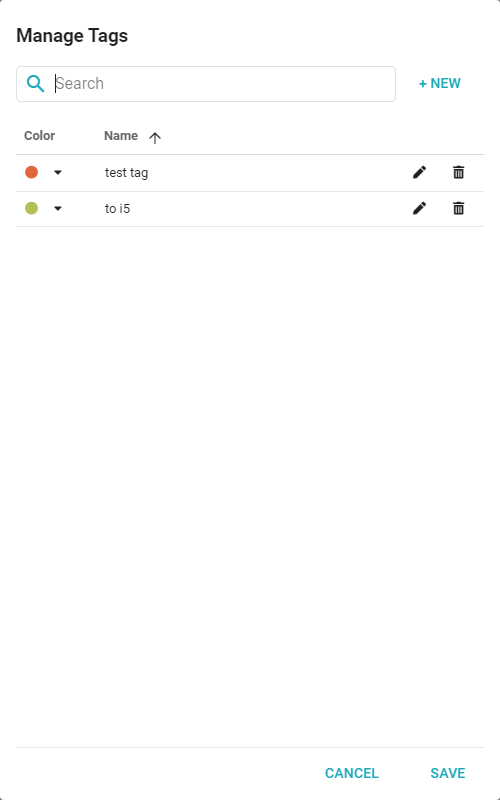
The Manage Tags panel displays all of the Tags currently in Informer. You can change a Tag's name, change its color, and delete Tags. To create a new Tag, click + New and assign a color.
To see detailed information for a Report, single-click it. Informer displays details such as the Report Type, when it was created and modified, its owner, who it is shared with, and the Datasource it was created from.
Filtering
You may want to restrict or allow filtering of a Report. By default, data filtering is disabled when creating a Report. Enable filtering by navigating to the Settings page of the Report's detail page and toggling on the Enable Report Filtering option.
