API Request
The API Request Skill makes an API call and returns the response. It uses JavaScript to build the request, and an optional post script can manipulate the response before the Assistant sees it.
The editor
The API Request editor has four tabs:
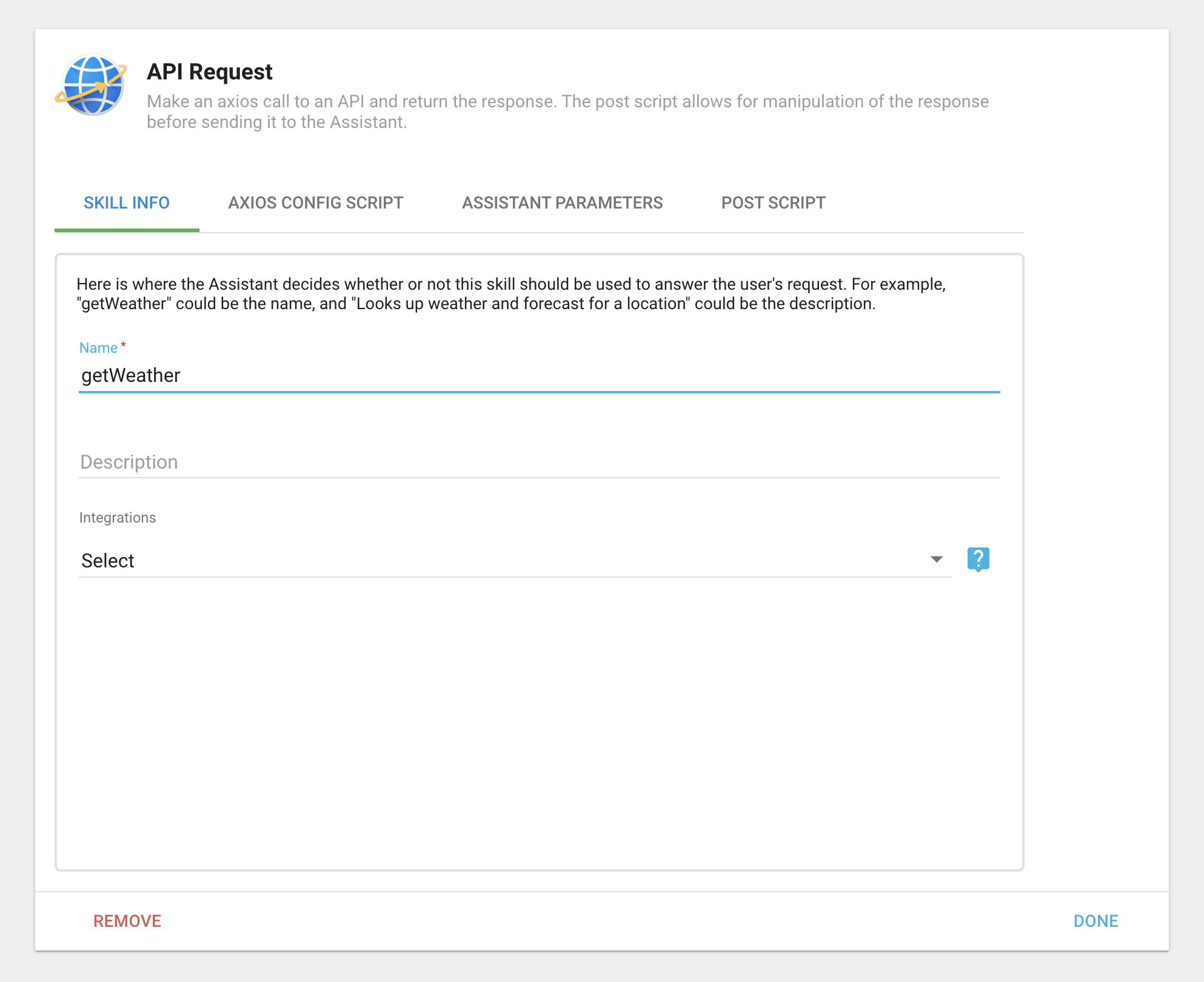
- Skill Info: A name and description. Use descriptive text, because the Assistant decides on its own whether a Skill should be used to answer a request.
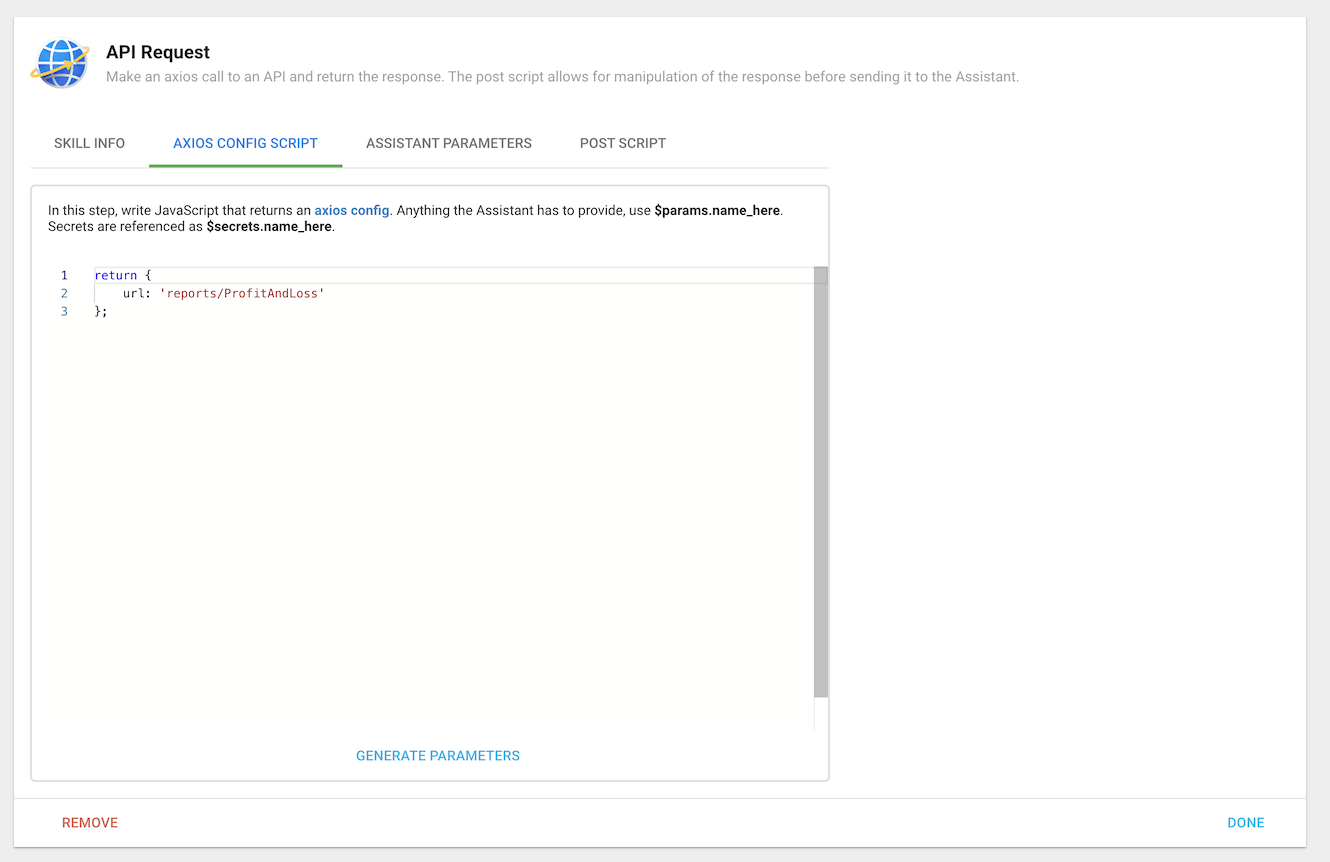
- Axios Config Script: JavaScript that returns an Axios config (for example, a GET request). Use
$params.namefor anything the Assistant must provide, and$secrets.namefor secrets. - Assistant Parameters: A parameter configuration for each
$params.*in the script. Click Generate Parameters to create them automatically, then review them. - Post Script: Optional code to modify the result before the Assistant receives it, for the rare cases it cannot parse a result.
Authentication using an API key
The Skill can use a static API key to call a service.
Example: getWeather
- Get an API key from the service (this example uses OpenWeather, which requires a free account).
- Add the key as a Secret on the Assistant, for example named
OpenWeather. - Click the + next to Skills and select API Request. In Skill Info, name it
getWeatherwith a description like "Looks up the weather for a location." In Axios Config Script, enter:
return {
  url: 'https://api.openweathermap.org/data/2.5/weather',
  method: 'get',
  params: {
    appid: $secrets.OpenWeather,
    lat: $params.lat,
    lon: $params.lon,
    units: 'imperial'
  }
};
- Click Generate Parameters. Informer creates the parameter configuration:
{
  "type": "object",
  "properties": {
    "lat": { "type": "string", "description": "Latitude of the location for which weather data is requested." },
    "lon": { "type": "string", "description": "Longitude of the location for which weather data is requested." }
  },
  "required": ["lat", "lon"]
}
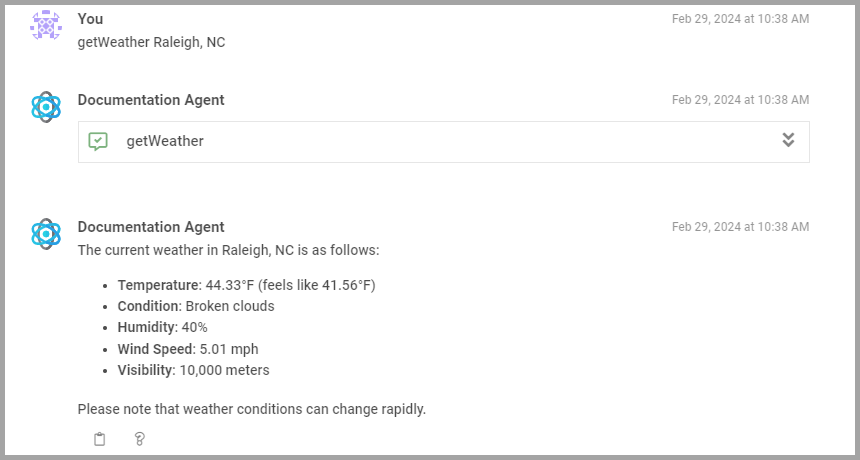
- Click Done, then Save. Test it by asking the Assistant for the weather in a location.
Example: websiteSearch
To search your organization's website, create a Google Programmable Search Engine, add its API key as a Secret (for example googleSearch), then enter an Axios Config Script. Replace the search engine id with your own:
return {
  method: 'get',
  url: 'https://customsearch.googleapis.com/customsearch/v1',
  params: {
    q: $params.q,
    key: $secrets.googleSearch,
    cx: '<search engine id>'
  }
};
The only parameter is q, the search query.
Authentication using OAuth Integrations
The API Request Skill can also use an OAuth Integration to call an API on behalf of the current User, using their own credentials rather than a shared key. This is ideal for services like CRMs or email providers that need user-specific access, and avoids the security risks of a shared key.
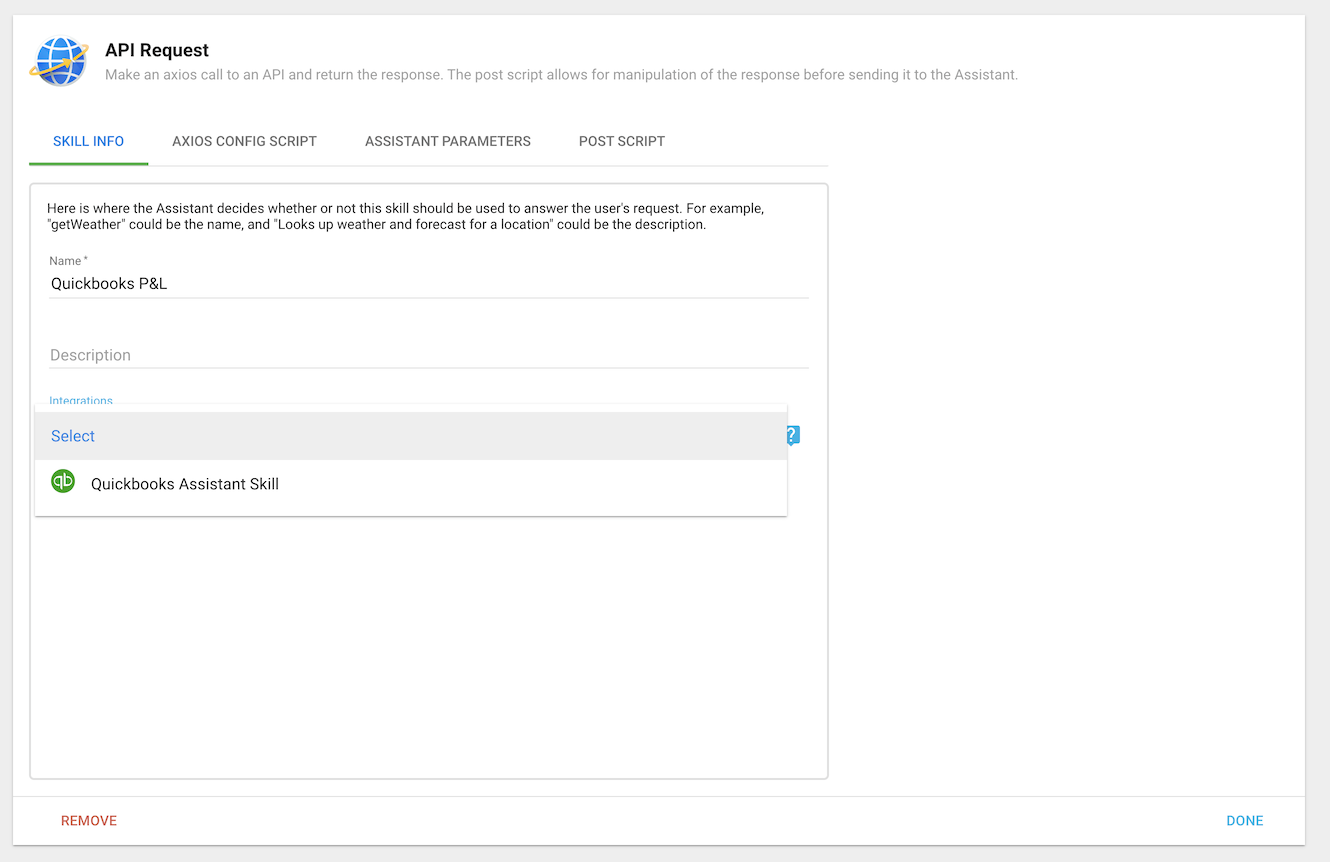
To set it up: create the Integration in Administration, select it from the Integrations dropdown in the API Request Skill, and enter the Axios config the Skill should call.
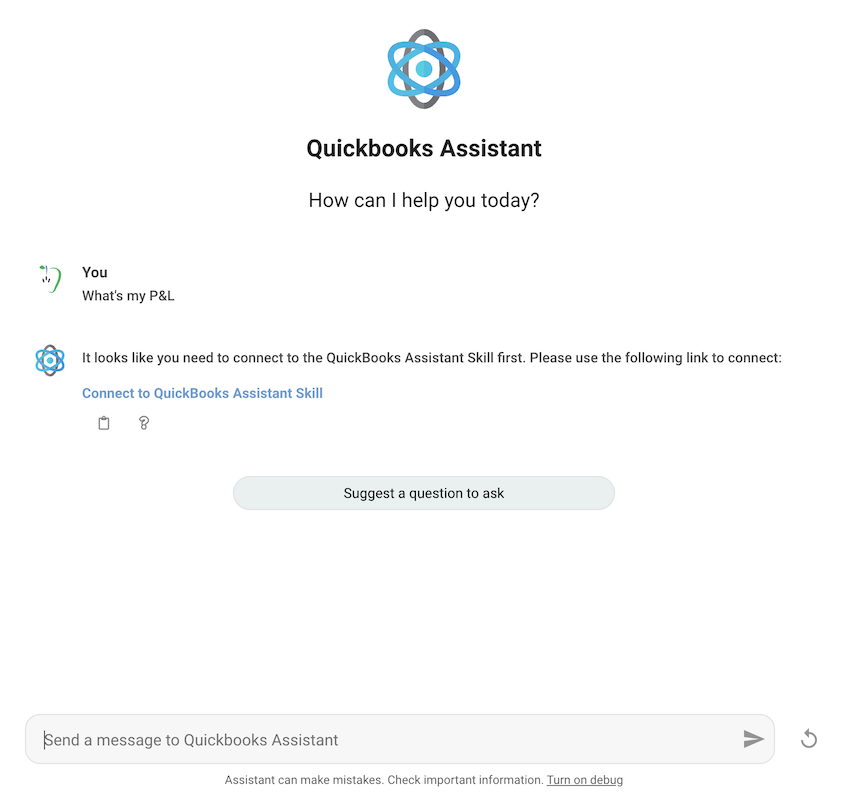
When a User uses a Skill that needs authentication that has not been set up, the Assistant shows a notification and a link to connect their account. After connecting in a new window, they can try the Skill again, fully authenticated.
API key or OAuth: which to use?
- API key: Best for public data or non-sensitive operations that do not involve individual user accounts. Simpler to implement, but protect the key from exposure.
- OAuth: Necessary for user-specific data or actions on behalf of a User. More secure (token-based, scoped) and more complex, but the right choice when interactions must be tailored to each User's permissions.