Instructing Assistants
The Instructions section is where you guide the Assistant on how to respond: behavior, tone, and content. Detailed instructions significantly improve the accuracy, relevance, and quality of the output by defining the task and reducing ambiguity. Without instructions, an Assistant may produce generic or misaligned responses.
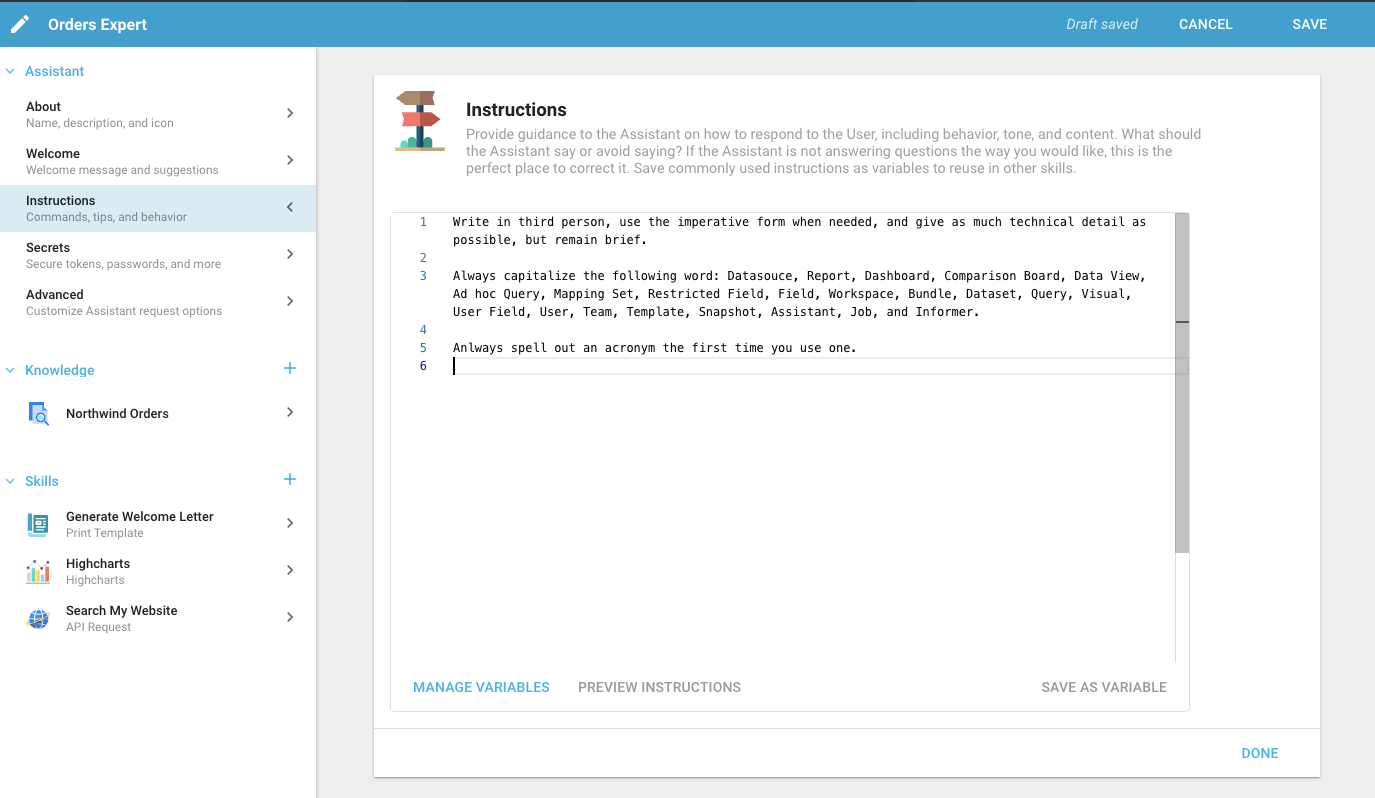
These per-Assistant instructions apply on top of the system-wide Assistant instructions an administrator sets in Settings → Features, which every Assistant follows first.
Adding instructions
Add information on what the Assistant should say or avoid, and use instructions to correct it when it answers in an undesired way. Be clear and concise, but include enough detail for the Assistant to produce the desired outcome. Short, direct instructions are usually more effective than long ones, especially with a large instruction set. For example, instead of:
To search for employee names, use the "FullName" Field. For manager names, refer to the "ManagerName" Field, and for customer names, use the "CustomerName" Field.
use:
Employee Name = "FullName"; Manager Name = "ManagerName"; Customer Name = "CustomerName"
Instructions also tell the Assistant its purpose. For example:
You are a student tutoring bot. Your job is to answer student questions without giving away the answer. The topic is CS 50. You can offer a quiz Q&A to help a student study.
Saved Instructions
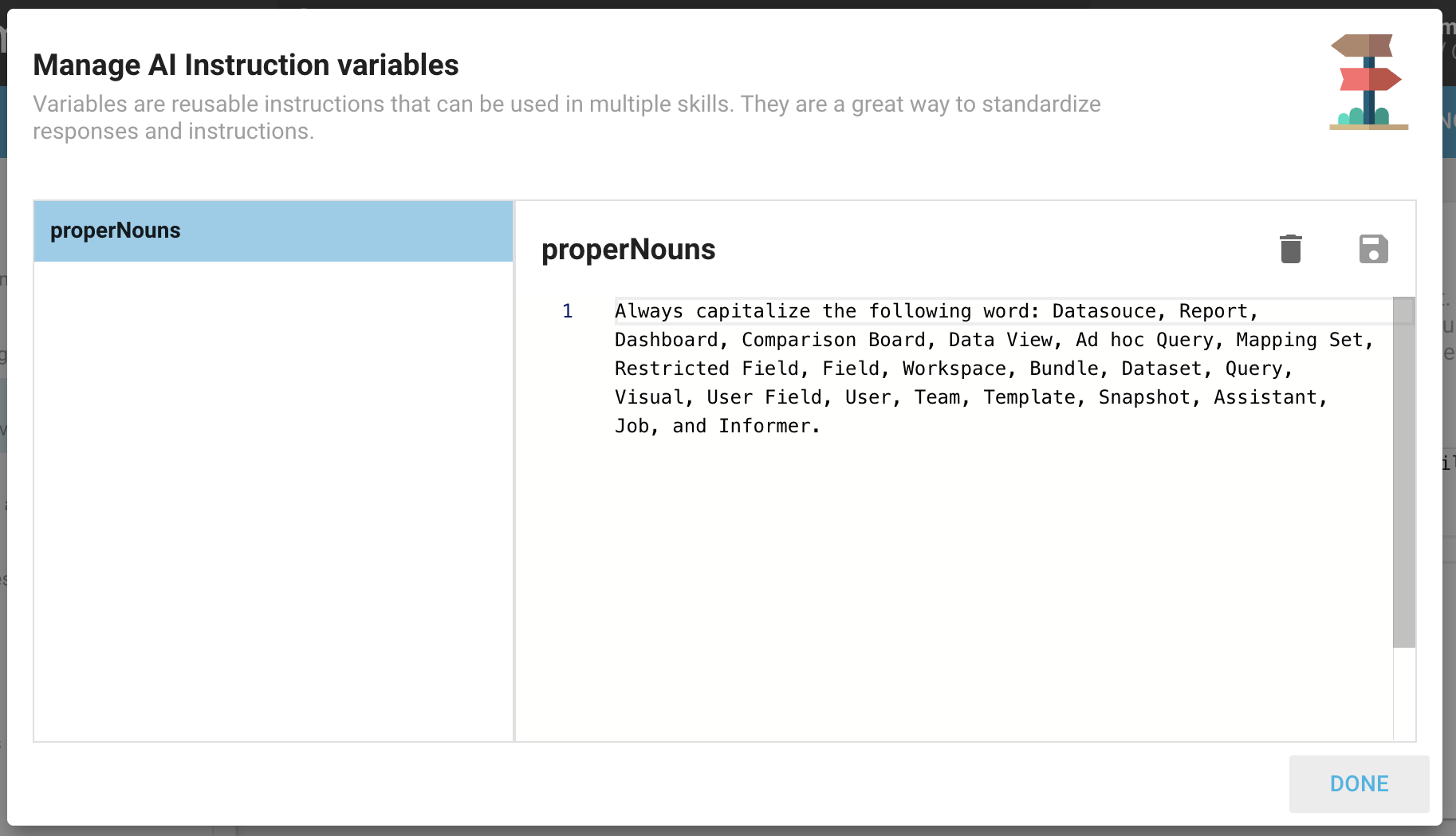
Saved Instructions let you save instruction snippets as variables for reuse across all of your Assistants. Highlight any text in your instructions and save it as a variable; only the creator can edit or delete the variable, but all Users can view and reference it.
- Save as Variable: Highlight text and click this button to name and save it as a variable.
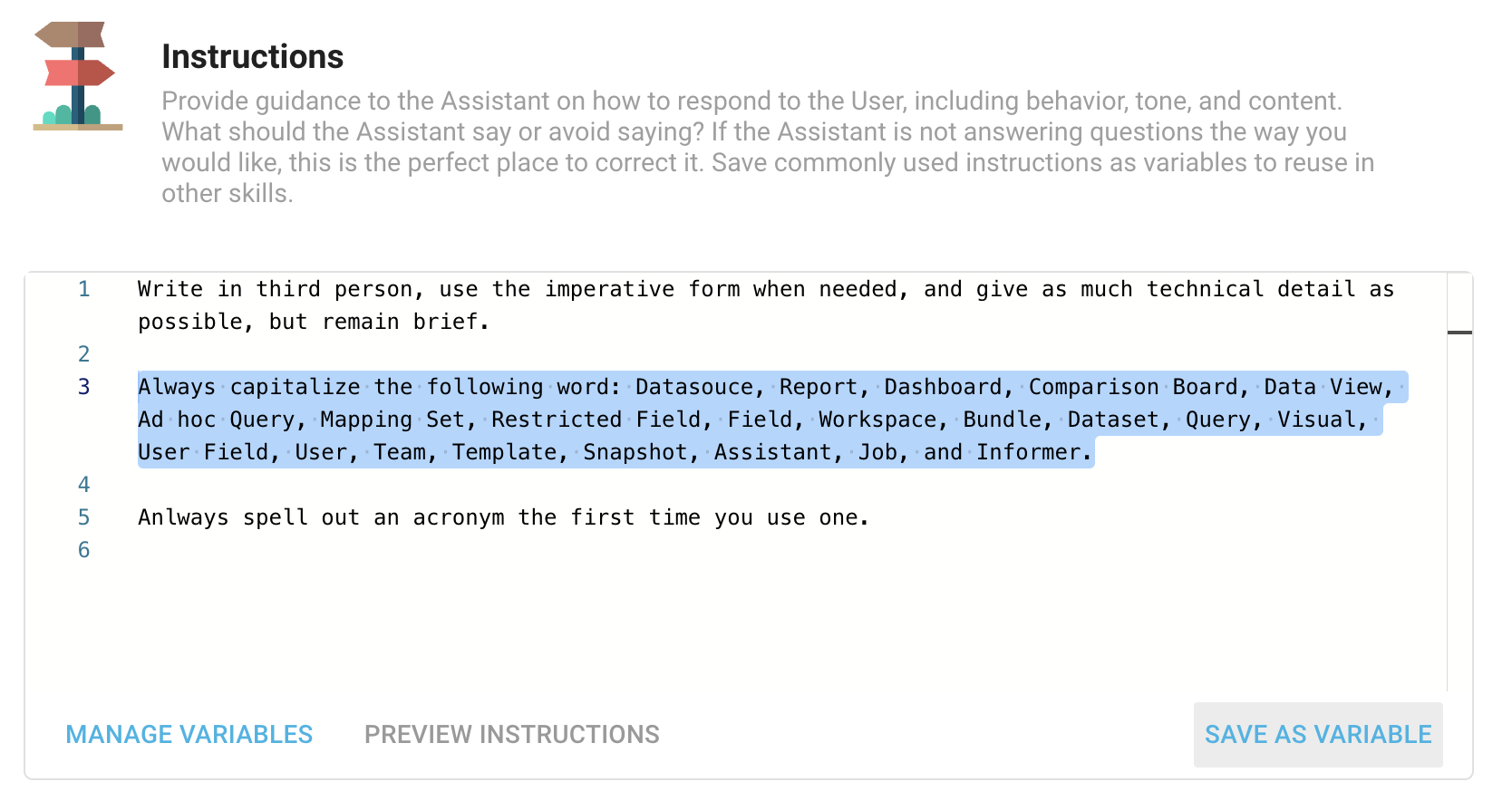
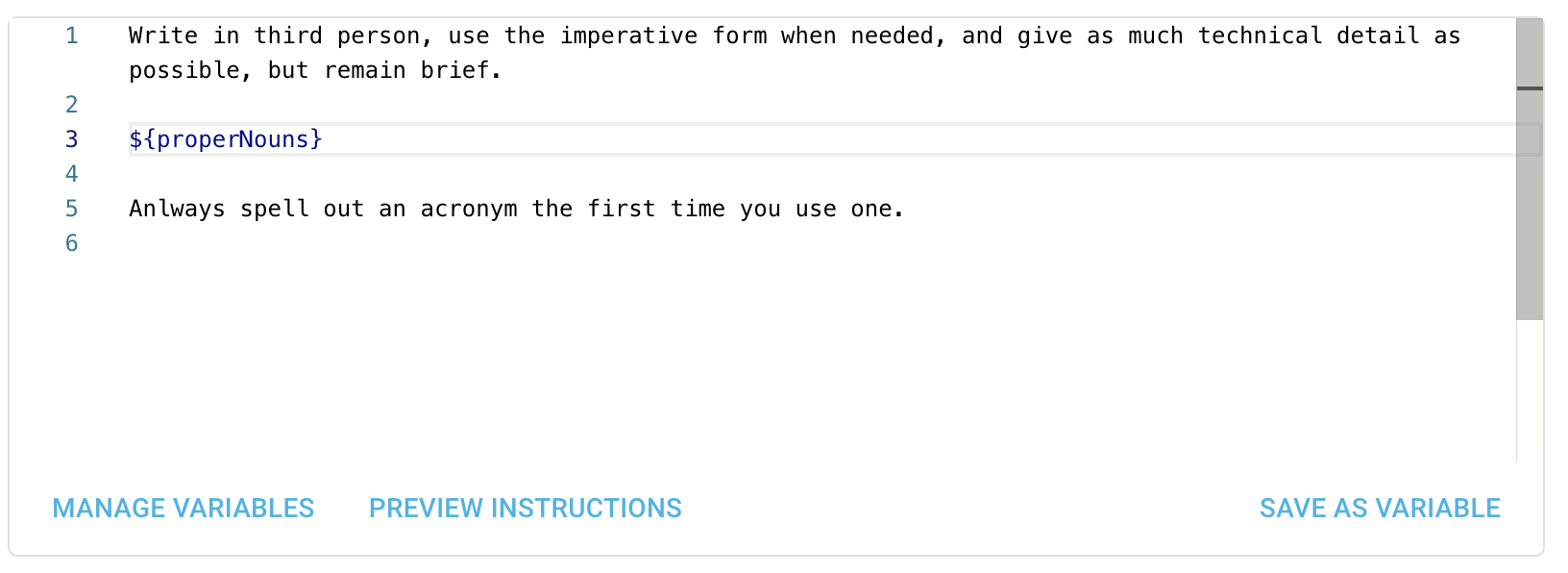
Once saved, the text is replaced with a placeholder, which you can reference by name across all Assistants. This maintains consistency and saves time when writing similar instructions.
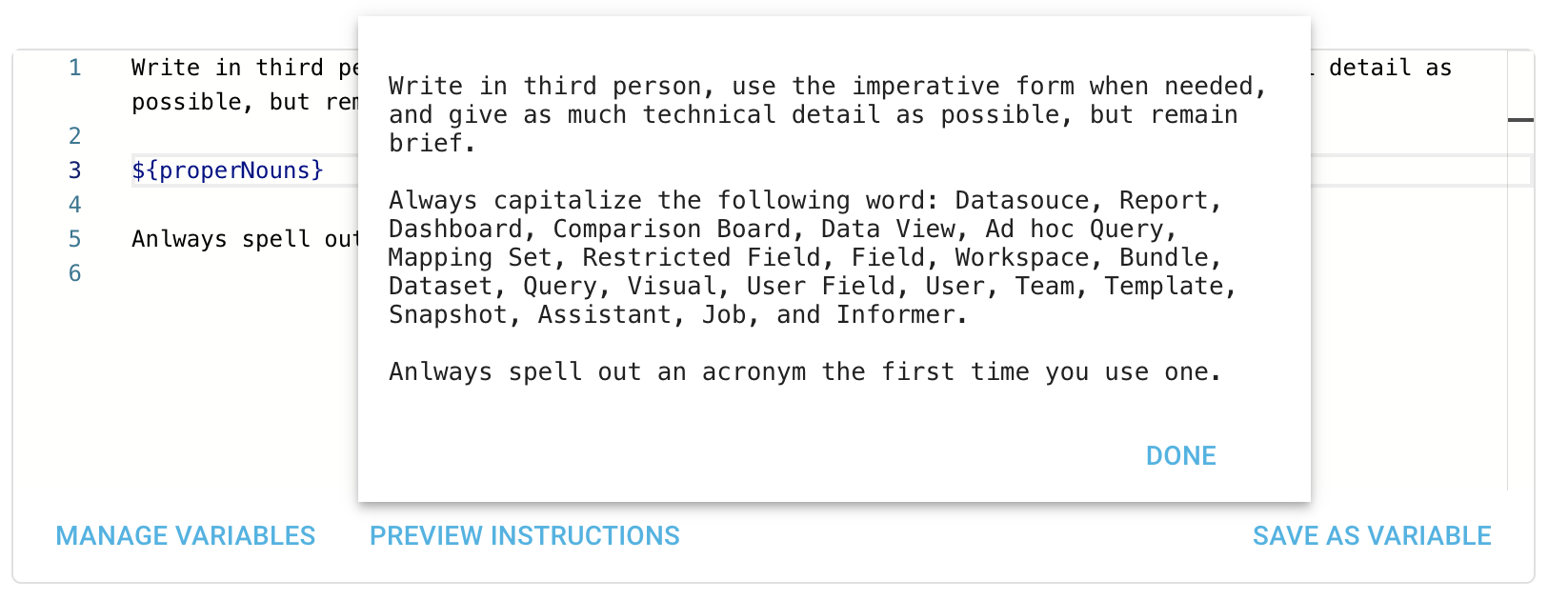
- Preview Instructions: See how the variables resolve, displaying the full text where variables are used.
- Manage Variables: Edit or delete your variables. Only the original creator can modify or remove a variable.
Commands
Commands are Assistant-specific actions you add to the Instructions. For example, a command that generates a table for a User's pipeline: /pipeline {user}: Determine the pipeline for the given user and show the statuses in a table. Using the /command {input} format lets the Assistant interpret and process a command easily.