Finding your content
Every listing page in Informer, the Home page and each type's own page, shares the same set of tools for narrowing a long list down to what you need. Learn them once and they work everywhere.
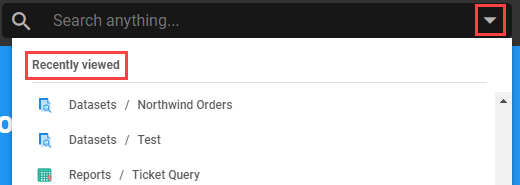
Global search
The global search bar sits at the center top of every page and searches anything you have access to. Type a term and Informer searches across your content; click the arrow on the right to reopen the things you viewed most recently, with the latest at the top.
Listing-page tools
On any listing page, the controls along the top shape what the list shows:
- Search: filter the list as you type, matching on the item's title (capitalization does not matter).
- Folders: pick a Folder to show only the content filed in it.
- Tags: check one or more Tags to show only content carrying them.
- Filters: each type has its own filters (for example, filter Reports by Type to show only Dashboards).
- Favorites: star a row to favorite it, then use the star by the search bar to show only your favorites.
- Choose Columns: pick which columns appear. Select all, clear all (leaving only Item), or revert to the defaults.
- Information: the i icon opens a panel with details about the selected item; each type shows different details.
- Actions: the ... at the end of a row opens the actions available for that item, which differ by type.
Customizing a list with the URL
Listing pages also accept query parameters, handy for bookmarking a pre-filtered view:
columns=alias1,alias2sets which columns show.sort=alias1:asc,alias2:descsets the sort column(s) and direction.tags=tagNamefilters to a Tag.folder=folderNamefilters to a Folder.
For example, /datasets?columns=tags,owner,description&sort=description:desc&tags=Pink&folder=Folder 1 opens the Datasets list showing the Tags, Owner, and Description columns, sorted by Description descending, limited to Datasets tagged Pink in Folder 1.