Upgrading Informer (Windows)
Upgrading on Windows uses the same single offline installer as a fresh install, run in Upgrade mode. Read through this guide once before starting so the key points are familiar. If you have questions, contact Informer Support at i5support@entrinsik.com.
Prerequisites
If you use plugins, contact Support to verify compatibility with your target Informer version before upgrading.
- PostgreSQL 16 is required as of Informer 5.9.0. See Migrating from PostgreSQL 11 to PostgreSQL 16 (Windows) in the Database maintenance section before upgrading if you are still on PostgreSQL 11.
- Elasticsearch 8 is required as of Informer 5.7.0. See the Migrating Elasticsearch guide in the Configuration section if you are on an older version.
- Do not use third-party tools to update or patch Informer's components (Java, Node, PostgreSQL, Redis). Doing so can break the deployment.
- Verify the host server meets the recommended System requirements.
- Use the same account that installed Informer to perform the upgrade, so permissions stay consistent.
If you are upgrading from Informer 5.0.19 or earlier, the database must be migrated from PostgreSQL 9 before you proceed, or you risk data loss. Contact Informer Support for the correct migration path for your version before upgrading.
Back up Informer
Back up the Informer metadata before upgrading. See the Backups and Restores (Windows) guide in the Database maintenance section.
Run the installer
Upgrade time on Windows is significantly affected by anti-virus software, which scans each file as it lands. This can turn a 20-to-30-minute upgrade into upwards of 2 hours.
Download the full offline installer (roughly 1.4 GB). This example links version 2025.2.13; contact Support for the current installer:
Informer 5 Offline Installer (2025.2.13)
Before upgrading, stop the Informer service and any Informer processes on the server. Confirm they have all stopped by opening Task Manager and forcibly stopping any remaining Node.js processes.
Right-click the installer and choose Run as administrator.

Click Next to reach the component list, and choose Upgrade from the drop-down.
Click Next. You are asked for the directory of the Informer instance you are upgrading. The default is C:\Entrinsik\Informer5; change it if your instance lives elsewhere.
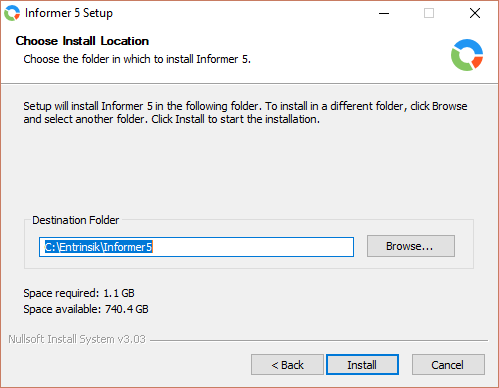
Click Install to begin. The installer runs each checked component's installer (Java, Node.js, PostgreSQL, Redis, Elasticsearch), then extracts and deploys the upgrade files.
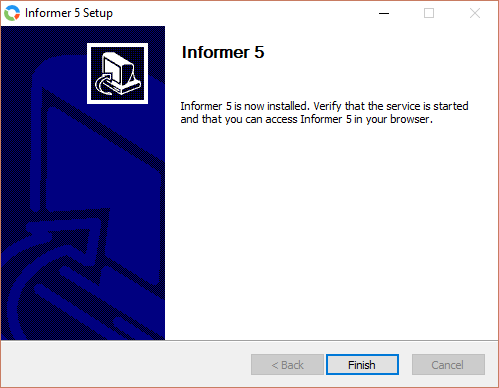
When the upgrade finishes, click Finish to close the installer.
After the upgrade
- You may need to update the Informer service's dependencies before it will start; the Configuring the Windows Service guide in the Configuration section covers this.
- You may need to reinstall any Informer plugins after upgrading. See the Installing Plugins guide in the Plugins section.
Once that is done, start the Informer service back up. If you run into issues with the upgrade, contact Support at i5support@entrinsik.com.