Report ownership and access
Reports often need to be granted to other Users or Teams. There are two ways to grant access to a Report: sharing or giving ownership.
Sharing
Sharing a Report with a Team grants read-only access to the data and Visuals, which lets Users create Filters and Jobs. The Report owner is the only one who can modify the Report or share its data with other Users or Teams.
Interactive Reports (Dashboards, Comparison Boards, and Data Views) require the creator to change the Report ownership to a Team before sharing the Report outside the owning Team. The role the User has on the owning Team determines whether they can share with other Teams. The exception is Super Users, who can share with any User or Team.
Ad hoc Queries do not require the creator to change ownership to share; creators can share them with any User or Team.
The shared-to User or Team must have access rights to the Datasource backing the Ad hoc Query in order to run the Query.
If the ownership of an Ad hoc Query changes Teams, the role a User has on the new Team determines whether they can share the Query with other Teams (Super Users excepted). If a Native SQL Ad hoc Query is shared with a User or Team that has access to run Queries against the Datasource, that User or Team can run the Query. These workflows follow data governance best practices.
Sharing interactive Reports
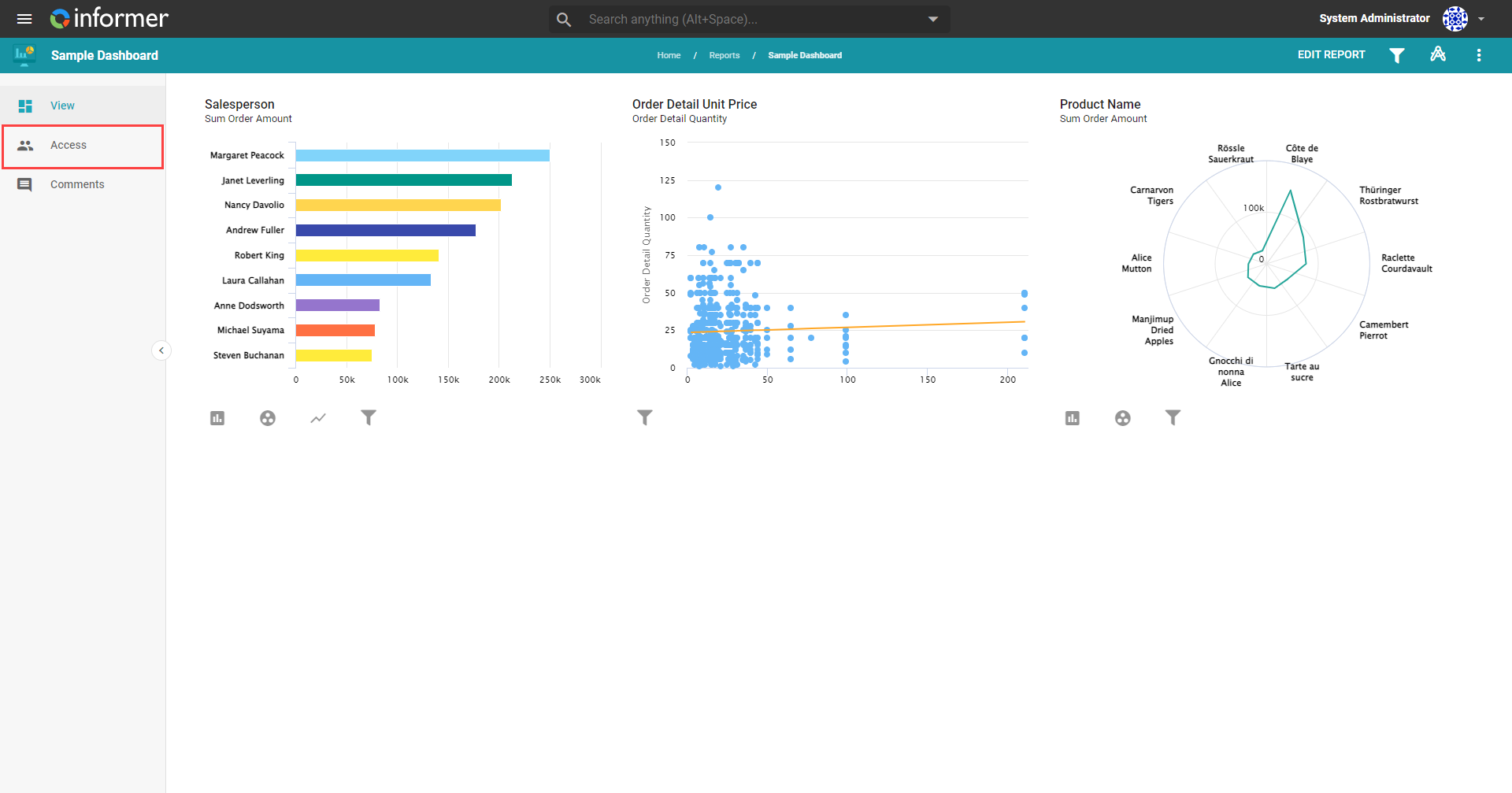
Sharing grants read-only access to a User or Team. Click Access in the left panel while viewing a Report. To share a Report, a Team must own it, and the User sharing it must be a Publisher in the owning Team. See Report role breakdown for more.
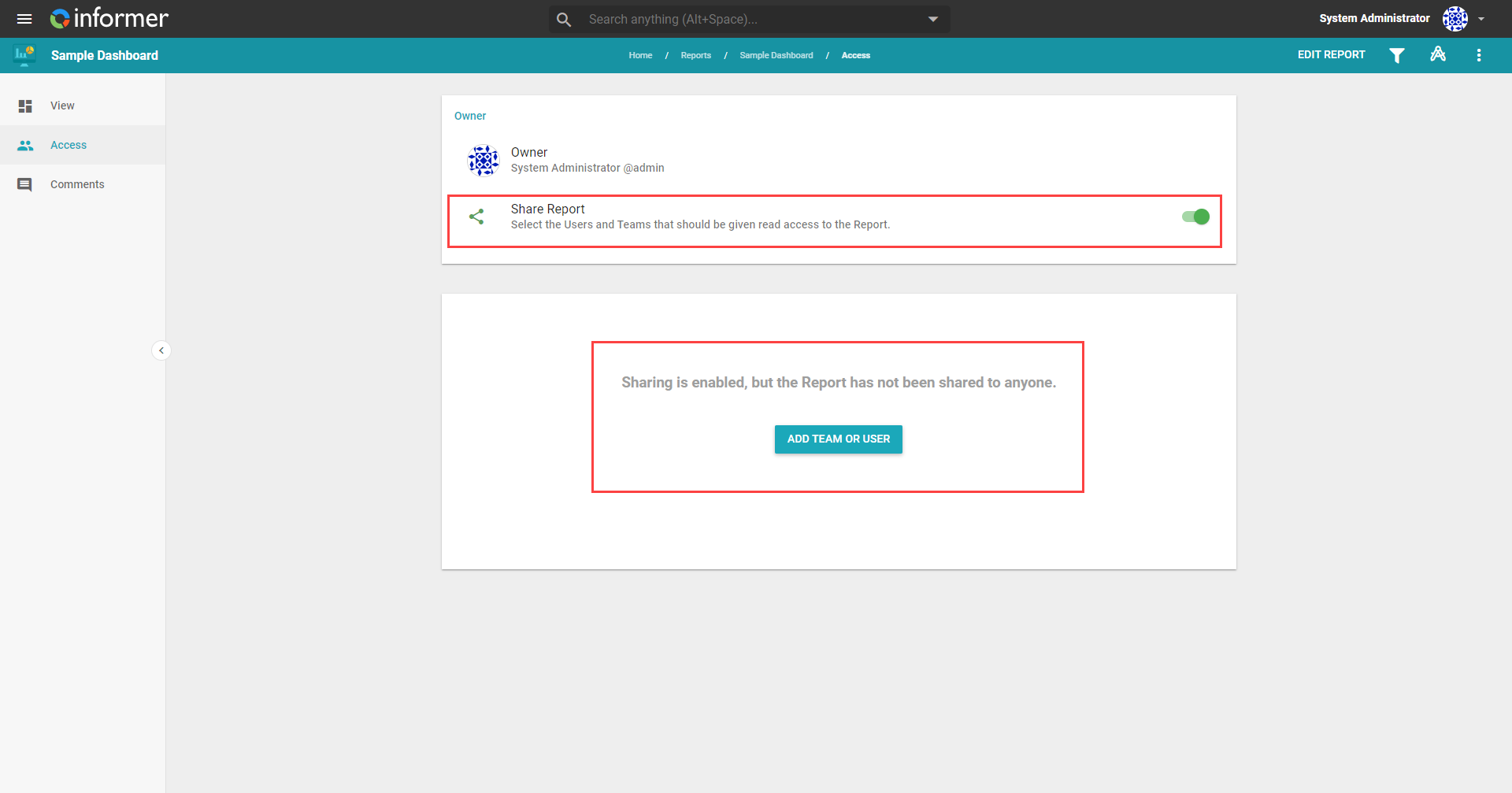
Click the Share Report toggle to enable sharing, then click Add Team or User to open the Add User/Team window.
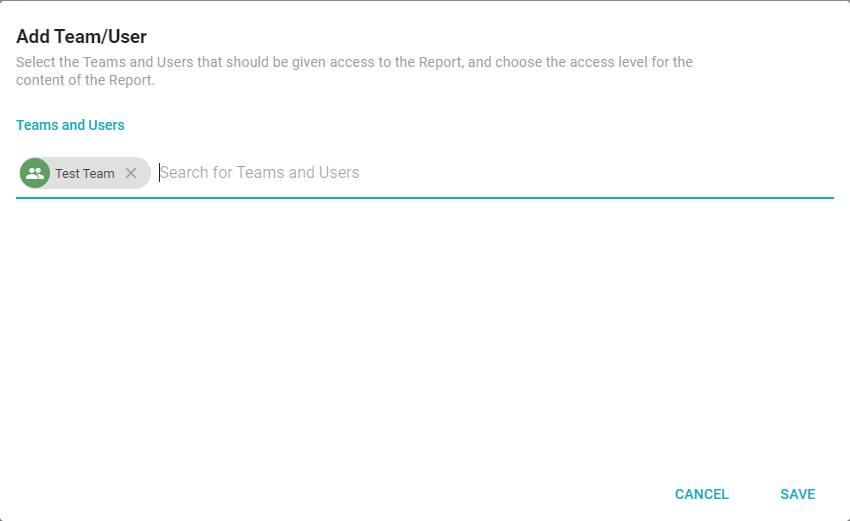
Begin typing the name of Users or Teams that require access. Selecting one adds it to the search bar; remove a selection by clicking the X next to its name. After selecting all the required Users and Teams, click Save.
Sharing an Ad hoc Query
Sharing an Ad hoc Query works the same way. Click Access in the left panel while viewing the Ad hoc Query, click the Share Query toggle to enable sharing, click Add Team or User, then select the Users and Teams and click Save.
Users need read access to the underlying Datasource to run an Ad hoc Query.
Removing access
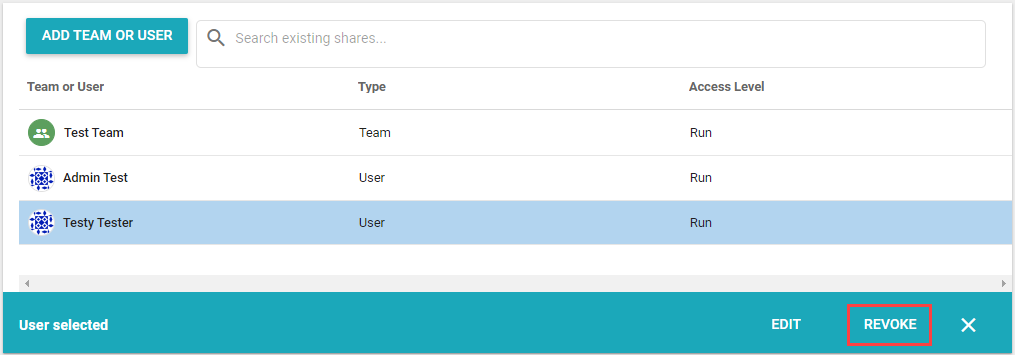
Remove shared access from a Report or Query on its Access page. Click the row of the User or Team to remove, then click Revoke.
Ownership
The default owner of a Report is its creator. This User has full access and can change the owner to another User or to a Team they belong to. Users must belong to a Team that owns the Report and have the role of Designer or higher to have edit access to the shared Report. The exception is Super Users, who can share with any User or Team.
Change owner
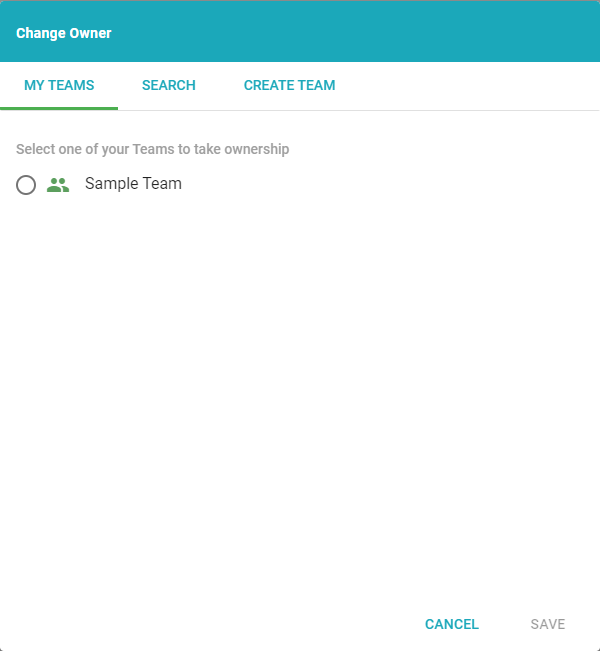
Change Owner transfers ownership of a Report to Teams in which the User is a Data Wizard or higher. Change ownership from the Access page: click Owner to open a list of available Teams.
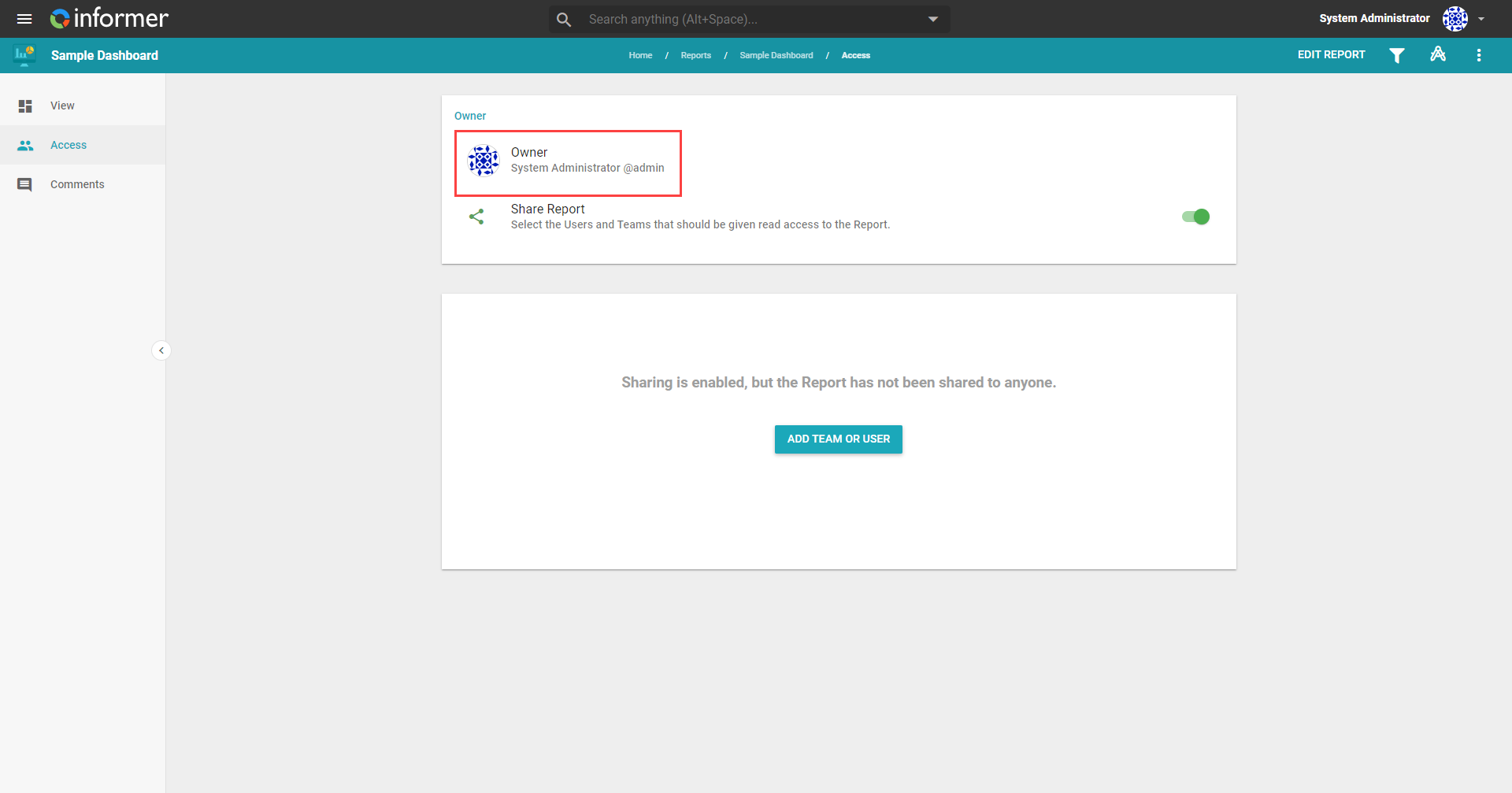
Select the Team to transfer ownership to and click Save. Super Users have additional options, including searching through all Users and Teams to assign ownership, and creating a new Team to change ownership to.