Creating and Editing Assistants
Assistants act like a chatbot with private access to your Informer data. Use them to have open-ended conversations with AI about data-related topics, often relating to the Datasets or files you add in the Knowledge section. An iterative process may be needed to teach the Assistant how best to answer questions.
Click the + New button in Informer, then click Assistant to create a new Assistant.
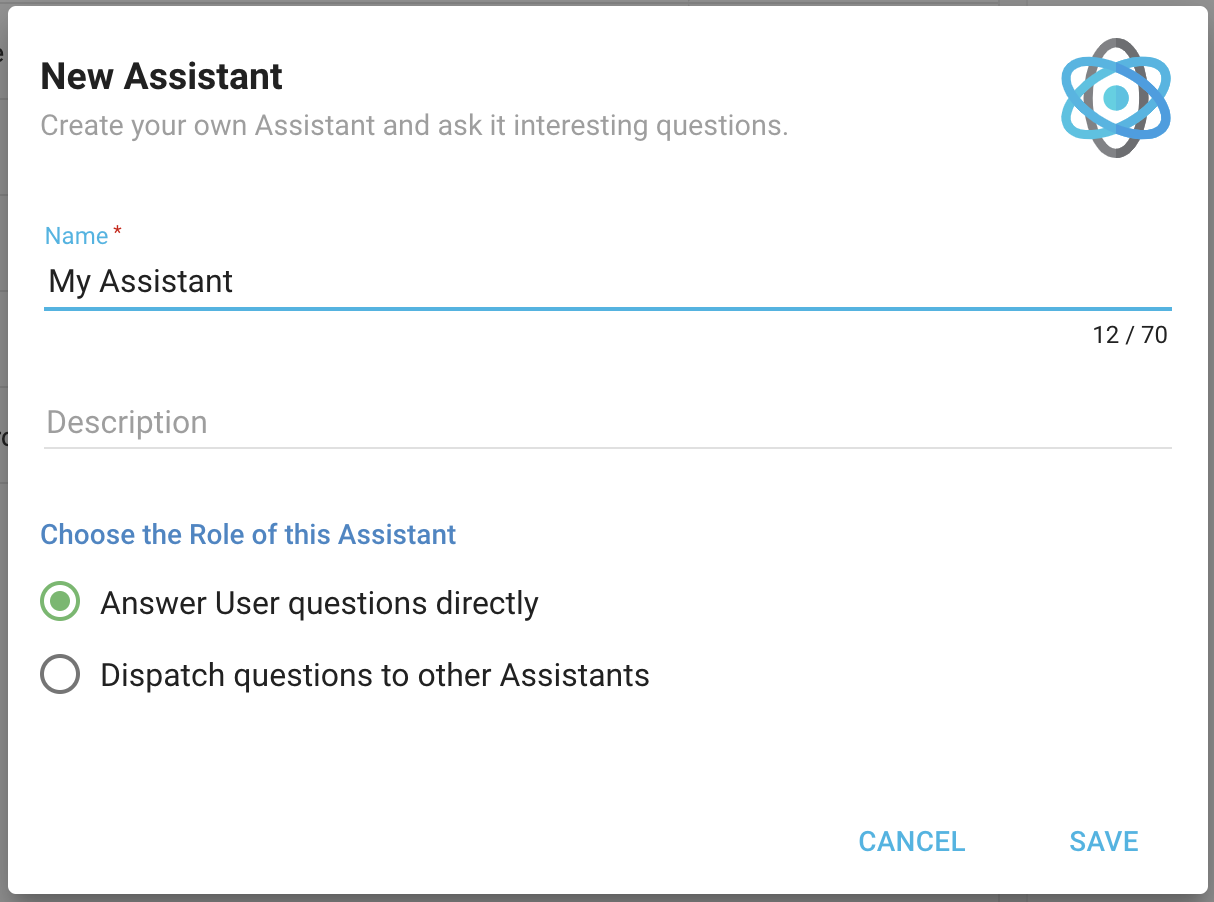
Enter a name, an optional description, and choose the Assistant's role:
- To create a typical Assistant that answers questions directly, choose Answer User questions directly.
- To create an Assistant that forwards questions to other Assistants, choose Dispatch questions to other Assistants.
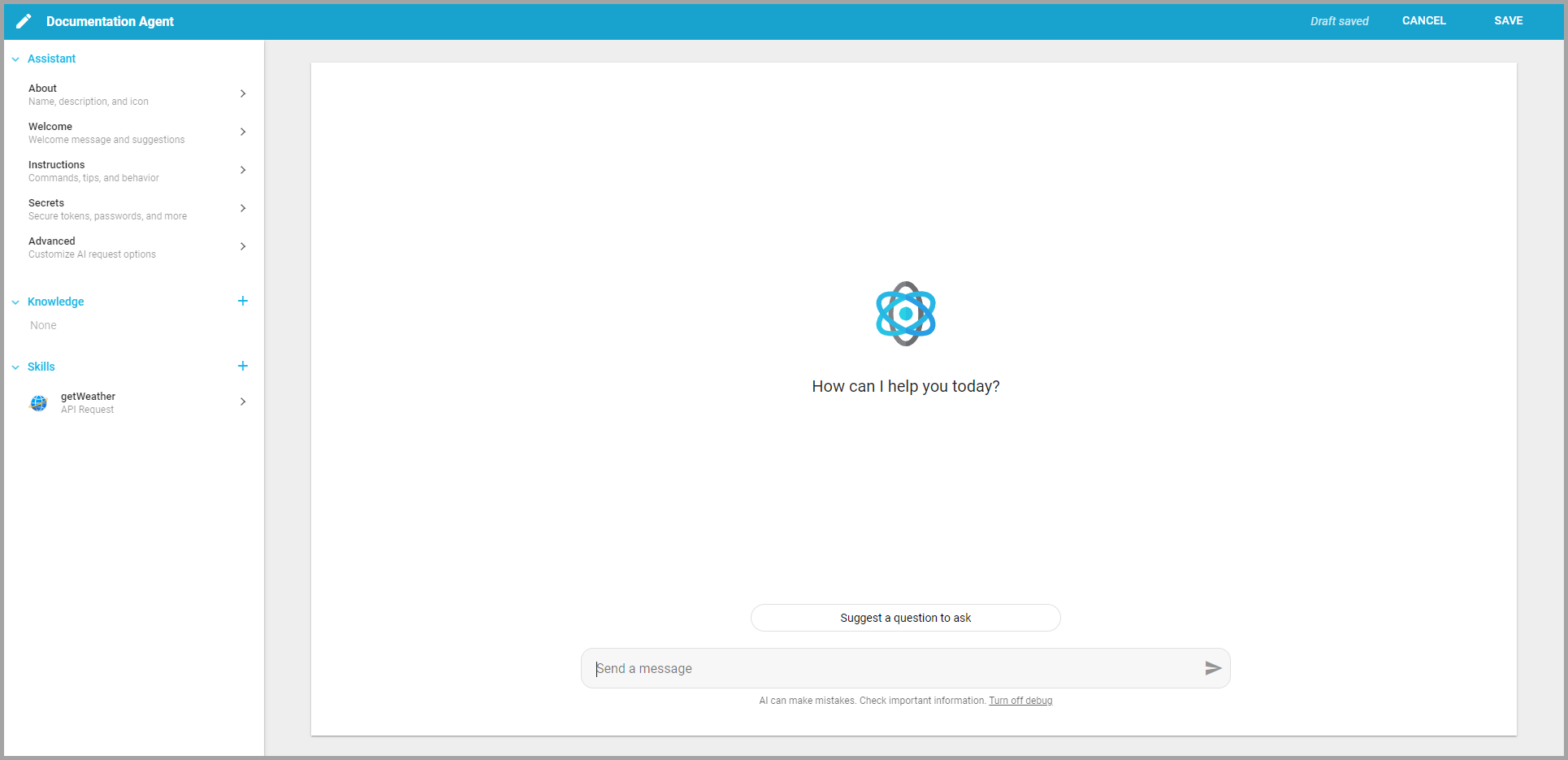
Click Save to open the editor. For a typical Assistant, the left panel has four sections: Assistant, Knowledge, Skills, and Toolkits. The right side is a live preview: the same chat your users get, so you can try the Assistant as you shape it.
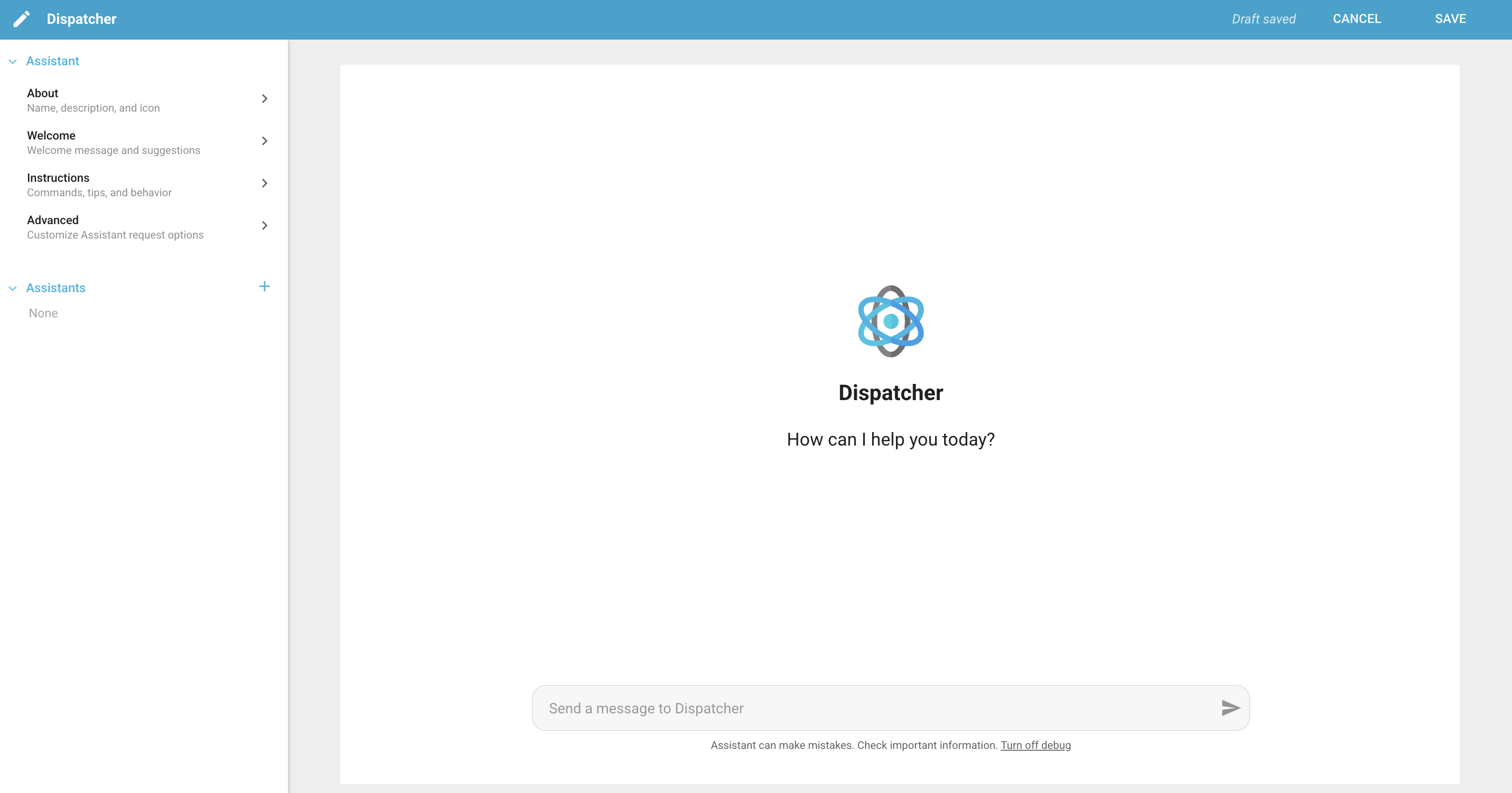
For a dispatch Assistant, the left panel has two sections, Assistant and Assistants (the other Assistants it forwards questions to).
Assistant
Customize the Assistant's information and how it interacts with Users.
- About: Name the Assistant, provide a short description, and choose an icon. The icon appears when the chat first opens, along with the welcome message.
- Welcome: Create a short welcome message and suggested prompts shown to Users when the Assistant launches. Users can click a suggested prompt to begin a conversation.
- Instructions: Guide the Assistant on how to respond, including behavior, tone, and content. Use instructions to correct the Assistant if it is not answering in the desired way. You can also define commands here for Assistant-specific actions, for example:
Commands: /pipeline {user}: Determine the pipeline for the given user and show the statuses in a table. - Secrets: Add secrets the Assistant uses to authenticate with external services. A secret securely saves credentials without hard-coding them into a request; they are encrypted and can only be used by the Assistant. Reference a secret in a Skill with
$secrets.mySecret. This is especially useful with the API Request Skill.- Key: A name for the secret to help the Assistant identify it.
- Value: The value (such as an API key). It is encrypted and cannot be viewed again, only replaced.
- Advanced: Choose the AI Model the Assistant uses to generate responses, from the models configured in Settings → Models.
Before 2026.1, the Advanced section offered a GPT Model picker plus Temperature, Seed, and Response Format fields. It now offers a single AI Model chooser tied to the models your administrator configures in Settings → Models.
Knowledge
Add data the Assistant can use and reference. Click the + next to Knowledge to add a Dataset or an uploaded file.
- Add Dataset: Select a Dataset. The same field- and row-level security that applies to the User applies to the Assistant.
- Upload File: Upload files the Assistant can analyze. Use the Description to add instructions for how the Assistant should use the data, and the File Viewer tab to examine the file.
Skills
Skills are extra capabilities you add to an Assistant to perform specific functions.
- API Request: Make an API call and return the response. Use
$params.namefor anything the Assistant needs to provide, and$secrets.namefor secrets. A Post Script can manipulate the response before the Assistant receives it. - Highcharts: Dynamically create Highchart Visuals that may not exist inside Informer.
- Informer API: Call Informer's own API as the User chatting, to look things up or change them in Informer.
- Print Template: Call an Informer Template. Use the Assistant Parameters tab for the Template parameters the Assistant needs to understand.
- Simple Function: Create a function the Assistant can use to answer questions or perform tasks.
- Website Search: Search a website you choose through a Google Programmable Search Engine.
See Skills for full detail on each Skill.
Toolkits
A ToolkitA bundle of tools an AI chat or Assistant can call, either built into Informer or connected from an external service via MCP. is a shared bundle of tools, set up once on its own page and reused wherever AI needs it. Attaching one gives every conversation with this Assistant those tools, whether that is an MCP server, API request tools someone on your team wrote, or Informer's own API.
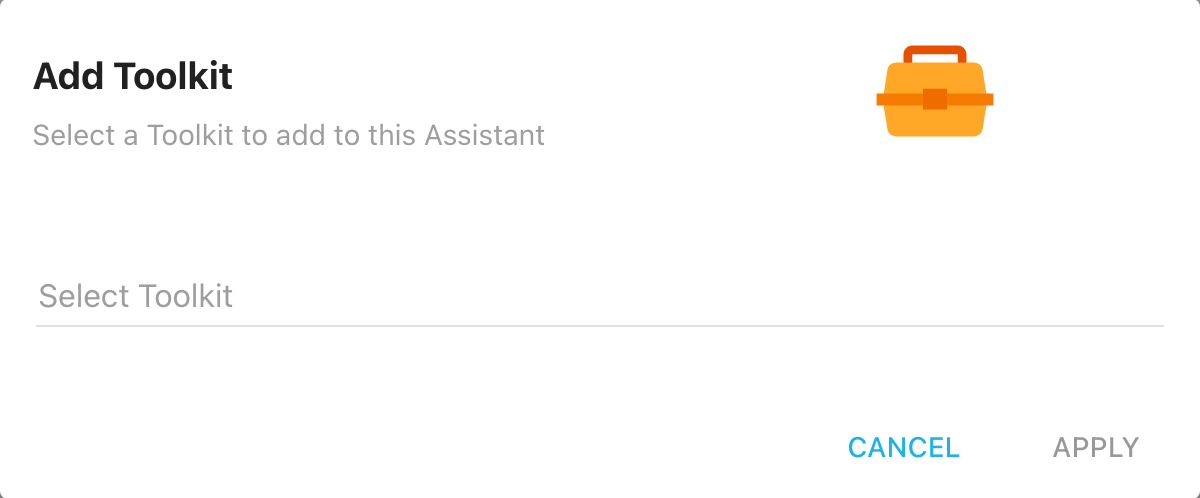
Click the + next to Toolkits. The Add Toolkit dialog lists every Toolkit you can use; type to narrow the list, pick one, and click Apply.
The Toolkit then appears under Toolkits with its name and kind.
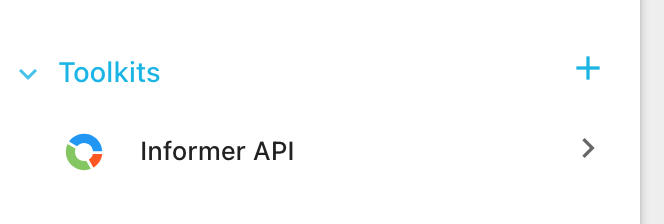
Click it to see what the Assistant has been given. The panel is a read-only view of the Toolkit: its header, its AI Instructions, the API Access setting of an Informer API Toolkit (Read Only enabled or disabled), and the tools it provides (Built-in Tools on an Informer API Toolkit, Available Tools on the others), with a search box for long lists. A local MCP Toolkit also carries a Desktop Application Required notice, and its tool list stays empty until the Toolkit has been used in Informer GO.
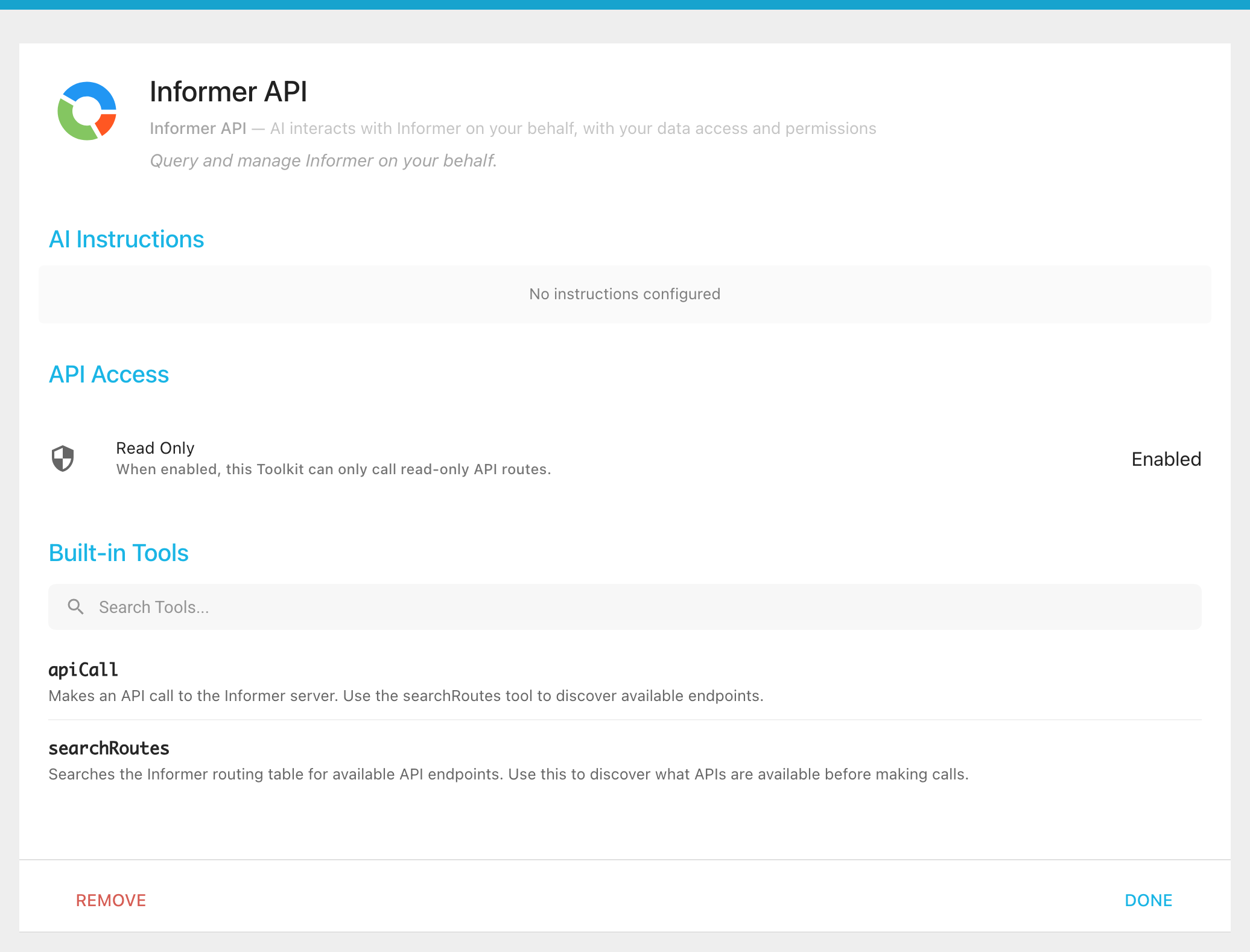
Nothing here is editable: a Toolkit's instructions, tools, and Read Only switch belong to the Toolkit and are changed on its own page (see Managing a Toolkit), so every Assistant and chat using it stays in step. Remove detaches the Toolkit from this Assistant after a confirmation; the Toolkit itself is untouched. Done closes the panel.
Toolkits and Skills overlap on purpose. The Informer API Skill and an Informer API Toolkit give the Assistant the same tools; the Toolkit adds the Read Only guard and shared instructions. See Informer API for when to choose which.