Interacting with Informer Assistants
This article covers the essentials of chatting with an Assistant in the classic web client: its Chat page, the Actions menu, seeing what a reply did, and bringing Assistants into other conversations.
Since 2026.1, every conversation in Informer, including an Assistant's Chat page in the classic web client, is the same chat that powers Informer GO. See Chatting with Informer for the full chat surface: models, context, history, and scheduled prompts. This page covers what is specific to Assistants.
The Chat page
Open an Assistant from the Assistants page and it lands on its Chat page: the Assistant's icon, its welcome message with the Assistant's name beneath, and the suggested prompts its author wrote. Click a suggestion or type in the prompt box. The conversation is pinned to this Assistant and remembered for you, so coming back later picks up where you left off.
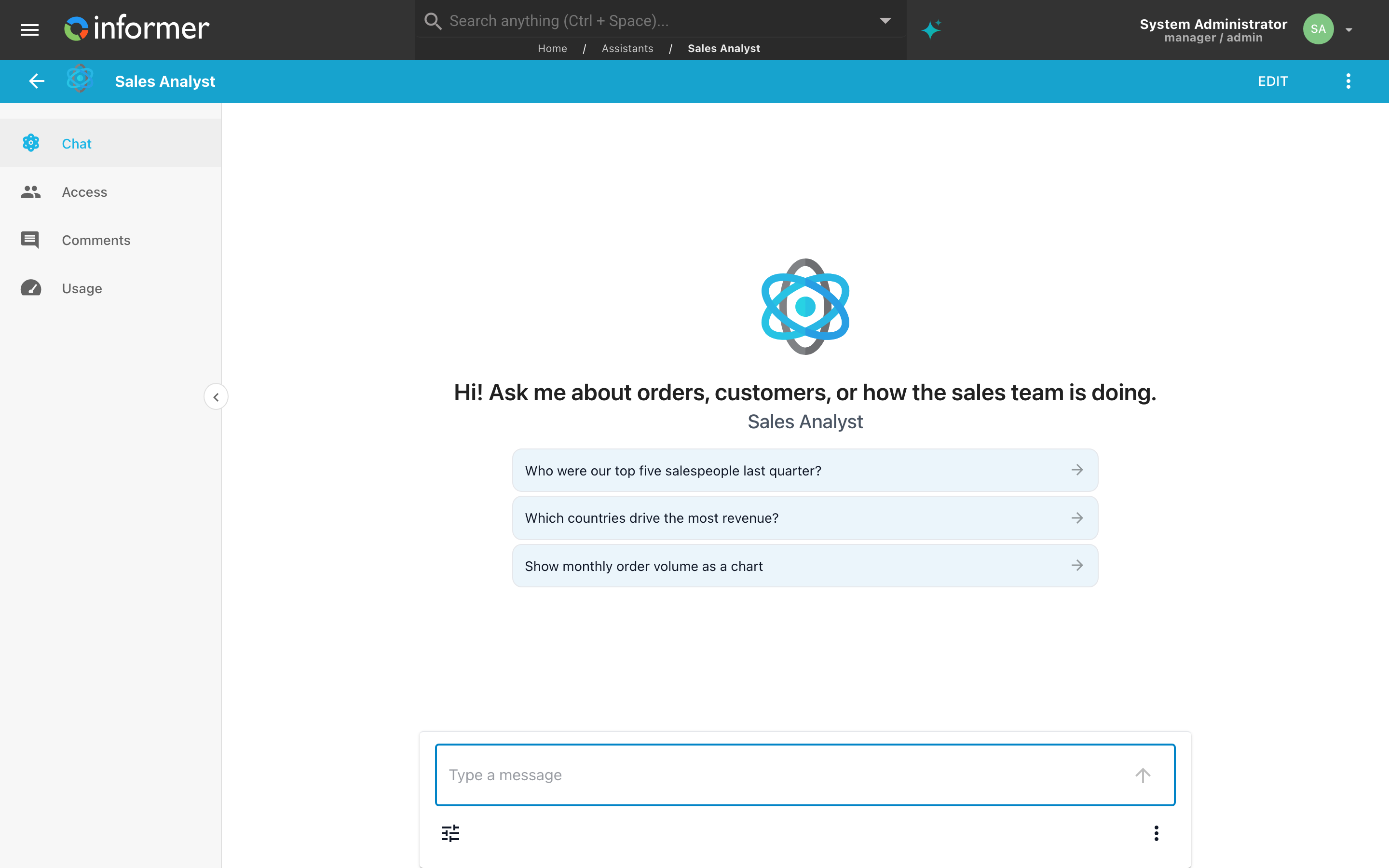
Two buttons sit under the prompt box:
- Settings & Tools (the sliders icon) holds what the author left open to you: Attach File to bring a document into the conversation, Web Search, and Suggestions, which proposes follow-up questions after each answer. The Assistant's Knowledge, Skills, Toolkits, and model are set by its author in the editor, so they are not offered here.
- Actions (the three dots) holds Restart Chat, Reload, and Delete Chat.

Starting over
- Restart Chat clears the conversation history and starts the same Assistant fresh. Informer asks first: "Are you sure you want to restart this chat? This clears the conversation history." There is no way to retrieve the history after restarting.
- Reload reloads the page, which is the thing to try when the chat seems to have stalled. The conversation itself is untouched.
- Delete Chat removes the conversation after a confirmation.
Seeing what a reply did
When an Assistant answers by using a tool, searching a Dataset, running a Skill, or calling an API, that tool call appears in its reply. The small info button beside it, View Details, opens the call's request and response so you can see exactly what the Assistant asked for and what came back. That is where to look when an answer is wrong or took longer than expected: a search against the wrong field or an empty API response is usually plain to see.
Bringing Assistants into other conversations
An Assistant's own Chat page is dedicated to that Assistant. To use one or more Assistants inside any other conversation, open the Informer AI dialog from the sparkle in the top bar, then open Settings & Tools on its prompt box. Under Context, pick Assistants.
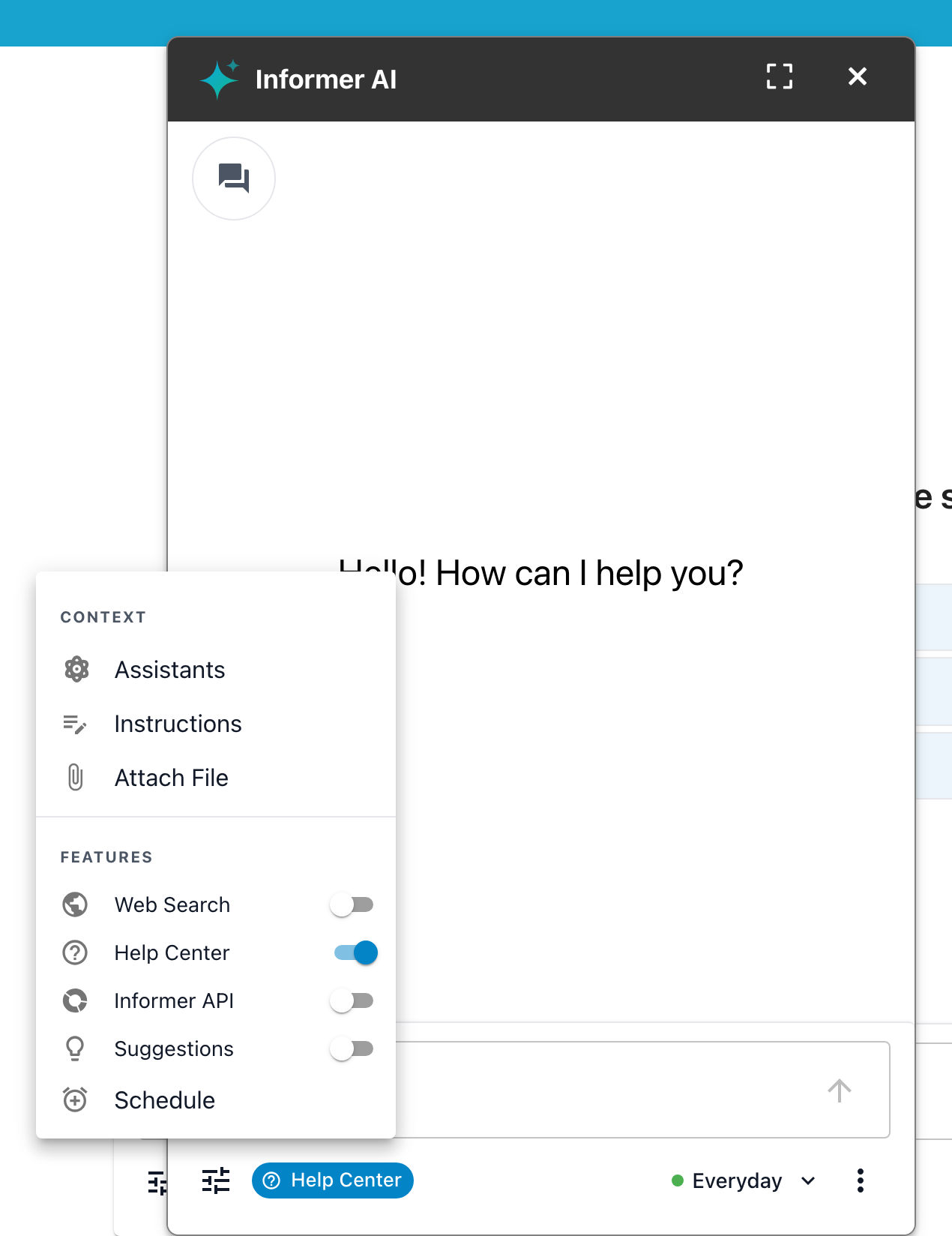
The Choose Assistants dialog lists every Assistant you have access to. Type to search, check the ones the conversation needs, and click Save; Clear unchecks them all. A dispatcher Assistant in the list routes questions to the specialists attached to it, so checking one of those can stand in for checking several.
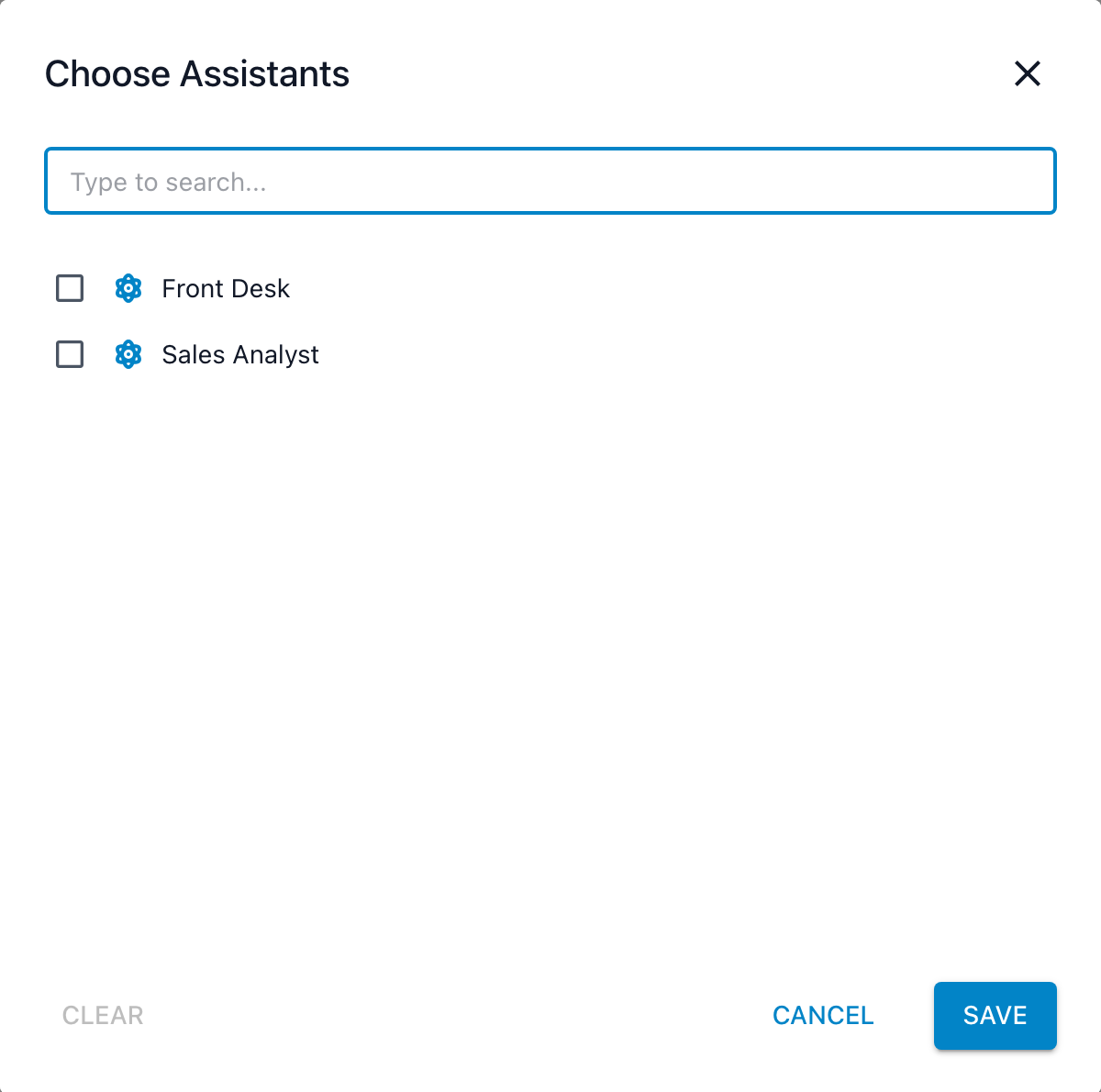
The same picker is in every chat in Informer GO; see Giving a chat context.
Access, Comments, and Usage
The Chat page is the first entry in the Assistant's left rail. The others:
- Access is where the Assistant is shared with Users and Teams, or published through an external link. See Assistant Access.
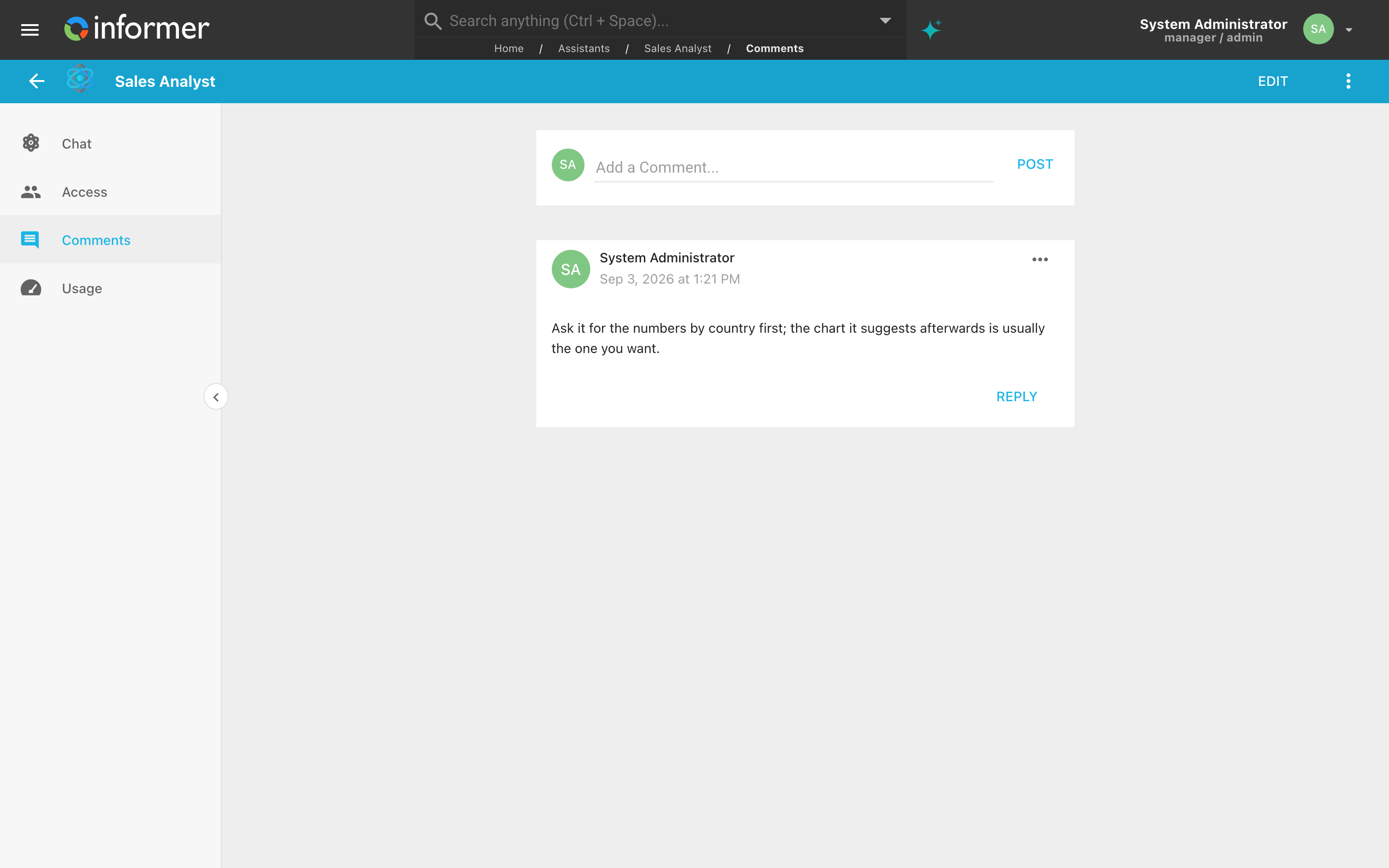
- Comments is a discussion page for the Assistant itself: a place to leave notes for the people who use or maintain it, such as what it is good at, which Dataset it answers from, or a prompt that works well. Type in Add a Comment... and click Post. Anyone who can chat with the Assistant can read and add comments and reply to one, and an author can edit or delete their own from its ... menu. It works the same as the Comments page on other objects; see Comments.
- Usage shows what the Assistant is costing, for the people who can edit it. See Assistant Usage.