Working with Libraries
A LibraryA managed collection of files (documents, spreadsheets, PDFs) that Informer indexes so Assistants and chats can use them as knowledge. connects Informer to a collection of files held somewhere else (Microsoft OneDrive, Box, Google Drive, or GitHub) so an AssistantA configured AI persona with its own instructions, knowledge, and tools. Chats can be powered by an Assistant tailored to a specific job, like answering HR questions or analyzing sales data. can read those documents and answer questions about them.
Why Libraries matter
Most of what an organization knows lives in documents, not in Datasets: policy manuals, contracts, training material, meeting notes. A Library brings that pile into Informer without moving it, keeps it in step with the source, and makes it something you can ask questions of. Point a Library at a shared drive of HR policies, enable AI on the folders that matter, and an Assistant can answer "how much notice do I need to give for unpaid leave?" from the actual documents rather than from memory.
How a Library works
A Library has three parts worth understanding before you create one:
- The connection: the remote source and the credentials that reach it. Whoever authenticates becomes the connection owner, and only they can see files that have not been indexed yet.
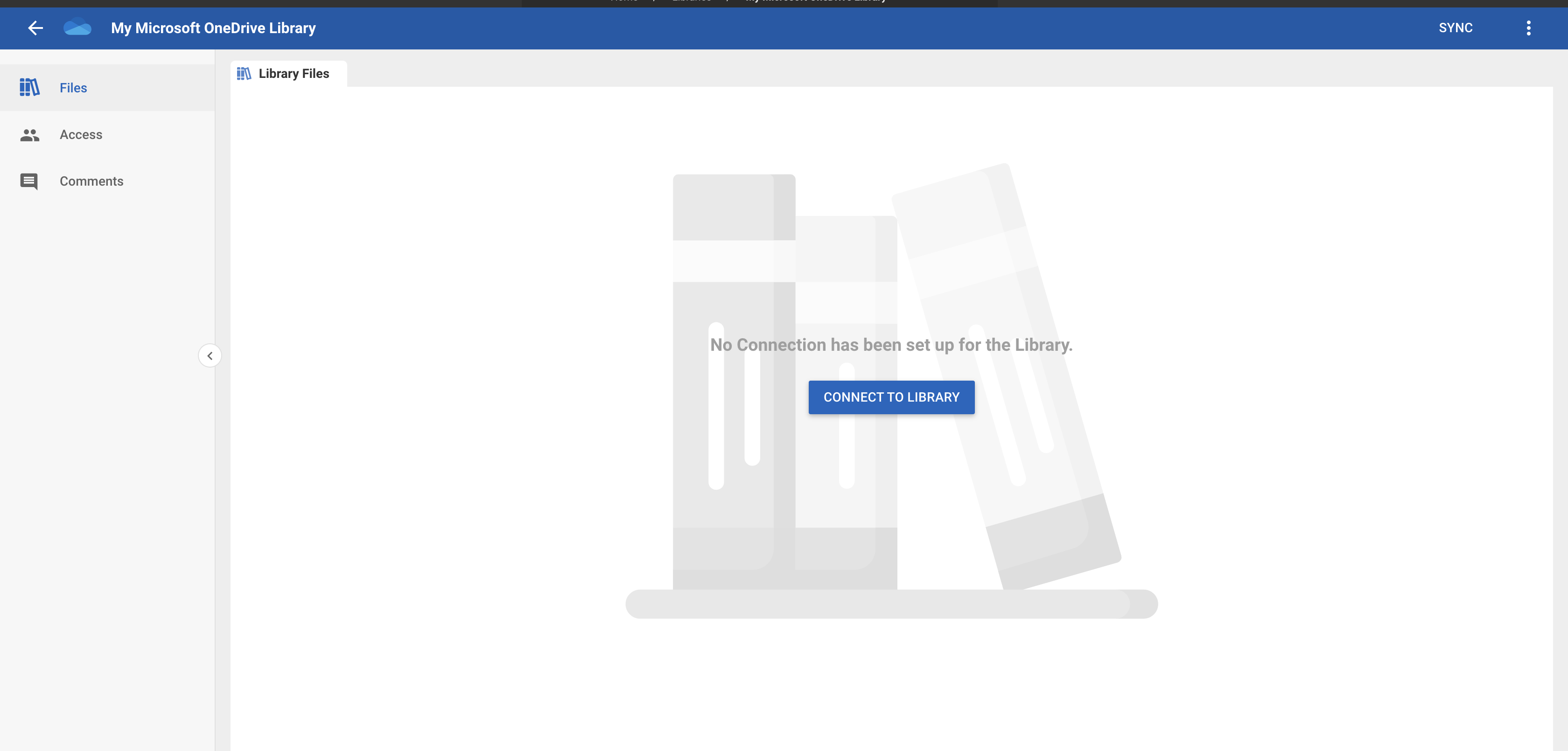
- The file tree: a mirror of the remote source that you expand and browse inside Informer. New files in the source do not appear on their own; a Sync brings them in, either on demand or on an interval.
- Indexing: the per file and per directory AI switch. Turning it on creates the embeddings an Assistant searches. Until then, the file is invisible to AI, even to people the Library is shared with. A new file a sync brings into a folder takes that folder's switch: in a folder with AI on, it is indexed without anyone turning it on, so people the Library is shared with and Assistants can see it once it's indexed. A file moved to another folder in OneDrive, Box, or Google Drive takes that folder's switch at the next sync.
That last point is the one that surprises people: sharing a Library grants read access to everything in it, but only indexed files are ever visible to a shared User or usable as Assistant Knowledge.
Libraries require AI to be enabled for your organization (see AI Features).
In this section
| Article | In one line |
|---|---|
| Creating and Connecting to Libraries | Create a Library, connect it to OneDrive, Box, Google Drive, or GitHub, and sync its files. |
| Libraries Actions Overview | What each option in a Library's Actions menu does. |
| Client ID and Client Secret for Google Drive Libraries | Register a Google Cloud app and collect its credentials. |
| Client ID and Client Secret for Box Libraries | Register a Box custom app and collect its credentials. |
| Client ID and Client Secret for GitHub Libraries | Register a GitHub OAuth app and collect its credentials. |
| Client ID and Client Secret for Microsoft OneDrive Libraries | Only needed before 2025.2.0; newer versions connect without them. |
Where do I look when...
| You want to... | Where |
|---|---|
| Connect a Library for the first time | Creating and Connecting to Libraries |
| Find the Client ID and Client Secret a provider wants | the credential article for that provider, above |
| Pull in files that were added to the remote source | the Sync action, or Change Sync Interval for a schedule |
| Point the Library at a different folder | Configure |
| Let an Assistant read the documents | Using Libraries with Assistants |
| Attach Library files to an Assistant as Knowledge | Adding Knowledge to an Informer Assistant |
| Let a chat in Informer GO read the documents | Giving a chat context |
| Let a Job write files back to a Drive | allow write access on the connection, then see Jobs actions |
| Give other people access | Share |