Libraries Actions Overview
The Actions menu contains options for viewing, modifying, and distributing a Library.
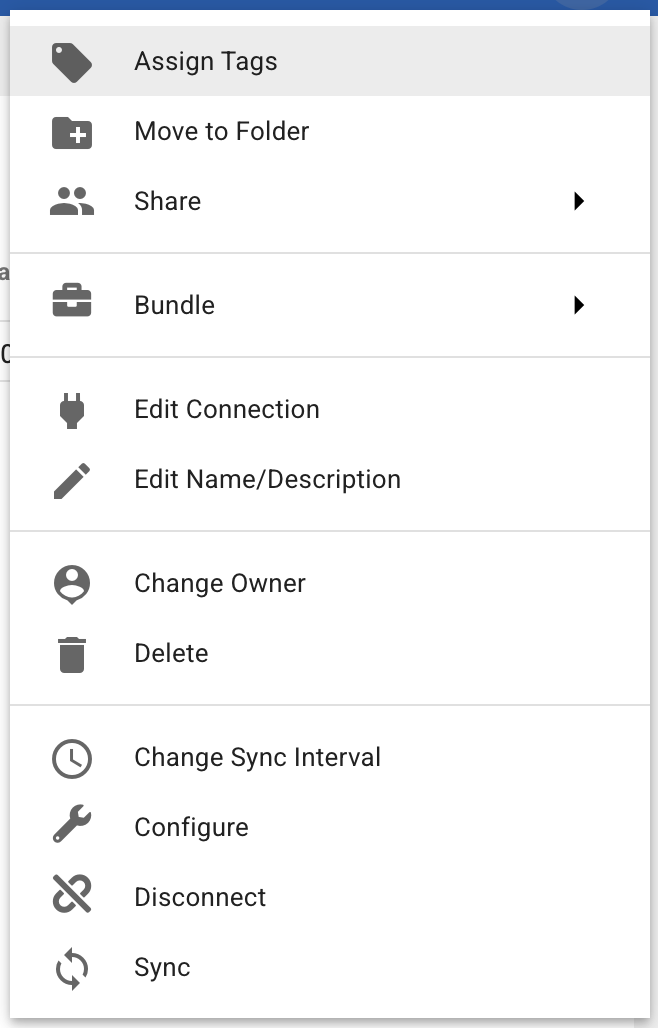
Assign Tags
Applies existing tags to a Library, which helps organize and filter content.
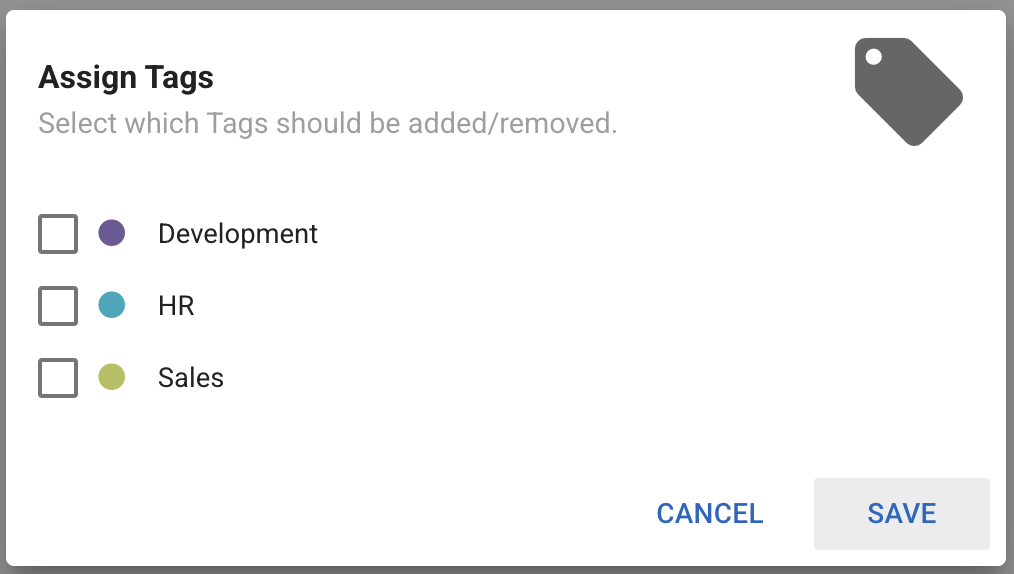
Move to Folder
Moves a Library into an existing Folder, or creates a new Folder for it. Folders give a hierarchical structure that helps you locate Libraries quickly.
Share
Sharing a Library grants read access to every file and directory in it. Once AI support is enabled on those files, the shared Users can add any of them as Knowledge for their own Assistants.
Bundle
Bundles are packs of Informer content. Use the Bundle options to add the Library to a Bundle:
- Add to Bundle exports the Library to an existing or new Bundle.
- Bundle and Download creates a Bundle of the Library and downloads it.
- Bundle and deploy to Tenant exports the Library and imports it to one or more Tenants.
See Bundles.
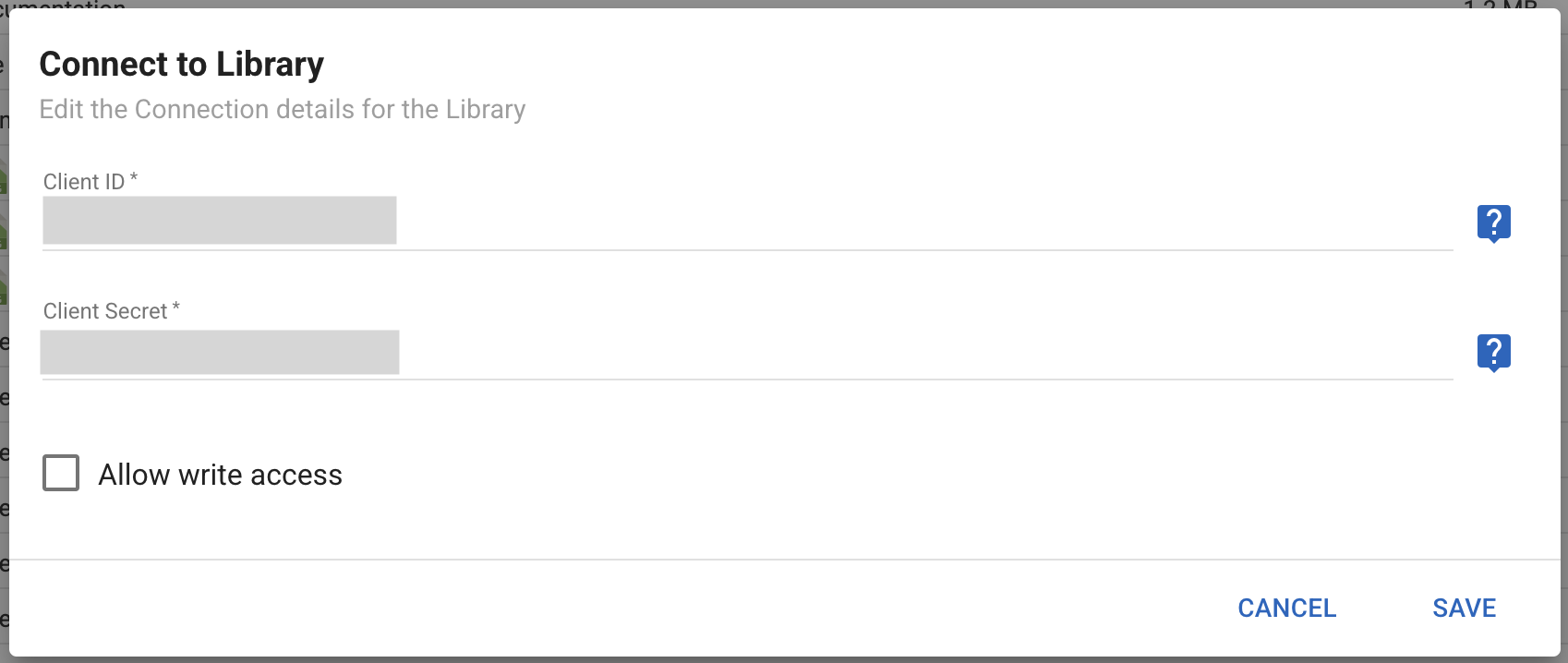
Edit Connection
Edit the Client ID, Client Secret, and write access for the Library's connection.
Edit Name/Description
Modify the Library's name and description.
Change Owner
Gives ownership of the Library to another Team or User.
Delete
Permanently removes a Library from the system. This cannot be undone.
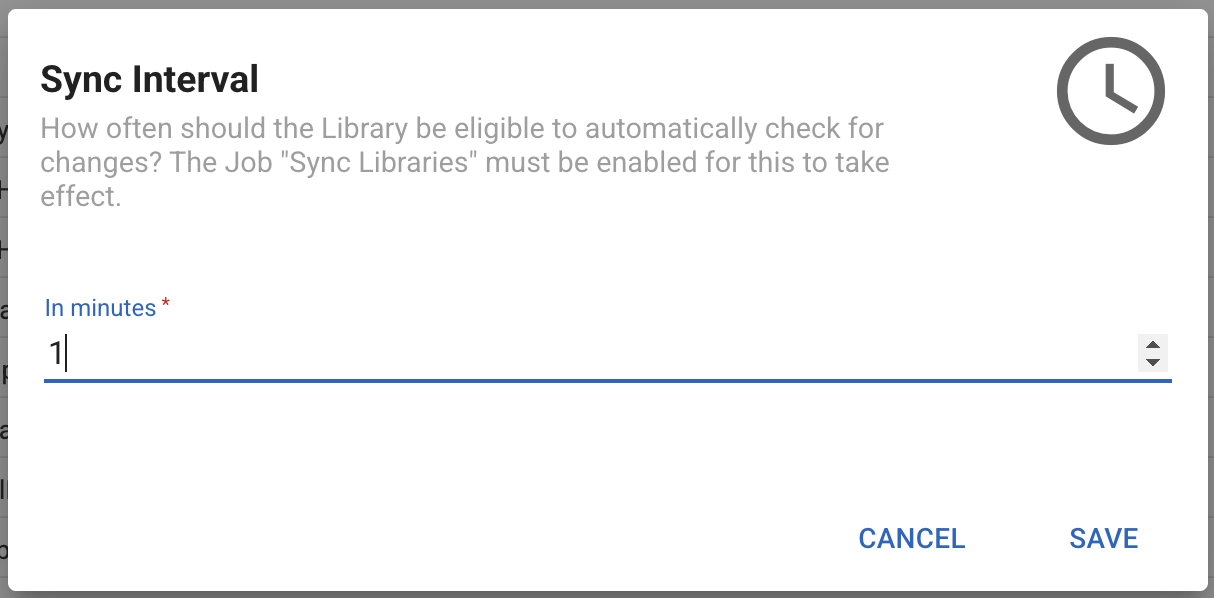
Change Sync Interval
Controls how often the Library automatically checks its remote source for changes. Enter the number of minutes between re-syncs.
Note: This action requires the Sync Libraries Job to be enabled.
Configure
Changes the folder in the remote source that the Library connects to. After saving, the Library re-syncs to the chosen folder.
Disconnect
Disables syncing new files and directories. To resume, re-authenticate and reconnect to the remote source.
Sync
Pulls in files and directories from the Library's remote source.