Integrations
An Integration is a saved connection to an external service: the credentials, endpoints, and scopes Informer needs to call that service's API on a user's behalf. Set one up once, and features like Assistant Skills and Datasource connections can offer it to users, who connect with their own account and can disconnect whenever they like.
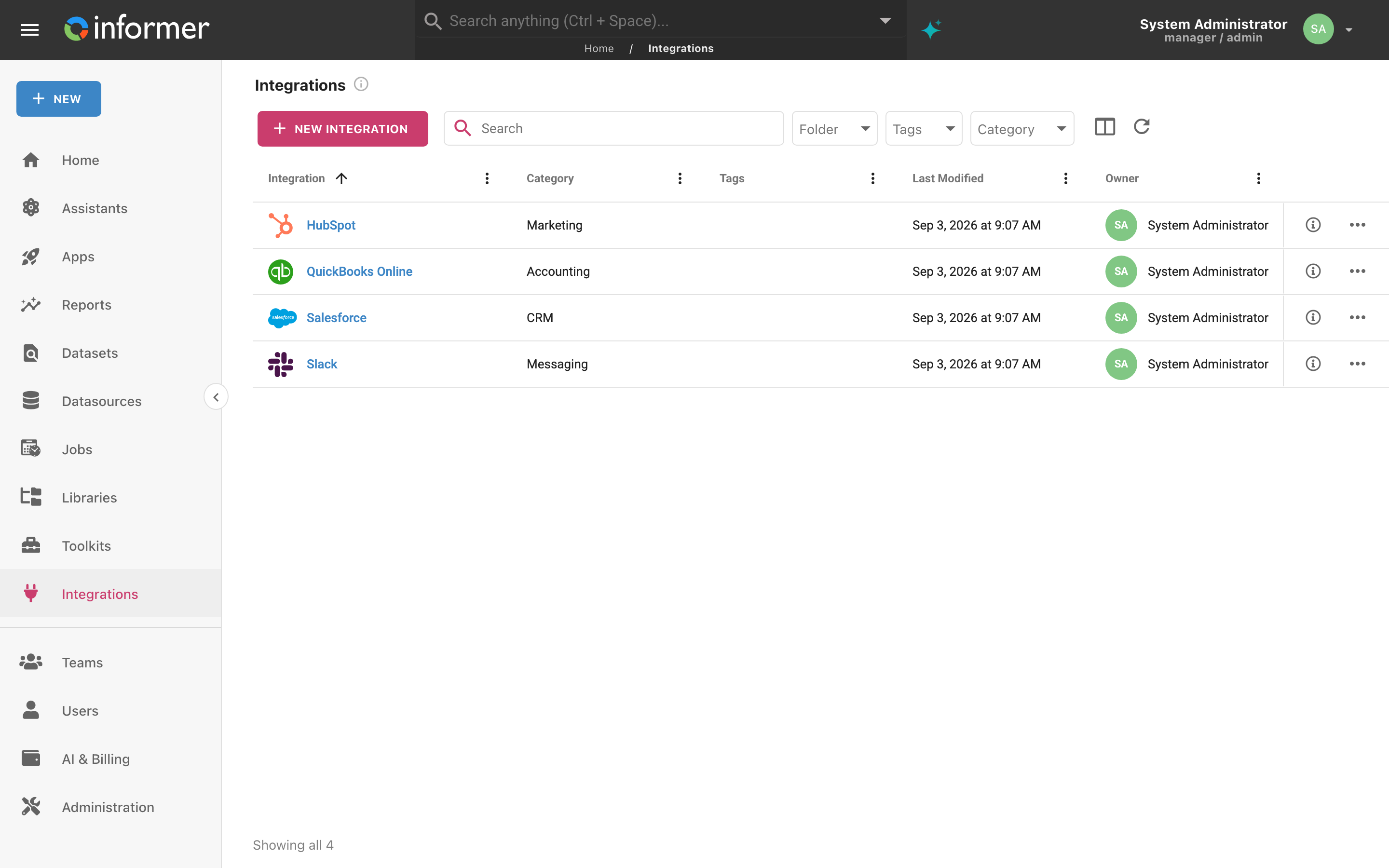
Integrations is a top-level item in Informer's left-hand navigation, between Toolkits and Teams. The listing page works like every other listing page: search, then narrow by Folder, Tags, or Category; the i icon opens an Integration's details, and the ... menu at the end of a row holds its actions, including Edit. See Finding your content for the shared listing tools.
Why it exists
Without Integrations, every feature that talks to an outside service would need its own copy of that service's OAuth setup, and every user would have to hand Informer their login. An Integration holds the setup once, and each person authorizes it with their own account, so Informer never stores anyone's password for the service.
Order Desk's Assistant needs to look up customers in Salesforce. An administrator creates a Salesforce Integration with the Client ID and Client Secret from Salesforce's connected-app registration. The Assistant's API Request Skill offers that Integration, and the first time a salesperson asks the Assistant about a customer, Salesforce prompts them to sign in and approve access. From then on the Assistant calls Salesforce as that salesperson.
Creating an Integration
Creating an Integration requires the Data Wizard role (see Roles). Click New Integration on the Integrations page and choose what kind of connection to set up:
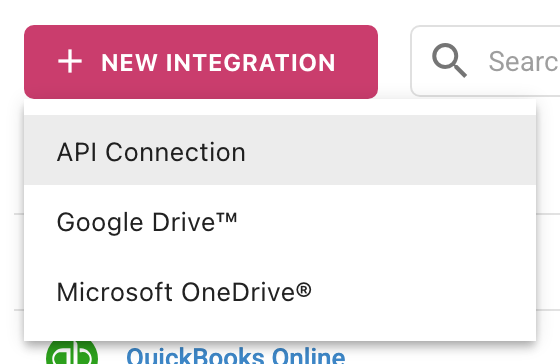
- API Connection is the general case: any service with an OAuth 2.0, API key, basic-auth, or bearer-token API. You fill in the details yourself.
- Google Drive™ and Microsoft OneDrive® come pre-configured. Once connected, the "Upload to Drive" action in Jobs can send files to your Drive or OneDrive.
Choosing API Connection opens the New Integration dialog.
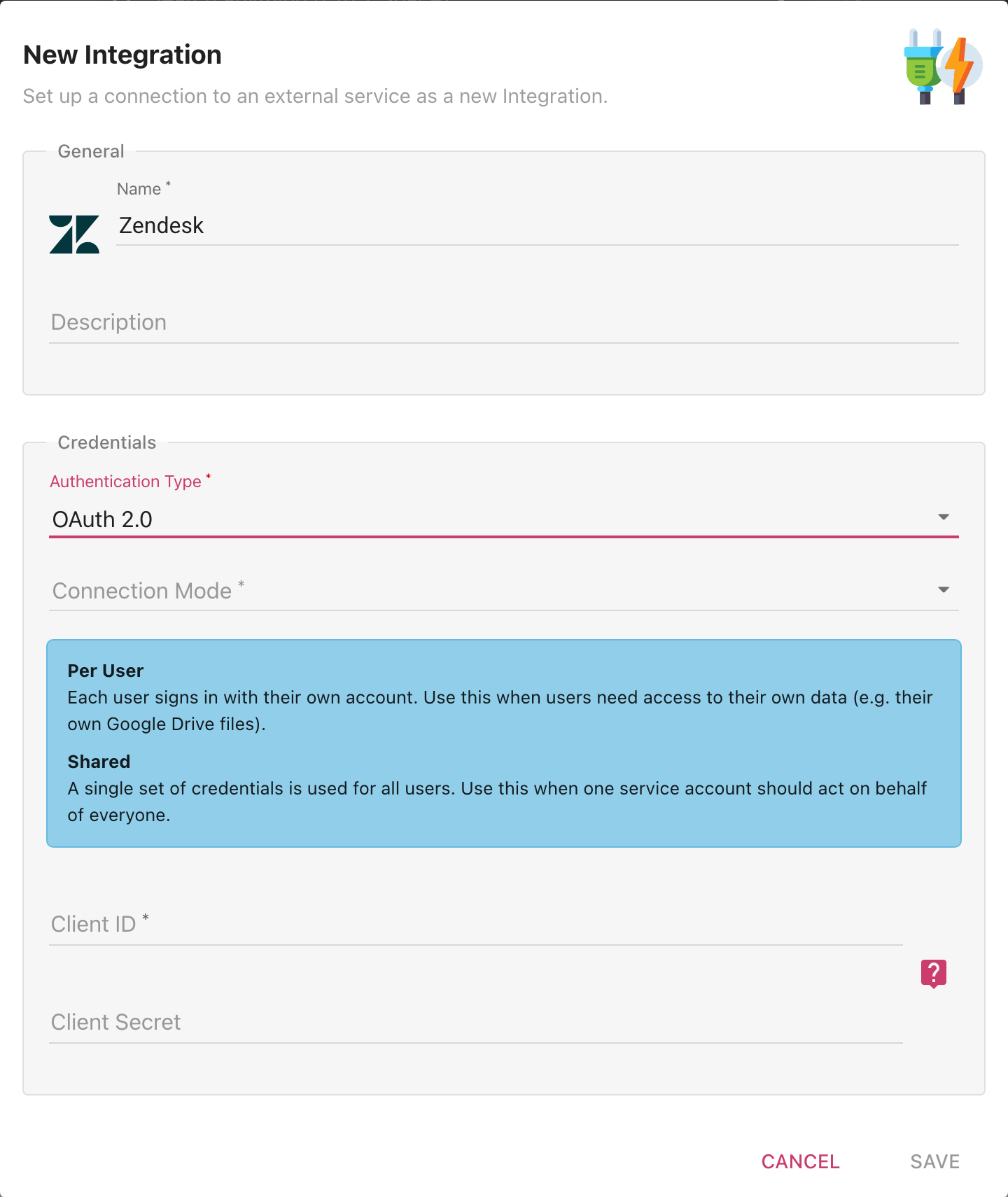
General
Name and Description. Name the Integration after the service (for example Salesforce or Slack): Informer recognizes well-known services and shows their icon beside the name, in this dialog and on the listing page. You can change the icon later from the detail page.
Credentials
Authentication Type decides which fields follow. Whichever you pick, the API Base URI (the root of the service's API) is required:
-
OAuth 2.0: the service issues short-lived tokens after a user signs in. Connection Mode chooses who signs in:
- Per User: "Each user signs in with their own account. Use this when users need access to their own data (e.g. their own Google Drive files)."
- Shared: "A single set of credentials is used for all users. Use this when one service account should act on behalf of everyone."
Then enter the Client ID and Client Secret issued when you registered your application with the service. The secret is encrypted when saved.
-
API Key: a fixed key sent with every request. Enter the API Key, the API Key Header/Parameter Name (the default is
X-API-Key), whether the API Key Location is a Header or a Query Parameter, and the API Base URI. To give each user their own key, enter${user.fieldName}and Informer resolves it from that person's user field. -
Basic Auth: a Username and Password sent as HTTP basic authentication, plus the API Base URI.
-
Bearer Token: a token sent as
Authorization: Bearer {token}on every request, plus the API Base URI.${user.fieldName}works here too for per-user tokens. -
Token Exchange: an API Key that the service exchanges for a short-lived token at the Token URI, plus the API Base URI.
-
None: no authentication. Requests carry only the base URL and any custom headers you define.
Endpoints (OAuth 2.0 only)
The top of this section shows the Redirect URL needed to enter in the OAuth provider, with a Copy button. Paste it into the service's application registration as the callback or redirect URL, or the sign-in hand-off will fail.
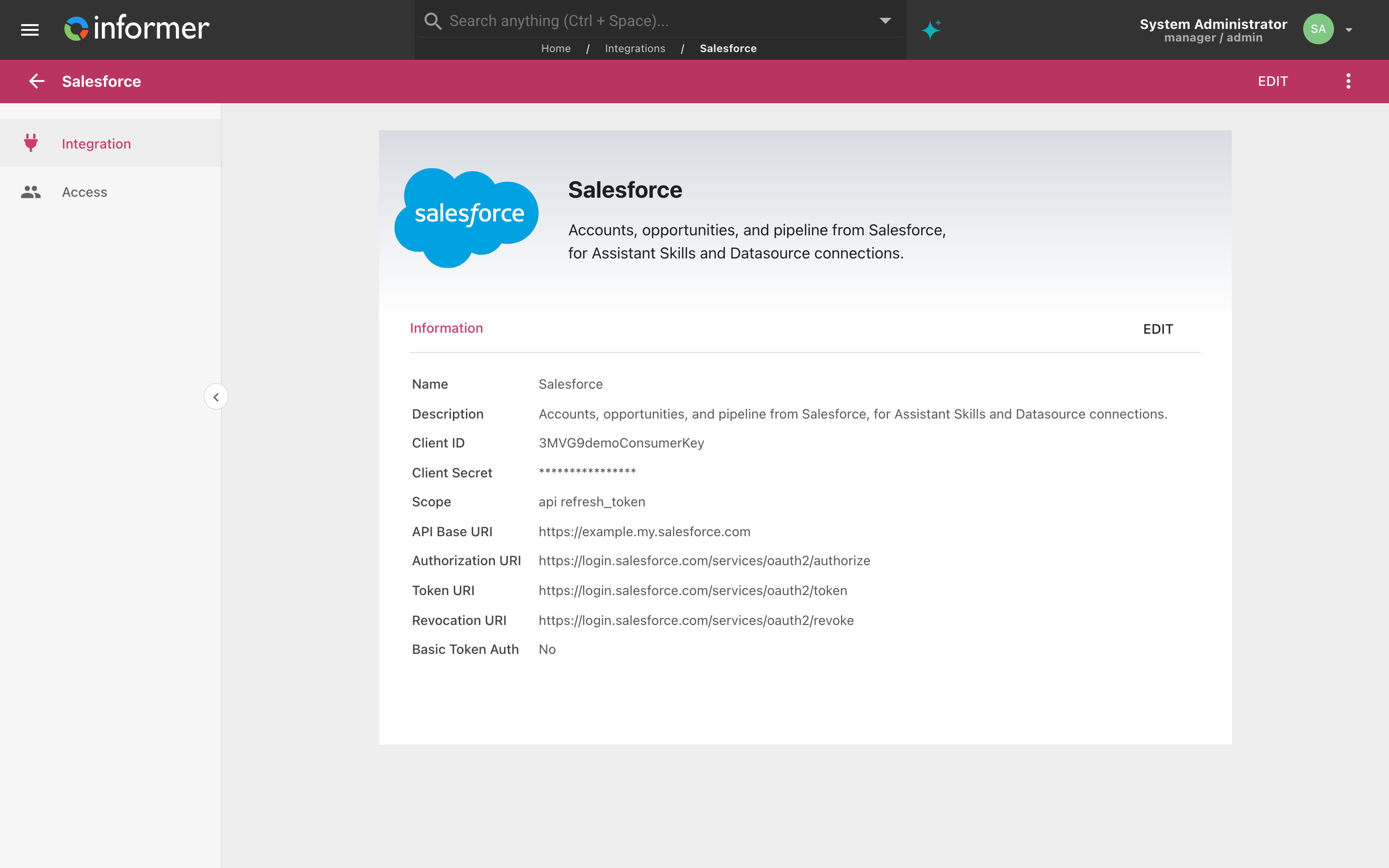
- Scope: the permissions the application requests, as the service spells them (for example
api refresh_token). - API Base URI (required): the root of the service's API. Requests through the Integration may only target this base.
- Authorization URI: where users are sent to sign in and approve access.
- Token URI: where Informer exchanges the authorization code for an access token.
- Revocation URI: where Informer revokes a token when a user disconnects.
- Basic Token Auth: check this if the service requires the Client ID and Client Secret as a Basic Authorization header when exchanging tokens.
Additional Allowed Base URLs
Requests through an Integration may only target its API Base URI. Some services expose more than one host for the same credentials (Slack, for example, uses https://slack.com/api for API calls and https://files.slack.com for file downloads). Click Add Base URL and list those extra hosts here to allow them.
Custom Headers (all types except OAuth 2.0)
Click Add Header to send extra HTTP headers with every request, as Header Name and Header Value pairs. ${user.fieldName} and ${user.username} resolve per user. Keep secrets in the authentication fields above rather than in a custom header.
Click Save. The Integration opens on its detail page.
Where you might find this information
The OAuth details come from the service's developer portal or API documentation. Most services that support OAuth have a place to register an application, which is where you receive the Client ID and Client Secret and where you enter Informer's redirect URL. The Authorization URI, Token URI, and Revocation URI are listed in the service's authentication documentation, along with the available Scope values and the API Base URI. Whether a service needs Basic Token Auth is spelled out in the same place.
The detail page
Each Integration has its own page. The Information section shows what was entered, with the Client Secret masked and any Additional Allowed Base URLs listed; Edit opens the same form as the dialog, and the ... menu offers Add to Favorites, Edit, Change icon, Assign Tags, Change Owner, Bundle, and Delete. The Access page in the left rail is where the owner shares the Integration with Teams and Users, the same way as any other content.
Integrations can also arrive with an App: an App's manifest can declare the Integrations it needs, and those show Owned by App in the row's information panel (and in an optional Owned by App column) because the App's deployment manages them. Their owner follows the App's owner, so Change Owner refuses them and points you to the App instead, and a person's connection to one is labeled Provided by the App in their Connections dialog.
How users connect
Informer features prompt users to connect when they first use something that needs the Integration: an Assistant Skill that calls the service, or a Datasource connection built on it. For a Per User Integration each person authorizes with their own account; a Shared Integration is connected once by someone with write access to it and everyone rides that connection.
Users see and manage their own connections in the Connected Integrations section of their profile page, and in the Connections dialog opened from the profile menu in the upper right, which groups them into Connected and Available. Connect starts the sign-in for any Integration they have access to; a Shared Integration only offers Connect to someone with write access to it, and the sign-in window turns anyone else away, explaining that only an administrator of that Integration can connect it because every User shares the one connection. Disconnecting revokes the token, and Informer asks "Are you sure you want to disconnect this Integration?" first.
Where to use Integrations in Informer
Integrations open up many possibilities, with one primary use being the connection to Assistants. By integrating external services, Informer lets Assistants securely make API requests on behalf of the user. For example:
- An Assistant could connect to a CRM system to retrieve and update customer data in real time based on user commands.
- An Assistant could integrate with a calendar service to schedule events and retrieve availability without direct user intervention.
The API Request Skill is where an Assistant picks the Integration it calls.
Troubleshooting
- The service rejects the sign-in with a redirect mismatch. The redirect URL registered with the service must match the one shown at the top of the Endpoints section exactly. Copy it from there rather than typing it.
- Nothing happens after clicking Connect, or a message says the connection window was blocked. The sign-in opens in a pop-up window. If the browser blocks it, Informer reports "Your browser blocked the connection window. Allow pop-ups for this site and try again." If the window closes before Informer can confirm the result, it says so and asks you to check whether the Integration is connected; look at the connections list before trying again.
- A request to a second host fails even though the connection works. Requests may only target the API Base URI. Add the other host under Additional Allowed Base URLs.
- New Integration is missing. Creating Integrations takes the Data Wizard role. Ask an administrator to grant it, or to create the Integration for you.
- A user's connection stopped working. Have them open Connected Integrations on their profile page, disconnect, and connect again; a service-side password change or revoked consent invalidates the stored token.