Creating User Fields
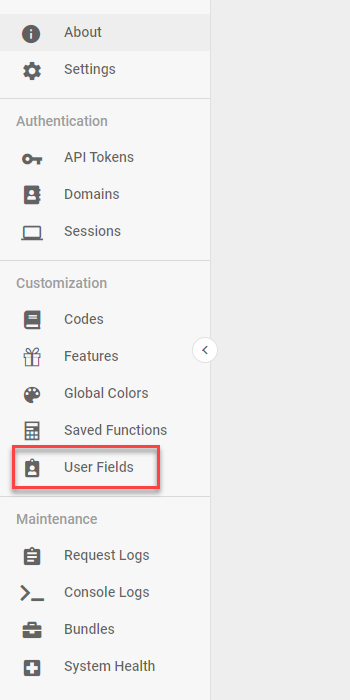
To apply row-level security, create User Fields and assign them to individual Informer users. Use these User Fields in Query criteria and in Filters. Navigate to the Administration page and click User Fields.
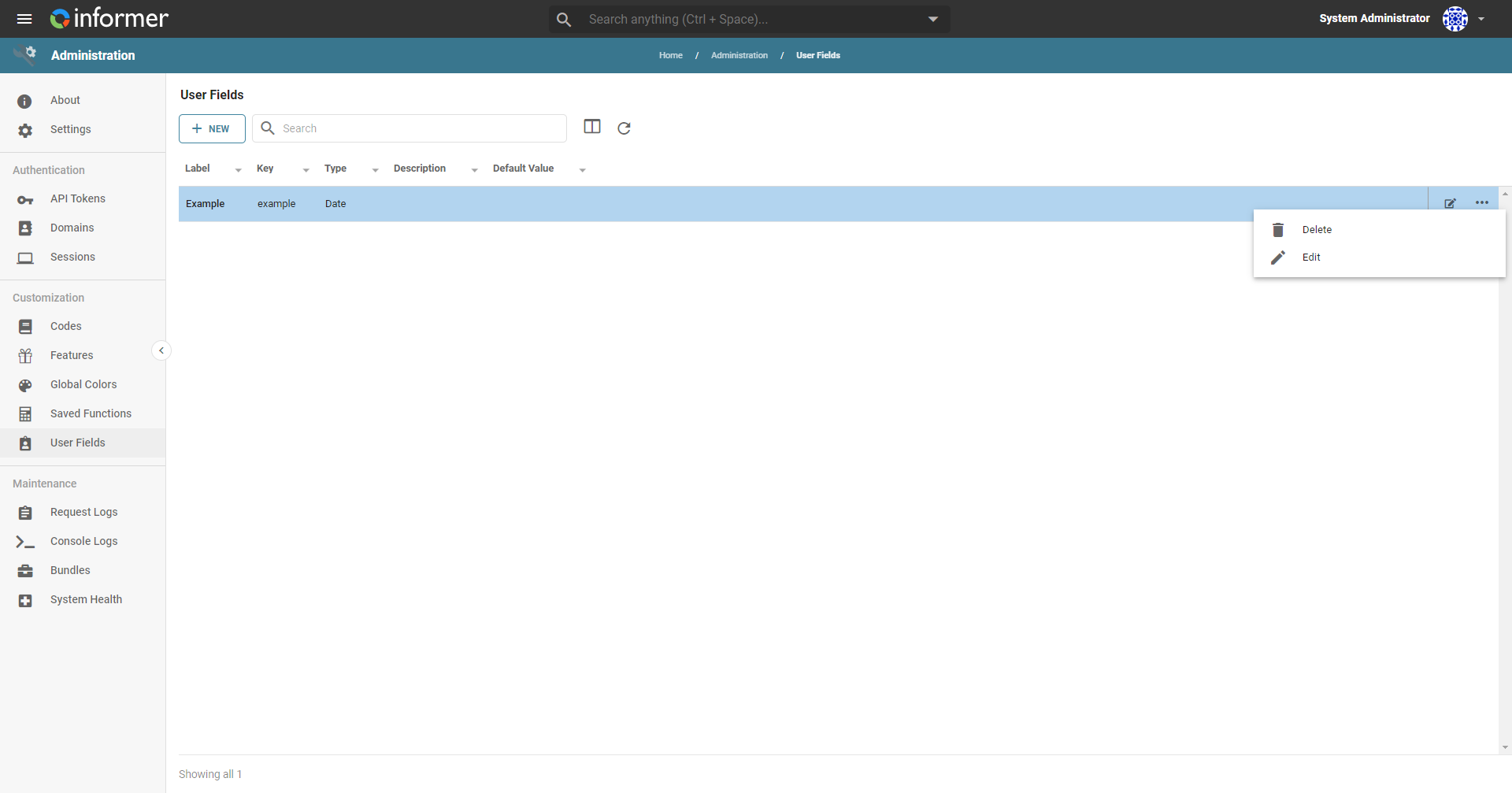
The listing page provides basic summary information about all existing User Fields in the system. Click the ... to the right of a row to access a menu of available actions:
- Delete - Delete the selected User Field.
- Edit - Edit the selected User Field to update the Label, Description, and Default Value.
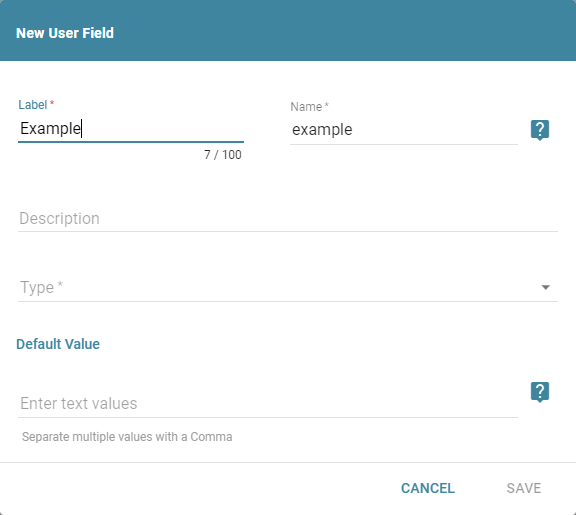
Click the + New button to add a new User Field. This opens a configuration form. Complete the New User Field configuration:
- Label - The name of the User Field.
- Name - A text string to reference the Field. For example, if the name is
state, use the field by entering${user.state}in Filters or Criteria. - Description - A description (optional).
- Type - The type of field (Text, Number, Date, Boolean).
- Default Value - The value to use if a specific user has no value. If the default is left blank, the following values populate at run time:
- String:
'' - Number:
0 - Date:
1970-01-01
- String:
User Fields in Apps
An AppAn interactive page you open from Informer GO, such as a dashboard, a report view, or a custom-built App. Apps can be favorited, tagged, and shared. can use a User Field to limit the Dataset rows each viewer sees. A user with several values for the field sees rows matching any of them. A user with no value gets the Default Value. When the Default Value is blank too, the field matches nothing for that user, so they see none of the rows it would have matched, never every row. The App's author sets this up in the App's manifest; see Row-Level Security.