Theme
The Theme section of the Administration page provides a user-friendly interface for managing the visual identity of your site. Super Users may write new custom CSS that overwrites Informer's original styles, upload a new logo and icon, or brand Informer GO with an organization name, logos, and theme colors.
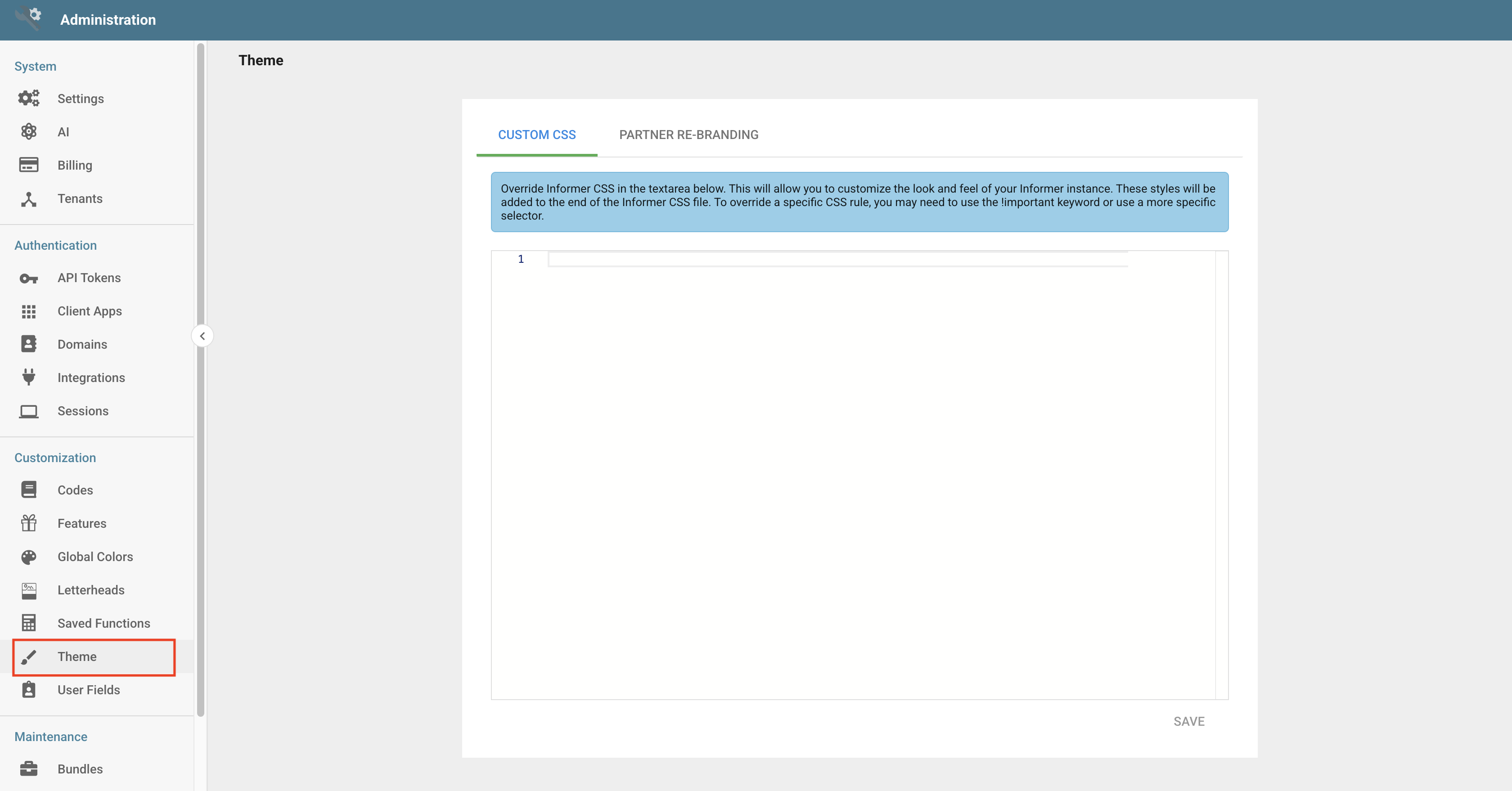
To set Theme options, go to the Administration page and click the Theme icon in the navigation panel. The page has three tabs: Informer GO Branding, Partner Re-branding, and Custom CSS.
Branding Informer GO
The Informer GO Branding tab controls how Informer GO presents your organization.
- Organization Name - The name shown is your saved organization name, or Informer GO when none is set. Click the name (or its pencil icon) to edit it in the Name box, then click the check mark to save or the close icon to cancel.
- Light Mode and Dark Mode - One card per mode. A card whose colors have not been customized is marked (Default). Each card has:
- Application Logo - A preview of the logo on that mode's app bar. Click Choose File or drag an SVG or PNG image into the upload area. After a custom logo is uploaded, a Clear logo close icon appears on the preview; clicking it asks for confirmation, then removes the logo.
- Theme Colors - Swatches for the mode's Primary and Secondary colors. The settings icon (Edit entire theme) opens the Edit Theme Colors dialog, where the palette is edited as JSON. The dialog notes that this is an advanced feature: the recommended way to customize a theme is to ask for it in an Informer GO chat and, once you like the result, ask to publish it. When a mode has custom colors, a Restore system default icon also appears; it asks you to confirm, then removes the custom colors for that mode.
Writing custom CSS
To add custom CSS to Informer, enter your own CSS styles on the Custom CSS tab. These styles overwrite the default styles.
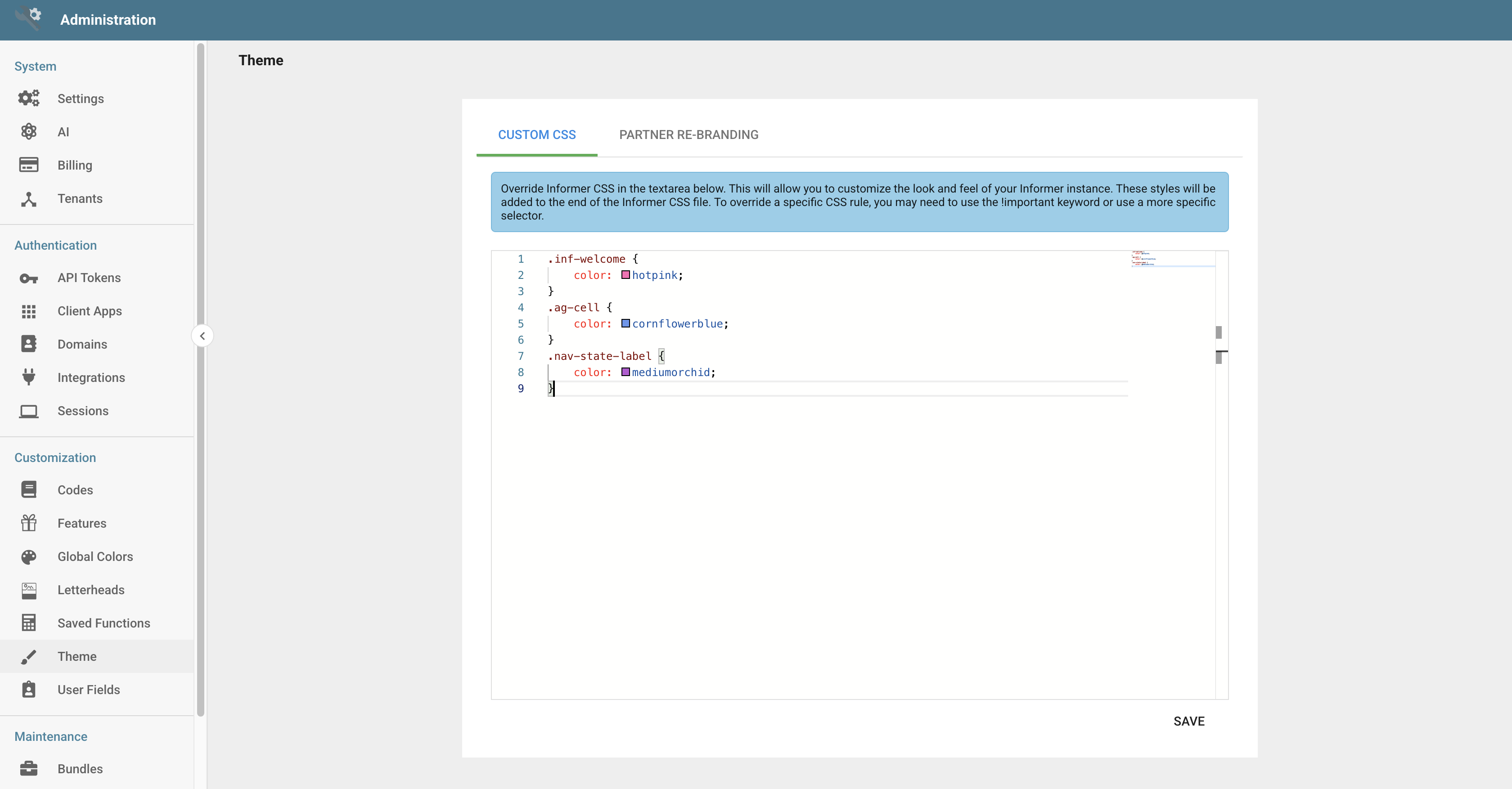
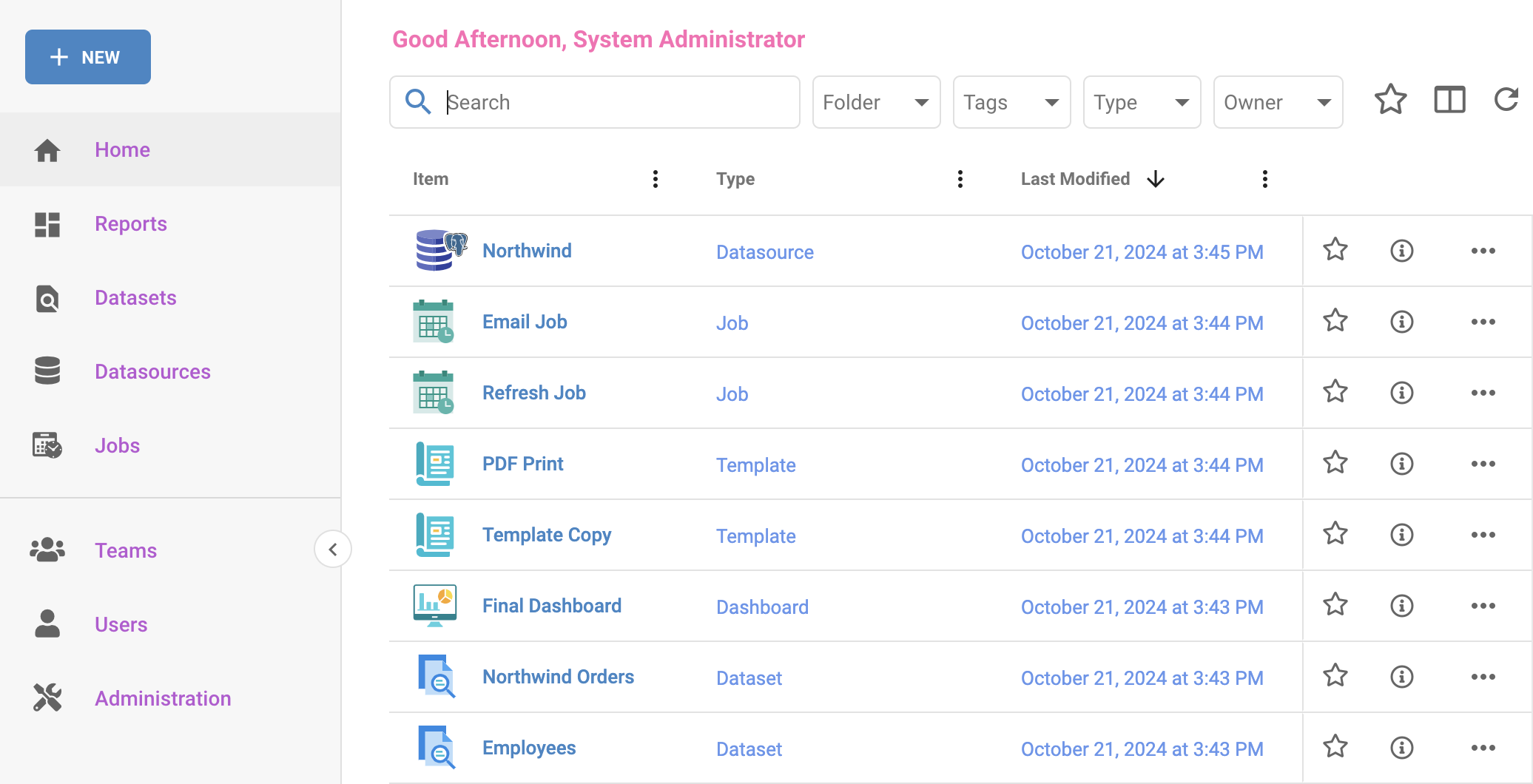
To see the styles applied, click the Save button in the bottom-right corner.
Customizing the logo
To upload a new logo, navigate to the Partner Re-branding tab. Click the Choose File button under Masthead Logo or drag and drop an image into the designated area. When the image finishes uploading, it is immediately displayed in the Theme section and in the masthead in place of "Informer."
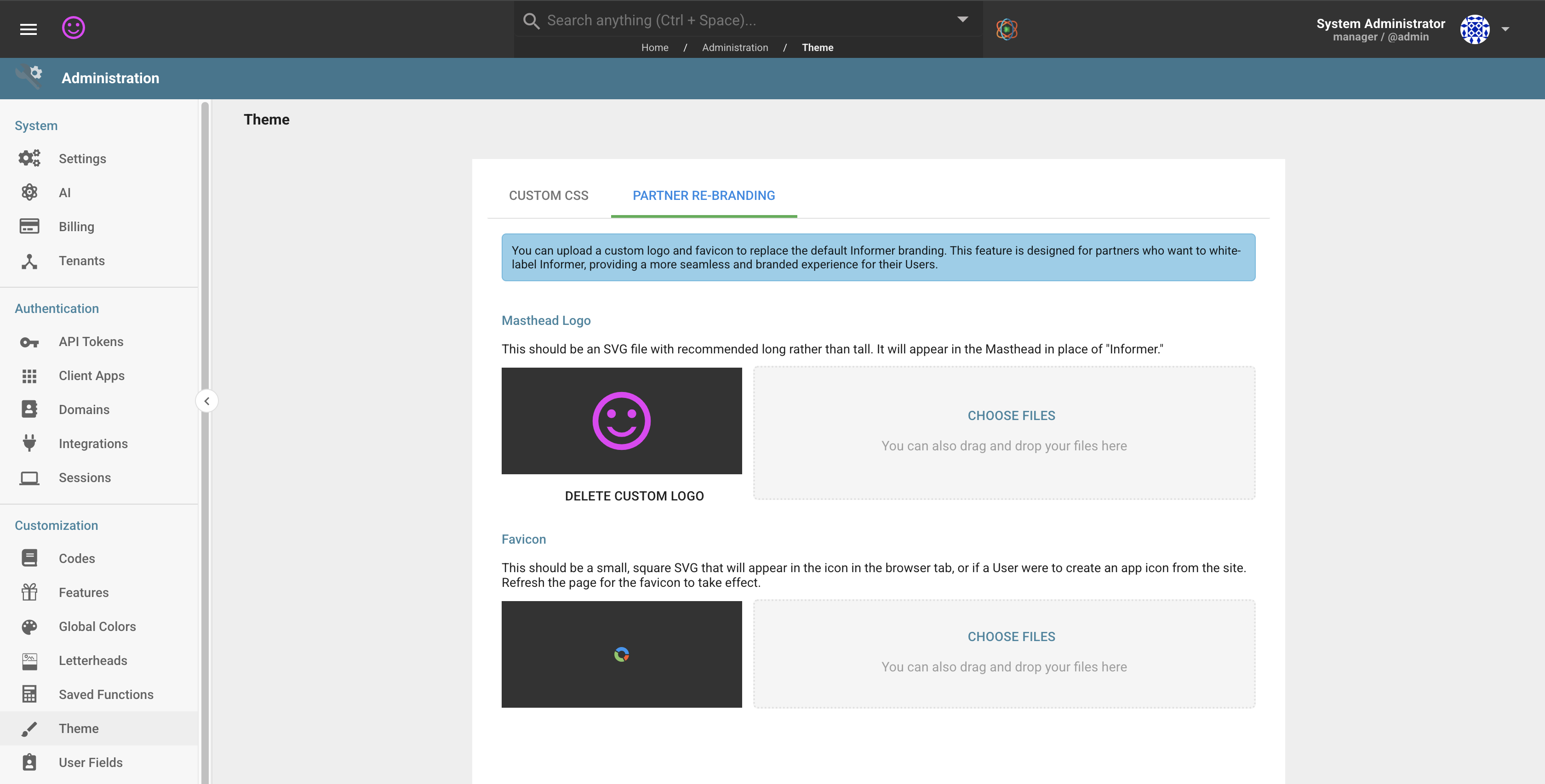
After a new logo is uploaded, a Clear logo close icon appears on the preview. Clicking it asks for confirmation, then removes your logo and restores the default Informer logo.
Customizing the icon
Customizing the icon is similar to customizing the logo. To upload a new icon, click the Choose File button under Favicon or drag and drop an image into the designated area. When the image finishes uploading, it is immediately displayed in the Theme section, but the browser needs to be refreshed before the icon is shown in place of Informer's default favicon.
After refreshing the page, the favicon shows up in your browser tab, history, bookmarks, and other places.

After a new icon is uploaded, a Clear logo close icon appears on the Favicon preview. Clicking it asks for confirmation, then removes your icon and restores the default Informer icon.