Assistant Access
You can share an Assistant with other Users and Teams, or externally via a link. Open the Assistant and click Access in its left rail.
- Share Assistant: Turn on the toggle, then click Add Team or User to select the Teams and Users to give access to the Assistant.
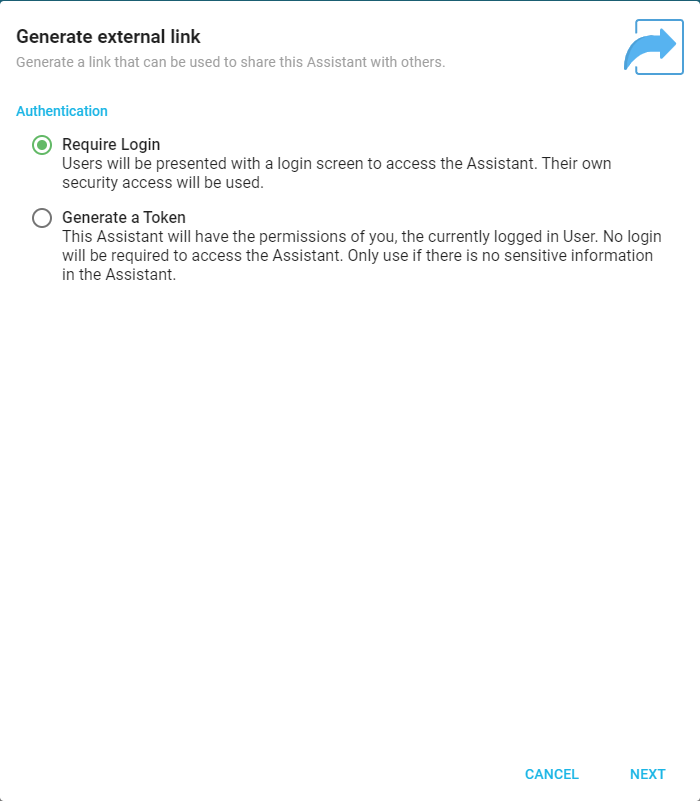
- Generate External Link (in the External Access section): Generate a link to share the Assistant with people outside Informer. Choose an authentication method:
- Require Login: The link presents a login screen, so Users access the Assistant under their own security.
- Generate a Token: The Assistant runs with the permissions of the current User, and no login is required. Use this method only if the Assistant contains no sensitive information.
To place the Assistant on a page of your own rather than share a link to it, see Embedding an Assistant, which also covers allowing your domain to display it.
If you choose Generate a Token, the next page lets you restrict the token's access and add notes. Informer then generates the link, which you can customize before saving: choose a theme (light, dark, or none), or switch between sharing a link and embedding the Assistant on a website. Informer also generates a QR code you can save and share.
After sharing, view and revoke access from the Access page. Local Access shows the Users and Teams that can access the Assistant; the External Access tab lists active links with columns for when each was last used and how many times. Use the ... action menu to revoke a link.
Note: If Informer AI is turned off (see AI Features) or unlicensed, an Assistant's Chat page shows "Informer AI is not enabled. Please ask your administrator to turn on AI for the system." instead of the chat, and nobody can chat with any Assistant. A superuser sees an Enable Informer AI button there instead of the request to ask an administrator.