Embedding an Assistant
You can place an Assistant directly on your own website, so people ask it questions without leaving your page. Informer generates the embed code, and an administrator allows your domain to display it.
Why embed an Assistant
A link sends people away from what they were doing. An embedded Assistant answers in place, which suits a support page, a student portal, or an internal intranet where the Assistant is meant to be part of the page rather than a destination.
The Assistant behaves exactly as it does inside Informer. It follows its instructions, uses its skills, and searches the Datasets and knowledge files it has been given. Embedding changes where it appears, not what it can do.
Getting the embed code
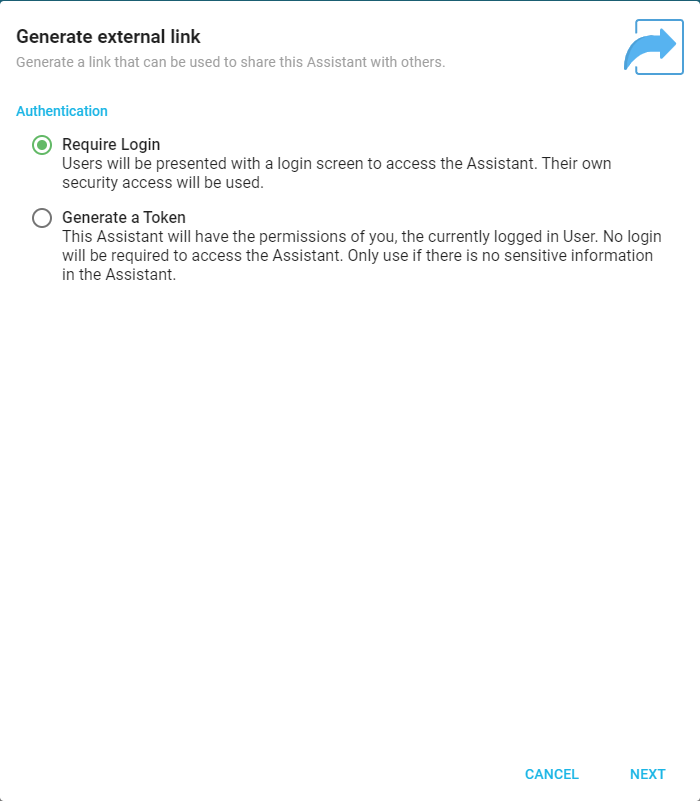
Embedding starts from the same place as any other kind of sharing. Open the Assistant's Actions menu, select Share, then Generate external link, and choose how people will sign in. See Assistant Access for the full sharing options.
Once the link is generated you can switch between sharing it as a link and embedding the Assistant on a website, and choose a theme (light, dark, or none) to match your page.
Allowing your domain to display it
This is the step that is easy to miss, because skipping it produces no error message anywhere in Informer.
Browsers refuse to display a page inside a frame on another site unless that page says the site is allowed. Informer says so through a setting an administrator controls in System settings under Security:
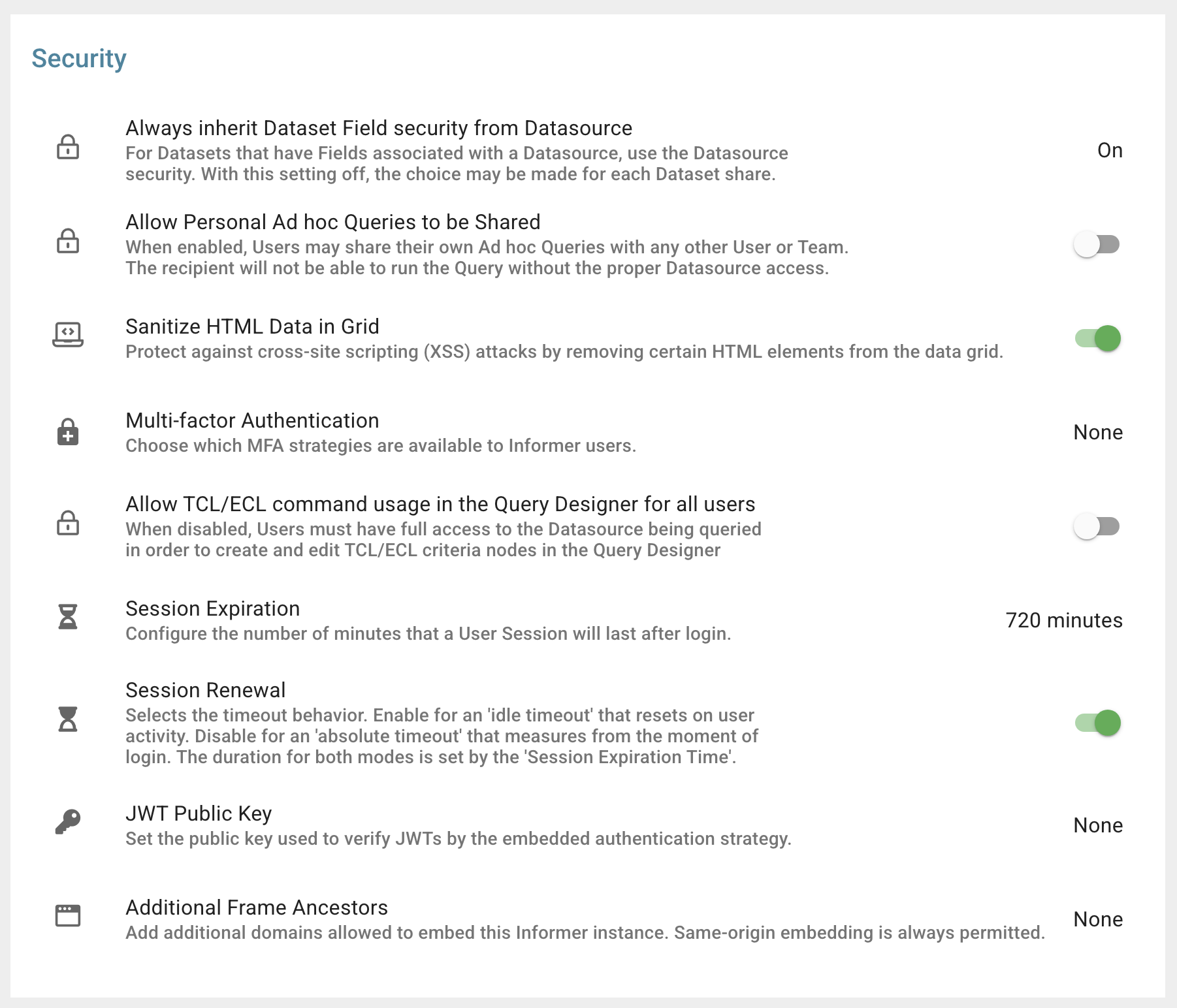
Additional Frame Ancestors adds domains allowed to embed this Informer instance. Same-origin embedding is always permitted, so a page served from Informer itself never needs an entry here. Only outside domains do.
Enter one domain per entry, separated by spaces or new lines:
https://portal.example.edu
https://*.example.edu
A leading *. allows every subdomain, but not the domain by itself: https://*.example.edu covers portal.example.edu and not example.edu, so add the bare domain on its own line when a page there embeds the Assistant too. You can include a port when your site uses one, as in https://portal.example.edu:8443.
Two details are worth knowing before you troubleshoot:
- The scheme and port must match how visitors actually reach your site.
https://portal.example.edudoes not permithttp://portal.example.edu, and neither permits a different port. - An entry that is not a valid domain is ignored. Informer keeps the entries it understands and discards the rest rather than rejecting the whole setting, so a typo in one domain quietly disables that one domain while the others keep working. Nothing in the interface flags it.
Choosing how people sign in
The authentication choice you make when generating the link matters more in an embed than in a plain link, because an embedded page cannot always complete a sign-in the way a full browser tab can.
- Require Login gives each person the Assistant under their own security, so it sees only the Datasets and files that person may see, and their conversation is saved to their account and resumes on their next visit. On a page Informer itself serves, that is all there is to it. On your own site it needs the integration described below.
- Generate a Token suits a public page, where visitors have no Informer account and should not need one. The Assistant runs with the permissions of the User who created the link, so use it only when the Assistant contains nothing sensitive.
Because a token link carries its own access, treat the embed code as a credential: anyone who views the source of your page can copy it. Revoke a link you no longer use from the Assistant's Access page, on the External Access tab.
Require Login on a site outside Informer
Having an Informer account is not enough on its own here. Browsers do not send an Informer session to a frame on another site, and the framed page cannot display the sign-in screen the way a full tab can, so the embedded Assistant starts with nobody signed in and no way to fix that by itself.
What it does instead is ask the page around it for a sign-in token, and your page has to answer. That is something your site builds once, not a setting to turn on:
- Your server obtains a token for the visitor. It calls Informer's API, authenticating with a JSON Web Token it signs with its own private key. Informer verifies that signature against the JWT Public Key in System settings under Security, the field directly above Additional Frame Ancestors.
- Your page hands the token to the frame. As soon as it loads, the embedded Assistant sends the surrounding page a
jwt_neededmessage; the page replies withupdate_jwtcarrying the token, and the Assistant signs the visitor in with it. - Your domain must still be in Additional Frame Ancestors. That one setting decides both whether the browser displays the frame and whether Informer accepts a token from your page.
Until that exchange exists, a Require Login embed on your own domain shows no conversation. A token link is the alternative when you would rather not build it, at the cost of every visitor sharing the link creator's access.
Troubleshooting
- The frame is blank and nothing loads. The browser refused to display it. Open the browser's developer console on your own page and look for a message about
frame-ancestors. It names the exact origin the browser tried to use, which is the value that has to appear in Additional Frame Ancestors. - You added the domain and it still does not display. Compare the failing origin from that console message against the entry, character for character. A mismatched scheme, a missing port, or
www.on one side and not the other are all treated as different domains. Remember that an entry Informer cannot parse is discarded silently. - It works on one page of your site but not another. Only the domain matters, not the path, so this usually means the two pages are served from different subdomains. Either add the second one or cover both with a
*.entry. - Visitors are asked to sign in and cannot. On a site outside Informer, a Require Login embed cannot complete a sign-in on its own; it expects the surrounding page to supply a token. Either build that exchange, as Require Login on a site outside Informer describes, or generate a token link instead. Same-origin, check that the person really has an Informer account and can reach the Assistant.
- The Assistant does not answer, or reports it is unavailable. Check that AI is enabled and licensed. When Assistants are disabled, access attempts display a warning instead of a conversation. See AI Features.
Related
- Assistant Access covers sharing with Users and Teams, generating external links, and revoking them.
- Data Security with Shared Assistants explains what a shared Assistant can reach on behalf of the person using it.