Storage
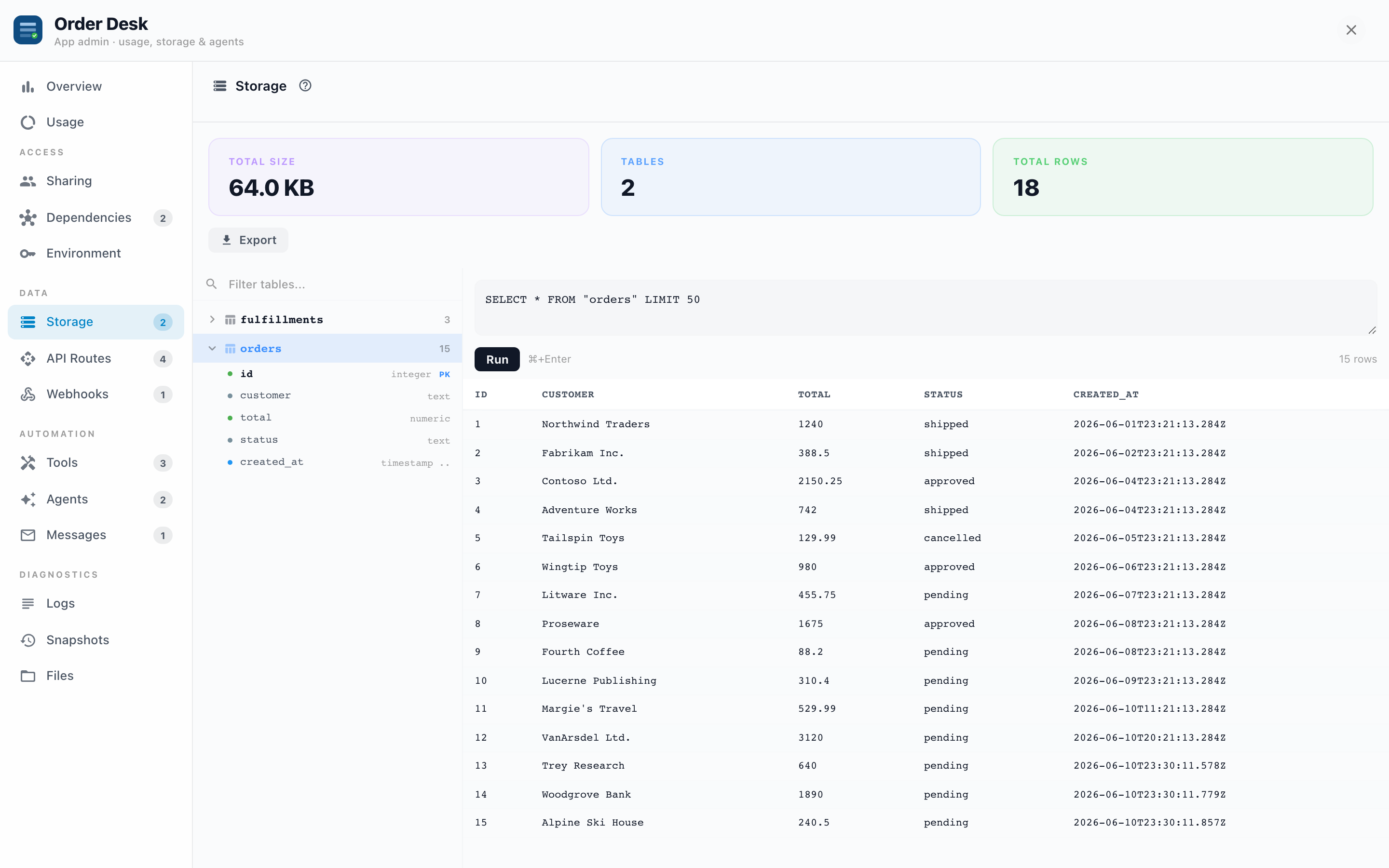
Apps that keep their own data (requests, approvals, inventory, anything a form saves) get a workspace: a private database on your Informer server, isolated per App and per tenant. The Storage tab is your window into it: browse the tables, run SQL, export everything.
Why it exists
Normally the App's own screens are the only way to see its data. That's fine until you need to answer "how many requests are stuck in pending?", fix a typo'd record, or pull everything out for an audit. Storage gives an admin direct access without writing a single line of App code.
The table browser
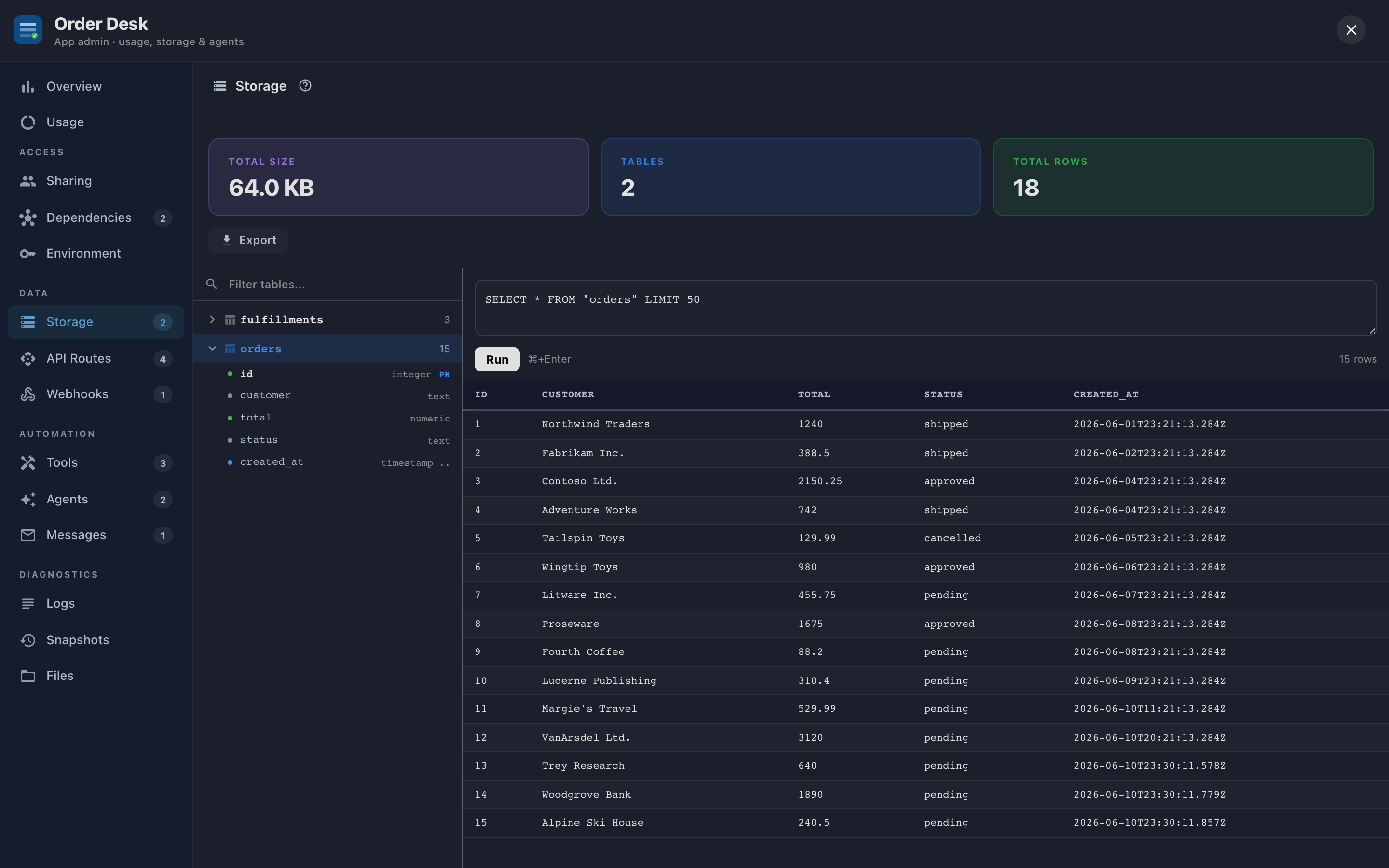
The top of the tab shows Total Size, Tables, and Total Rows. Below, the left pane lists every table with its row count; expand one to see its columns, with types, PK badges on primary keys, and FK badges on foreign keys (hover one to see what it references). The badges make unfamiliar schemas readable: find the PK, follow the FKs, and you've mapped the App's data model without documentation.
Clicking a table loads its first 50 rows on the right, no SQL required.
The SQL console
Type a query in the editor (it suggests table and column names as you type) and press Run (or Cmd/Ctrl+Enter):
- The console opens Read-only: only
SELECTstatements run, so a mistyped query can't change anything. - Results page 50 rows at a time (Previous page and Next page), with NULLs shown in italics and JSON columns stringified; Export CSV downloads the result set.
- Errors come back verbatim from the database.
- Expand to full view gives the workbench the whole tab, and Query history lists every statement run against this workspace, who ran it, and when; click one to load it back into the editor.
To change data, switch on Write mode. The editor is outlined in red and a banner says what that means: "Write mode is armed — statements can modify data. Every query is audited." A write statement doesn't run straight away: Informer dry-runs it first and shows what it would do ("UPDATE would affect 3 rows"), warns when an UPDATE or DELETE has no WHERE clause, and only Execute commits it. The result then reports what happened: "UPDATE: 3 rows affected".
Examples of real uses:
- Triage:
SELECT status, COUNT(*) FROM requests GROUP BY statusto see where a workflow is piling up. - Spot fix:
UPDATE requests SET status = 'open' WHERE id = '…'to unstick a record the App's UI can't reach. - Verification after a bug: check what an agent actually wrote before trusting its summary.
Once you confirm, Write mode runs against the App's live data with no undo. Before a risky UPDATE or DELETE, take a snapshot (snapshots can include workspace data) or use Download backup in the write-mode banner for a full SQL dump. And prefer a SELECT with the same WHERE first, so you know exactly what you're about to touch.
Back up and restore
The Back up menu downloads the workspace in the form you need: a Data backup (.tgz) that can be restored into this App on any server, a SQL dump (.sql) with schema and data you can run with psql, or a Schema only (.sql) file with the table definitions and no data. Use them for backups before risky changes, for moving data to another environment, or for handing to whoever asks "can we get that data out of the App?" (Answer: yes, always.)
Restore loads a .tgz data backup back into the App. The dialog is blunt about what that means: "Replaces ALL data in this app with the backup. A safety snapshot is taken first, so you can undo from the Snapshots tab." Informer checks the backup, takes that snapshot, loads the data, and finishes with "Data restored. A pre-restore snapshot was saved to the Snapshots tab." A backup that came from a different App is refused with a warning; Restore anyway overrides it when you mean it.
Troubleshooting
- The tab shows no tables. The App either doesn't use a workspace, or hasn't created its tables yet (workspaces are provisioned lazily, on first use).
- A query fails with a permissions error. The console operates within the App's own workspace only; you can't reach other Apps' schemas or Informer's internal tables from here, by design.
- Total size keeps growing. Find the big table (row counts in the browser), then decide with the App's builder whether old rows can be archived; back up first.