Using Apps
Opening an App
Open any App from the Home or Apps tab in Informer GO: click its tile. Filter the gallery by tag, owner, or type (All, Apps, Magic Reports), sort the list by its column headers (Name, Owner, Created, Modified, or Views (30d)), and star your favorites so they surface on Home.
On desktop, you can also open an App in its own window: right-click the App tile and choose Open. Each App gets a real window you can place on a second monitor, with its own icon and title, and it remembers its size and position for next time. If the App is already open in another window, Informer GO focuses that window instead of opening a duplicate.
The App title bar
Every open App has a slim title bar. The App's name sits at its center as a clickable chip: click the name (or the small arrow beside it) and the App's actions menu opens. To its right sit only the controls that change with the App's state: a Reload button, a chat icon when the App provides its own AI copilot (it slides in a chat panel beside the App), and a link icon while a connected service is waiting for you to sign in.
The actions menu adapts to what you're allowed to do and what this App supports:
- Edit App…: opens the builder; see Editing & draft protection. A small dot on the App's name means the builder has unsaved changes.
- Manage…: opens the App admin panel; the full tour is in Managing an App.
- View as role: for Apps with roles, preview the App the way a given role sees it. The line under the label shows which preview is applied ("All roles" when none is).
- Documentation…: reads the documentation the App's author shipped with it; see Reading an App's documentation.
- Add tag… and Favorite: the same organization tools as on the gallery tile.
- Make a copy…: duplicate the App under your ownership.
- Open in browser: opens the App on its own page outside Informer GO, already signed in. The desktop app hands it to your default web browser; in a browser it opens in a new tab.
- Connections… and Support & feedback…: for Apps wired to shared data or installed from the Marketplace.
- Delete: moves the App to Recently Deleted, after a confirmation that says so: "You can undo this right away, or restore it from Recently Deleted for 30 days." Apps that came from the Marketplace say Uninstall instead, because installing one again later can pick up where it left off. Either way the App is recoverable for 30 days; see Recently Deleted.
Apps installed from the Marketplace (or deployed from a developer's CLI) are managed by their source: they update from it, so Edit App… and Make a copy… are not offered on them. Everything else, including Manage…, works the same.
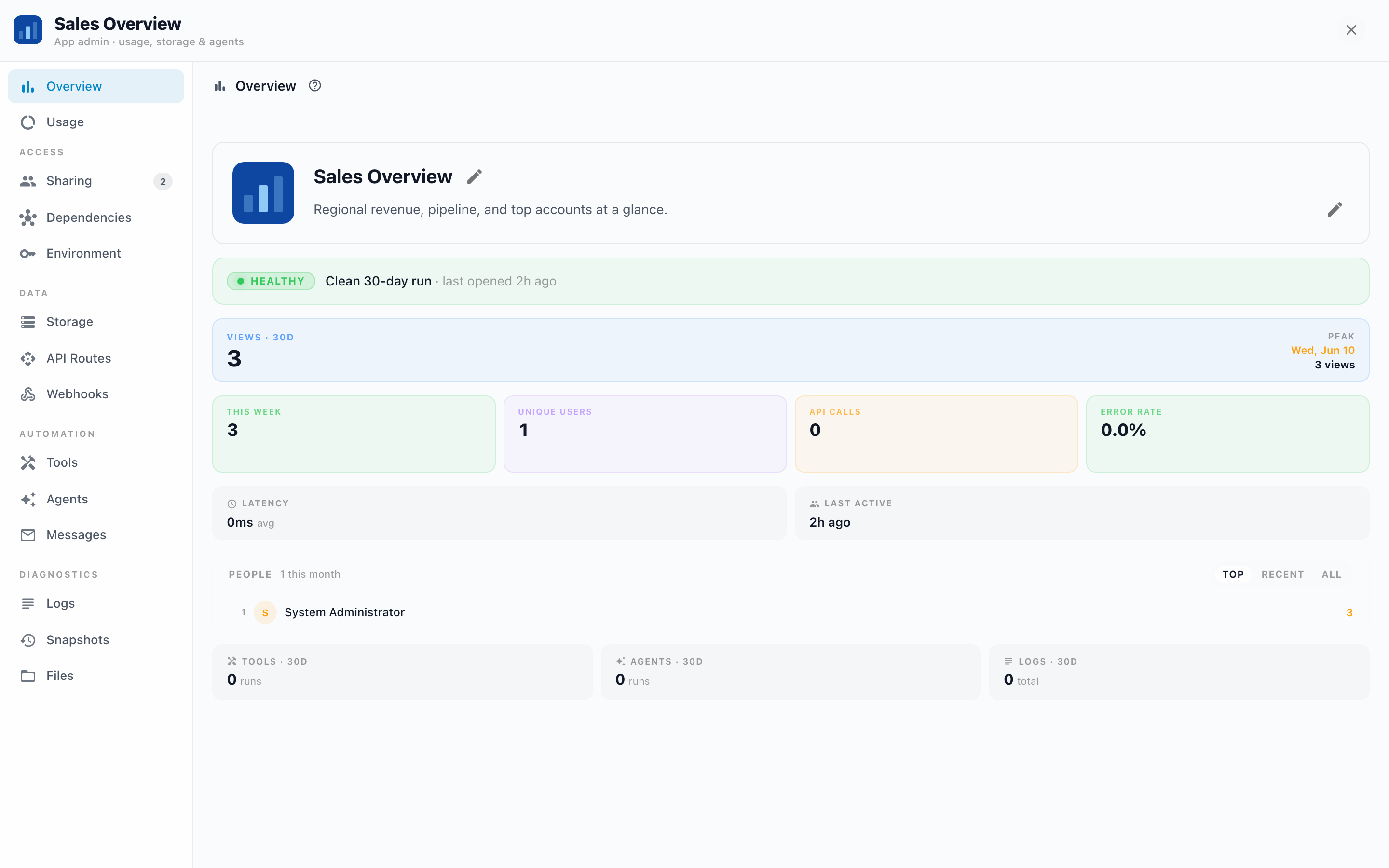
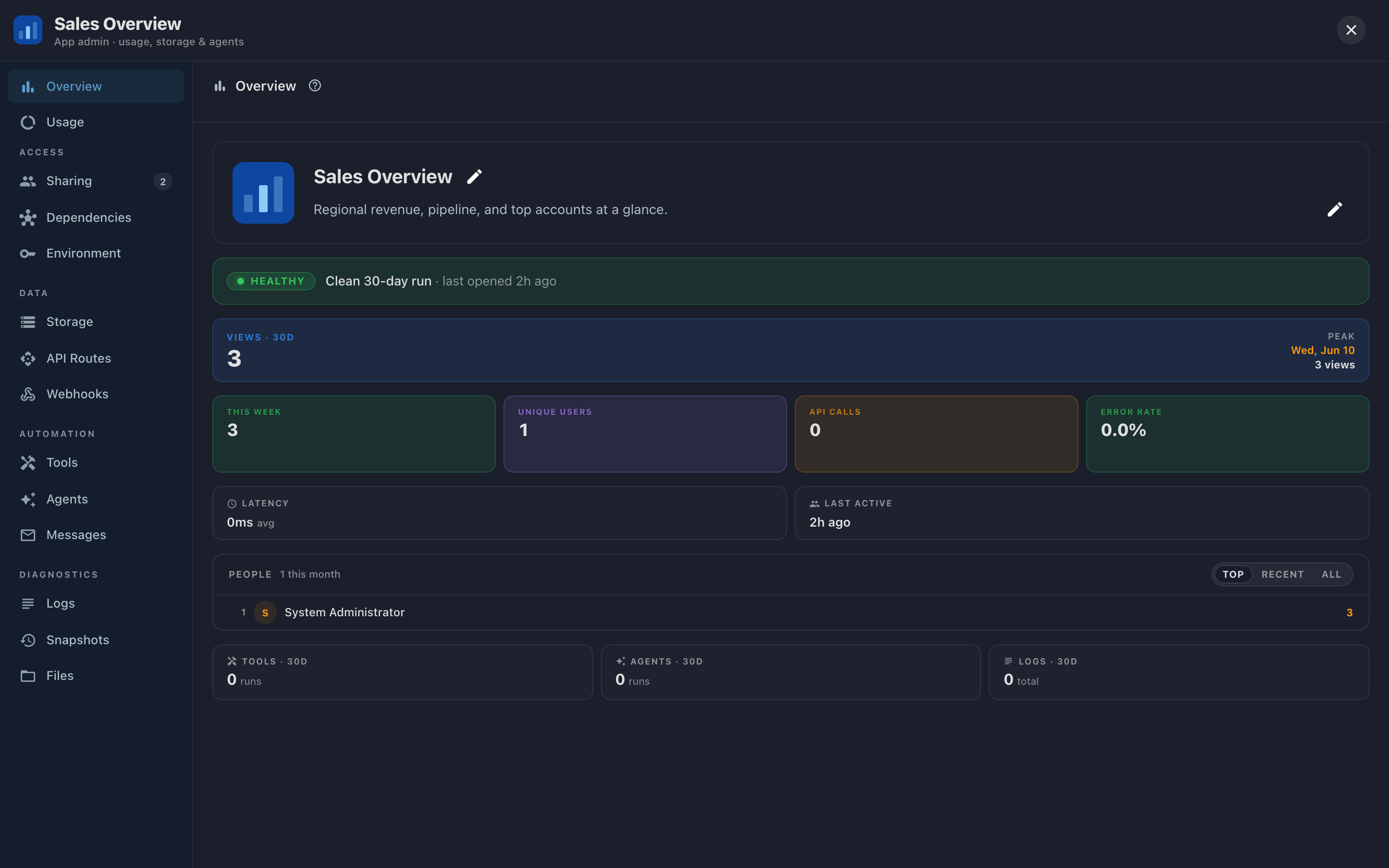
Manage… opens the App admin panel: an overview of the App's health and usage, plus tabs for sharing, dependencies, storage, automation, and diagnostics. The full tour is in Managing an App.
Reading an App's documentation
App authors can ship documentation with their App: a docs.html page, or the project's README.md. When an App includes either, its actions menu shows Documentation…, which slides the docs up over the window at full width, so an author's table of contents has room to sit alongside the page. The same page is available on the admin panel's Documentation tab.
The viewer shows the author's page exactly as it ships, sanitized and sandboxed so it can't run scripts or touch the rest of Informer. A table of contents scrolls the page in place; links out to the web open in a new browser tab.
Chatting with an App
When an App provides its own AI copilot, a chat icon appears in its title bar; click it and a chat panel slides in beside the App. Ask about the data on screen ("why did revenue spike in March?") and the AI answers in the context of the App you have open, no need to describe what you're looking at. Close the panel and the App gets its full width back.
Printing to PDF
The App title bar has no print button of its own. An App that supports printing offers its own print control inside the App, and Informer renders the PDF server-side from the App as it is right now, with the filters and state you have on screen, so set the App up the way you want it preserved before printing.