API Routes & Webhooks
Full Apps can run server code: their own API endpoints on your Informer server, plus webhooks that outside services call into. These two tabs are the operations console for that surface: traffic, errors, latency, and the credentials that guard the doors.
API Routes
Every endpoint the App defines is listed with its method and path, and the tab opens with three KPIs: Calls (30d) with a per-day chart, Endpoints, and Errors (30d).
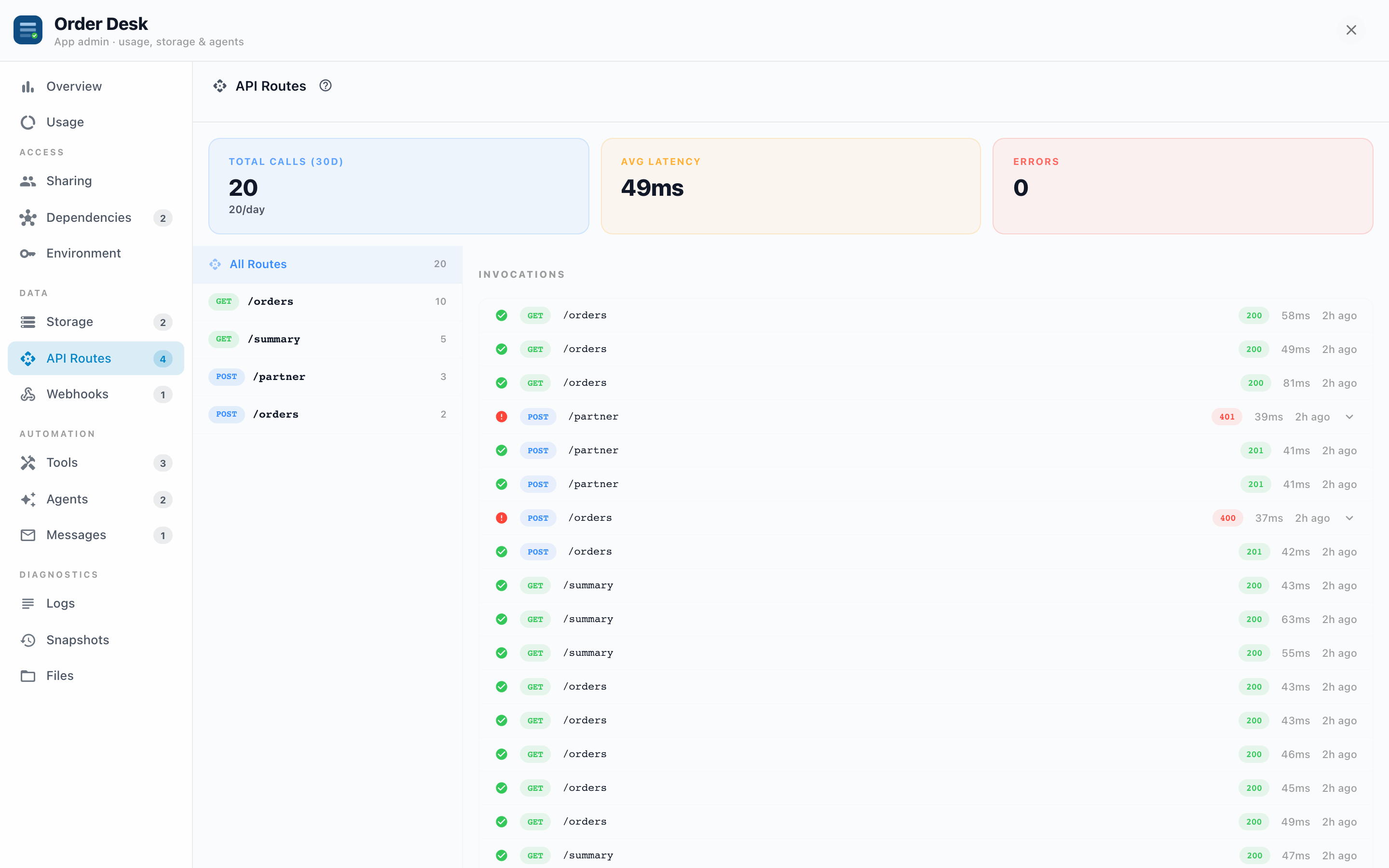
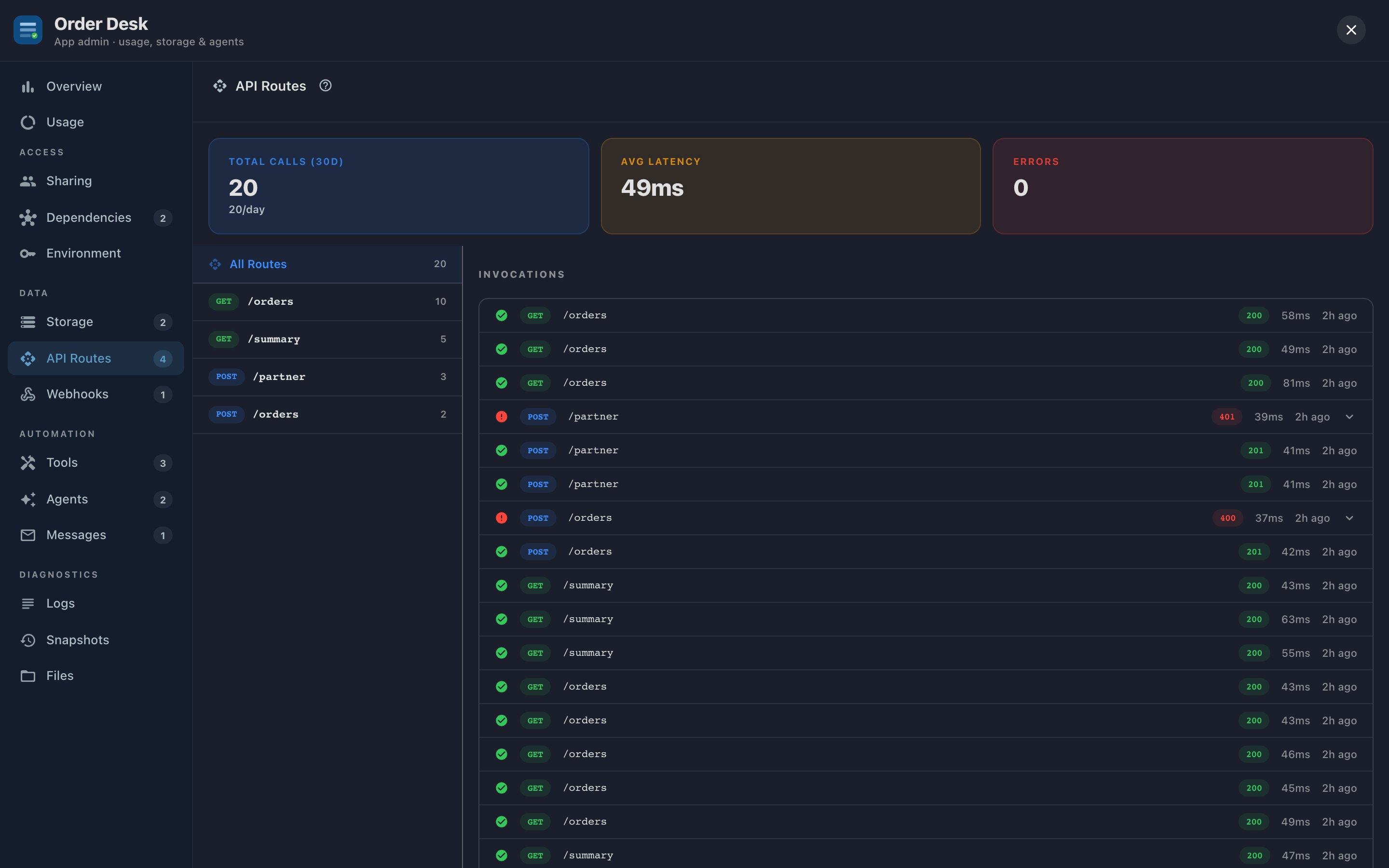
Expand a route to see its recent invocations: method, status code, and timing for each call, plus a daily volume chart for that one route. Each route's URL is one click to copy, handy when testing with curl or wiring the App's endpoint into another system.
Why you'd watch it:
- The Overview tab's error rate fact comes from here. When it spikes, this tab tells you which route is failing and with what status: a wall of 422s usually means an unbound dependency, 500s mean a bug (check Logs for the stack), and 403s mean a caller without access.
- The latency average on Overview also comes from these routes. One slow route drags the whole number; the per-route timings point at the culprit.
API Docs
The API Docs tab is a browser over the App's live openapi.json, the OpenAPI description Informer generates from the App's server routes. A Route visibility filter switches between All, Public, and Private, each with its count. The tab opens on Public when the App has marked any route public and on All otherwise, so there is always something to read. Open openapi.json opens the raw document for tooling that consumes OpenAPI.
Public routes are the App's advertised contract, the part other Apps and outside callers may rely on; everything else is internal and may change between versions. Until a route is marked public, the tab says so and tells the author how: set config.api to 'public' on the server handler and redeploy. Marking routes is a build-time decision, covered in the developer guides.
API keys
An API key lets something outside Informer call this App's own API: a nightly import, a scheduler, a dashboard, another platform. Keys live above the route list on the API Docs tab, alongside the base URL a caller sends requests to.
A key acts as the person who created it. It can do what they can do in this App and nothing else, so handing one to a script never hands out more access than the person already had.
Creating one
New key opens the form. You name the key, pick which of the App's roles it carries, and choose how long it lasts.
- Roles you do not hold are shown but locked, with the reason. A key cannot out-run its owner.
- Read-only is on by default. Turn it off only for a key that has to create or update.
- Public routes only limits the key to the routes the author marked public.
- Expires defaults to 90 days. Shorter is better for a key you are trying out.
The key is shown once, on the confirmation step, with a ready-to-paste curl command. Copy it then. Informer never shows it again, and there is no way to recover it: if it is lost, revoke the key and create another.
Using one
A key travels in the request's Authorization header, never in the URL:
curl https://your-app.example.com/api/work-orders \
  -H "Authorization: Bearer YOUR_KEY"
Sending it as ?token= is rejected. This is deliberate: a credential in a URL ends up in browser history, server logs, and referrer headers.
Your personal Informer API key works in the same header too, which is handy when one script both deploys Apps and calls them. It acts as you everywhere in Informer, though, so an App key is the safer choice for anything that only needs this App.
Managing them
Each row shows the key's name, its roles, who created it, when it was last used, and when it expires, with expiring-soon keys called out. Managers see every key on the App; everyone else sees their own.
- Revoking a key stops it immediately. Anything still using it starts failing on the next call, so revoke deliberately. The first click arms the button and the second confirms.
- Changing someone's access changes their keys. Narrow the roles on a person's share and their existing keys narrow with it on the next request. Remove their access and the keys stop working.
- Members can create their own keys unless a manager turns that off with the switch at the top of the section. Turning it off stops new keys; it does not disable keys that already exist.
The discipline that pays off is the same as for webhooks: one key per outside system. When a system is retired, or a key turns up somewhere it should not be, revoke that one and nothing else is disturbed.
Webhooks
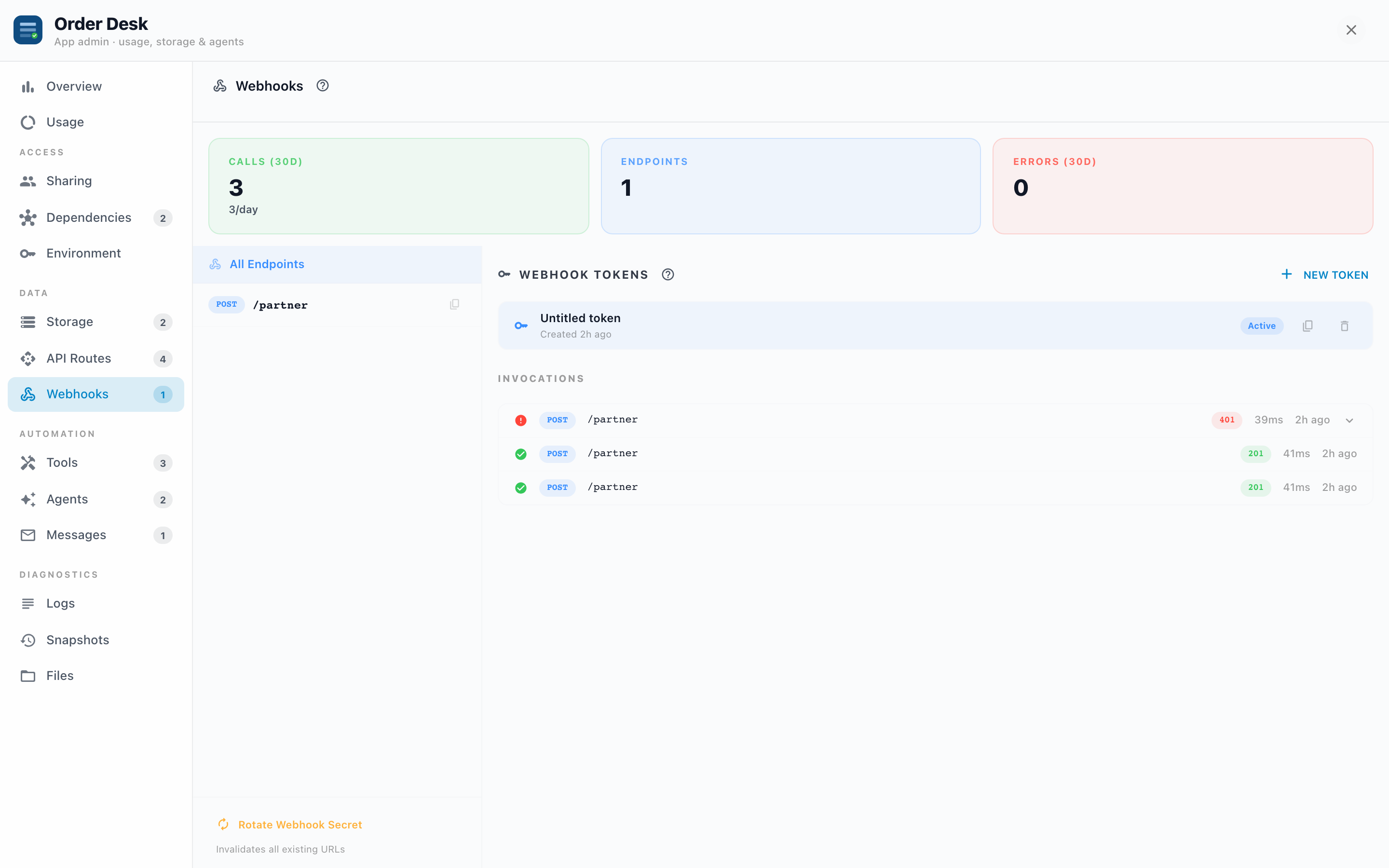
Webhooks are endpoints for outside services: a payment processor reporting a charge, source control announcing a push, a chat platform delivering a slash command. They're reachable without an Informer login, so access control happens in the URL itself.
Copying a webhook URL
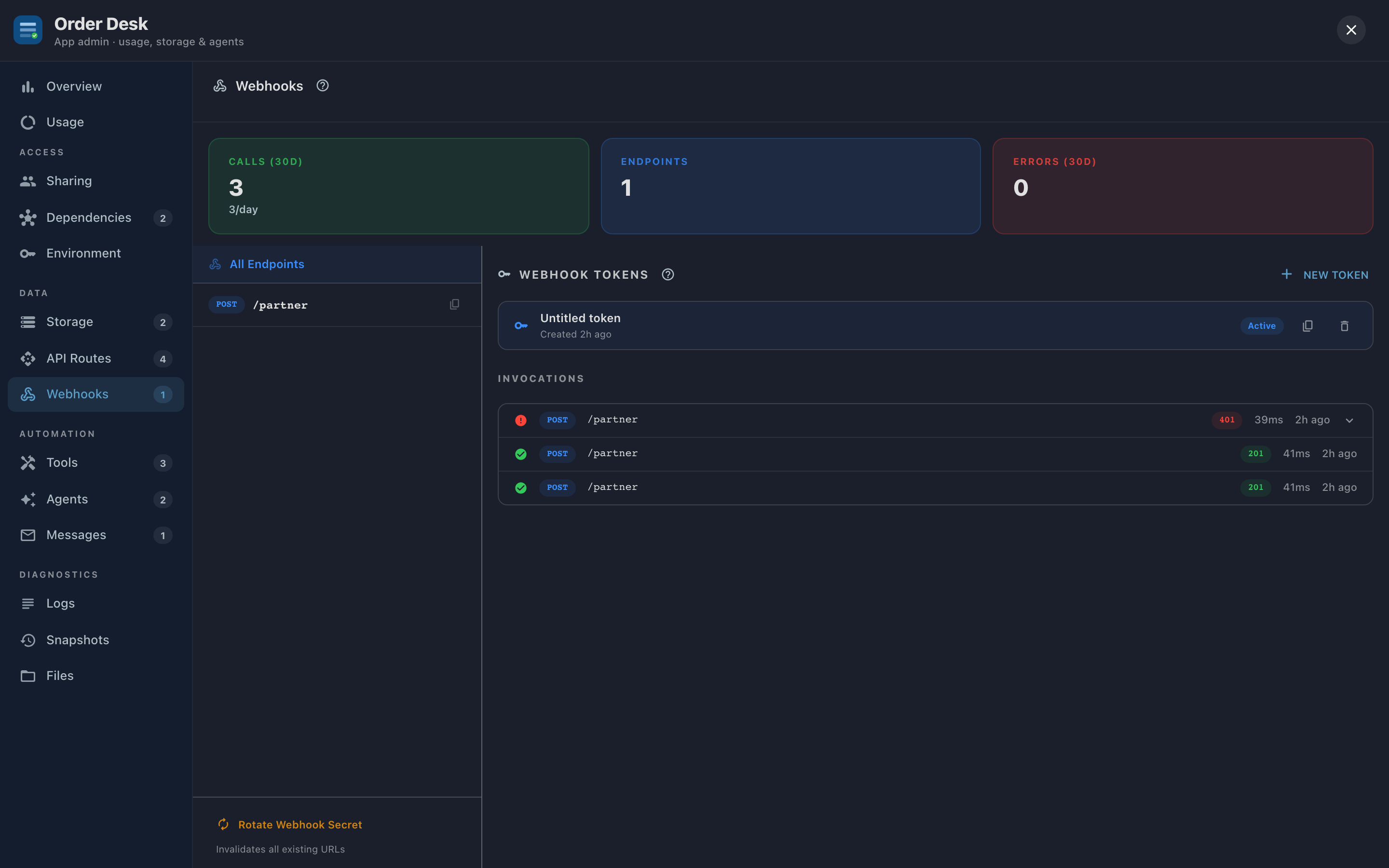
Every endpoint the App declares has a Copy URL button. It copies the full URL, access key included, ready to paste into the outside service's webhook settings.
If the App has no access keys yet, the first Copy URL creates one named "Default" for you, so the URL you paste works the first time. A URL without a key is rejected outright.
If your browser blocks copying, the URL appears right under the endpoint, already selected, so you can copy it yourself.
Access keys
Every webhook URL carries an access key, and each key can be revoked on its own:
- New key asks "Who will use this key?". Name it after the service that will call the App (for example Persona or Stripe), then click Create key.
- The selected key is marked Used for Copy URL. Click another key to copy URLs with that one instead.
- Revoke key kills exactly the URLs built from that key. Services using their own keys keep working.
The discipline that pays off: one key per outside service. When you stop using a service (or its URL leaks into a log somewhere), revoke that one key and nothing else is disturbed.
Rotating all webhook URLs
Under Advanced, Rotate all webhook URLs is the bigger hammer. Every key gets a new value at once, so every URL you've shared stops working until you copy the new URLs into each service. It asks you to confirm with Rotate and break every URL, and afterward the tab reminds you that every URL changed. Reach for it when you can't tell what leaked, or during an ownership change. To cut off a single service, revoke its key instead.
Example: wiring up a payment processor
- Open Webhooks, click New key and name it after the processor.
- Click Copy URL on the App's
paymentsendpoint and paste it into the processor's webhook settings. - Watch the route's invocations appear here as test events arrive; 200s mean the App accepted them.
Troubleshooting
- The outside service reports failures / events stopped arriving. Check the webhook's recent invocations here. Nothing arriving at all usually means a revoked key or rotated webhook URLs: the service is calling a dead URL. Copy a fresh URL into the service.
- Invocations arrive but error. The handler is rejecting them; common causes are a wrong copy of the outside service's signing secret in Environment (signature verification fails, often a 401; rotating webhook URLs won't fix it) or a bug surfaced in Logs.
- You inherited an App and don't know who has webhook URLs. That's the time to rotate all webhook URLs: invalidate everything, then re-issue deliberately, one key per service.
- A caller with an API key gets 401. The key is not reaching the server. Almost always the request went to an
httpaddress and was redirected: clients drop theAuthorizationheader across a redirect. Call thehttpsbase URL shown above the key list directly. - A caller with an API key gets 403. Either the key was sent in the URL instead of the header, or it is aimed at something outside this App: another App, the App's pages, or an Informer API the App declares as a dependency. Keys reach the App's own routes only.
- A key stopped working after an access change. Keys follow their owner. If the person's share was narrowed or removed, their keys narrowed or stopped with it.