MCP
An App can hand its tools to an outside AI client. Point Claude Code (or Claude Desktop, or Cursor) at this App's MCP address, sign in once, and the assistant can answer questions from the App's own data: "which orders are still pending?", "has the Contoso order shipped?".
Why you'd use it
- Answers where the questions are. The people who ask "what's still pending?" ask it in chat, on a phone, at a desk. This puts the App's data there without anyone opening the App.
- Your data, your rules. The client does not get a database. It gets exactly the tools the App's builder chose to expose, and it acts as the person who signed in.
- One address, many clients. Anything that speaks MCP can connect: the same endpoint serves Claude Code, Claude Desktop, and editors like Cursor.
Connect
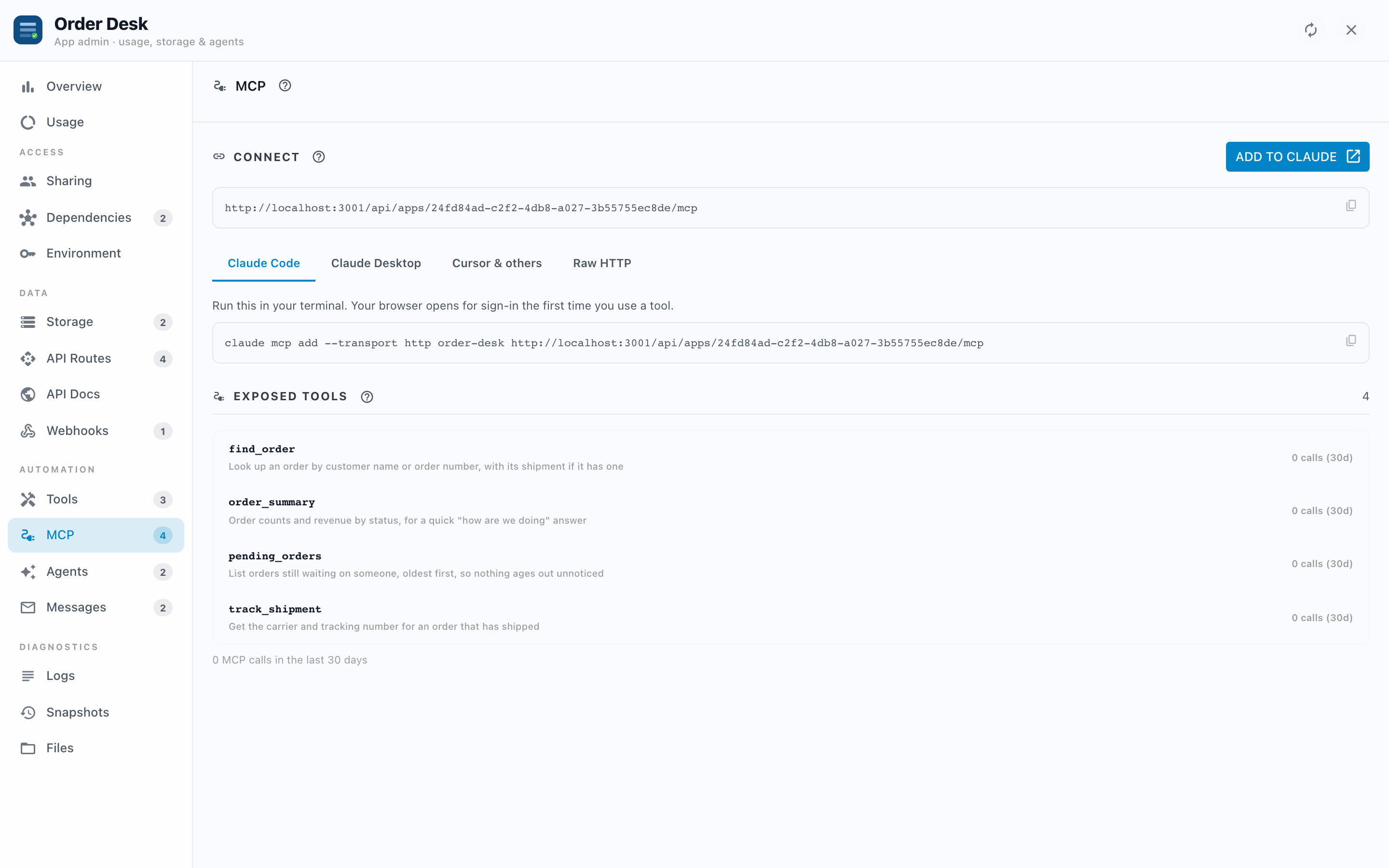
The Connect section shows the App's MCP address, then a snippet per client. Add to Claude opens claude.ai with the App filled in as a custom connector, so you only have to confirm; Claude reaches the endpoint from its own servers, so the address has to be reachable over the internet. For anything else, copy the snippet for your client:
- Claude Code: a
claude mcp addcommand to run in a terminal. - Claude Desktop: the address itself. A connector added with Add to Claude shows up here too; to add it by hand, open Settings, choose Connectors, click Add custom connector, and paste it. Your browser opens to sign in, and no config file is needed.
- Cursor & others: the
mcpServersblock most clients accept. Check your client for where its config file lives. - Raw HTTP: a
curlcall, for when you want to see the protocol itself or debug a connection.
The address stays the same no matter how many people connect. It is not a secret: it is useless without a sign-in.
- Copy the snippet for your client
Use the copy button, not a manual retype. The address contains the App's id.
- Run it (or paste it into the client's config)
Nothing has been authorized yet. The client just knows where to look.
- Sign in when the browser opens
The first time the client uses a tool, Informer opens a browser page showing the App's name and icon, and what the client is asking for. Approve it, and the client is connected.
Exposed tools
The Exposed Tools list is every tool an outside client may call, with its 30 day call count. It is not every tool the App has.
An App's builder puts tools in one of two folders, and the folder is the decision:
mcp/: written for outside clients. These appear here, and any MCP client may call them.tools/: written for the App's own agents. These never appear here and no MCP client can call them, by name or otherwise.
The split matters because the two audiences are different. An agent tool runs inside a workflow its author controls, so "cancel the oldest pending order" is safe as step three of a sequence. The same tool is a loaded gun when an outside assistant decides when to fire it. Tools in mcp/ are the ones written knowing a stranger's AI picks the moment and the arguments.
The counts here cover MCP calls only. When an agent calls a tool, that shows on the Tools tab instead, so neither number flatters the other.
Who can connect, and as whom
Connecting is not a second door into the App. It is the same door:
- Only people the App is shared with can connect. To anyone else the endpoint answers as though the App does not exist.
- Tools run as the person who signed in, not as the App's owner and not as you. If a tool reads a Dataset, it reads what that person is allowed to read.
- Their roles come along. If the App defines roles, the roles from that person's share are handed to the tool, so a tool can behave differently for an approver than for a viewer.
Each tool is a small API its author wrote, not a query box: it answers the one question it was built to answer, with whatever the author decided a caller should see. Nothing here opens the App's data beyond that.
Sign-in and dynamic registration
Most clients register themselves before asking a person to sign in. That registration is off until a Superuser turns it on, in Administration > Settings > Security, with Allow OAuth dynamic client registration.
- On:
claude mcp add <address>is the whole setup. The client registers itself, the browser opens, the person approves. - Off: clients cannot self-register, and the connect commands need an API token supplied by hand instead. Signing in still happens; only the self-registration step is gone.
Either way a person signs in and approves. The setting decides whether an unknown client may introduce itself first.
Troubleshooting
- The client says the App does not exist, or 404s. It is not shared with the person who signed in. Check Sharing: the switch on, that person or their team listed.
- The tools list is empty. The App has no
mcp/folder. Its builder needs to add one; tools intools/stay private to the App's agents no matter how the client connects. claude mcp addfails before any browser opens. Dynamic client registration is off (see above), or the address was retyped rather than copied.- A tool returns less than expected. It ran as the person who signed in. Compare with what they see inside the App: a Dependency they cannot read returns nothing, not an error.
- A tool's count is climbing but nobody is asking. Assistants retry. Open the tool's recent invocations on the Tools tab to see the arguments they sent.