Installing an App
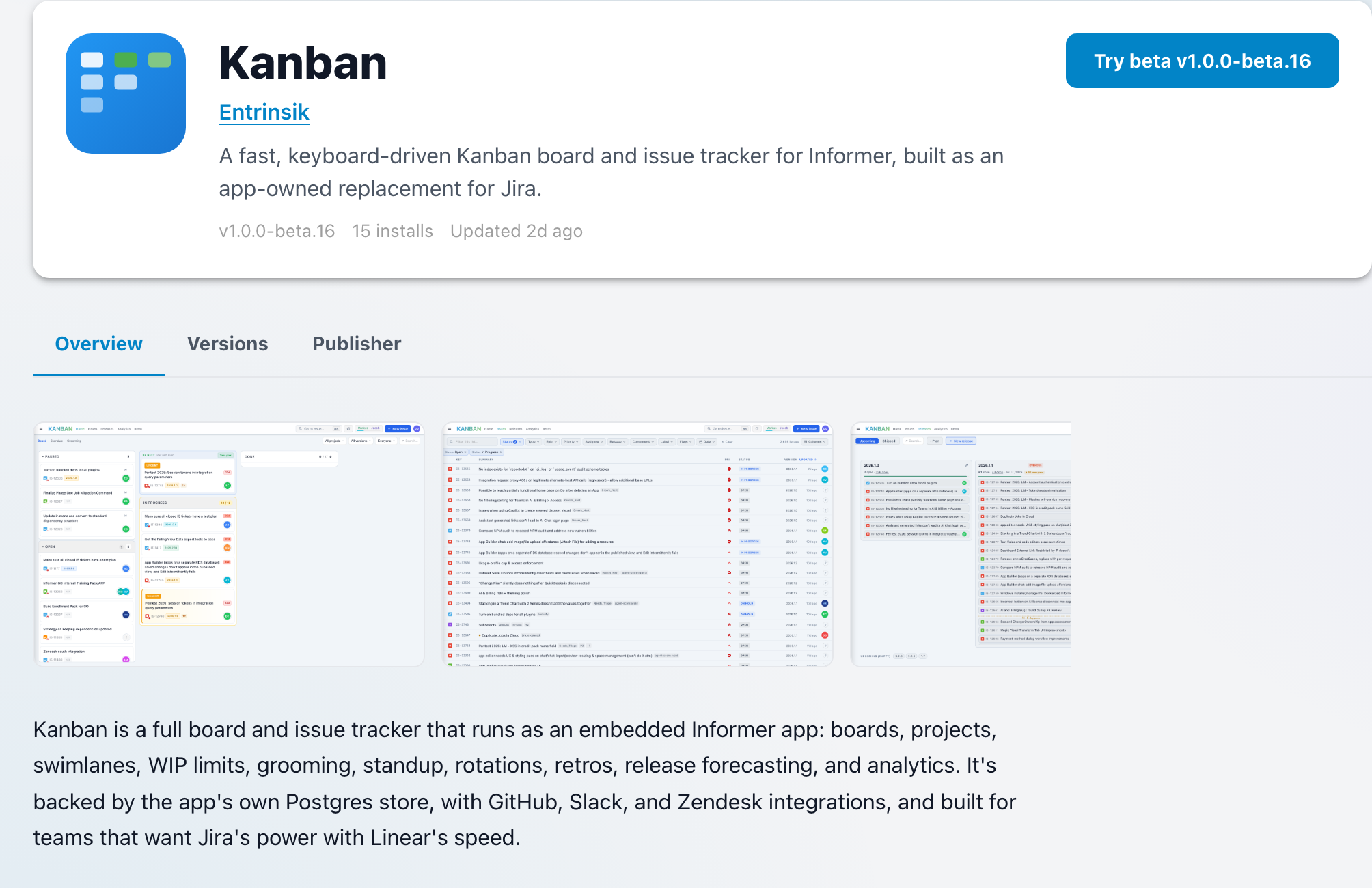
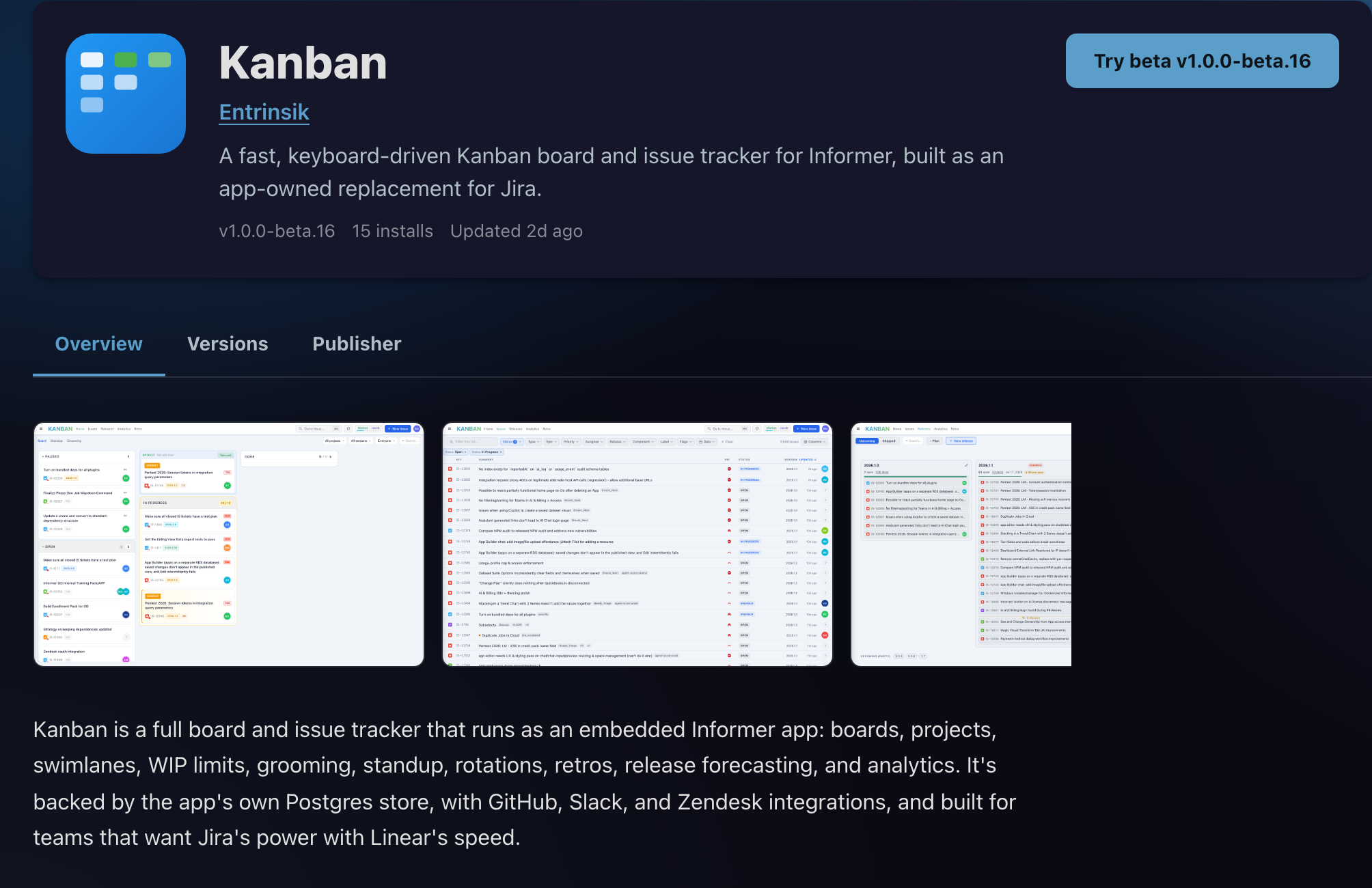
Selecting a pack opens its listing: what the App does, who publishes it, which versions exist, and one button that installs it. Installing creates a normal App in your gallery, with a link back to the listing it came from.
Why it exists
An installed pack is not a copy you now own and maintain. It stays attached to its publisher, which is what makes updates possible later: the publisher ships v1.4.0 and your install offers to move to it, keeping the data the App has collected in the meantime. The listing page is where that relationship starts, so it front-loads the things worth knowing before you commit.
Reading the listing
Across the top sit the facts you would want before installing anything:
- Installed v1.2.0 when you already have it, so the page never leaves you guessing.
- Verified publisher where Entrinsik has confirmed who the publisher is.
- An install count and Updated 3 days ago, the two cheapest signals of whether a pack is alive.
- Requires Informer ≥ 2026.1.0 when the pack needs a newer Informer than some instances run.
Below that, tabs split the detail up:
| Tab | What's in it |
|---|---|
| Overview | What the App does, and its screenshots. |
| Versions | Every published version with its release notes. |
| Publisher | Who made it, their other Apps, support and website links. |
Feedback is not one of them. It runs through the installed App instead, see Feedback and support.
A fourth tab, Integrate, appears only on versions that publish a public API, so most listings show the three above. Where it is present it is worth knowing about even if you never open it: the pack's API is documented and frozen per version, and the tab hands you a ready-made prompt for the App Builder or Claude Code to build against it.
Versions and channels
A publisher can ship two lines of the same App at once: stable, the one meant for real work, and beta, a pre-release. When both exist, a channel toggle appears and the listing's buttons follow whichever channel you have selected. Stable reads Stable · v1.4.0; the beta face shows its own version.
The two are separate installs, not two states of one. Installing the beta does not disturb the stable App you are already running, which is what the uninstall dialog means when it says "Your stable install, if any, is untouched." You can hold both at once and they appear as two Apps in your gallery.
What the beta starts with depends on whether you already run the stable one:
- With a stable install, the beta seeds from it. Informer clones that App's workspace, its schema, its data, and its migration history, so the beta opens on real data and applies only the migrations the beta version adds on top.
- Without one, the beta starts empty.
The install dialog says so before you commit. Its version line reads v1.5.0-beta.1 · installs as a separate beta app, and a note headed "This installs a separate app" explains: "Order Desk (beta) is installed alongside your existing copy, as its own app with its own data. Your production app is not changed, upgraded, or replaced." With a stable install present it adds "It starts with a copy of your production data taken right now. Later changes to production do not appear here, and changes you make here never reach production." Without one it says "You do not have Order Desk installed yet, so the beta starts with no data." It is a copy taken at install time, not a live mirror.
Requirements
A pack can declare a minimum Informer version, shown as Requires Informer ≥ 2026.1.0. It can also declare that it works with another pack, listed under Works with on the listing.
A dependency there tells you where you stand at a glance:
- REQUIRED on a dependency the App cannot run without.
- v2.1.0 installed when you already satisfy it.
- v1.0.0 installed — needs ^2.0.0 when the version you have is too old.
- Get from Marketplace when you don't have it yet.
- Not available in this marketplace when the dependency isn't published where your instance looks, which is the one case you cannot resolve yourself.
What installing does
Choosing Install v1.4.0 opens a progress dialog and works through four steps: downloading the pack, installing files, deploying, and finalizing. Deploying is the step that does the real work, running the App's migrations and wiring up its routes against its own workspace.
When it lands, the button turns into Done and the dialog points at where the App now lives: "Order Desk is now in your Apps."
An update follows the same path. Because the App keeps its workspace across an update, only the migrations the new version introduces are applied, so the data the App has collected survives the move.
Installing over an App you deleted
If you uninstalled this App before and it is still sitting in Recently Deleted, installing it again touches that App rather than starting clean. The dialog says so before you commit to anything:
A previous install of this app, "Order Desk", is in Recently Deleted.
You then choose what happens to it:
- Restore it and update to v1.4.0, which brings the App back as it was: "Brings the app back with its data, owner and sharing intact." This is the default, and it is what a reinstall does when you make no choice at all.
- Delete it permanently and start fresh, which throws the old App away first: "Installs a clean copy. "Order Desk" and its data are destroyed first."
The second option asks twice. Choosing it reveals a warning and a checkbox you have to tick before Install becomes available:
This permanently deletes "Order Desk" and all of its data. It cannot be undone.
☐ I understand this cannot be undone
Switching back and forth between the two options clears the checkbox, so an accidental tick cannot carry over into a choice you did not mean to make.
The two options need different permissions, so you may find one greyed out with the reason on it: "You do not have permission to restore this app." or "You do not have permission to permanently delete this app." Restoring an App needs the Admin role on the Team that owns it, while deleting one permanently needs Data Wizard or higher on that Team, so which one you can reach depends on your role rather than on the App.
If you can do neither, Informer blocks the install rather than starting one that cannot finish:
You cannot restore or permanently delete "Order Desk", so this app cannot be installed again yet. Ask someone who can to restore it or delete it permanently, then try again.
The choice only appears while a previous install is genuinely parked. Once Recently Deleted lets the App go, at the end of its 30 day window or because someone emptied it early, a reinstall builds a new App from scratch and the dialog says nothing about it.
If Informer cannot check Recently Deleted at all, it says so rather than staying quiet, because silence would look the same as "nothing is parked":
We couldn't check whether an earlier copy of this app is in Recently Deleted. If one is, installing will restore it along with its data.
The install still runs in that case, and it takes the safe option: anything parked is restored with its data rather than deleted.
Troubleshooting
- Install failed. The dialog shows the reason it stopped and offers Try again. Retrying is safe: a half-finished install reuses the App it already created rather than leaving a duplicate behind, and a beta whose data clone was interrupted re-seeds instead of deploying onto a partial copy.
- It stopped because a deploy is in progress. The dialog reads "Another deploy is in progress for this app. Try the update again." This only affects an App that already exists, so it is an update or a reinstall rather than a first install. Another deploy of that App is under way, either an update someone else started or a new build its developer is publishing from their own machine, and Informer refuses rather than writing pack files over it. It stops before anything is applied, so the App stays on the version it is running and keeps working for everyone using it. Try again once the other deploy finishes. A deploy that never finishes, because the publishing machine or the server was interrupted part way, is cleared automatically after 24 hours; the App's developer can clear it sooner, see Deployment.
- The listing mentions a required Informer version. The requirement is shown on the listing and repeated at the top of the install dialog's step list; Informer GO shows it rather than disabling the install button, so check your instance version before installing. Upgrading Informer is an administrator task.
- A dependency reads "Not available in this marketplace". The App depends on a pack that is not published where your instance points. Ask the publisher which marketplace carries it.
- The App installed but the version badge is missing. That is the symptom of an App that has lost its link to its listing. See Updates and uninstalling.
Related: Updates and uninstalling for the rest of the App's life, and Apps for working with it once it is installed.