Subscriptions
The Subscriptions page is where you choose and manage a credit plan, buy one-off credits, manage payment cards, and set up alerts and auto-replenishment. Credits power AI, agent runs, app compute, and app storage; subscribing annually earns the best per-credit rate.
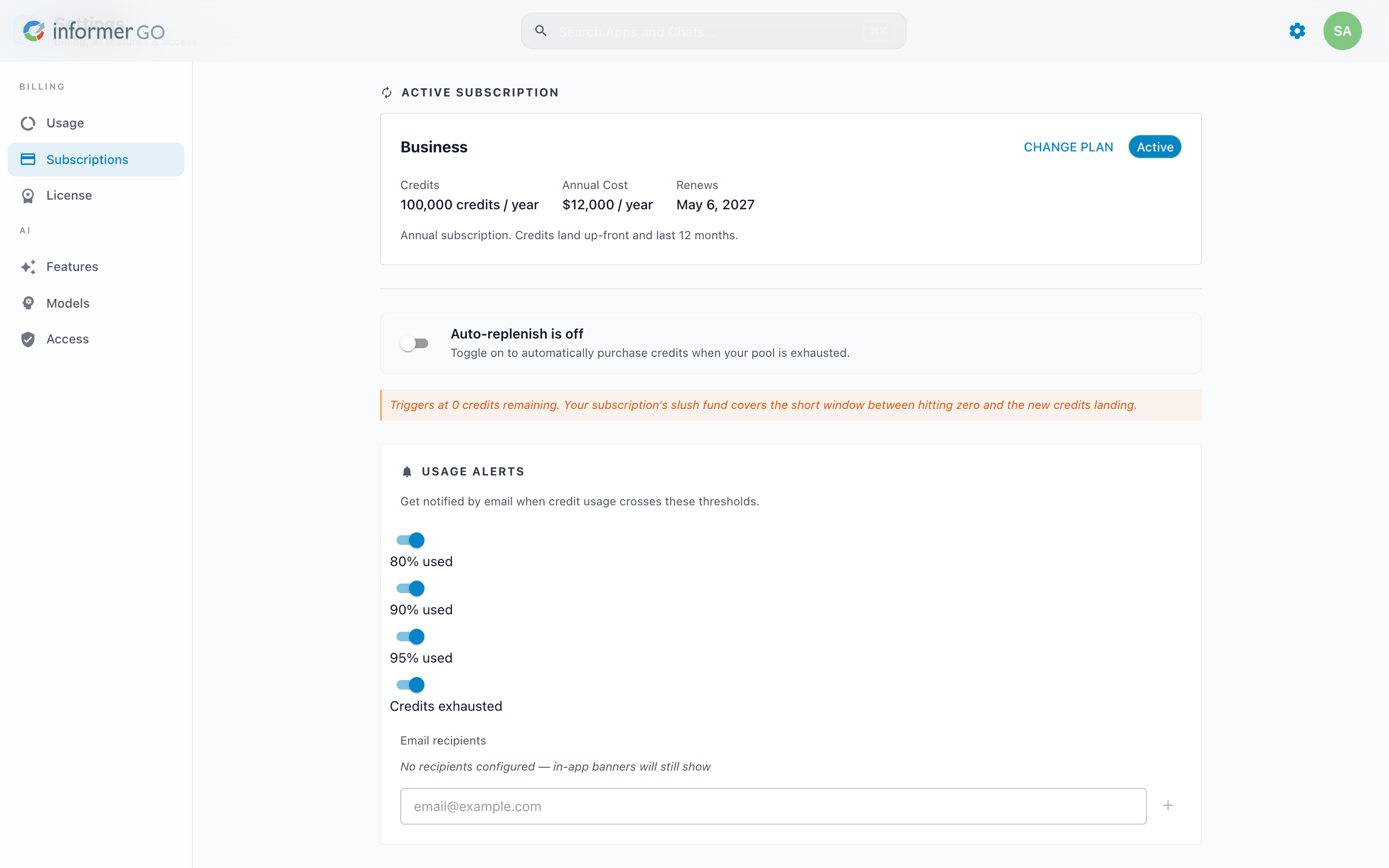
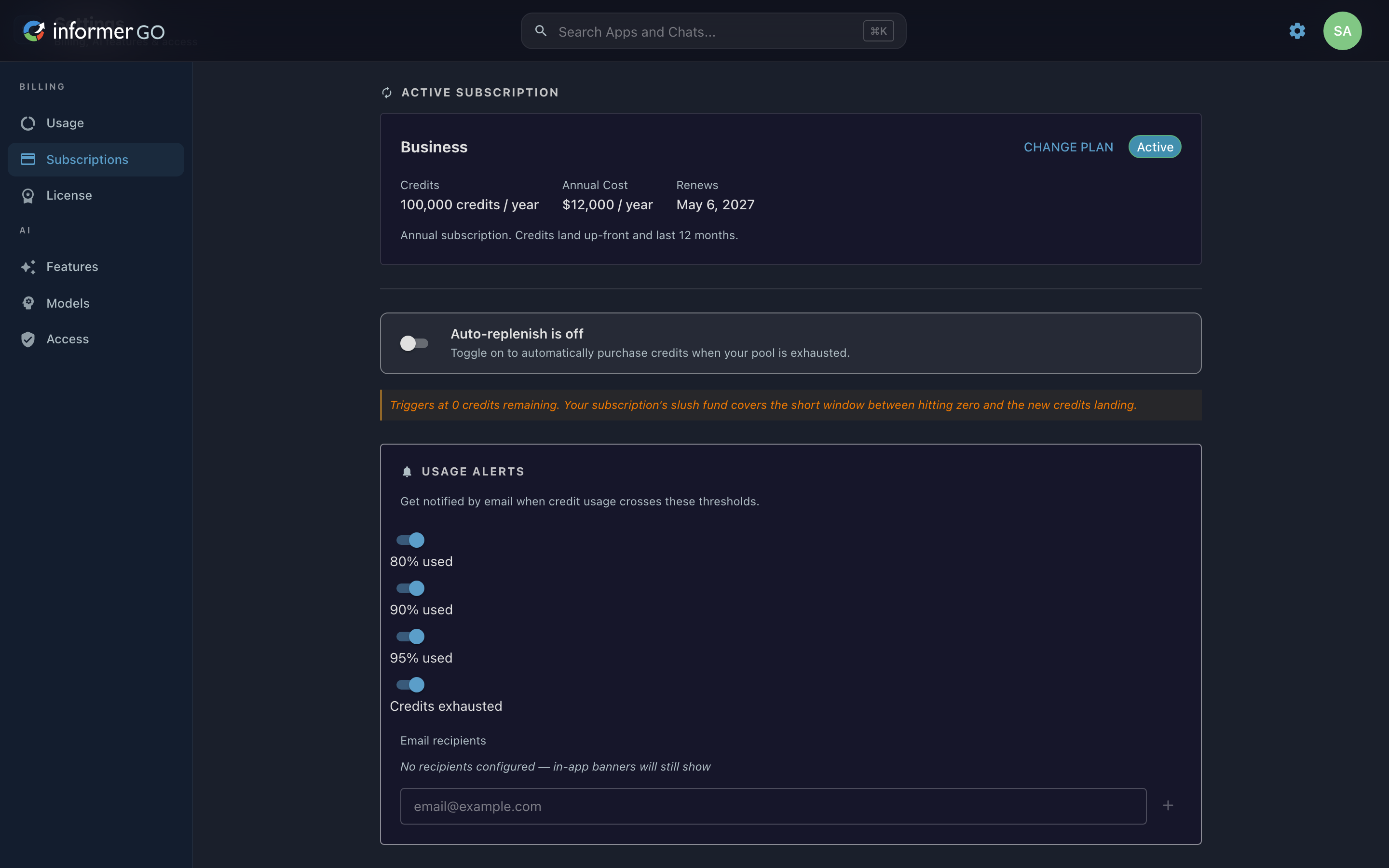
Reach this page from Settings in Informer GO, or from AI & Billing in the classic web client's top navigation. See Usage for what those credits are spent on.
Your subscription
When you have an active plan, the Active Subscription card shows the plan name and status (Active, Past Due, or Cancelled), the annual credit grant (for example, "100,000 credits / year"), the annual cost, and the renewal date. Credits for an annual subscription land up front and last 12 months. Use Change Plan to move to a different plan, or Buy Credits to make a one-off purchase on top of your plan.
The card surfaces issues inline: a Payment failed notice when a renewal could not be charged, a Cancellation scheduled notice with an Undo cancellation button, and a pending plan change notice describing the new plan and when it takes effect.
When you have no plan, the section becomes a Get More From Informer call to action with a Get Started button. Credits power AI, agent runs, app compute, and app storage; subscribing annually gives the best per-credit rate.
Billing History
Billing History lists your past purchases with a description, date, and amount, and a download button for each receipt. The newest receipts show first, with Show more to expand the rest. Before your first purchase, or before your account is connected to the payment processor, the section explains that receipts will appear once billing is set up.
Payment methods
The Manage Payment Methods button (in the Billing History header) opens a dialog listing your saved cards by type and last four digits with their expiration. Changes are staged until you save them: Remove card strikes a card through (with Keep card to change your mind), and Add Card opens a form for the card number, cardholder name, expiration, CVC, and billing address, verified with a captcha, then lists the card with a New chip. Nothing is sent until you click Save changes; new cards are added before any removal is applied, and closing the dialog with unsaved changes asks whether to discard them. If a removal would leave an active subscription with no card on file, the dialog warns that the renewal may fail. Payment services are handled by the external payment processor; full card numbers never touch Informer.
Auto-Replenish
The Auto-replenish is off toggle turns on just-in-time refills: Informer buys credits automatically the moment your pool hits zero, not at a low-balance threshold, and your subscription's safety buffer covers the gap until the new credits land. When the toggle reads Auto-replenish is on, you choose a Refill amount ($30, $300, $3,000, or Other for a custom amount of at least $20, shown with the number of credits each refill buys at the current pay-as-you-go rate), the Payment Card to charge, and a Monthly purchase limit of 1 to 10 refills per billing cycle. The limit protects you from runaway top-ups if usage spikes unexpectedly; a counter shows how many of this cycle's refills have been used.
Usage Alerts
Usage Alerts emails the people you list when your credit pool crosses a threshold, so the person who pays for credits hears about a shortfall before AI, app compute, scheduled jobs, and storage stop. The thresholds measure your annual credit pool as a whole, not any one person's monthly cap (for personal caps, see Access).
The card opens with a Pool usage this cycle meter showing the percentage used and how many credits are left, so the thresholds below read against a real number.
Under Notify when, switch each alert on or off: 80% used, 90% used, 95% used, and Credits exhausted. Each threshold emails once when it is crossed and re-arms after credits are added, so a top-up that only takes the pool from 96% back to 87% does not trigger a fresh "87% used" email for a level you were already past.
Under Send to, add recipients by typing an Email address and choosing Add, and remove one with the x on its chip. When every threshold is on but the list is empty, the card warns that no one will receive email alerts until you add a recipient.
Use Send test email to confirm delivery before it matters. It sends a "Test usage alert" to every recipient through your Informer email server and reports how many recipients it reached, or the reason the message could not be sent. Alert emails go out from the default from address of your email server settings, so that server must be configured for any alert to arrive.
Alert emails carry Upgrade Plan and Buy Credits links straight into this page. The same recipients also hear when a subscription renewal fails and when an automatic refill cannot be completed.
In-app banner
Billing admins do not depend on email alone. A banner under the top navigation of the classic interface, and at the top of Informer GO, reads, for example, "88% of credits used this cycle." with Upgrade Plan and Buy Credits buttons that open the same plan and purchase dialogs as this page.
The banner follows the Notify when switches. It starts at the lowest percentage switched on: 80% with the defaults, 90% when 80% used is off. With 80% used, 90% used, and 95% used all off, it waits until credits run out. When the pool is empty but the safety buffer is still covering usage it reads "You're out of paid credits and currently running on the safety buffer. Add credits to avoid disruption.", and once the buffer is gone it becomes "Credits exhausted — premium features will be disabled until credits are added." Those two always show, whatever the switches say: features are about to stop or already have. In Informer GO, an admin with a personal monthly cap also sees "N% of credits used this cycle." from 90% of their own cap.
The banner does not need AI to be enabled: app compute, storage, and scheduled jobs draw on the same pool. Dismissing it hides it until the alert changes level (for example from near the limit to the safety buffer) or the page reloads; a climbing percentage alone does not bring it back. Usage alerts arrive by email and as this banner; there are no mobile push notifications.
Troubleshooting
- No alert email arrived. Check that the email server is configured with a default from address, then use Send test email; its result message names the transport error when the server rejects the message.
- An alert fired once and never again. That is by design: each threshold emails once per crossing. After credits are added and usage drops back, the threshold arms again.
- Everything is switched on but nobody hears. The card shows a warning under Send to when the recipient list is empty. Add at least one address.
- The banner is not showing. It appears only for users who can manage billing, and only once the pool reaches the lowest percentage switched on under Notify when or runs out. On the classic interface's AI & Billing page it shows inside the settings page instead of under the top navigation. A dismissed banner stays hidden until the alert changes level or the page reloads.
Before 2026.1, Informer AI was billed as a dollar balance topped up with credit-card payments, not as credit subscriptions. The older billing experience is described in Billing before 2026.1.