Access
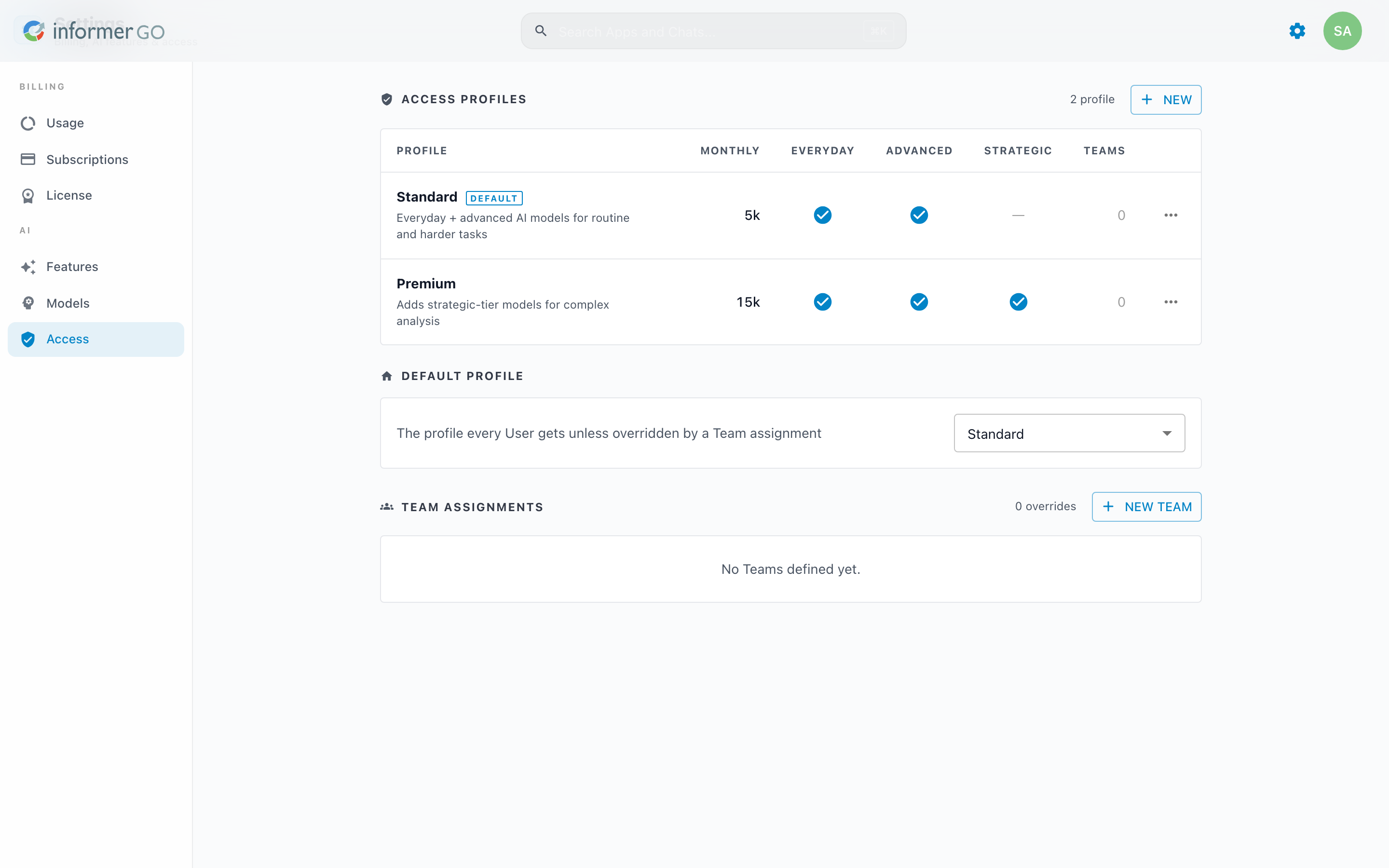
The Access page controls who can use AI and how much they can spend. You define access profiles, each with a monthly credit cap and a set of allowed model tiers, then assign them to Teams, with a system-wide default for everyone else.
Reach this page from Settings in Informer GO, or from AI & Billing in the classic web client's top navigation.
Access profiles
An access profile bundles a monthly credit cap with the model tiers it allows (Everyday, Advanced, Strategic). The Access Profiles table lists each profile with its monthly cap, a check or dash per tier, and how many Teams use it. Create a profile with New, then set its name, description, and Monthly credit cap. A profile cannot be deleted while it is the default or assigned to any Team.
The cap has three settings, and two of them look similar at a glance:
| You want | Set the cap to | The table shows |
|---|---|---|
| No monthly limit | Leave it blank | The infinity symbol |
| A monthly allowance | The number of credits | That number, abbreviated |
| No credits at all | 0 | Blocked, in red |
A cap of 0 is not the same as leaving the field blank. It grants no monthly credits, so the profile denies credit-metered AI requests. The form warns you while the cap is 0, and the table calls it out, so a suspended profile is never mistaken for an uncapped one.
The tier list can suspend a profile the same way. Clear every tier and the profile allows no tiered model at all, whatever the cap says and whoever is paying, so the form warns you and the table shows the empty tier row in red.
A profile describes what it grants on its own. A User who belongs to more than one Team gets the most permissive combination of those Teams' profiles: the highest cap (or no cap at all, if any of them is uncapped) and every tier any of them allows. So suspending one profile does not necessarily suspend the Users on it; check their other Teams too.
The cap is an AI allowance. Only AI usage (chats, other AI requests, and agent runs) counts toward it. Compute charged to a User, for the Jobs they own and the Apps they use, still draws on the credit pool, but it never uses up their cap.
The default profile
The Default Profile is the profile every User gets unless their Team overrides it. Choose a profile, or choose No default (deny access) so that Users without a Team assignment get no AI access at all.
Team assignments
The Team Assignments section lists the Teams that override the default and the profile each one uses; a Team that is not listed inherits the system default. Use Add override to pick a Team and the profile it should get, change an override from the row's dropdown, or choose Use system default there to remove it. New Team creates a Team from here, and each row links to manage that Team's members. Changes take effect immediately.
Team membership is what hands a User the Team's profile, so anyone added to a Team picks up its tiers and its share of your credit pool. Assigning a profile to a Team needs the billing permission, while adding members needs only Team admin, so the add-members dialog states what a new member will inherit before you add them. Team admins can read their own Team's profile for exactly that reason.
Before 2026.1, AI access and per-User or per-Team spending limits were set in the classic AI section of Administration. That experience is described in AI before 2026.1.