Installing Informer (Windows)
The current version of Informer 5 is version 2026.1.5
This guide covers how to use the Informer Setup wizard to install Informer on a Windows Server. It checks the machine first, installs the services Informer needs (PostgreSQL, Elasticsearch, and Redis), writes the configuration, and registers Informer as a Windows service. Read Read me first before you begin.
That release used a different, console-prompt installer. See Installing Informer (Windows, 2025.2.15 and earlier).
Before you begin
A few of the installer's questions are awkward to change afterwards, so settle them first.
- Confirm the server meets the System requirements, and have your license file to hand, per Read me first.
- Where will PostgreSQL and Elasticsearch run? The installer looks for both on this server and reuses what it finds; otherwise it installs them here. To use servers you already run centrally, have each one's host and port ready, plus a PostgreSQL superuser and password the installer can connect with.
- HTTPS now or later? The installer can configure HTTPS during the install if you have the certificate and its private key as separate files. If the certificate is not ready, or you hold it as a PFX, leave Serve Informer over HTTPS clear and set it up afterwards with Configuring HTTPS (Windows). Nothing is lost by deciding later.
- Run the installer as the local Administrator account, or an account with administrative rights. Using the same account for installs and later upgrades keeps permissions consistent.
Download the Informer Setup Wizard
The Informer Setup Wizard can be downloaded at the following link:
Informer Setup (~2 GB)
It downloads as a zip; unzip it on the server, then right-click the executable and choose Run as administrator.
Install time on Windows is significantly affected by anti-virus software, which scans each file as it lands. This can turn a 20-to-30-minute installation into upwards of 2 hours.
Step 1: Welcome
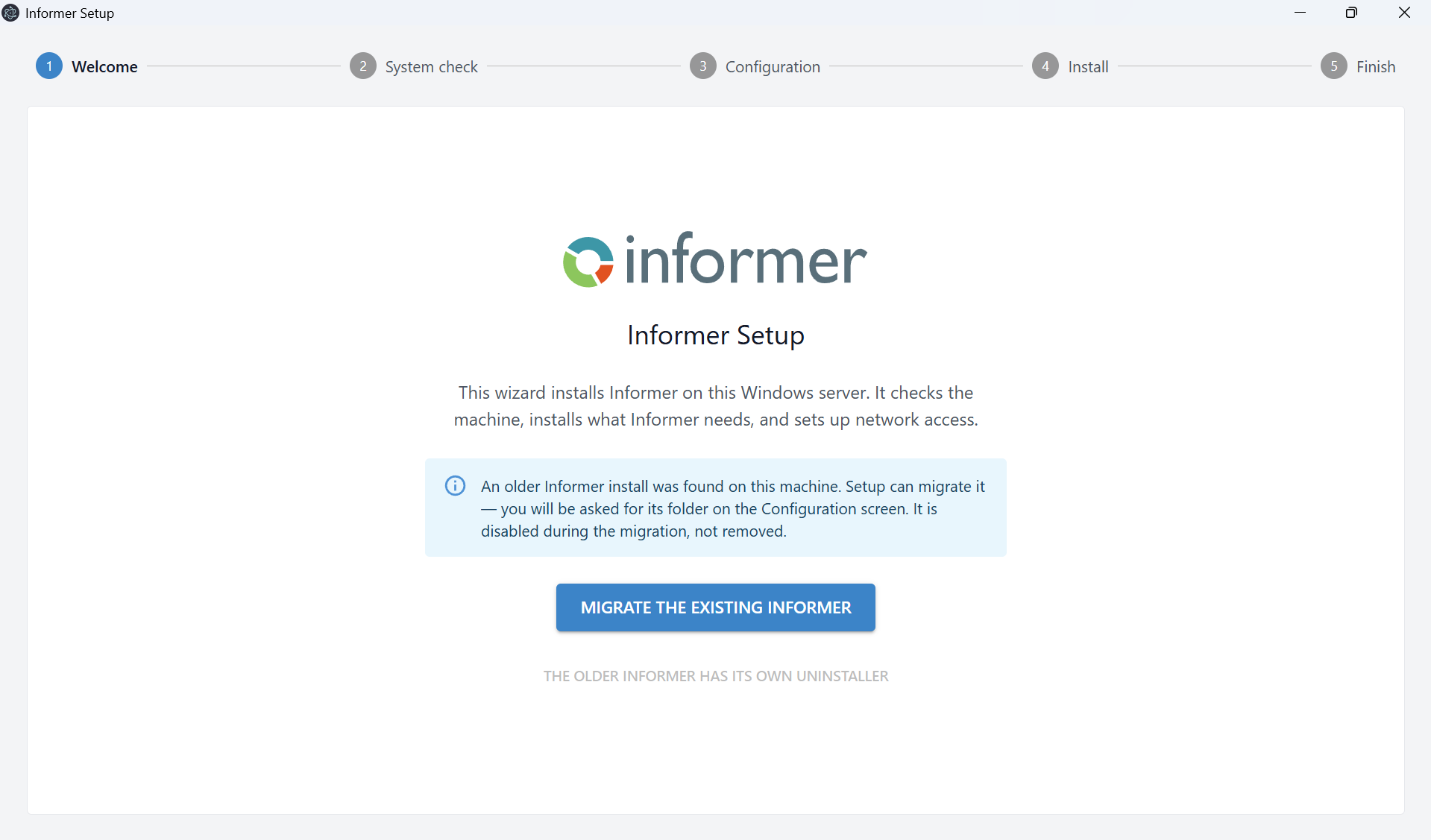
The welcome screen states what the wizard will do. If the installer finds an Informer installed by an older installer, it says so and offers to migrate it; see Upgrading Informer (Windows) for more information. The rest of this article describes a new installation.
Step 2: System check
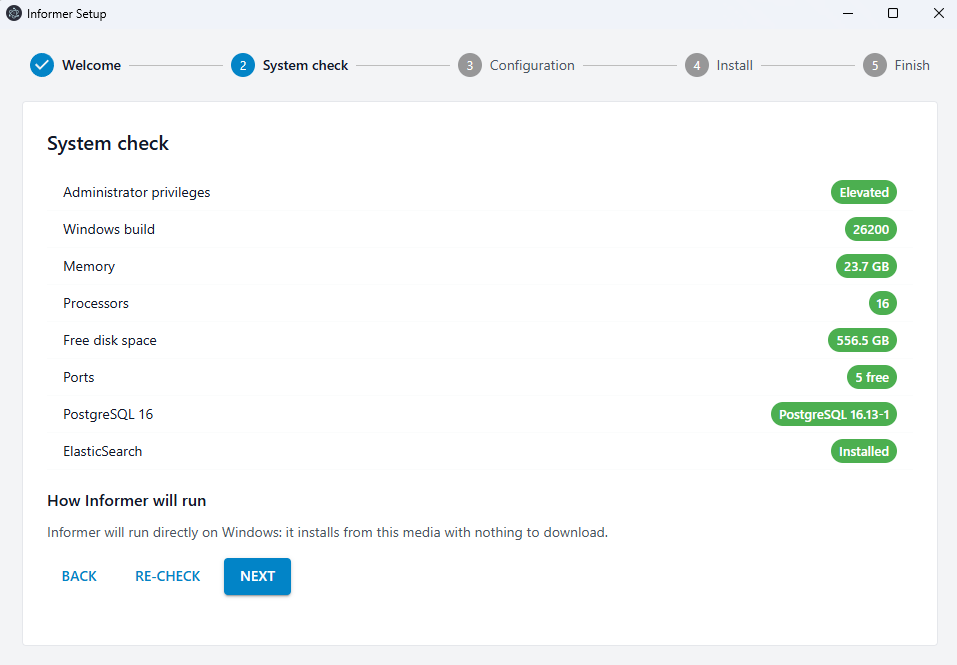
The installer inspects the machine and reports each finding. Anything that would block the install is flagged, and Re-check re-runs the inspection after you fix something, without restarting the wizard.
| Check | What it means |
|---|---|
| Administrator privileges | Whether the installer is running elevated. It cannot install services otherwise. |
| Windows build | The OS build number. Informer needs Windows Server 2016 or newer. |
| Memory | Physical RAM. Compare against the System requirements. |
| Processors | Logical processors available. |
| Free disk space | Space on the target drive. Informer's data grows over time, so treat the check as a floor rather than a target. |
| Ports | Whether the ports Informer needs are free. A port already in use is reported here rather than failing part way through the install. |
| PostgreSQL 16 | An existing PostgreSQL 16, if the installer finds one, which it reuses. |
| ElasticSearch | An existing Elasticsearch, if the installer finds one, which it reuses. |
Below the checks, How Informer will run confirms that Informer will run directly on Windows, as a Node.js application installed from the setup media with nothing to download.
If you close the installer part way through, running it again returns you to the step you reached (Configuration at the latest) with your answers filled in. Passwords are not saved, so enter them again. If the saved answers cannot be used, setup returns you no further than the System check, which says Setup could not restore your saved answers; review each step before installing.
Step 3: Configuration
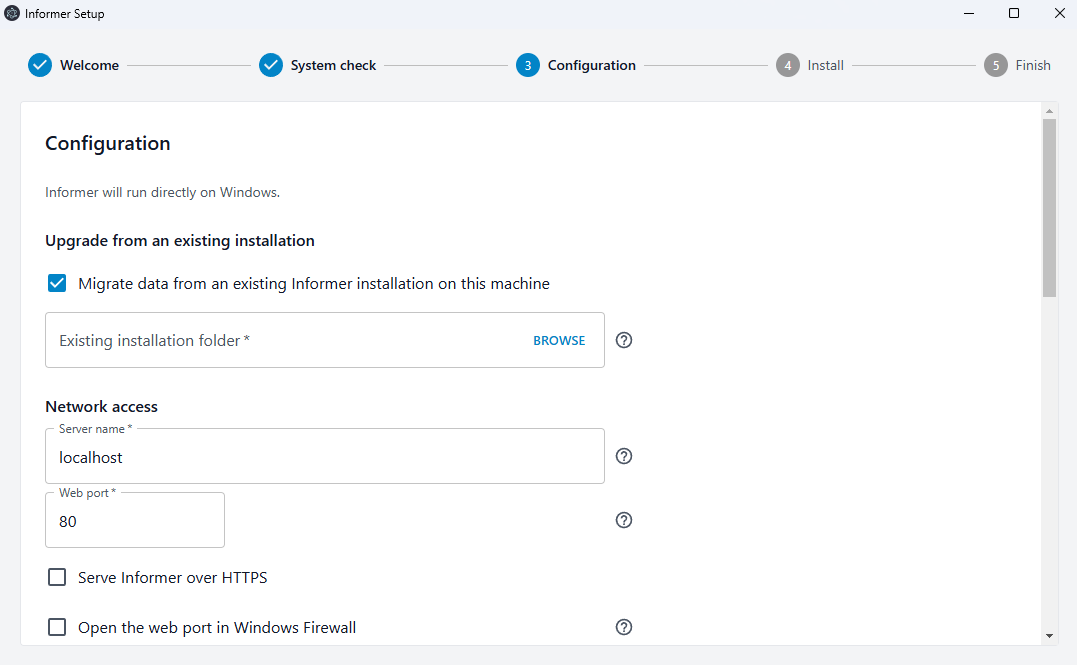
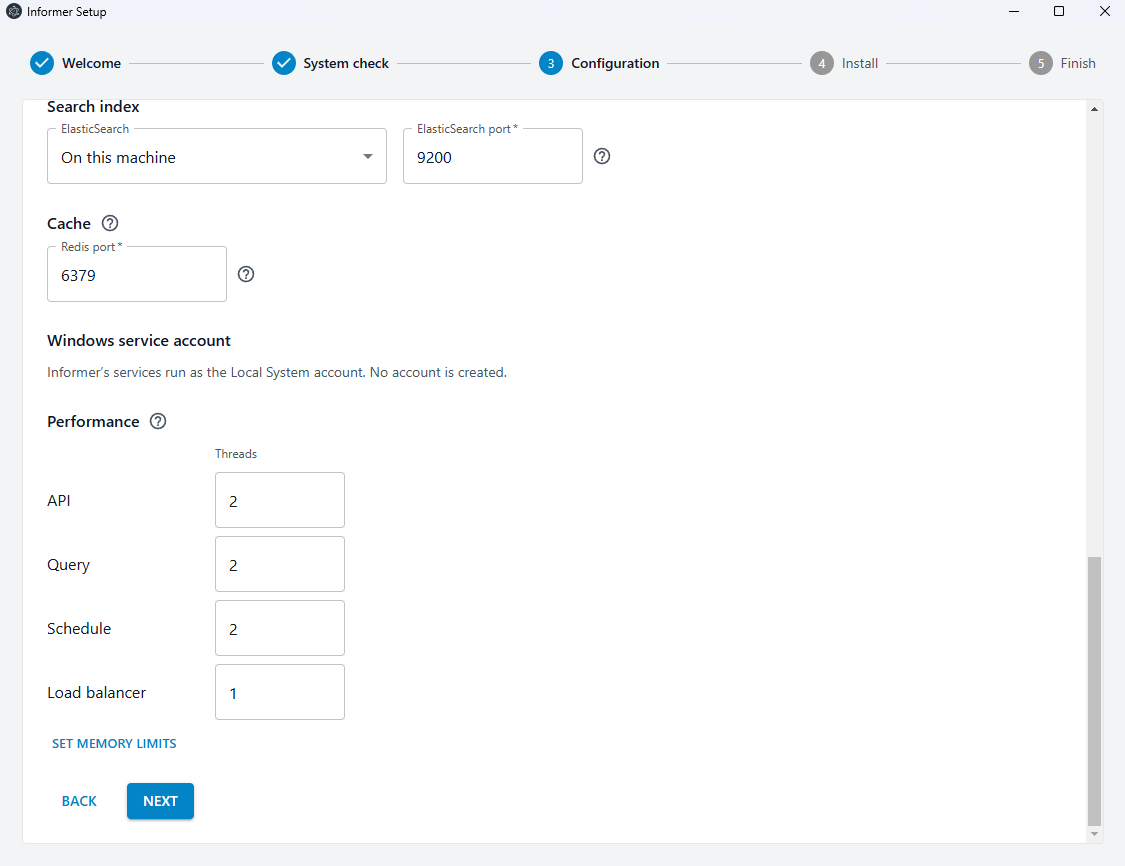
The Configuration screen collects everything the installer needs. Every field has a ? that explains it in place.
Upgrade from an existing installation
Leave Migrate data from an existing Informer installation on this machine clear for a new installation. Setting it adds an Existing installation folder field and pre-fills the rest of the screen from that installation, the path Upgrading Informer (Windows) walks through.
Network access
| Field | Default | What to enter |
|---|---|---|
| Server name | localhost | The name browsers will use to reach Informer, without http:// or https://. |
| Web port | 80 | The port Informer serves on. The System check reports a port already in use. |
| Serve Informer over HTTPS | cleared | Set it to serve over HTTPS and supply a certificate and key. If your certificate is not ready, or is in PFX format, leave it clear and set HTTPS up later from Configuring HTTPS (Windows). |
| Open the web port in Windows Firewall | cleared | Set it to have the installer add the firewall rule. Left clear, the installer adds no rule, and inbound access stays yours to configure. |
Installation
| Field | Default | What to enter |
|---|---|---|
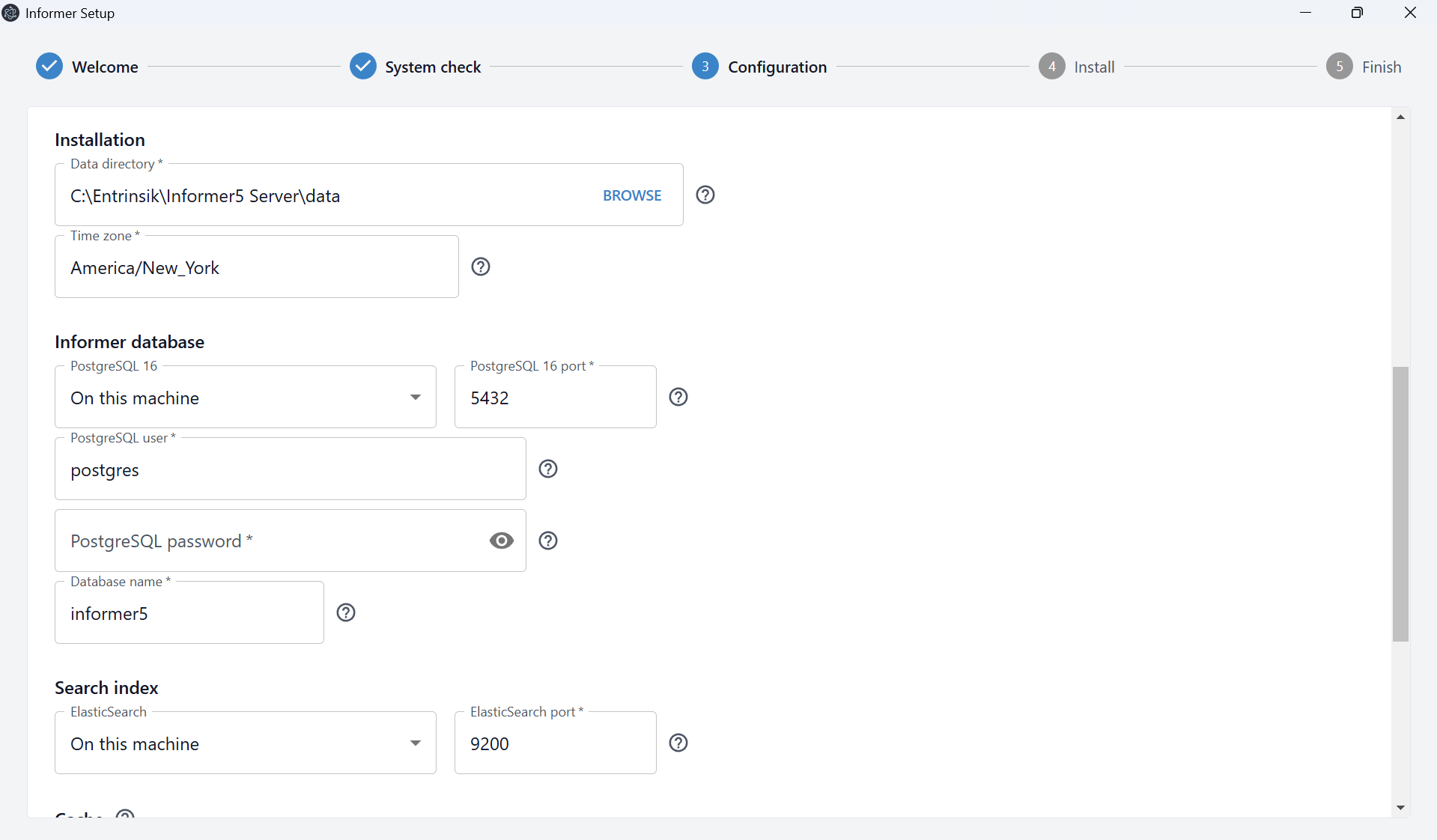
| Data directory | C:\Entrinsik\Informer5 Server\data | Where Informer keeps your configuration, logs, and encryption key. It persists across upgrades. The application itself sits beside it under C:\Entrinsik\Informer5 Server\runtime\, with Elasticsearch and the service, and is replaced on upgrade. |
| Time zone | the server's zone | The zone Informer schedules Jobs in. |
Informer database
| Field | Default | What to enter |
|---|---|---|
| PostgreSQL 16 | On this machine | Where PostgreSQL runs. Point it elsewhere if the database is on another server. |
| PostgreSQL 16 port | 5432 | The PostgreSQL port. |
| PostgreSQL user | postgres | The PostgreSQL superuser the installer connects as. |
| PostgreSQL password | none | That user's password. The installer verifies it before the long steps run, so a wrong password is caught in seconds rather than after a multi-gigabyte extract. |
| Database name | informer5 | The Informer database. It holds Informer's own records: Datasource settings, Mappings, Dataset definitions, and so on. |
Search index
| Field | Default | What to enter |
|---|---|---|
| ElasticSearch | On this machine | Where Elasticsearch runs. |
| ElasticSearch port | 9200 | The Elasticsearch port. |
Cache
Redis port (default 6379) sets the loopback port Informer's built-in Redis listens on. Redis runs as one of Informer's Windows services, on this machine only, so there is nothing to install. Change the port only if something else on the server already uses it.
Windows service account
Informer's services run as the built-in Local System account. There is no account to choose or create, so this section is informational.
Performance
The Threads for API, Query and Schedule each default to 2. They set how many processes handle API and UI requests, query requests, and scheduled Jobs. Keep the defaults unless Entrinsik Support has advised otherwise, and see Configuring the Load Balancer (Windows) for what they do.
The section also has a Load balancer row (except on a server migrated as a single application, which has no Load Balancer), and Set memory limits adds Heap (MB) and Restart (MB) columns. Left at Not set, Node's default heap applies and threads are not restarted for memory; see Increasing Informer memory allocation.
Step 4: Install
The installer lists the steps it will run, then runs them in order when you choose Begin installation. Show diagnostics reveals the live log, which is worth turning on if a step is taking longer than you expect.
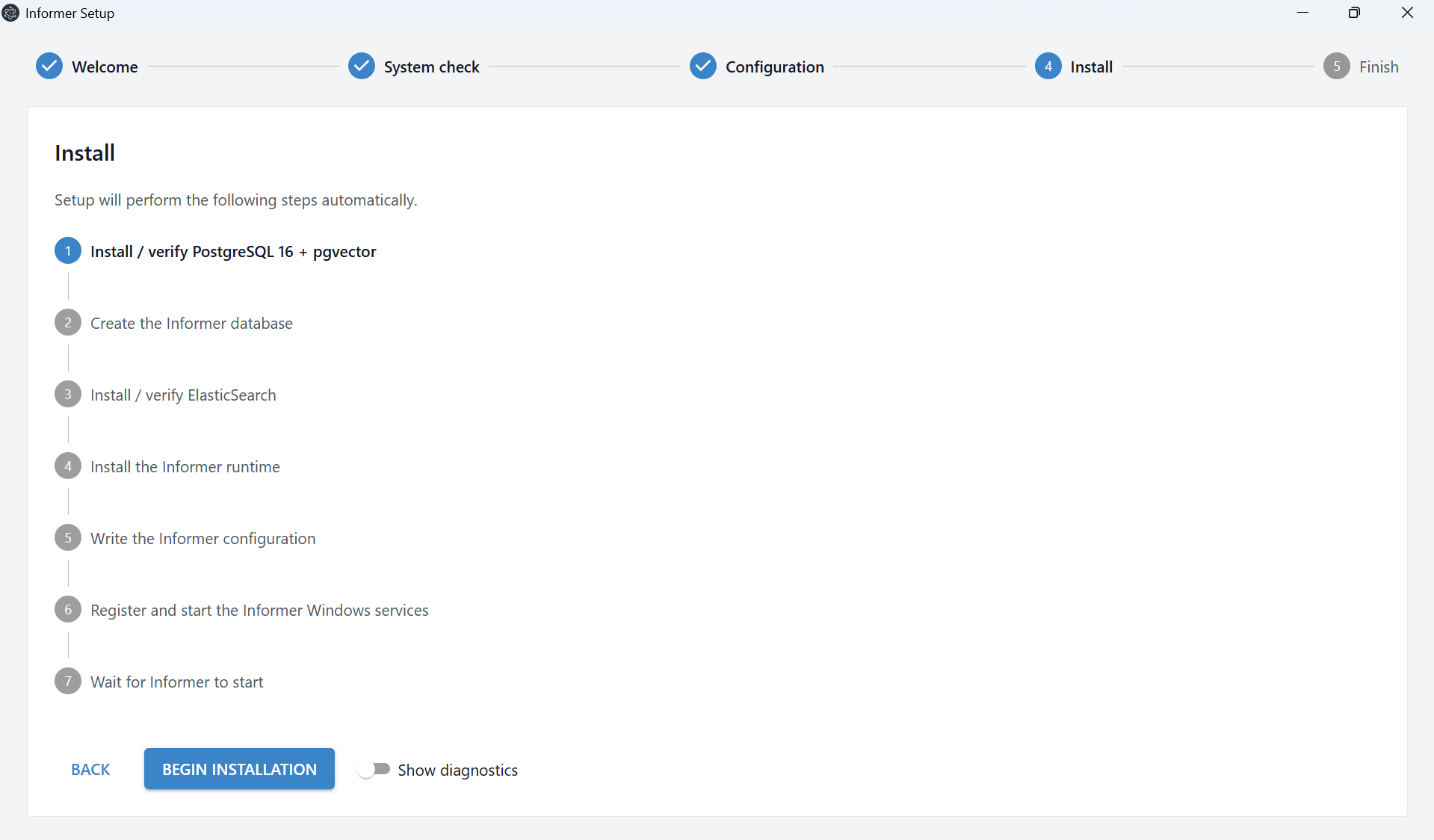
- Install / verify PostgreSQL 16 + pgvector
- Create the Informer database
- Install / verify ElasticSearch
- Install the Informer runtime
- Write the Informer configuration
- Register and start the Informer Windows services
- Wait for Informer to start
PostgreSQL and Elasticsearch are verified, not installed, when the System check already found them. Open firewall ports runs at the end when you set that checkbox on the Configuration screen.
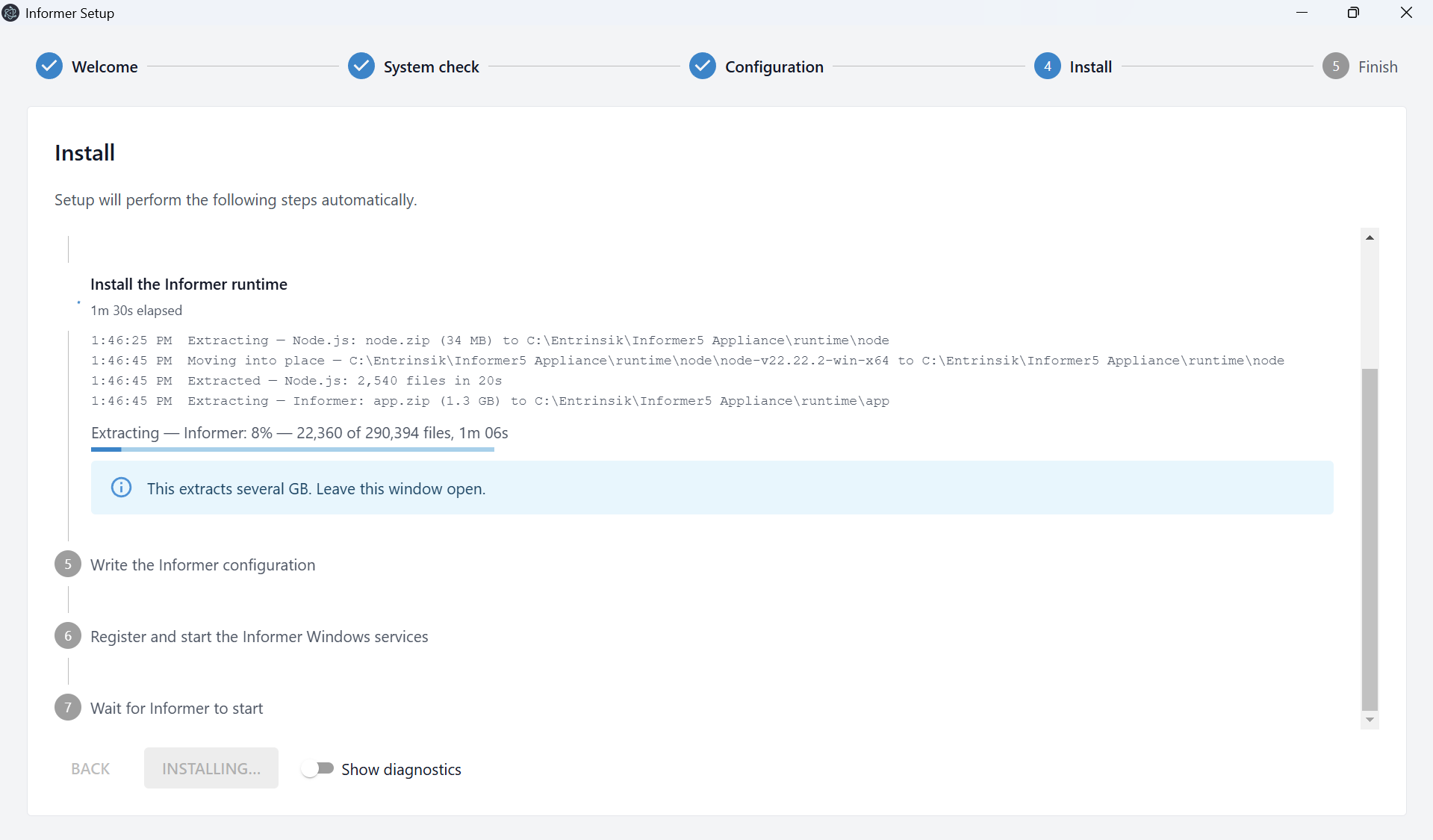
Install the Informer runtime is the longest step, since it extracts several gigabytes. Leave the window open.
Step 5: Finish
The installer reports Setup complete, or Setup complete, with warnings when something non-fatal needs your attention, and gives you the address Informer is now serving on, built from the server name and port you set.
Sign in with the default credentials:
- Username:
admin - Password:
123
After installing
- Set the Elasticsearch memory allocation. Elasticsearch defaults to half the server's memory. For a deployment on the minimum hardware, 4 GB is the suggested allocation. See Elasticsearch 7 & 8 on Windows memory configuration.
- Know where the logs are. Informer writes one log file per role to
logsunder the data directory. The services the installer registered, and the roles behind them, are listed in Configuring the Windows service. - To add a Plugin, see Installing Plugins.
Uninstalling
Run the installer again and choose Remove the existing installation on the welcome screen. It stops and removes the Informer services, the firewall rules it added, and the runtime under C:\Entrinsik\Informer5 Server\runtime.
Two things stay on the server:
- Your data directory, unless you tick Also delete all Informer data in the folder below. Deleting it cannot be undone. The installer copies the encryption key out first, because it is still needed to read the credentials stored in the database.
- PostgreSQL and Elasticsearch, which hold Informer's data. Elasticsearch's files stay under
C:\Entrinsik\Informer5 Server\elasticsearch. Remove both from Apps & features if you no longer need them.
To reinstall from scratch, uninstall with the data checkbox ticked, then run the installer again.
Troubleshooting
- A port is reported as in use. Something else on the server holds it, often IIS or Apache on port 80. Free the port or choose another, then use Re-check.
- The installer will not move past the database step. The PostgreSQL password is wrong, or the server named is unreachable. The installer checks this early, before anything is extracted.
- The install stalls on the runtime step. It extracts several gigabytes and anti-virus scanning makes it much slower. Turn on Show diagnostics to confirm it is still making progress.
- Informer does not start at the end. The installer says which roles did not become healthy and points at the log directory. Read the role logs, then stop and restart the Informer Windows service. See Configuring the Windows service.