Upgrading Informer (Windows)
The current version of Informer 5 is version 2026.1.5
This guide covers how to use the Informer Setup wizard to upgrade Informer on a Windows Server. The upgrade method depends on which installer built the deployment you already have.
Coming from the older console installer - the Informer Setup wizard migrates instead of upgrading in place. It installs alongside the old deployment in a new directory, brings your data across, and disables the old Informer service without deleting anything, so you can go back to it if you need to.
Already on Informer Setup - the Informer Setup wizard reuses the directories you have. The application is replaced, your data directory is left alone, and no second installation appears. See Upgrading again later.
Running Informer in containers (WSL 2) - see Servers running Informer in containers.
If you have questions, contact Informer Support at i5support@entrinsik.com.
Still on 2025.2.15 or earlier, and staying there?
Upgrading within those releases used the older console-prompt installer in Upgrade mode. See Upgrading Informer (Windows, 2025.2.15 and earlier).
If you are upgrading from Informer 5.4 or earlier, contact Informer Support at i5support@entrinsik.com before you proceed.
Prerequisites
If you use Plugins, contact Support to verify compatibility with your target Informer version before upgrading.
- Verify the host server meets the System requirements.
- Do not use third-party tools to update or patch Informer's components (Java, Node, PostgreSQL, Redis). Doing so can break the deployment.
- Use the same account that installed Informer to perform the upgrade, so permissions stay consistent.
- The installation must have an encryption key. The installer carries across the key the old installation runs on: the
tokenSecretin itsconfig.jsonif it has one, otherwise thedefault.cryptin itsetcfolder or at its root. That key decrypts every encrypted value in the database, so an installation with neither cannot be migrated. If the installation has anew.crypt, a token secret rotation is pending or was never cleaned up: finish it, including its cleanup step, first. The installer readstokenSecretfromconfig.jsononly, so if yours is set by an environment variable or a service argument, move it intoconfig.jsonordefault.cryptbefore you upgrade. Please see Token Secret Rotation for more information.
Download the Informer Setup Wizard
The Informer Setup Wizard can be downloaded at the following link:
Informer Setup (~2 GB)
It downloads as a zip; unzip it on the server, then right-click the executable and choose Run as administrator.
Back up Informer
Back up the Informer metadata before upgrading. See Backups and restores (Windows).
Run the migration
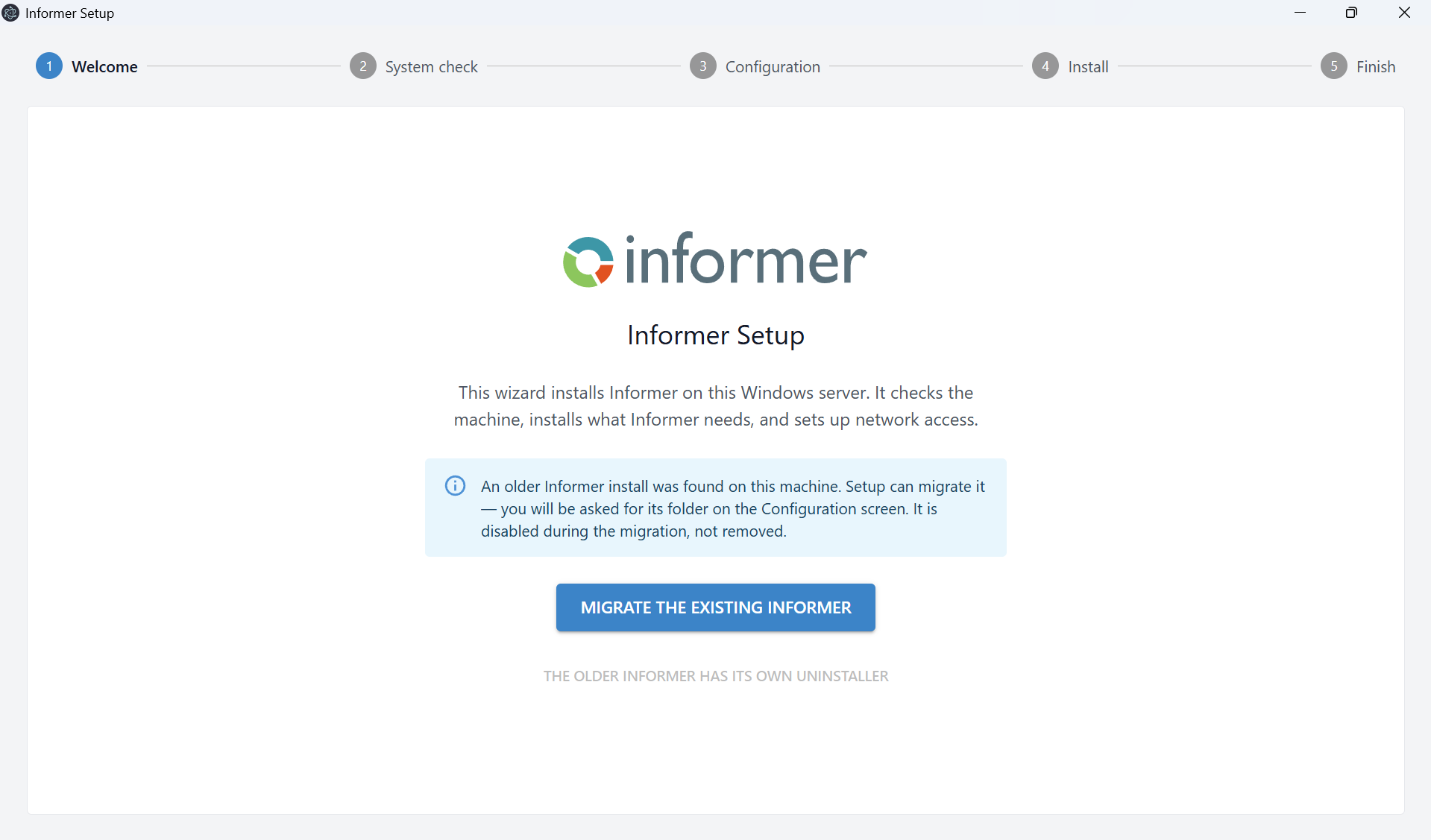
1. Welcome
The installer detects the existing installation and says so, offering to Migrate the existing Informer. You are asked for its folder on the Configuration screen.
2. System check
The installer inspects the machine. An existing PostgreSQL and Elasticsearch are detected here and reused, not installed a second time. Below the checks, How Informer will run confirms that Informer will run directly on Windows.
3. Configuration
Set Migrate data from an existing Informer installation on this machine, then point Existing installation folder at the installation you are upgrading. The installer reads its configuration and pre-fills the rest of the screen.
You supply the PostgreSQL password yourself. The installer verifies it before proceeding to the next step.
When PostgreSQL runs on this machine, the installer also checks that the old installation's encryption key matches its database, and stops on this screen if it does not. Nothing has changed at that point, and the old Informer is still running.
The remaining fields are populated using the options defined for the existing installation.
What carries over from service.config.json
The older installer ran each Informer thread type as a PM2 app in service.config.json. The installer reads that file and keeps what each app ran:
- Thread counts from
instances, in the Performance section.maxbecomes this server's CPU count, and counts above 64 are lowered to 64. - Memory: the
--max-old-space-sizeinnode_argsand themax_memory_restartthreshold, in the Heap (MB) and Restart (MB) columns, which are shown when either is set. See Increasing Informer memory allocation. - Layout and ports: custom
--httpports, the Load Balancer rules inconfig.json, schedules running on the query threads, and Informer running as a single application without the Load Balancer. A single application cannot use HTTPS, because HTTPS is served by the Load Balancer. - Other settings: any other
node_args, scriptargs, andenvvalues. The screen lists them under "These settings in its service.config.json are carried over as they were:".
Settings the new service cannot use are listed under "These settings in its service.config.json are not carried over:", so you can review them before you begin. Examples are PM2 options such as cron_restart, settings the installer manages itself (such as --config in args or TZ in env), and environment values that point into the old installation folder. The port users reached is listed when it differs from the http in config.json: an --http port on the Load Balancer or on a single application, or port 3000 when neither config.json nor the args name one. The migrated server listens on the Web port field, which is filled from config.json, so change that field if users reached the old server on the listed port.
If the files describe something the installer cannot reproduce, such as a Load Balancer rule that sends requests to another server, Existing installation folder shows "That installation's service.config.json cannot be carried over:" and the reason. Where the reason names a fix, make it and choose the folder again; otherwise contact Support at i5support@entrinsik.com before you continue.
4. Install
Choose Begin installation. The installer stops the running Informer before it lays down the new runtime, and disables the old Informer service so the two versions cannot both run against the same database. The runtime step extracts several gigabytes, and anti-virus scanning can stretch a half-hour upgrade to a couple of hours; leave the window open.
5. Finish
The installer reports Setup complete and gives you the address Informer is serving on. Sign in and confirm the deployment before you retire the old installation.
After the upgrade
- Check your Plugins. Confirm each one loaded before you rely on it. For where they live, and how to put one back, see Installing Plugins.
- You may need to update the Informer service's dependencies before it will start. See Configuring the Windows service.
- Keep the old installation until you are satisfied. Removing it is a separate step.
Upgrading again later
Once you are on this installer, later upgrades reuse the existing directories: the application is replaced, the data directory is left alone, and no second installation appears.
Servers running Informer in containers
The installer runs Informer directly on Windows only. Upgrading a server set up with the experimental In containers (WSL 2) option switches it to run directly on Windows, and the welcome screen and the System check both say so before anything changes. The data directory, database and encryption key are kept, and the existing services are replaced. Answers saved by an earlier installer for the containers option are discarded, and the System check says Your saved answers were for a runtime this installer does not offer, so they were discarded; review each step before installing.
Before upgrading, check the plugins entries in the data directory's config.json. The containers downloaded those plugins when they started, but Informer running directly on Windows does not, and an entry it cannot load stops it from starting. Remove each entry before upgrading, and after the upgrade reinstall any plugin you still need as described in Installing Plugins (Windows).
The upgrade leaves the WSL distribution, its disk image, the service account it ran under and two firewall rules that admit the WSL network to PostgreSQL and Elasticsearch in place. It may also leave a pg_hba.conf rule for that network. Once Informer is confirmed working, remove them from an elevated PowerShell prompt:
- If setup created the service account (
informer5svcby default), reset its password, since setup never keeps it:net user informer5svc * - Unregister the distribution as that account:
runas /user:"$env:COMPUTERNAME\informer5svc" "wsl --unregister informer-distro" - If setup created the account, delete it:
net user informer5svc /delete - Remove the firewall rules:
Remove-NetFirewallRule -DisplayName 'Informer 5 Seam (WSL)', 'Informer 5 Seam Search (WSL)' - If the PostgreSQL data directory's
pg_hba.confhas a block from# BEGIN informer-applianceto# END informer-appliance, delete it, then reload PostgreSQL by runningSELECT pg_reload_conf();in psql as a superuser. - Delete
C:\Entrinsik\Informer5 Appliance\serviceandC:\ProgramData\Informer5\wsl. Do not delete the data directory, even when it is underC:\Entrinsik\Informer5 Appliance: Informer still uses it.
If you run into issues with an upgrade, contact Support at i5support@entrinsik.com.